

Recover a recording that didn't finish uploading
Clevera keeps a copy of every recording on your computer until it has uploaded. What each upload card means, how to upload, show or delete a recording that's waiting, where the copy lives, and how long it's kept on a Mac and on Windows.
Your recording is safe. Clevera saves every recording on your Mac or PC first and keeps that copy until Clevera confirms the upload, so a lost connection, a sign-out or even a crash doesn't lose it. This article explains what each upload card means and how to finish, find or delete a recording that's waiting.
How Clevera keeps your recording
- Everything you record is written to a folder on your computer while you record.
- Parts upload during the recording; the rest uploads when you stop.
- The local copy is removed only once the upload is confirmed, or when you delete the recording yourself.
What the card says and what to do
The upload card appears in the top-right corner of your screen. The ✕ on a problem card only hides it ("Hide (the recording stays on this Mac)" or "…on this PC"); the recording then waits under Waiting to upload in the Clevera menu.
Upload paused
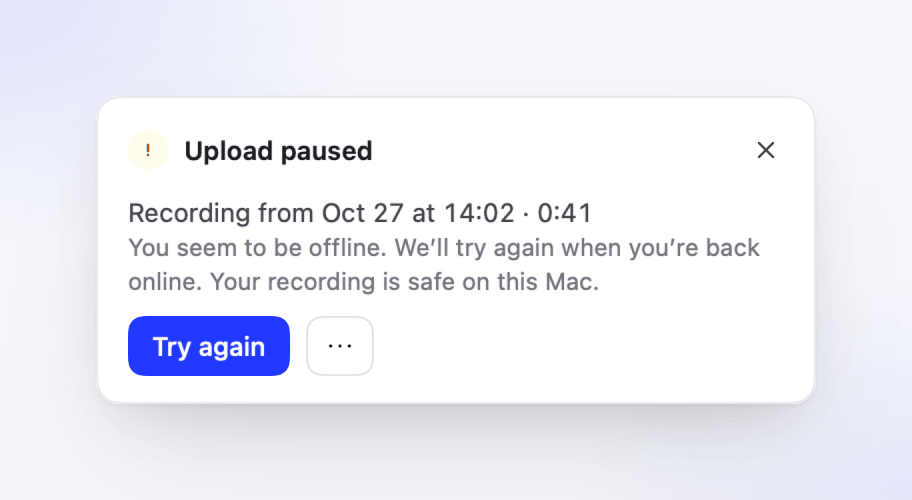
The card says "You seem to be offline. We'll try again when you're back online." or "We couldn't reach Clevera. We'll try again soon.", followed by "Your recording is safe on this Mac." (or "…on this PC.").
You don't need to do anything: Clevera tries again by itself, and right away when your connection comes back. Click Try again to retry now.
Couldn't upload this recording
The card shows the reason, then "Your recording is safe on this Mac." (or "…on this PC."). Check your connection, then click Try again.
| Reason | What it means |
|---|---|
| "Something went wrong while finishing the upload." | Try again. If it keeps failing, report the problem. |
| "Clevera couldn't confirm your sign-in." (Mac) | Click Try again, or sign in again. |
| "Clevera couldn't find this recording's files." | The local files were moved or deleted, so this recording can't be uploaded. |
| "This workspace doesn't accept your recordings any more." | Your role or access in that workspace changed. See below. |
When Clevera's server refused the recording, for example because you no longer have access to the workspace or the recording is damaged, trying again won't help. The card then has only Show in Finder (Mac) or Show in File Explorer (Windows) and Delete…. Ask your workspace owner about your role; only owners, Administrators and Content Creators can record. See Roles and creator seats.
Clevera retries a paused upload on its own after 30 seconds, then after 1, 2, 5 and 10 minutes, and whenever your Mac comes back online.
Clevera retries a few times within the first minute. If Clevera still can't reach the server, the card changes to Couldn't upload this recording: click Try again. While your PC is offline the card stays on Upload paused and continues when you're back online.
Sign in to upload
A recording only ever uploads to the account that made it. If you were signed out, or another account is signed in now, the card says Sign in to upload and "Your recording is safe on this Mac." (or "…on this PC."). Click Sign in and sign in with the account you recorded with; the upload continues on its own.
We kept your recording
Clevera shows this card when a recording ended in an unusual way. Everything recorded up to that point is saved:
- "Clevera closed before the recording finished. Everything recorded is saved. Upload it, or delete it if you don't need it." appears after a crash, a forced quit or a power cut during a recording.
- After a capture problem, the card names the reason, for example:
- "Clevera couldn't keep saving the video (for example, the disk is full)."
- "The microphone stopped working (for example, it was disconnected)." (Mac) or "Part of the recording couldn't be finished (for example, the microphone was disconnected)." (Windows)
- "macOS stopped the screen capture (for example, a display was disconnected or screen recording permission was turned off)." (Mac)
- "The video couldn't be finished cleanly, so the last moments may be missing." (Mac)
- "The recording stopped unexpectedly."
- When you record an iPhone or iPad (Mac), the reason can also be:
- "Your iPhone was disconnected, so the recording stopped." (or iPad): the cable came out or the connection dropped.
- "Your Mac went to sleep, so the recording stopped."
- "macOS stopped the recording of your iPhone or iPad (…)."
Click Upload to send it, Show in Finder or Show in File Explorer to see the files, or Delete… if you don't need it. On Windows, Show in File Explorer and Delete recording… are under ⋯ More actions.
Delete a recording
Deleting asks first: "Delete this recording?" and "It's removed from this Mac and can't be recovered." (or "…from this PC…"). Click Delete to remove the local copy. Nothing reaches your workspace.
Find a recording that's waiting
Recordings that are waiting for you (a failed upload, a kept recording, or one waiting for sign-in) are listed in the Clevera menu under Waiting to upload, as "Recording from" and the date. Open the menu from the Clevera icon in the menu bar (Mac) or right-click it in the notification area (Windows). The recorder's ⋯ menu has the same list.
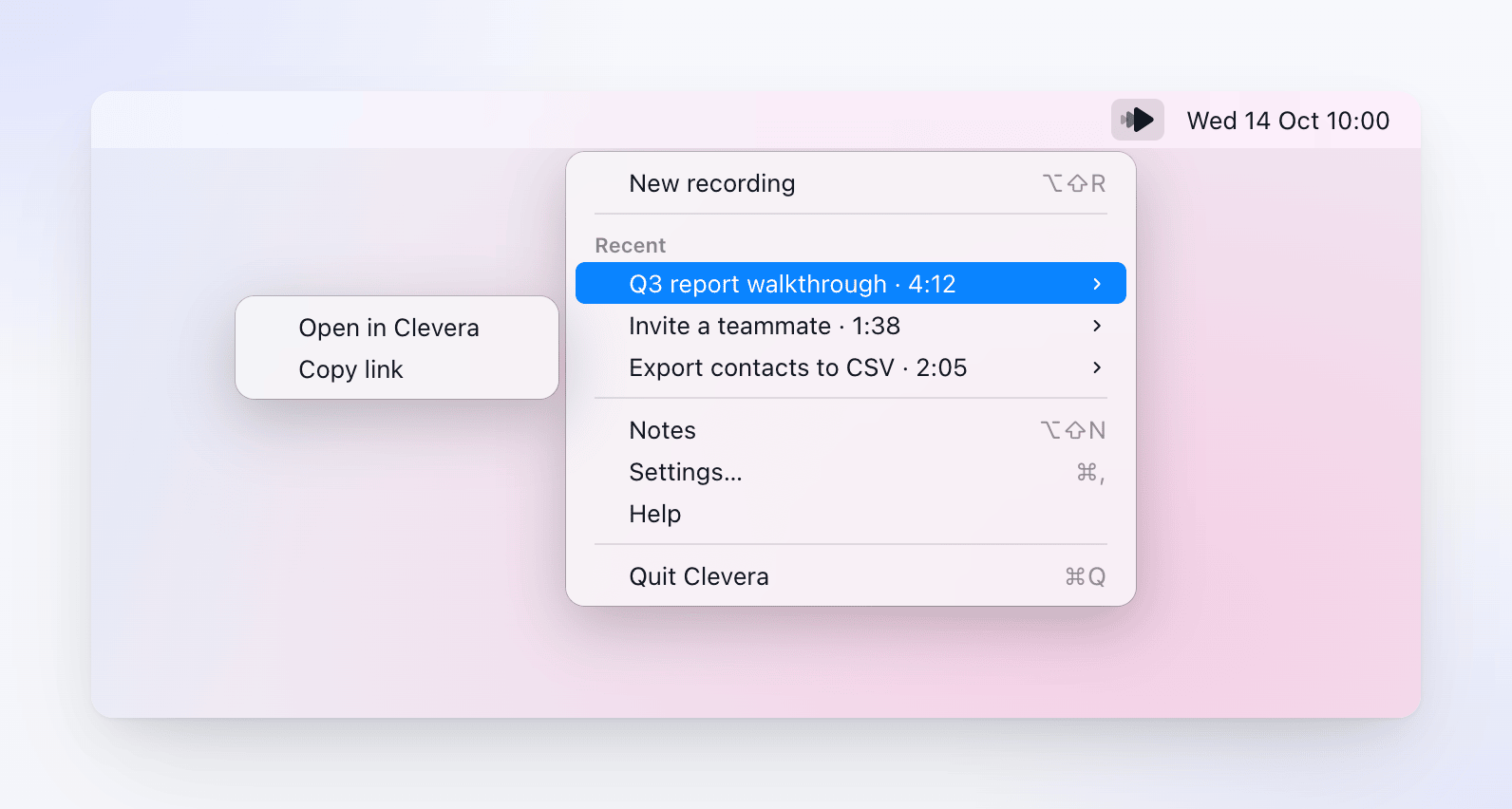
Point to a recording to choose:
- Upload now: tries the upload again.
- Show files: opens its folder in Finder.
- Delete recording…: deletes it after asking.
@tab Windows Point to a recording and choose Show files to open its folder in File Explorer. To upload or delete it, use the buttons on its upload card. If you hid the card, it comes back the next time you open Clevera.
When the oldest waiting recording is more than a week old, the heading changes to, for example, "2 recordings waiting since October 21". On a Mac, upload or delete those now: Clevera deletes them the next time it opens.
When Clevera opens again
If Clevera closed while a recording was uploading, the upload resumes the next time Clevera opens and you're signed in with the account that made it. A recording that was interrupted by a crash, or that was waiting for you to choose Upload or Delete, comes back as a We kept your recording card. If Clevera opens to Setup or the sign-in window first, the cards appear once you finish.
Where the local copy is
| macOS | Windows | |
|---|---|---|
| Folder | ~/Library/Application Support/com.clevera.ai.recorder/PendingUploads/ |
%LOCALAPPDATA%\Clevera\Pending\ |
| One folder per | recording | recording |
| Kept until | it uploads, you delete it, or it's more than 7 days old (deleted at the next launch) | it uploads or you delete it |
To see how much is waiting, open Settings → Advanced → Recordings on this Mac (or Recordings on this PC). It shows, for example, "2 recordings · 1.2 GB" or "None waiting to upload", with Show in Finder or Show in File Explorer.
Before you quit
Clevera asks before quitting would interrupt a recording or an upload:
| When | Clevera asks | Your choices |
|---|---|---|
| You're recording | "You're still recording." / "Stop and upload what you've recorded, or keep recording." | Keep recording, or Stop and quit: Clevera saves the recording, quits, and uploads it the next time it opens. |
| A recording is uploading | "Your recording is still uploading." / "It finishes the next time you open Clevera." | Keep uploading or Quit. |
On a Mac, if a failed upload has no local copy, Clevera warns "Your recording hasn't uploaded." before quitting. On Windows, signing out of Windows or shutting down during a recording stops the recording and keeps it.
If your disk fills up
- Clevera won't start a recording with less than 1 GB free ("Free up space to record."), and warns "Long recordings may not fit." below 5 GB.
- During a recording, below 2 GB the bar says "Your disk is almost full" and "Stop soon to keep this recording." with Stop and upload.
- Below 500 MB, Clevera stops the recording itself and keeps it: "We stopped because your disk is almost full. Your recording is saved." It then uploads as usual.