

Save videos to Google Drive
Connect Google Drive and save a finished Clevera video as an MP4 into a Clevera folder in My Drive, named after the video, with a subfolder for its collection. Clevera only sees the files it creates.
Save a finished Clevera video into your Google Drive as an MP4 file. Clevera names the file after the video and puts it in a subfolder named after the video's collection. Clevera only ever sees the files and folders it creates: the rest of your Drive stays out of reach.
For how publishing works across every platform, see Publish videos to your platforms.
What lands where
| Where it goes | My Drive / Clevera / <collection name> / <video title>.mp4 by default. |
| Sharing | None. The file follows the sharing of the folder it's in, which is private by default. |
| What Clevera fills | File name (the video title) and Subfolder (the collection). No AI writing. |
| What it costs | No per-send fee. |
| After you send | The status goes straight to Saved to Google Drive. Open in Google Drive opens the file. |
Before you start
- Plan. Publishing is part of the Pro plan and above.
- Role. Only workspace owners and admins can connect or disconnect an account. Anyone who can edit a video can save to an account that's already connected.
- Account. A personal Google account or a Google Workspace account. On Workspace, your admin may need to allow third-party apps.
Connect Google Drive
Open Integrations
Open Integrations from the sidebar. Google Drive is under Storage, and its row says Sign in with Google.

Sign in with Google
Click Connect and choose your Google account. Google shows one permission: See, edit, create and delete only the specific Google Drive files you use with this app. That means the files and folders Clevera creates, and nothing else in your Drive.
If Google shows the permission with a checkbox, keep it ticked. If you untick it, Clevera refuses the connection: "A permission Clevera needs was unticked on the Google Drive consent screen. Connect again and leave every permission ticked."
Continue
Click Continue. You land back on Integrations with the account on the Google Drive card.
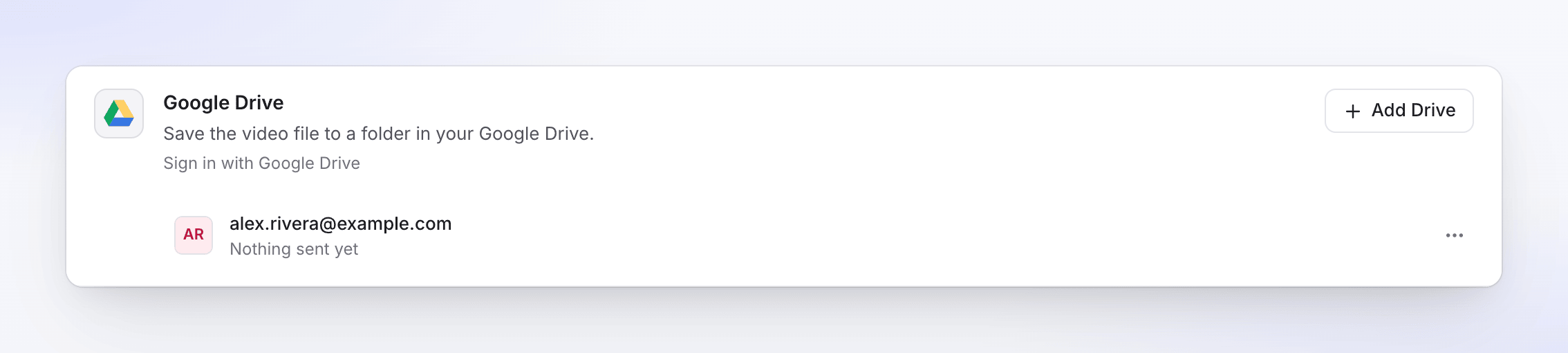
To add another Google account, click Add Drive.
Save a video to Google Drive
Open the Publish tab
Open the video, click Share, then Publish. Click Publish… (or Publish again).
Tick the Google Drive account
Under Send to → Storage, tick the Google Drive account.
Check the file name and folder
The details are filled in already. Change them if you like, and add a File description if you want one; changes save as you type. The preview shows the full path.
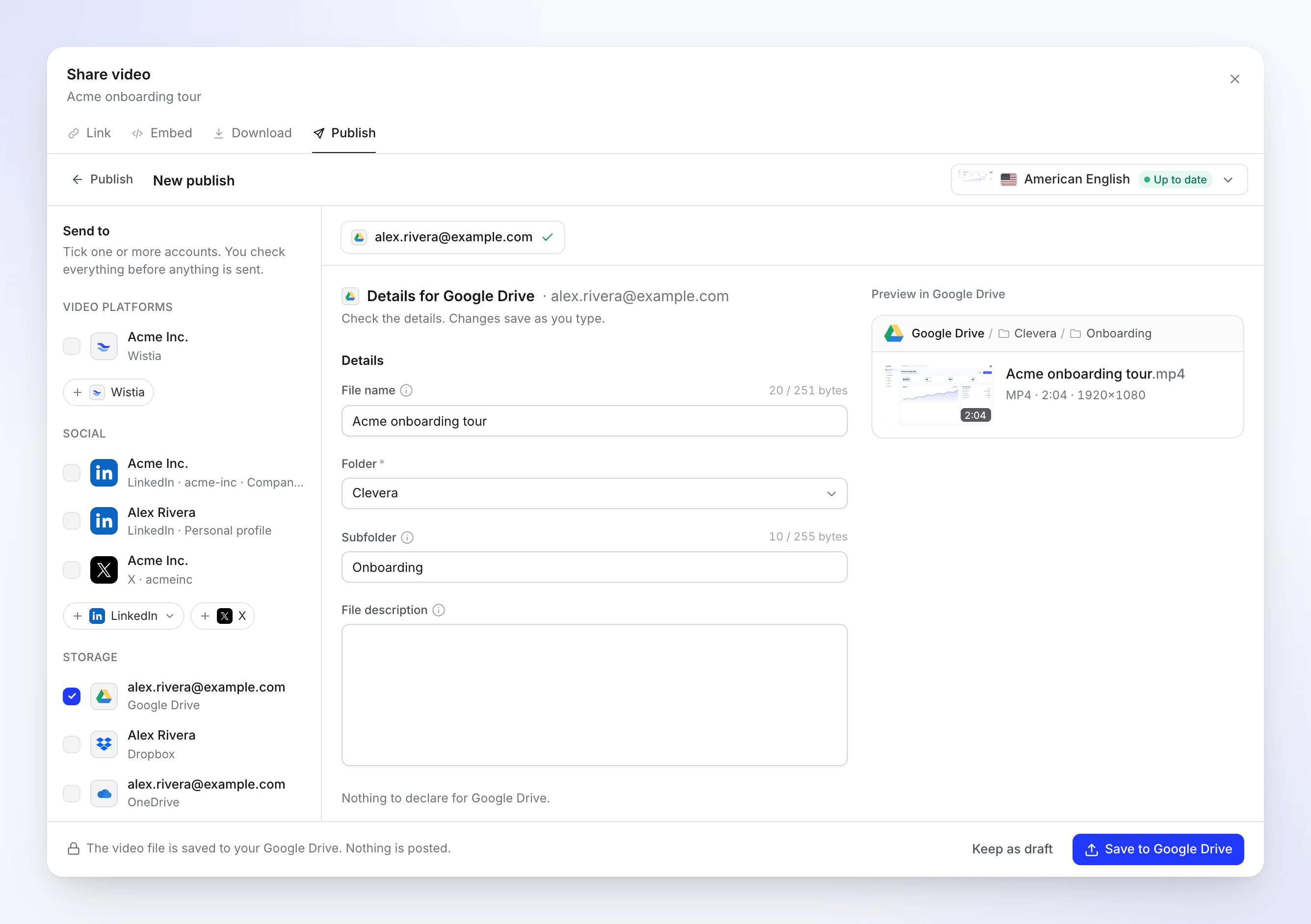
The preview shows the path: Google Drive / Clevera / Onboarding / Acme onboarding tour.mp4. Save it
Click Save to Google Drive. The note says "The video file is saved to your Google Drive. Nothing is posted." To finish later, click Keep as draft.
File name and folders
File name starts as the video's title, in the language of the selected render. Leave it empty to use the title. Clevera always adds .mp4.
Folder decides where the file goes:
| Choice | Where the file goes |
|---|---|
| Clevera (default) | A folder named Clevera at the top of My Drive, created on the first save. |
| My Drive | The top of My Drive. |
| A folder Clevera created | Subfolders Clevera made earlier, such as Clevera / Onboarding. |
Because Clevera can only see what it created, the list never shows folders you made yourself. For the same reason, a Clevera folder you create by hand is invisible to Clevera, and it makes its own next to it. To keep things tidy, let Clevera create the folder, then move or share it as you like.
Subfolder starts as the name of the video's collection and is created inside the chosen folder if it doesn't exist. Clear it to save straight into the folder. A video that isn't in a collection has no subfolder.
Fields and limits
| Field | Limit | Notes |
|---|---|---|
| File name | 251 characters (255 with .mp4) |
Optional. The counter counts characters, for example "20 / 251". Accented letters, other scripts and emoji take more room, so fewer of them fit; near the limit, a note says so. |
| Folder | One of the listed folders, required | Remembered per account for next time. |
| Subfolder | 255 characters | Optional. Created if missing. Counted the same way as the file name. |
| File description | No limit | Optional. Shown in the file's details in Drive. |
Google Drive only refuses / and \ in names; Clevera replaces them with -. If a field holds a character that can't be used, it says "Remove …: the platform doesn't allow them." and names the characters.
Same name twice? Google Drive allows several files with the same name, so a second save adds a second file with the same name next to the first.
Video requirements
| Limit | |
|---|---|
| File size | Up to 5 TB |
| Format | MP4 |
Statuses you'll see
| Status | What it means |
|---|---|
| Waiting for render | Saves as soon as the render finishes. |
| Queued / Uploading N% | The file is on its way to Google Drive. |
| Waiting for Google Drive | Google's daily upload capacity for Clevera is used up. It saves automatically after the time shown (midnight Pacific time). |
| Saving to Google Drive | The file just arrived and is being filed. It may show for a moment; there's no separate processing step. |
| Saved to Google Drive | "Saved to your Google Drive." Open in Google Drive opens the file. |
| Failed | Nothing was saved, or the save didn't finish. The message says why. |
| Removed | The file was deleted or moved to the trash in Google Drive. |
A save that's waiting for a render sits under Sends after the render on the Publish tab, above Sent.
In Google Drive afterwards
The file is a normal MP4 in your Drive. Share it, move it or rename it there. Clevera doesn't create a share link and doesn't change the file after saving it. Files you move stay reachable for Clevera because it created them.
Troubleshooting
| Message | What to do |
|---|---|
| "A permission Clevera needs was unticked on the Google Drive consent screen. Connect again and leave every permission ticked." | Click Connect again and keep the Drive permission ticked on Google's screen. |
| "There isn't enough free space in your Google Drive. Free some up, then retry." | Make room or add storage, then click Retry. It also appears when a folder holds too many files. |
| "Google Drive's daily upload capacity is used up. We'll send it automatically after …" | Nothing to do. It saves by itself at that time. |
| "Google Drive didn't accept some of the details. Check them and send again." | The folder was deleted, moved to a shared drive you can't reach, or the file name is too long. Pick another folder or shorten the name, then save again. |
| "Reconnect your Google Drive account to send this." | The connection ended, for example after you removed Clevera from your Google Account. Click Reconnect, then Retry. |
| "The upload was interrupted. Retry to carry on from where it stopped." | Click Retry. |
| "Something went wrong while sending this to Google Drive. Please try again. Reference: …" | Click Retry. If it keeps failing, contact support with the reference. |
Disconnect Google Drive
- Open Integrations, find the account on the Google Drive card and click ⋯ → Disconnect.
- Confirm. Clevera revokes its access at Google, saves still in progress stop, and files already saved stay in your Drive.
To check from Google's side, open your Google Account, go to Security → Your connections to third-party apps & services, and remove Clevera if it's still listed.
FAQ
Can Clevera read my other Drive files? No. Google only lets Clevera see the files and folders Clevera created.
Why doesn't my own folder show up in the list? For the same reason: Clevera can't see folders it didn't create. Save into the Clevera folder, then move the file in Drive.
Can I save to a shared drive? Not by picking it in Clevera, since the list only shows folders Clevera made.
Does saving use credits? No. There's no per-send fee for storage.
Why is my file in a subfolder? The subfolder is the video's collection. Clear Subfolder before saving to put it straight in the folder.