

Invite teammates
Invite people to your Clevera workspace as Content Creators, Administrators or free Editors: how seats are counted, what the invitee receives, when invitations expire, who can accept them, how to resend or revoke one, and every error you might see.
Invite teammates to your workspace by email and choose their role. Editors are free and unlimited; Content Creators and Administrators each use a creator seat. This article covers the parts specific to Clevera: roles, seats, how long an invitation lasts and what the person you invite sees.
Before you start
- Who can invite: the owner and Administrators.
- Pick the right role. Use Editor for people who review and polish existing videos and articles: it's free. Use Content Creator for people who record and make new content. See roles and creator seats.
- Check your seats for creator roles in Team settings → Members → Creator seats.
- Use the address they'll sign in with. An invitation can only be accepted by the Clevera account with that exact email address.
Invite someone
Open Members
Open the workspace menu at the top of the sidebar, choose Team settings, then Members. Click Invite.
Enter their email
The dialog is titled "Invite people to Acme Inc." with "They get an email with a link to join." Type their Email address.
Choose a role
Pick a Role. Each role shows Creator seat or Free. Under the field you see your seat count, for example "2 of 3 creator seats used". When seats are full, creator roles are greyed out and the line adds "· Editors are still free".
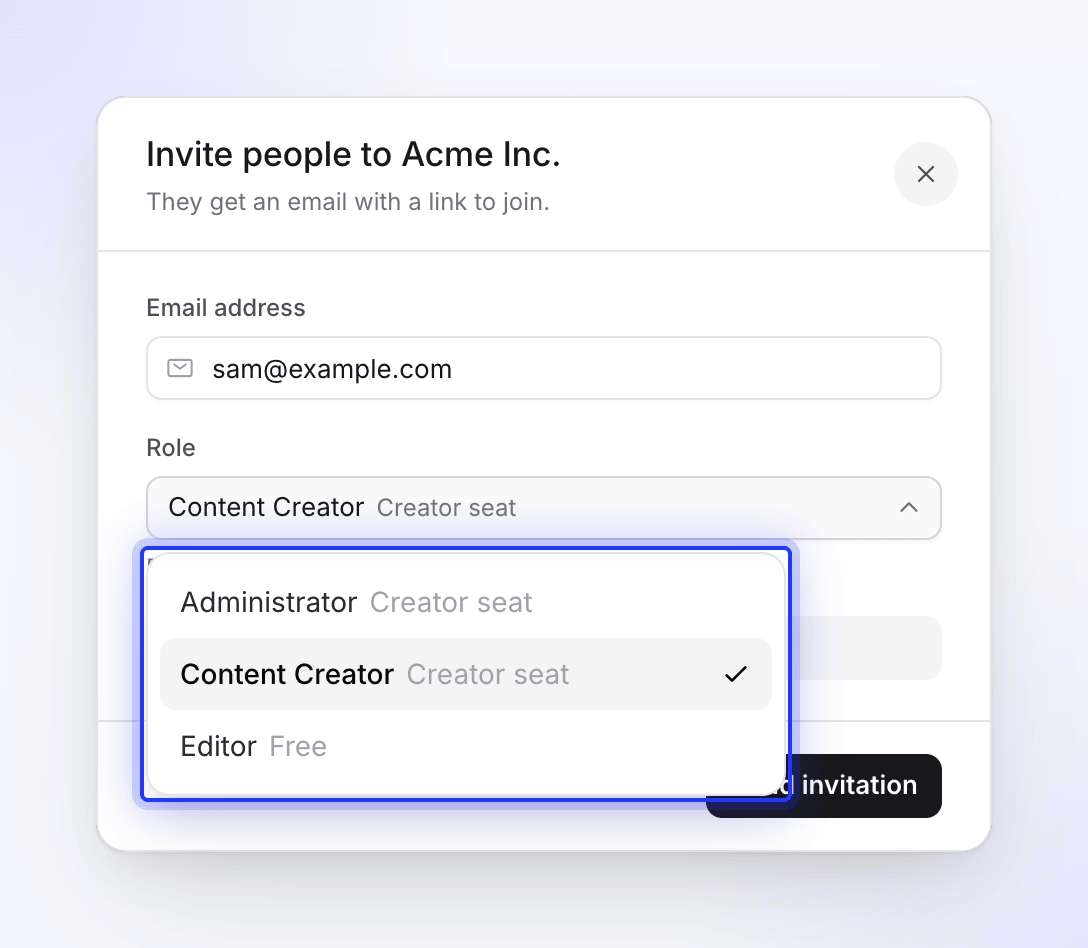
Editors are free; the other roles use a creator seat. Send the invitation
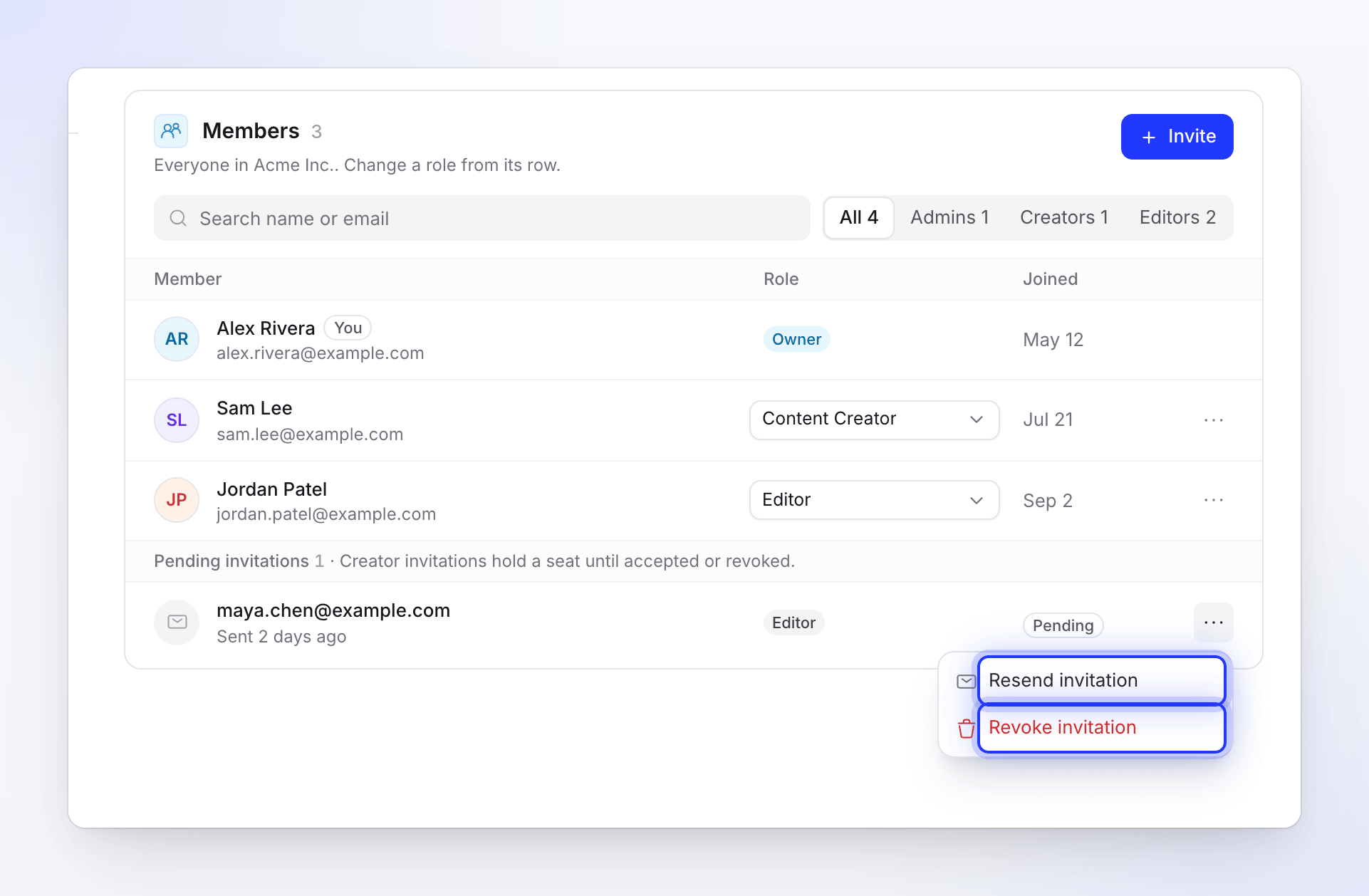
Click Send invitation. The person appears under the members list with a Pending badge and a line such as "Sent 2 days ago · Expires in 5 days".
What the invitee sees
They get an email titled Team Invitation that says "You have been invited to join the Acme Inc. workspace on Clevera." It ends with "This invitation expires on October 20, 2026. Accept it with the account for [email protected]." (with the real date and address).
| They… | The email shows | Next |
|---|---|---|
| Already have a Clevera account | "You already have an account, so you can accept right away." and Accept invitation | They sign in and click Accept |
| Don't have an account | "You do not have an account yet. Create one first, and you will be asked to accept the invitation straight after." and Create account | They sign up with the invited address and are then asked to accept |
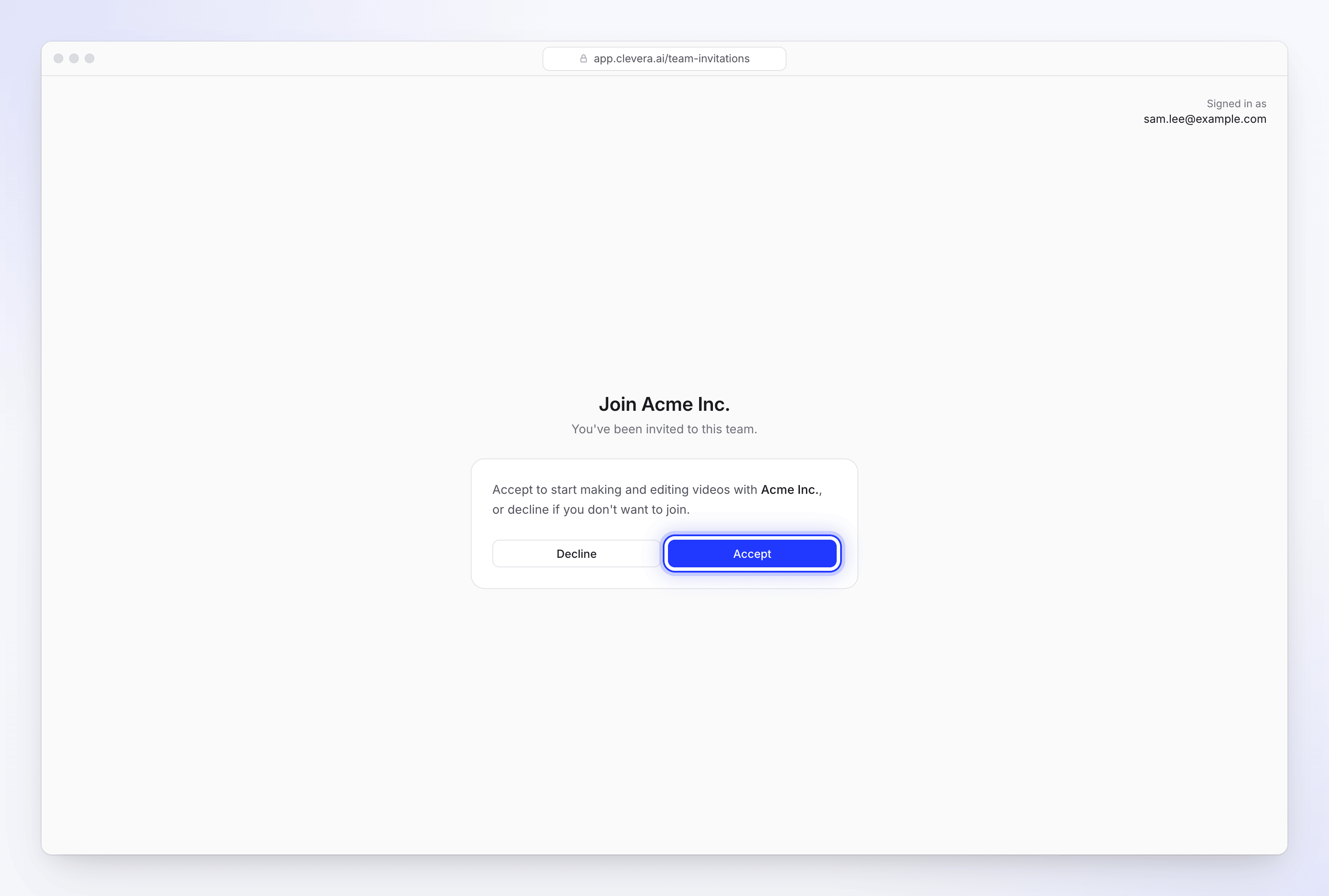
The invitation page shows who they're signed in as and "You've been invited to this team." with how long the invitation is still valid, plus Accept and Decline. After accepting, the workspace appears under Switch workspace in their workspace menu.
Who can accept
Only the account with the invited email address can accept, so a forwarded link can't be used by someone else. If the person opens the link while signed in with a different account, they see This invitation is for another account: "This invitation was sent to s…@example.com. Sign in with that account to accept it." The address is shortened to its first letter and domain, and the page doesn't name the workspace. Sign in with another account signs them out so they can sign in with the right one; Not now leaves the invitation as it is.
When an invitation expires
An invitation is valid for 7 days. After that the link shows This invitation has expired: "Invitation links work for a limited time. Ask an owner or administrator of Acme Inc. to resend it, then open the new link."
Manage pending invitations
Each pending invitation shows when it was sent and Expires in N days, or an Expired badge once its 7 days are up. Open the ⋯ menu on a pending invitation:
| Action | What happens |
|---|---|
| Resend invitation | Sends the email again with a renewed link, valid for another 7 days. Resending an expired creator invitation needs a free creator seat. |
| Revoke invitation | "Revoke this invitation?" / "The link sent to [email protected] stops working. You can invite them again later." |
Inviting an address whose invitation has expired replaces the old invitation with a new one.
When creator seats are full
If you try to invite a creator with no free seat, Clevera stops and explains your options:
| Plan | Message |
|---|---|
| Free or Starter (1 seat) | "Your plan includes 1 creator. Upgrade to Pro to add more creators, or invite them as editors (free)." |
| Pro | "Your plan includes 3 creators. Add a seat to invite another creator, or invite them as an editor (free)." |
| Pro at 10 seats | "Pro goes up to 10 creators. Contact us for a Custom plan." |
| Custom | "Your plan includes 12 creators. Contact us to change it." |
The owner can click Add a seat right there; on Pro the seat starts at once, charged prorated. Anyone else sees "Only the team owner can add seats or upgrade. Ask them to do it from Billing." See Change your plan or seats.
Troubleshooting
| You see | What to do |
|---|---|
| "Enter a valid email address." | Check the address for typos. |
| "This person is already on the team." / "This user already belongs to the team." | They're already a member. Change their role in the members list instead. |
| "This email already has a pending invitation." / "This user has already been invited to the team." | The invitation is still valid. Use Resend invitation on the pending row. |
| Creator roles are greyed out | All creator seats are in use. Invite as Editor, add a seat, or revoke an unused invitation. |
| The invitee can't find the email | Ask them to check spam, then Resend invitation. |
| This invitation is for another account | They're signed in with a different address. Click Sign in with another account and use the invited address, or invite the address they actually use. |
| This invitation has expired | The 7 days are up. Click Resend invitation on the row, and ask them to open the new email. |