

Control who can read a doc site
Make a doc site public, protect it with a shared password, or limit it to members of your workspace. Sign readers out, and choose how search engines and AI tools see a public site: indexing, sitemap, llms.txt and the social card.
Every doc site is public by default: anyone with the link can read it and search engines can list it. On Pro and higher you can make a site private, with one shared password or for members of your workspace only. This article covers both, signing readers out, and the Search & SEO settings that control what search engines and AI tools see.
Before you start
- Owners, admins and editors can change who can read a site.
- Password and Workspace sign-in are included in Pro, Business and Custom plans. On Free and Starter they show a lock.
Choose who can read the site
Open Access
Open your doc site and go to Settings → Access. "Who can read the site."
Pick an option
Option Who can read it Public "Anyone with the link can read it, and search engines can list it." Password "Readers enter one shared password. Hidden from search engines." Workspace sign-in "Only members of your workspace, signed in with Clevera." 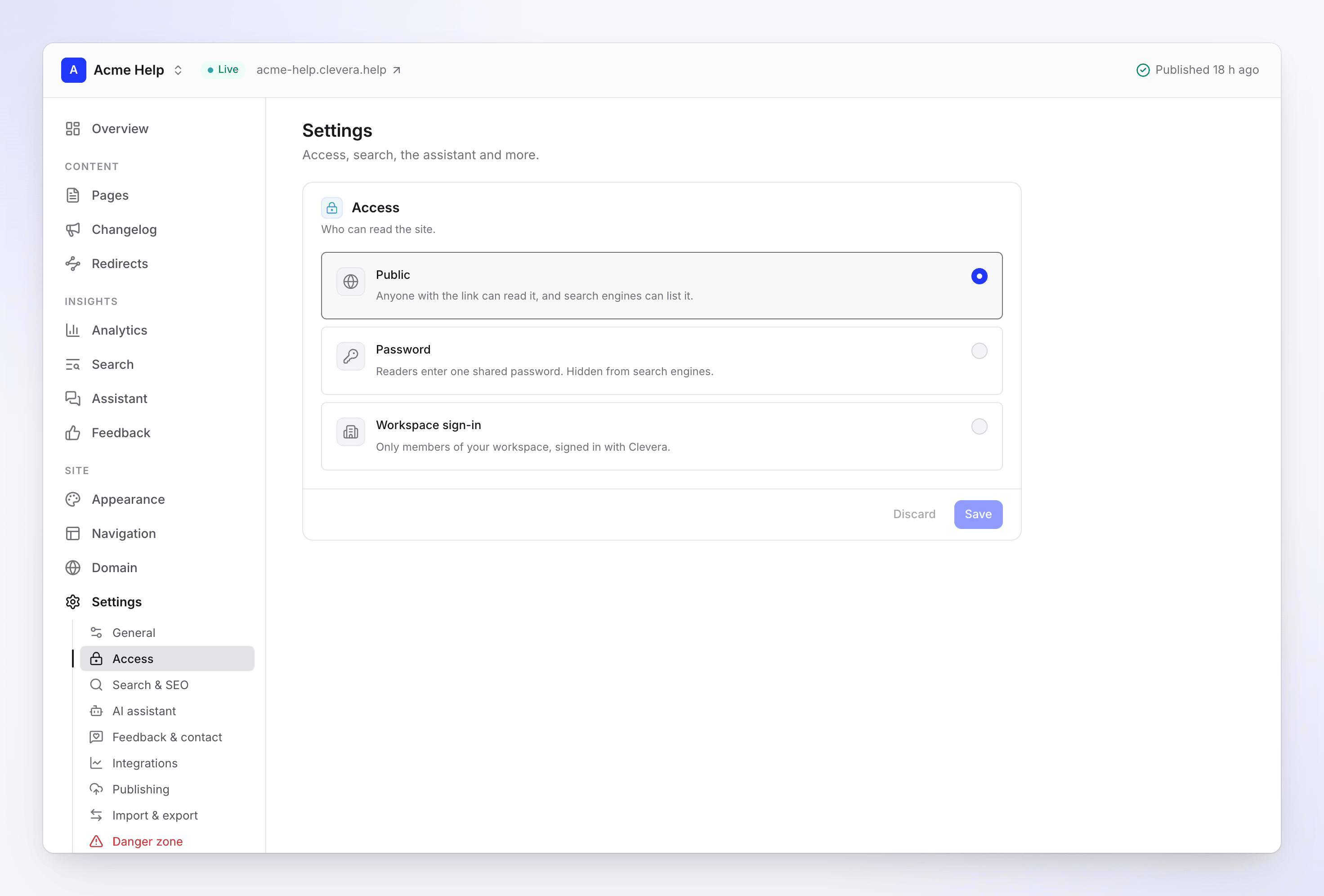
The three access options Set a password
With Password, type a password under Set a password: "At least 10 characters." Share it with your readers yourself; Clevera doesn't send it.
Save
Click Save. The change takes effect for readers right away, and Clevera republishes the site on its own to add or remove the sign-in page. You see "Readers need the password to open this site.", "Only members of this workspace can open this site." or "Anyone can read this site."
What readers see
On a private site, every page asks first. Readers see "This site is private" and:
| Option | What the reader does |
|---|---|
| Password | "Enter the password to read it." They type it under Password and click Open site. |
| Workspace sign-in | "Sign in with your Acme Inc. workspace account to read it." They click Continue with Clevera and sign in with their Clevera account. |
Everything on a private site sits behind this page: articles, search, the assistant, /llms.txt and the Markdown copies of pages. It works the same on your custom domain.
- Workspace sign-in lets in any member of the workspace that owns the site, whatever their role. Someone who isn't a member sees "You don't have access to this doc site" with "Only members of the workspace that owns Acme Help can open it. Sign in with the account you use there."
- A wrong password shows "That password didn't work." After several tries in a row: "Too many attempts. Wait a minute and try again."
Sign readers out
Readers stay signed in on their device for a while, so they don't have to sign in on every visit. To end every session at once, click Sign everyone out under Reader sessions and confirm. "Every reader has to enter the password or sign in again."
Clevera also signs everyone out on its own when:
- you change the password ("Changing it signs everyone out."),
- you switch a site into Password or Workspace sign-in, from public or from the other private option,
- someone leaves or is removed from the workspace, on sites that use Workspace sign-in. Current members simply sign in again.
Search & SEO
Settings → Search & SEO sets "How search engines and AI tools see the site."
| Setting | What it does | Default |
|---|---|---|
| Allow search engines | "Google and others can list your pages." | On |
| Sitemap | Publishes /sitemap.xml, the list of pages search engines read |
On |
| llms.txt and Markdown copies | "Lets AI tools read your docs: /llms.txt and a .md twin of every page." | On |
| Social card | "The image shown when a page is shared.": Logo + title, Title + image or Brand colour | Logo + title |
Click Save after a change. It reaches readers with your next publish.
- "Private sites are never indexed." On a private site Allow search engines is off and locked: "Make the site public in Access to allow search engines."
- Turning Allow search engines off asks search engines not to list the site. Pages already listed drop out over the following days or weeks, at the search engine's pace.
- A new site on the Free plan can take a few days before search engines list it.
If your plan changes
If your workspace moves to a plan without private sites, a private site is taken offline (unpublished), never made public. To bring it back, either upgrade or set it to Public and publish. Until then, publishing it shows "Your plan doesn't include private doc sites. Make the site public or upgrade to publish it." See Doc site plans and limits.
Troubleshooting
| You see | What to do |
|---|---|
| "At least 10 characters." / "Use at least 10 characters." | Make the password longer. |
| "Set a password for this site." | Choosing Password needs a password the first time. |
| A lock on Password or Workspace sign-in | Private sites need Pro or higher. |
| A reader says "We can't sign you in right now. Try again in a few minutes." | Sign-in is temporarily unavailable. Ask them to try again shortly. |
| A teammate sees "You don't have access to this doc site" | They're signed in with an account that isn't in your workspace. Ask them to switch accounts, or invite them. |
| Readers still get in after a teammate left | On Password sites, change the password; leaving the workspace doesn't change a shared password. |