

Publish videos to X
Connect your X account and post finished Clevera videos with AI-written text. Posts go live publicly as soon as X processes the video, and each post uses 3 credits, X's own fee.
Post a finished Clevera video to X with post text written by the AI. X has no drafts, so the post goes live publicly as soon as X has processed the video. Each post uses 3 credits, which is X's own fee for posting through its API.
For how publishing works across every platform, see Publish videos to your platforms.
What lands where
| Where it goes | A new public post on the X account you connected, with the video attached. |
| Drafts | None on X. Your draft lives only in Clevera until you click Publish now. |
| What Clevera fills | The Post text, written by the AI. You choose Who can reply and answer the declarations. |
| What it costs | 3 credits per post, X's own fee passed on as is. Clevera adds nothing for publishing. |
| After you send | X processes the video, then Clevera creates the post. The status reads Published with "Live on X." |
Before you start
- Plan. Publishing is part of the Pro plan and above.
- Role. Only workspace owners and admins can connect or disconnect an account. Anyone who can edit a video can post to an account that's already connected.
- Credits. Keep at least 3 credits per post. The fee is charged once, right after the post is created on X.
- Any X account works. Accounts with an X Premium subscription, or a blue, business or government checkmark, can post longer and larger videos (see Video requirements).
Connect X
Open Integrations
Open Integrations from the sidebar. X is under Social. The card notes "Each post uses 3 credits (X's fee)".

Sign in with X
Click Connect. X opens its Authorize app page. Sign in to the account you want to post from, if you aren't already.
The page lists what Clevera will be able to do: read your profile and posts, create posts for you, upload media, and stay connected until you revoke access. Clevera needs each one:
- Read your profile to show the account name and handle, and to know whether the account has Premium video limits.
- Create posts and upload media to post the video.
- Stay connected so you don't have to sign in again every two hours, which is how long X's access lasts.
Authorize
Click Authorize app. You land back on Integrations with the account on the X card, shown with its handle as "@name".
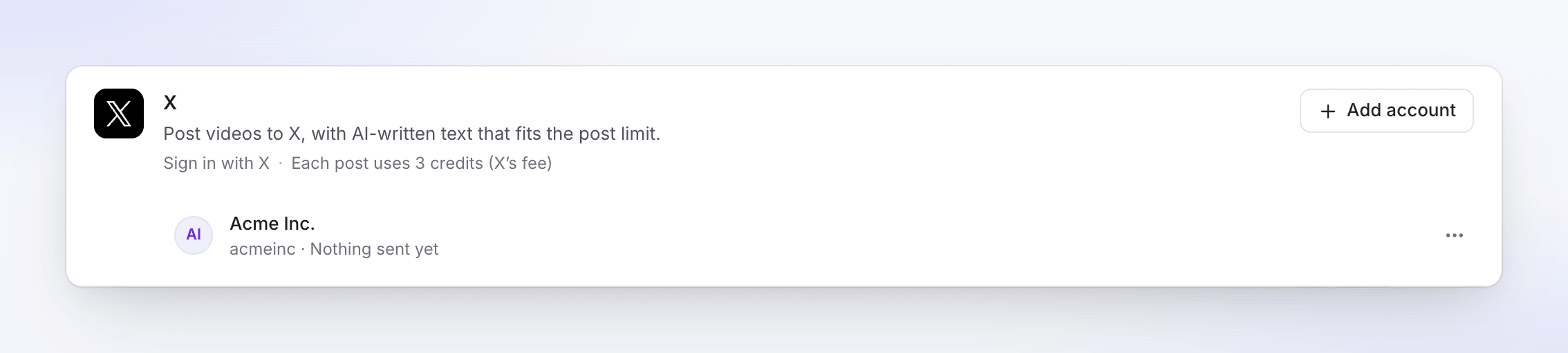
To add another X account, click Add account and sign in to that account on X's page. Sign out of X first if it picks your current account automatically.
Post a video to X
Open the Publish tab
Open the video, click Share, then Publish. Click Publish… (or Publish again).
Tick the X account
Under Send to, tick the account under Social. It's listed with its handle, such as "@acmeinc".
Check the post
The AI writes the post in the language of the selected render. Edit it; changes save as you type. The preview shows the post as it will look on X, and a banner reminds you that it goes live once sent. The character counter is on the Post field only; the preview doesn't repeat it.
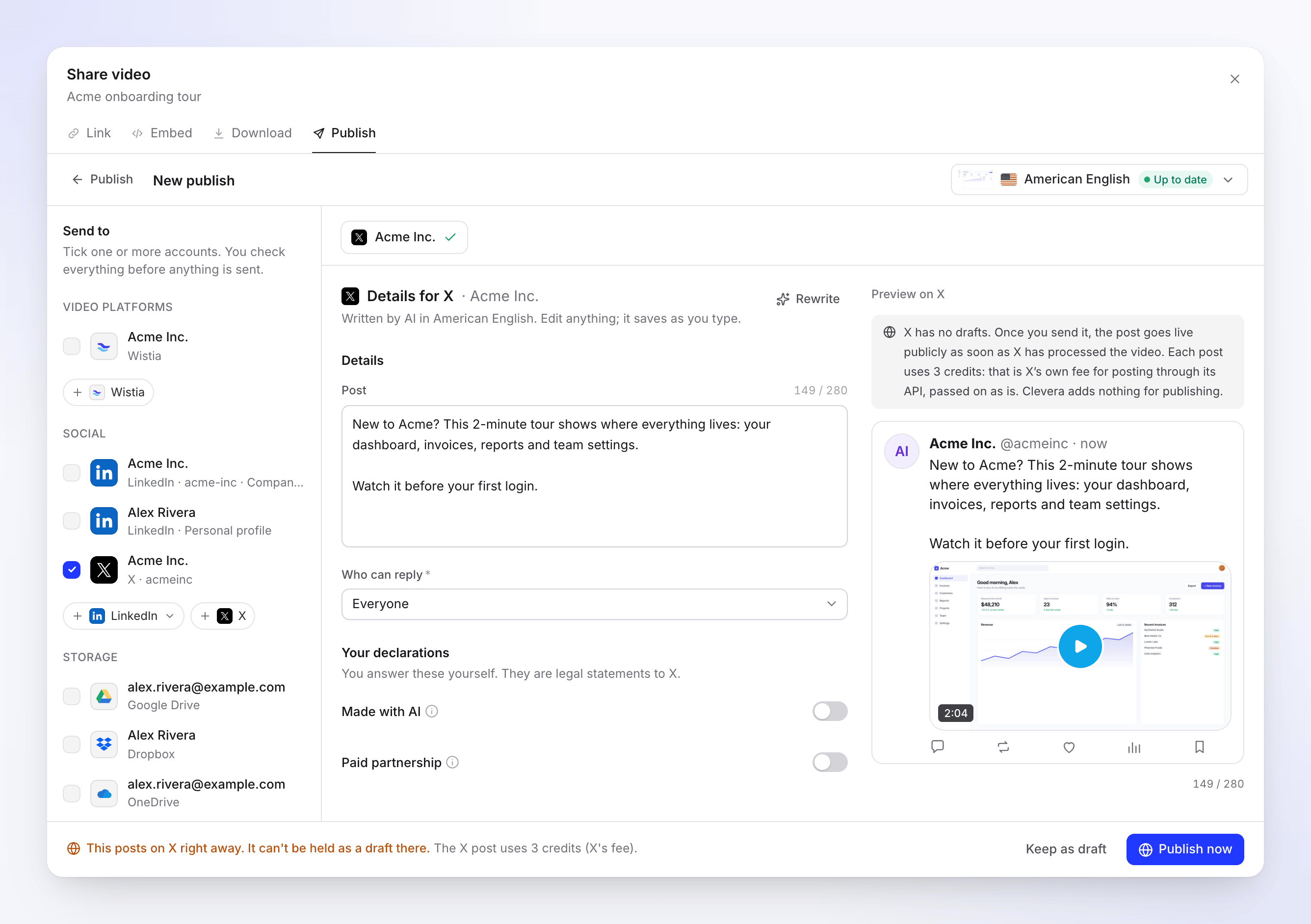
The footer says the post goes out right away and uses 3 credits. Publish
Click Publish now. The note above it says "This posts on X right away. It can't be held as a draft there." To finish later, click Keep as draft.
Links aren't allowed in the post
Posts to X from Clevera can't include a link or a web address. A post with a link costs many times more to send through X's API, so Clevera keeps them out:
- The AI never writes a link, and any link it does produce is removed before you see the text.
- If you type or paste one, the field turns red with "Remove the link or web address: X posts from Clevera can't include links." and you can't send until it's gone.
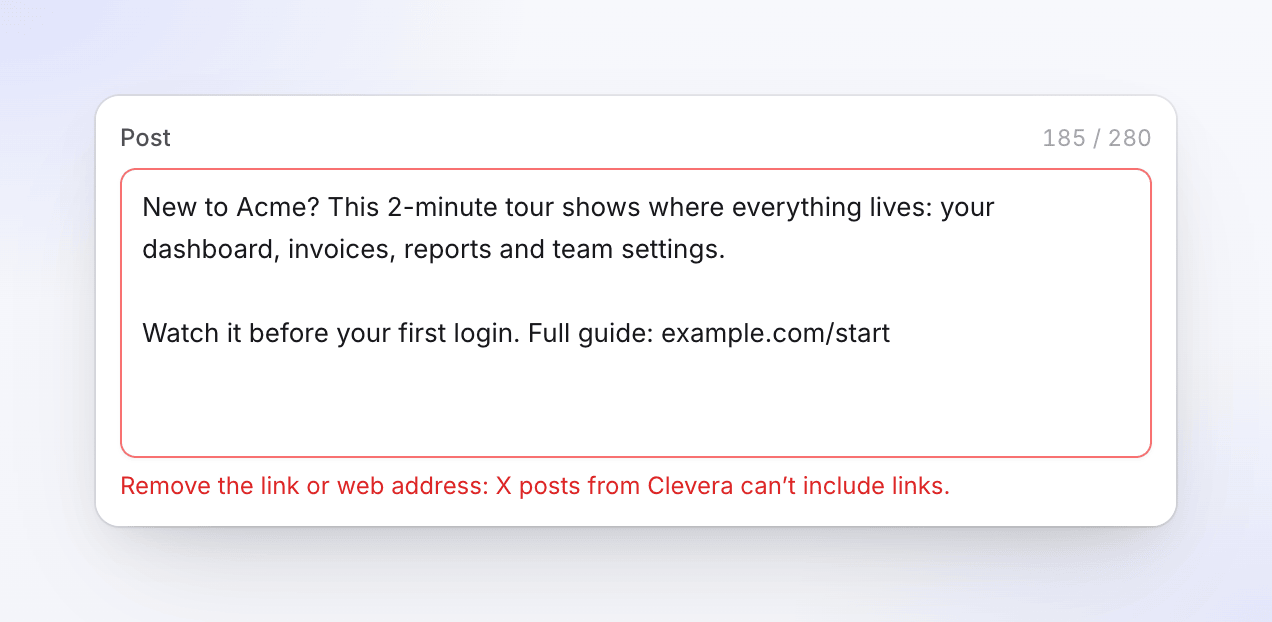
Clevera counts as a link any https:// address, a bare domain such as example.com, or a short link such as bit.ly/start. To point people somewhere, reply to your post on X with the link after it's live.
Fields and limits
| Field | Filled by | Limit or choices | Default |
|---|---|---|---|
| Post | AI | 280 characters, counted the way X counts them | Written by the AI |
| Who can reply | You | Everyone, Accounts you follow, Only accounts you mention, Verified accounts, Your subscribers | Everyone |
| Made with AI | You | On or off. Adds X's "Made with AI" label. | Off, or on when the video has an AI presenter |
| Paid partnership | You | On or off. Turn on when a brand paid for or gave you something for this post. | Off |
How X counts the 280:
- Most letters, including Latin, Greek, Cyrillic, Arabic, Hebrew, Devanagari and Thai, count as 1.
- Emoji count as 2.
- Chinese, Japanese and Korean characters count as 2, so a post written only in them holds about 140.
- Hashtags go inline in the text; there's no separate hashtag field.
If the text runs over, the counter on the field turns red, the preview marks the part X won't receive ("Over X's limit; this part won't be sent"), and the field says "Too long: X allows 280." Clevera keeps the limit at 280 even for Premium accounts.
Your answers to Who can reply, Made with AI and Paid partnership are remembered for the account and filled in next time. Rewrite asks the AI for new text, up to 10 times a day per draft. There's no thumbnail, chapters or scheduling for X.
Video requirements
| Standard account | Premium or verified account | |
|---|---|---|
| Length | 0.5 seconds to 20 minutes | 0.5 seconds to 125 minutes |
| File size | Up to 8 GB | Up to 16 GB |
| Shape | Between 1:3 and 3:1 | Between 1:3 and 3:1 |
| Format | MP4 or MOV | MP4 or MOV |
Statuses you'll see
| Status | What it means |
|---|---|
| Waiting for render | Posts as soon as the render finishes. It sits under Sends after the render, above Sent. |
| Queued / Uploading N% | The video is on its way to X. Nothing is posted yet. |
| Processing on X | X is processing the video. If you cancel now, nothing is posted. |
| Waiting for X | X's posting capacity is used up for now. It posts automatically at the time shown. |
| Published | "Live on X." Open on X opens the post. The 3 credits are charged now. |
| Failed | Nothing was posted and nothing was charged. The message says why. |
On X afterwards
The post is a normal public post on your account. Reply to it, pin it or delete it on X as you like. Clevera doesn't check the post again after publishing, so a post you delete on X still shows as Published in Clevera.
The fee appears on your Usage page under Publishing as X post fee, charged to the person who clicked Publish now.
Troubleshooting
Retry only shows when the platform says trying again can help.
| Message | What to do |
|---|---|
| "Remove the link or web address: X posts from Clevera can't include links." | Delete the link or domain from the post, then send. |
| "Posts to X from Clevera can't include links. Remove the link (or web address) from the text and send again." | A link slipped through at the last check. Click Edit details, remove it and send again. |
| "Reconnect your X account to send this." | X ended the connection, for example after you revoked access. Click Reconnect, then Retry. |
| "X's daily upload capacity is used up. We'll send it automatically after …" | Nothing to do. It posts by itself at that time. |
| "This profile reached its X posting limit for now. We'll send it automatically after …" | X limits how often an account can post. It posts by itself at that time. |
| "X didn't accept some of the details. Check them and send again." | Often X sees the post as a duplicate of a recent one. Change the text and send again. |
| "X rejected the video: it's longer than the account allows." | Standard accounts can post up to 20 minutes. Trim the video or post from a Premium account. |
| "X rejected the video: the file is larger than allowed." | Render at a lower resolution. |
| "X rejected the video: its shape (aspect ratio) is outside what the platform accepts." | Use a format between 1:3 and 3:1. |
| "X rejected the video: its format isn't supported." / "…it didn't pass the platform's checks." | X couldn't process the file. Render it again, then send. |
| "Something went wrong while sending this to X. Please try again. Reference: …" | Click Retry. If there's no Retry button or it keeps failing, contact support with the reference. |
Disconnect X
- Open Integrations, find the account on the X card and click ⋯ → Disconnect.
- Confirm. Clevera revokes its access at X, sends still in progress stop, and posts already on X stay there.
To check from X's side, open X and go to Settings and privacy → Security and account access → Apps and sessions → Connected apps. Clevera should no longer be listed; if it is, revoke it there.
FAQ
Why does each post cost 3 credits? X charges for every post made through its API. Clevera passes that fee on as is and adds nothing for publishing.
Am I charged if the post fails? No. The fee is charged only after the post exists on X.
Can I save the post as a draft on X? No. X's API has no drafts. Keep it as a draft in Clevera and publish when you're ready.
Can I include a link to my website? Not in the post. Reply to the post on X with the link.
My Premium account allows longer posts. Why is the limit 280? Clevera currently limits posts from every account to 280 characters, Premium or not.
Can I schedule the post? Not yet. It posts as soon as X has processed the video.