

Understand what Clevera makes
Clevera makes three kinds of thing: narrated videos from your screen recording, AI-directed social clips, and written articles. Learn what each one starts from, what it's for and what it costs.
Clevera turns your product into videos and written guides. You give it a screen recording, a website link, some pictures or a PDF, or just a description, and the AI writes, narrates and assembles the result. This page explains the three kinds of thing Clevera makes, so you can pick the right one before you start.
The three families
Everything you can make falls into one of three families. They start from different material and are built in different ways.
| Family | What you get | Starts from | Best for |
|---|---|---|---|
| Videos from your recording | A narrated video built on top of your screen recording: voice-over, captions, automatic zooms, intro and title cards, music. | A screen recording (how-to and product demo can also use pictures or PDF pages instead). | Tutorials, onboarding, help-center videos, feature demos, sales demos. |
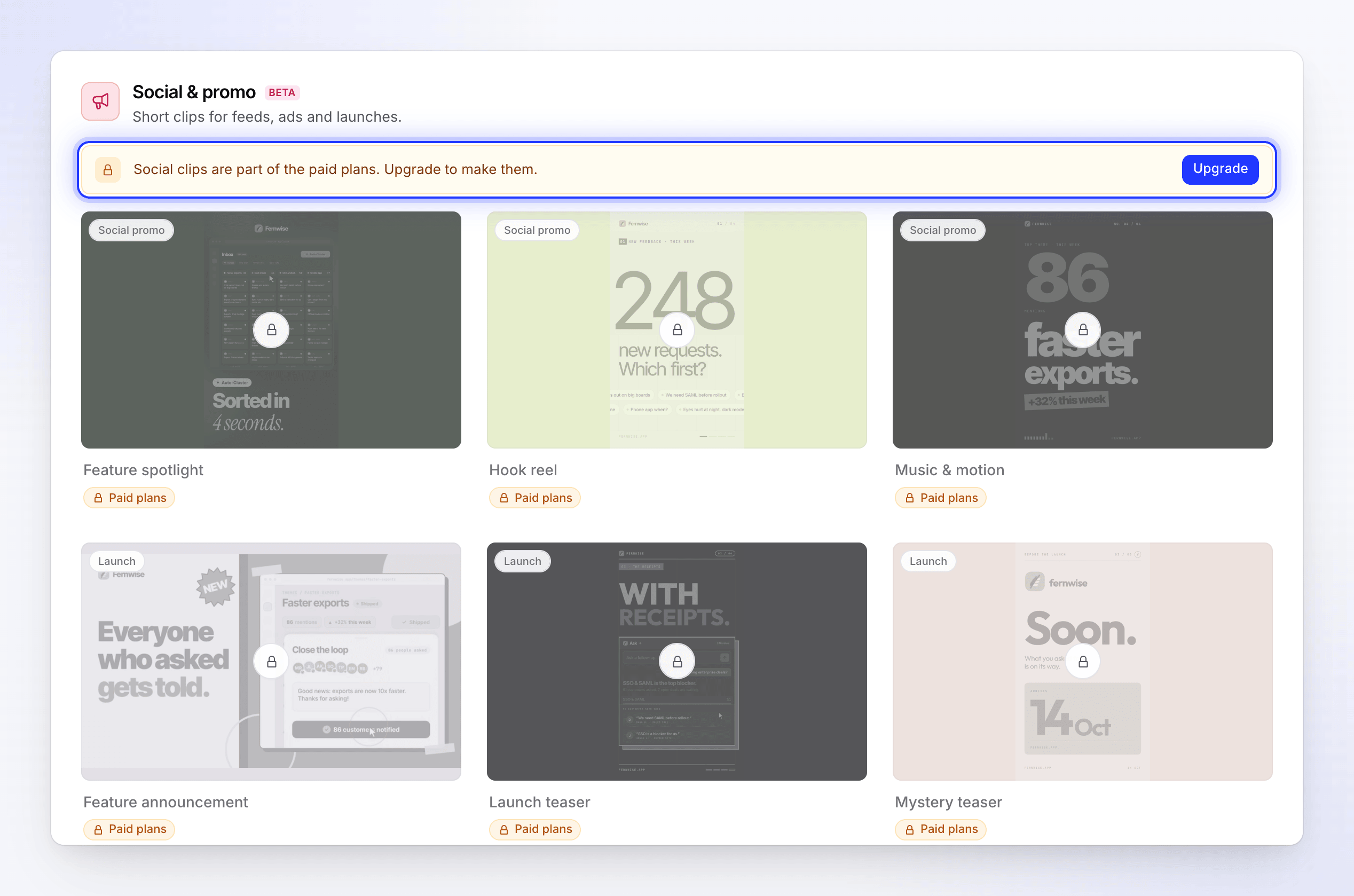
| Social clips | A short, motion-designed video. The AI director designs every scene from scratch, records the voice-over, and picks music and sound effects. | A website link, pictures, a PDF, a video, or only a description. No recording needed. | Ads, Reels, TikTok and Shorts, launches, offers, events, customer stories, brand films. |
| Articles | A written guide, SOP, blog post or update, with screenshots taken from your recording. | One screen recording. | Help-center docs, internal procedures, release write-ups. |
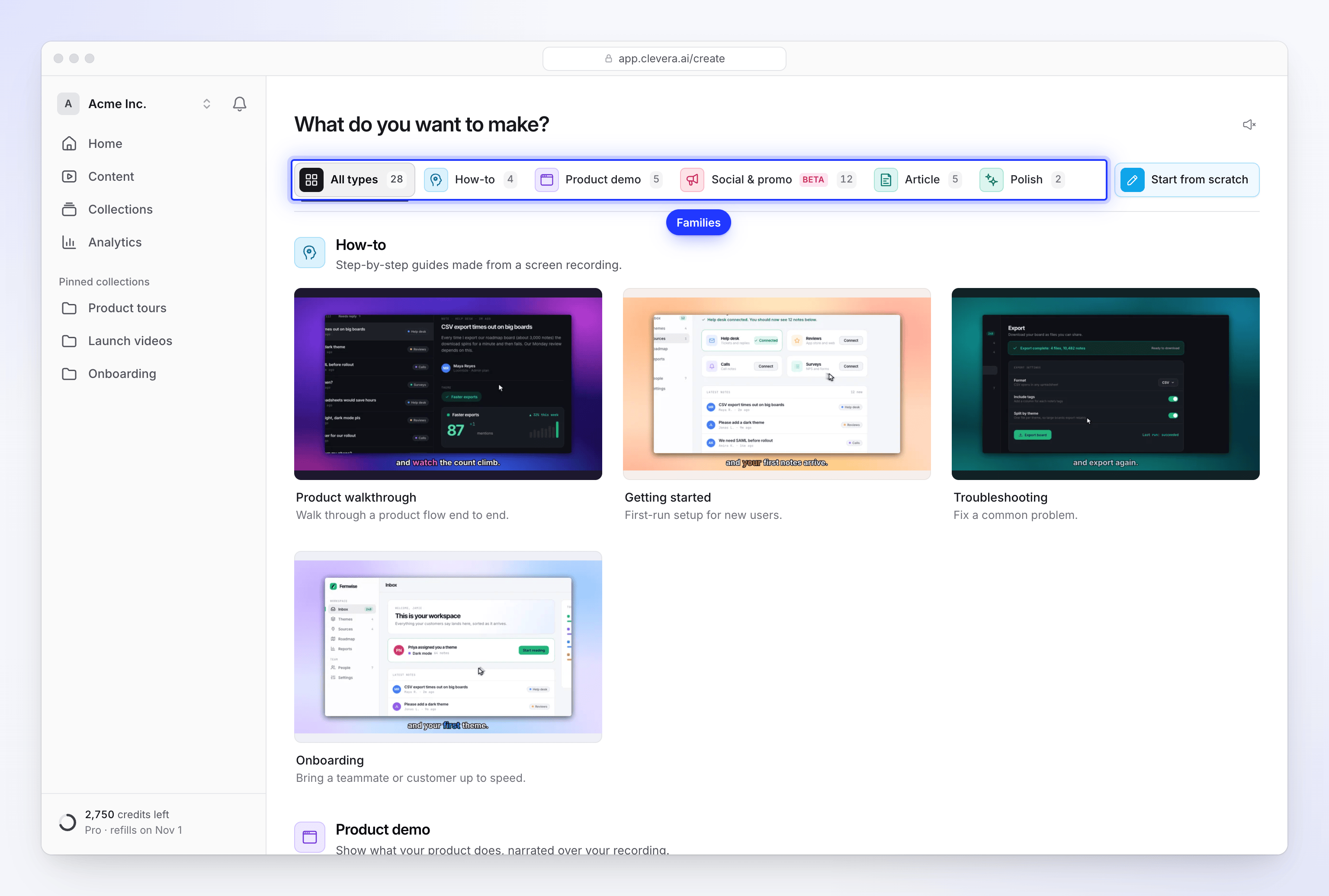
Videos from your recording
These videos keep your real product on screen. The AI watches the recording, writes the narration to match what happens, records it in the voice you choose, and adds zooms that follow your clicks and cursor. Recordings made with the Clevera desktop app give the best zooms, because the app captures every click and cursor move separately from the picture.
| Type | Kinds you can pick | What it does |
|---|---|---|
| How-to video | Product walkthrough, Getting started, Troubleshooting, Onboarding | Teaches a process step by step so someone can repeat it. |
| Product demo | Product overview, New feature, Product launch, New version, Sales pitch | Shows the product working, for sales and pitches. |
| Polish my footage | Clean-up, Styled for sharing | Tidies up a recording without changing what it says. Clean-up removes pauses and dead time and keeps your own voice. Styled for sharing adds a background, intro and title cards and automatic zooms, with no AI voice-over. |
How-to videos and product demos can combine up to 3 videos, 20 pictures and 3 PDFs in one video. With no recording at all, they can be made from pictures or PDF pages alone, as a narrated slideshow. Polish works on one video only. Videos from a recording follow the recording's shape; you can change the aspect ratio in the editor.
Social clips
Social clips don't need a recording. The AI reads what you give it (a website, pictures, a PDF, a video or your brief) and designs each scene as motion graphics in the look you pick. You choose the format (9:16, 1:1, 16:9, 4:5 and more), a length from about 35 seconds to about 4 minutes, and how much care goes into it with the Effort setting.
| Card | Kinds you can pick |
|---|---|
| Social promo | Feature spotlight, Hook reel, Music & motion |
| Launch / announcement | Feature announcement, Launch teaser, Mystery teaser |
| Product explainer | Product tour |
| UGC-style video | AI avatar |
| Customer story | Customer story |
| Offer | Offer promo, Event promo |
| Brand story | Brand film |
| Describe what you want | Custom brief |
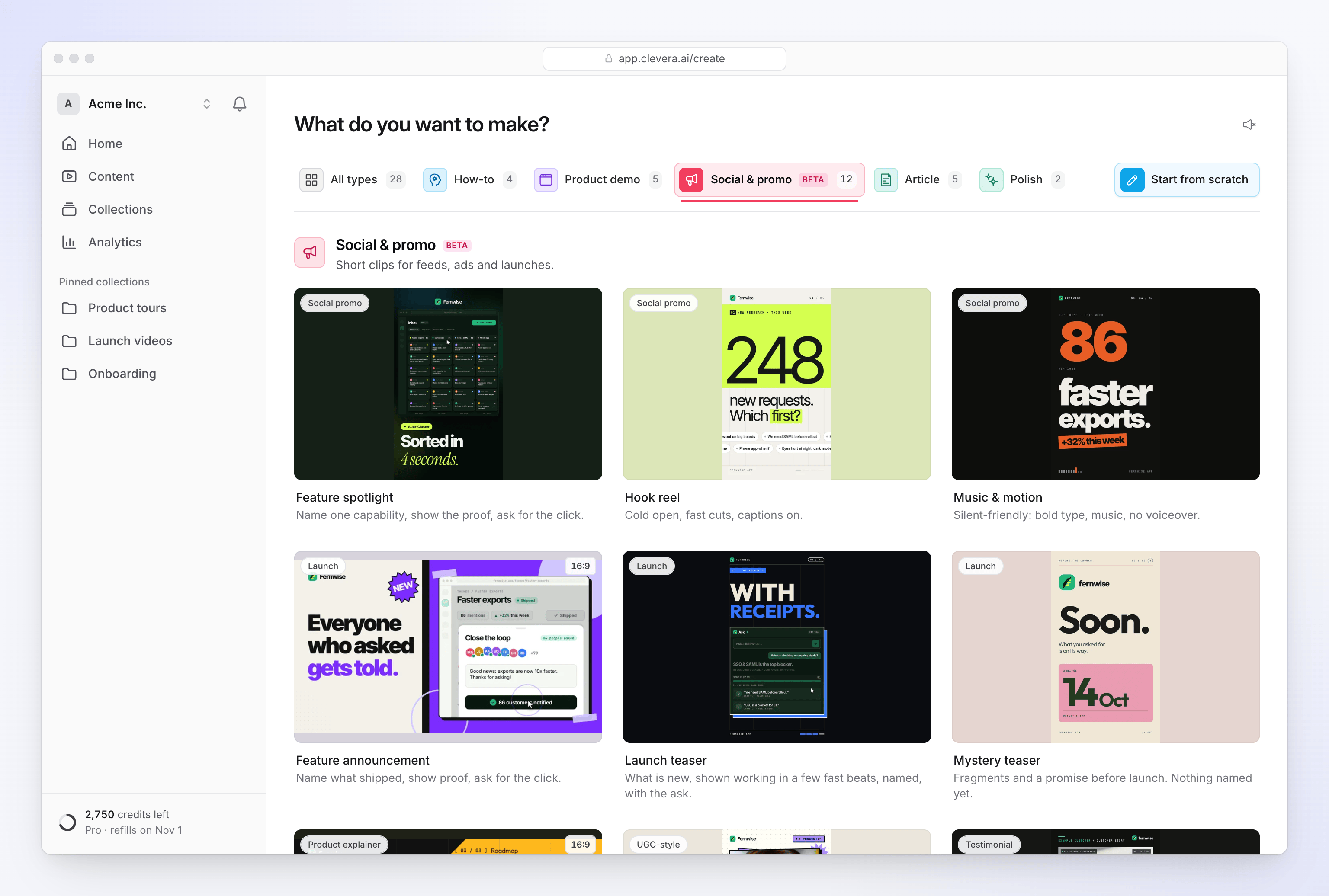
Choose the right video type lists every kind with its defaults and what it needs.
Articles
An article is written from one screen recording. The AI listens to what you said while recording, watches what you did, writes the text and places screenshots from the recording where they help. You pick the kind (How-to article, Troubleshooting, SOP, Blog post or Product update), the tone and the depth. A colored marker shows where you clicked in each screenshot.
Articles have their own editor with live collaboration, and you can export them as PDF, Word, Markdown, HTML and more. See Turn a recording into an article.
Which one should I make
| You want to… | Make |
|---|---|
| Show a customer how to do a task in your product | How-to video (Product walkthrough) |
| Help new users through first-run setup | How-to video (Getting started) or Onboarding |
| Explain how to fix a common problem | How-to video (Troubleshooting) or a Troubleshooting article |
| Demo the product to a prospect | Product demo (Sales pitch or Product overview) |
| Announce a release with real product footage | Product demo (New feature, New version or Product launch) |
| Post an ad or a Reel about one feature | Social clip: Feature spotlight or Hook reel |
| Tease a launch before it ships | Social clip: Mystery teaser or Launch teaser |
| Promote a sale or an event | Social clip: Offer promo or Event promo |
| Share a customer's quote or result | Social clip: Customer story |
| Have a presenter talk viewers through your product | Social clip: AI avatar (paid plans) |
| Write docs or an SOP from a recording | Article |
| Clean up a recording you already made | Polish my footage → Clean-up |
| Something else | Describe what you want (Custom brief) |
What it costs
Making a video or an article uses credits. Every plan includes credits each month (the Free plan includes 100), and Compose shows an estimated range beside Generate before you start. A generation needs enough credits to start, and you're charged the credits the job actually uses, which can be more or less than the estimate.
| What you make | Typical credits |
|---|---|
| How-to, product demo or clean-up video (recording up to 5 minutes; longer recordings cost more) | 5–25 |
| Article | 5–15 |
| Social clip, Medium effort | 30–60 |
| Social clip, High effort (default) | 50–120 |
| Social clip, Extra effort | 80–160 |
| Translating a finished video or article, per language | 3–10 |
An AI avatar, Record with AI and website research add credits on top of the estimate. Exporting, sharing and editing by hand never use credits. Credit ranges are estimates based on recent generations, not a quote or a limit. See Understand credits and See what each kind of video costs.
What you can do with the result
Every video opens in an editor when it's ready. From there you can:
- Change the script, voice, music, captions and zooms, or ask the assistant to make changes for you.
- Translate it into any of 74 languages and variants.
- Export an MP4 at 60 fps, up to 4K depending on your plan. Exports are always free.
- Share a link or embed the video on your site, and see who watched.