

Refresh your articles with new screenshots
Refresh articles records your app again and puts new screenshots and up-to-date words into the help articles you already have, in place: same titles, addresses and links. Plans are free; each article shows its credits before anything runs.
Refresh articles is the Autopilot recipe that brings articles your help center already has up to date with your app as it is today. Clevera records your app again, puts new screenshots into each article and corrects the names that no longer match, in place: same title, same address, same headings and links. Use it right after you import a help center from another tool, or when your app's screens have moved on since the articles were written.
Refresh or keep current?
| You want | Use |
|---|---|
| New screenshots and up-to-date words in articles you have now, for example right after an import | Refresh articles (this article) |
| The same change in the words of many articles (a new name, a term, a tone), no new screenshots | Edit many articles at once |
| Fixes each time you ship: Clevera reads a release or changelog and finds what it affects | Keep my help center up to date when we ship |
| A brand-new help center from your app | Build a help center from my app |
Keep my help center up to date when we ship reacts to a change. Refresh articles looks at every article you pick, whether or not anything shipped.
Before you start
- Autopilot on your plan (Pro and Custom) and a role that can create content and add pages to the help center: owners, Administrators and Content Creators. See Get access to Autopilot.
- A help center with articles. One task covers one help center.
- Your app's address and a sign-in. The new screenshots come from a recording of your app, so the address is required. Pick a saved app sign-in, or say your app doesn't need one. See Save an app sign-in.
You don't need to run Explore my app first. Clevera matches each article's steps to what it knows of your app, and learns your app by itself when it has to. See How the plan learns your app.
Ways to start
| Where | What you do |
|---|---|
| Autopilot | Click the Refresh articles recipe card, or type what you want in What should Autopilot do?, for example "Update my imported articles to match the app today". |
| A help center's Pages | Tick the articles, then click Refresh with a task in the selection bar. |
| Content | Select the articles, then click Refresh with a task in the bar at the bottom. Videos in the selection are left out. |
| The Clevera agent (Ask AI) | Ask for it in your own words, for example "Refresh my help articles with new screenshots". |
From Pages or Content, the setup card opens with your picks already filled in. The articles must all be on the same help center.

Refresh your articles
Pick the articles
Open the setup card one of the ways above and click Fill in the details. On Articles, pick the Help center and Which articles: the ones you picked, Some sections (each with its article count), or the whole help center.
Say what else to change and what to leave alone
On What to change, add anything else you want changed on top, for example a new product name. Leave alone sections or articles you don't want touched. See The setup form.
Add your app
On Your app, enter the App address and choose how the AI signs in. Click Continue.
Check the estimate and create the task
The card shows how many Articles the task covers and an Estimate, for example "About 34 credits, at most 90". Click Create task. Planning starts right away and is free.
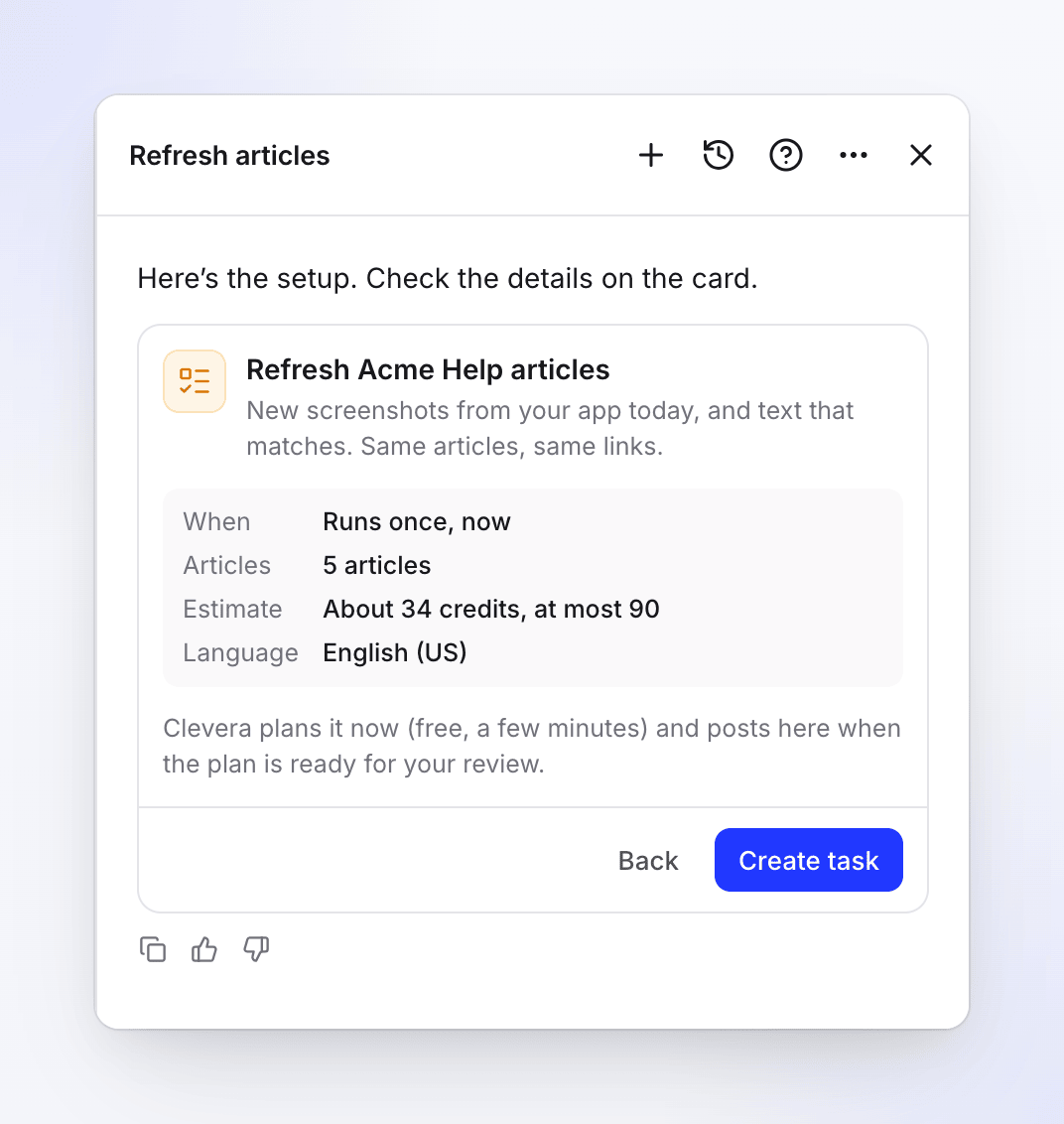
The estimate counts the articles left after what you leave alone. Wait for the plan
If Clevera has to learn your app first, planning takes longer: up to about 2 hours, and you can leave the page. Then it reads each article in full, sorts its pictures, turns its steps into a recording plan and decides what each article needs. You get a notification when the plan is ready.
Review the plan
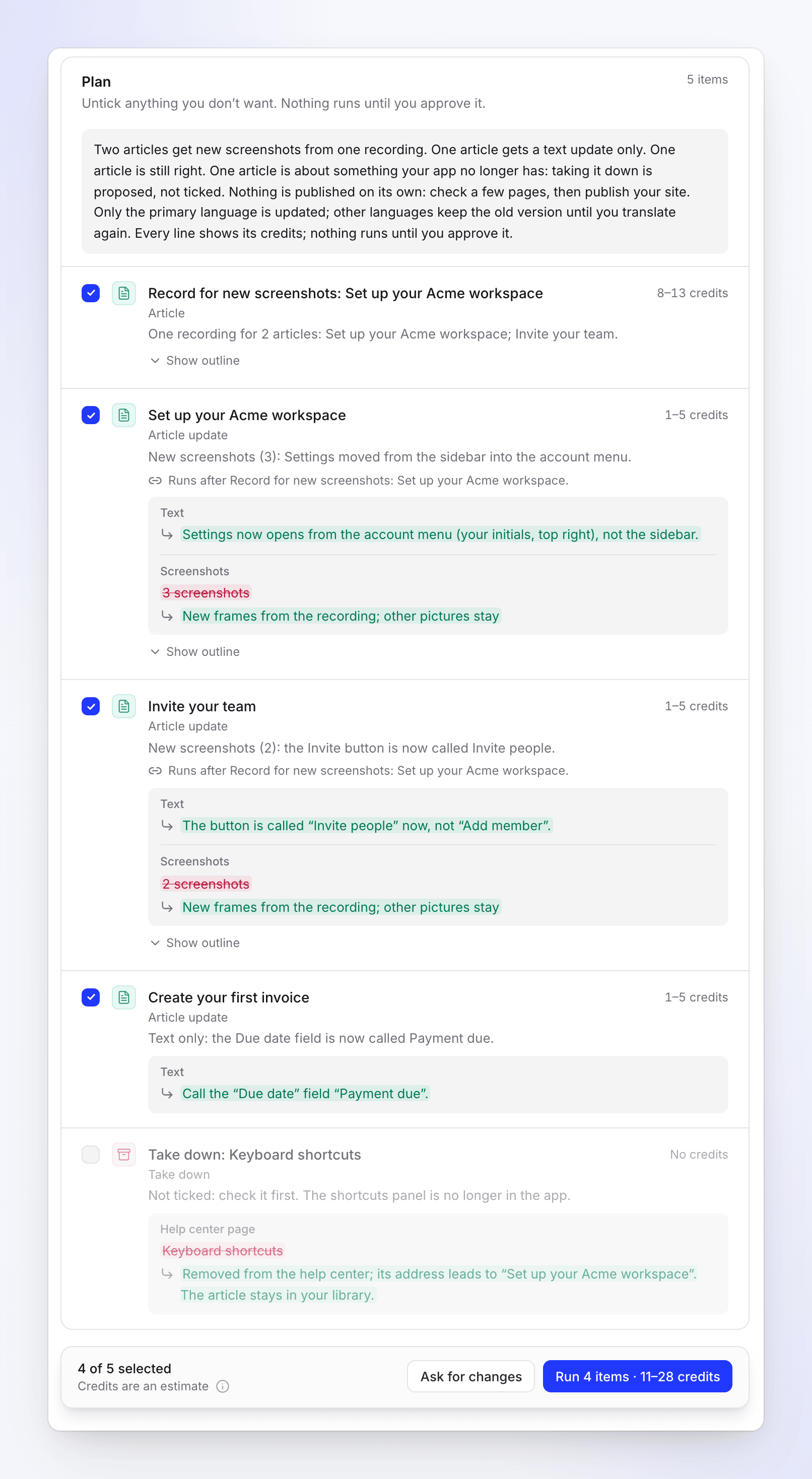
The plan lists one line per change, each with its credits. Untick what you don't want, or click Ask for changes.
Run it
Click Run. Clevera records each flow once, swaps in the new screenshots and updates the words. Then check a few pages and publish your help center.
The setup form
| Step | Field | What it does |
|---|---|---|
| Articles | Help center | The help center to refresh. "One task refreshes one help center." |
| Which articles | The 12 articles you picked (when you came from Pages or Content), Some sections (tick the sections; each shows its article count), or The whole help center (182 articles). "Large help centers are done in rounds of up to 40 articles, one after the other." | |
| What to change | Anything else to change (optional) | Up to 2,000 characters, for example "Call it “Workspace” instead of “Account”". It is applied to the articles the refresh edits; an article that gets no line is not edited for it. |
| Leave these sections alone (optional) | Only with the whole help center: tick sections to skip. | |
| Leave articles alone whose title contains (optional) | One phrase per line, for example "Release notes". Any article whose title contains one is skipped. | |
| Your app | App address | Required. "The new screenshots come from a recording of your app. Steps that delete, send, publish, pay or invite stop before the final click." |
| Sign-in | A saved app sign-in, or My product doesn’t need a sign-in. |
The review after Continue shows Help center, Articles, Also change, what you leave alone, Your app, Publishing and Credits in the form, and When, Articles, Estimate and Language on the card.
How the plan learns your app
To know which steps of an article can be recorded and which names have changed, Clevera needs to know your app: its pages, its buttons and what they are called today.
| What Clevera knows of your app | What planning does |
|---|---|
| Nothing yet | Looks around your app first: "Clevera hasn’t learned app.example.com yet, so it looks around it first. It only looks: nothing is changed in your app. This can take up to about 2 hours, and you can leave this page." |
| Something learned more than 7 days ago | Looks around it again, so the plan matches your app as it is today |
| Something learned in the last 7 days, by this recipe or by Explore my app | Uses it and goes straight to your articles |
Looking around is part of planning and is free. It only opens pages and menus; it saves nothing in your app.
Clevera can't always reach every part of an app: a feature your plan doesn't include, or a page that needs a connected account. An article about such a part isn't recorded. See "parts of your app Clevera hasn’t learned yet" in What the plan shows.
What the plan shows
| Line | What it means | Ticked |
|---|---|---|
| Record for new screenshots: article title | Clevera records one flow of your app with Record with AI: "Films the steps of this article that happen in your app, for its new screenshots." No video and no new article is made: the recording is only a source of screenshots. Articles that teach the same steps with the same example values share one recording ("One recording for 2 articles: …"). Show outline lists the steps. | Yes |
| Article title, New screenshots (3): why | The article's screenshots are replaced with frames from that recording, and its words are corrected. It runs after its recording. When only some of its pictures show your app, the line says so: "One other screenshot stays as it is: it shows another site, signing in, or a part of your app Clevera hasn’t learned yet." | Yes |
| Article title, Text only: no screenshot needs replacing. | A name in the article has changed in your app, and the article has no screenshot to refilm. Nothing is recorded. | Yes |
| Article title, Text only: its screenshots show parts of your app Clevera hasn’t learned yet, so they stay as they are. | A name in the article has changed, but its pictures show a part of your app Clevera couldn't reach. The name is corrected; the pictures stay. | Yes |
| Take down: article title | What the article is about is no longer in your app. Its page comes off the help center and its address leads to the closest article that stays, or to its section. The article stays in your library. | No: "Not ticked: check it first." |
A line that changes a name shows the old name and the new one, for example "Customers" and "Accounts". Only names Clevera has seen change in your app are changed.
The outline of a recording line shows what the AI will do, with your article's own examples: if the article creates a project called "Spring campaign" with a budget of 5000, the recording types those, so the new screenshots match the words around them. A button the article calls by an old name is listed by its name today with the old one beside it, for example "Add account" (formerly "Add customer"). Steps on other websites and signing in are left out.
Some articles get no line:
- An article that needs nothing. The summary counts it: "One article needs nothing: no screenshot of your app to replace and nothing in its words that differs from what Clevera learned of your app."
- An article about a part of your app Clevera hasn't learned, with no changed name in it. "One article shows parts of your app Clevera hasn’t learned yet, so it stays as it is." To refresh it too, run Explore my app on that part of your app, then click Ask for changes on this task to plan again.
Some lines start unticked:
- A step in your app that deletes, sends, publishes, pays, invites or connects something. "Not ticked: the article shows a step that deletes, sends, publishes, pays, invites or connects something. The recording stops before that click." If you tick it, the article gets screenshots up to that step, and the AI never presses that control.
- An article another task is already changing. "One article is already being changed by another task, so it isn’t ticked."
The summary at the top of the plan sums it up, for example "29 articles get new screenshots from 27 recordings. 5 articles need nothing: no screenshots of your app to replace and nothing in their words that differs from what Clevera learned of your app."
What changes and what stays
| Changes | Stays |
|---|---|
| Screenshots of your app: each is replaced, in the same place, with the moment of the new recording that shows the same step | The title, the address, every heading's words, the dates and the links |
| Annotated screenshots (with a box, arrow or marker): replaced too, with a circle on the control the next step clicks | Diagrams, logos, photos, GIFs and pictures of other websites |
| A caption or alt text that is no longer true of its new screenshot | A caption that still fits, word for word, and every caption of a picture that wasn't replaced |
| Names your app shows differently now (a renamed button, page or menu) | The article's structure and order: nothing is rewritten from scratch, and no step, section or picture is added or removed |
| An example value, when the recording had to type or choose a different one | Anything the recording didn't show |
Clevera chooses each new screenshot by looking at the recording. When no moment of it shows a step, that step keeps its old picture and the run says so: "“Invite your team”: one screenshot keeps its old picture (the recording shows nothing that matches it)."
The words follow the recording. A sentence is corrected only where the recording, or a name Clevera has seen change, shows your app differently. A step the recording didn't do stays exactly as written.
Each article change is saved as a new version. Undo on a finished line puts the article back, words and pictures. A page that was taken down can be added back from the help center's Pages.
When a recording can't do every step
Your account may lack something an article shows: a higher plan, a connected account, or data such as a timesheet waiting for approval. The recording does the steps it can, and the article is told apart from the others so you can check it.
| What happened | What you see | What the article gets |
|---|---|---|
| The recording filmed some of its steps | On the recording line: "Recording ready: 5 of 6 steps filmed" | New screenshots for the filmed steps; the rest keep their pictures |
| A step couldn't be done in your app | On the article line, the step and the reason, for example: The recording could not do one step (Click "New rule"): Access to Workflows is blocked because it requires the Business plan. That part of the article was left as it was for you to check. | That part stays as written. Read it and decide whether it still applies. |
| Your app shows an upgrade page where the article's screens should be | "Your app shows an upgrade page where this article’s screens should be: on your plan it may not be available. Check it: its pictures were left as they were." | Its pictures stay |
| The recording failed | On the recording line, the step and the reason: "Step 2 could not be done in the app: …". On the article line: "Its recording didn’t finish, so this article was left exactly as it is. Retry the recording, then this line." | Nothing changes, and the article line isn't charged |
| You unticked the recording but ran the article line | "“Invite your team”: no new recording, so its pictures stay as they are and only its words are updated." | Changed names only |
| The edit of the words would have removed a step, heading, picture or named button | "Its new screenshots are in, but the edit of its words would have removed steps, headings, pictures or named buttons, so the words were left exactly as they were." | New screenshots; the words stay |
A run that finishes with some failed lines says how many steps finished and how many didn't.
Publishing and languages
- Nothing goes live page by page. On a live help center with auto-publish on, the first line that runs pauses auto-publish: "Auto-publish is paused on Acme Help while your articles are refreshed. Publish the site once you have checked them; switch auto-publish back on in Publishing." Check a few pages, then publish. Without auto-publish, nothing is published on its own either.
- Only the primary language of the help center is updated. Other languages keep the old version until you translate them again. See Add languages to a doc site.
Large help centers
One task plans up to 40 articles, in the help center's own order. With more, the plan says "152 more articles go in the next part, planned once you run this one." When you run this part, Clevera starts the next one, named for example Refresh Acme Help articles (part 2), and plans it for your review. Each part has its own plan and its own credits. Your app is learned once: the next parts reuse it.
Recordings run one after the other, so a part of 40 articles can take about 2 hours to run.
Cost
| Part | Credits |
|---|---|
| Planning (learning your app, reading, sorting pictures, matching) | Free |
| Each recording line | Shown on the line as a range; a short flow often uses less than the low end |
| Each article line | Shown on the line, 1–5; an article whose words were already right is free |
| Take-down lines | Free |
Before you create the task, the card shows the Estimate for the articles in scope, after what you leave alone: "About X credits, at most Y". "About" assumes one recording for every two articles; "at most" is every article with its own recording. You are charged for what each line really uses. See Read an Autopilot task receipt.
Troubleshooting
| You see | What it means | What to do |
|---|---|---|
| "This task has no app address, so Clevera can’t match your articles to your app. Ask for changes and add it." | The task was started without your app's address | Click Ask for changes and add the address |
| "These articles are on more than one help center. A task covers one help center: pick articles of one, or start one task per help center." | Your pick spans two help centers | Pick articles of one help center, or start one task each |
| "Some of these articles aren’t on a help center. This task works on a help center’s articles." | A picked article isn't on any help center | Add it to the help center first, or leave it out |
| "There are no articles here you can refresh. Check what you left alone, or pick other articles." | What you left alone covers everything, or you can't edit those articles | Leave fewer sections or titles alone, or pick other articles |
| "Pick at least one section of this help center." | Some sections with none ticked | Tick a section |
| "Add your app’s address." / "Use a public https:// address the AI can open." | The app address is missing or can't be opened | Enter the full public address, for example https://app.example.com |
| "Choose a sign-in, or say your product doesn’t need one." | The sign-in isn't answered | Pick a sign-in, or My product doesn’t need a sign-in |
| "Its recording didn’t finish, so this article was left exactly as it is. Retry the recording, then this line." | The recording this article waits for failed | Read the reason on the recording line, retry it, then retry the article line |
| "Changed since planning: someone edited this article after the plan was made, so it was left as it is. Ask for changes to plan it again." | Someone edited the article after the plan | Click Ask for changes to plan it again |
| "One article could not be checked. Ask for changes to check it again." | Planning couldn't read one article | Click Ask for changes |
| "The next part could not be planned yet. Start Refresh articles again for the rest." | The next part of a large help center didn't start | Start the recipe again for the articles that are left |
| "There was nothing to refresh here." | Nothing to do | Nothing to fix |