

Use AI in the article editor
Open the editor's AI menu on one spot of an article to rewrite it, check it against the recording, add a screenshot or write what comes next, then review the result before you keep it. Each request uses credits.
The article editor has its own AI menu for the spot you're working on. Use it to rewrite a paragraph, fix steps that don't match the recording, add a screenshot from the recording or write the next part. The answer appears in the article as a preview, and nothing changes until you keep it.
For changes across the whole article, ask the article assistant instead.
Before you start
- You need edit access to the article. See roles and creator seats.
- Each request uses credits. See What it costs.
Open the AI menu
| Where you are | How to open it |
|---|---|
| Anywhere in the text | Press ⌘J (Mac) or Ctrl+J (Windows) |
| An empty line | Press Space, or type / and choose Ask AI |
| A selection | Click Ask AI in the formatting bar |
| A block | Click the block's handle and choose Ask AI |
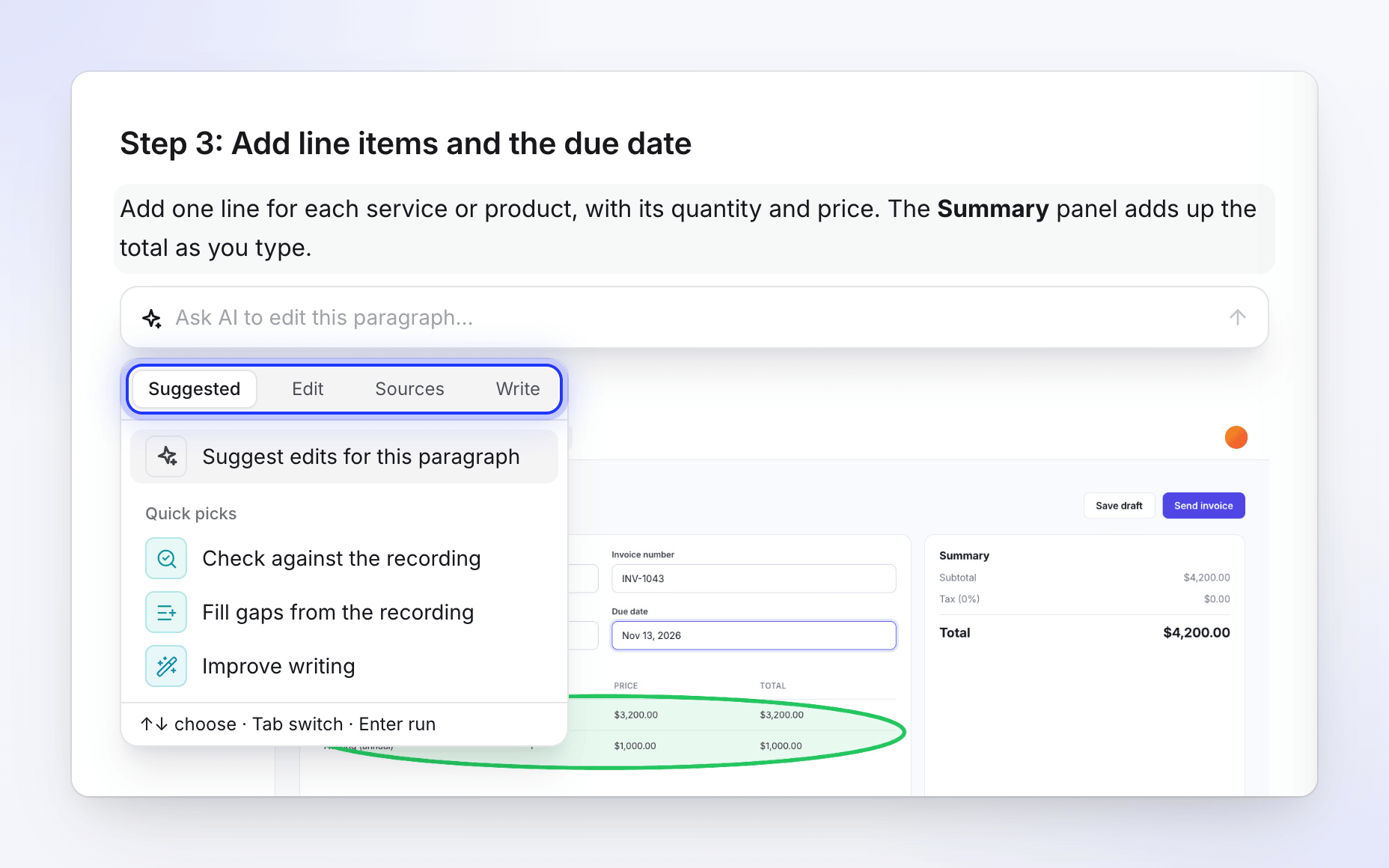
The menu works on what you opened it on: the selected text, one block (a paragraph, a list, a table, a callout, steps, an image…), several selected blocks, or the empty line where your cursor is. Its rows change to fit. A heading never offers Make longer, for example.
Pick an action
The menu has four tabs. Press Tab to switch tabs, ↑ and ↓ to choose and Enter to run. You can also type your own instruction at the top ("Ask AI to edit this paragraph…") and press Enter.
Suggest edits for this… reads the spot, the article and the recording and lists what to fix or add there. Click a suggestion to run it. When there is nothing to do you see "Nothing specific to change here. Try an action below."
Under it, Quick picks shows the two or three actions that fit this spot best.
| Action | What it does |
|---|---|
| Improve writing | "Clearer, plainer and tighter, same facts." |
| Fix spelling & grammar | "Fixes mistakes and changes nothing else." |
| Make shorter | "Fewer words, every fact kept." |
| Make longer | "Adds detail from the article and the recording." |
| Change tone | Professional, Friendly, Casual, Confident, Formal, Technical or Conversational. Type another tone to use it. |
| Translate | "Translates it, keeping its formatting." Search the list of languages. |
| Turn into steps | "One step per action, in order." Lists and several blocks only. |
| Turn into table | "Puts it in rows and columns." Lists and several blocks only. |
| Turn into callout | "A tip, note or warning box." |
| Action | What it does |
|---|---|
| Check against the recording | "Fixes what the recording contradicts." |
| Fill gaps from the recording | "Adds the steps the recording shows here." |
| Add a screenshot here | "A still of the recording at this moment." |
| Link related articles | "Links the workspace's articles a reader needs here." |
The first three are listed under From the recording and show only when the article has a source recording. Link related articles is under Workspace and shows only when the workspace has related articles.
| Action | What it does |
|---|---|
| Continue writing | "Writes the next one to three blocks below." |
| Write what comes next | On an empty line: "Continues from the blocks before, using the recording." |
| Write an introduction | On an empty line before the first heading: "What the reader will do here and why." |
| Add a summary | On an empty line after the last heading: "Two or three sentences on the whole document." |
Review the result
The answer streams into the article as a preview, marked as AI writing. While it writes you see "Reading the article…" and then "Writing…"; click Stop (Esc) to stop it. When it's done, a bar under the preview lets you decide:
| Control | What it does |
|---|---|
| Replace (⌘↵) | Keeps the result in place of the original. On an empty line the button reads Insert. |
| Insert below | Keeps the original and adds the result under it. |
| Discard (Esc) | Throws the result away. |
| Changes | "Show what changed": marks removed and added words. Click again to "Show the result". |
| Try again (⌘⇧↵) | Asks for another version. |
| Tries | Steps between versions with Previous try and Next try. |
| Refine | Type what to change ("Tell AI what to change…") and send it. |
The blocks the result would replace are folded under Original. Open it to compare.
If the AI found nothing to change, the preview says "No changes needed." (or "Matches the recording. No changes needed." after a check) and the bar offers Close.
What it costs
Each request uses credits for what it actually takes, booked as you go. Suggest edits and each action, try and refine are separate requests. They show as Article AI in your credit activity. There is no estimate first, and the assistant's daily allowance of free small edits doesn't cover the AI menu.
See credit costs.
Troubleshooting
| You see | What it means |
|---|---|
| "Couldn't load suggestions. Retry" | The suggestions failed. Click Retry, or pick an action yourself. |
| "No suggestions here. Ask again" | The AI had nothing for this spot. Ask again or pick an action. |
| "The AI could not finish this. Try again." | The request failed. Click Retry. |
| "Too many AI requests. Wait a moment and try again." | You sent many requests in a short time. Wait a few seconds. |
| "Editing is paused right now. Accept again once the article is editable." | Live editing reconnected while the result waited. Accept it again once the article is editable. |
| The Sources tab is missing | The article has no source recording and the workspace has no related articles. |