

Set up an Autopilot task
Set up an Autopilot task in the chat: type what to do and when, or pick a recipe. Clevera fills in a setup card; you check it, click Continue, then Create task. Every field, trigger, approval rule, cost and message explained.
You set up every Autopilot task in the Clevera chat. Say what should happen and when, or pick a recipe, and Clevera opens a setup card already filled in from what it knows. You check the card, click Continue, read the summary and click Create task. Nothing is made and no credits are used until you approve a plan.
There is no separate setup page or wizard. Every way in (the box on Autopilot home, New task, a recipe card, a suggestion's Plan it) opens the chat panel with a setup card.
Before you start
- Autopilot must be on for your workspace. It comes with the Pro, Business and Custom plans, by invitation. See Get access to Autopilot.
- Your role must be able to create content. Owners, Administrators and Content Creators can set tasks up. Editors can see every task and what it made, but can't set one up: New task is turned off for them, with the reason as a tooltip. See who can do what.
- Some recipes need something first. The article recipes and Keep my help center up to date when we ship need a help center. Recordings need your app's address and, for anything behind a login, an app sign-in. Each release needs a connected repository.
- Add your brand. Tasks use your workspace's brand for every site, video and article they make. The Get started checklist on Autopilot home links to it.
Ways to start
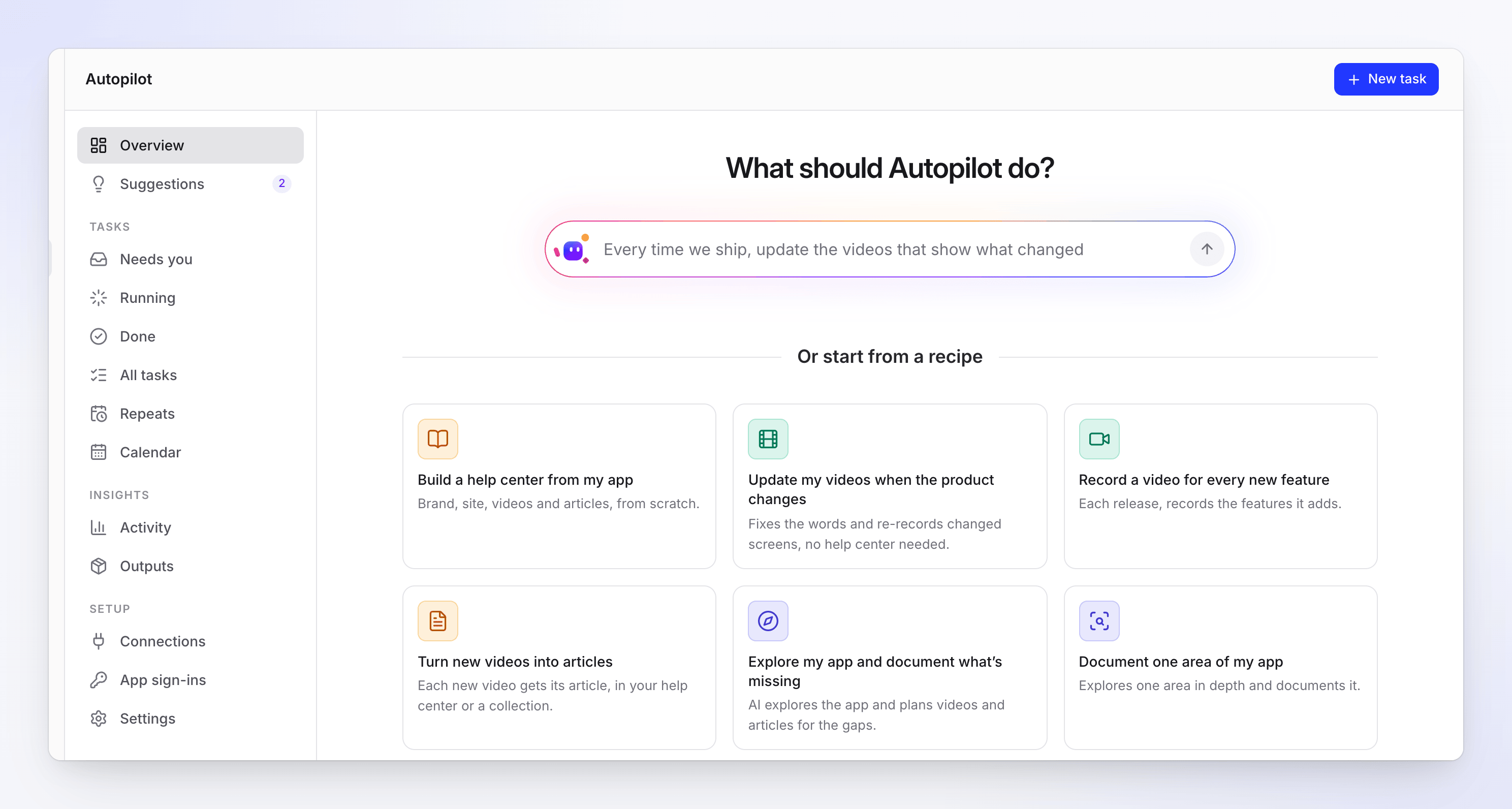
| Where | What you do | What opens |
|---|---|---|
| What should Autopilot do? box on Autopilot home | Type the job and when it should happen, for example "Every time we ship, update the videos that show what changed", and press Enter | A new chat with your words. Clevera picks the recipe that fits and shows its card, filled in from what you said. |
| Or start from a recipe on Autopilot home | Click a recipe card | A new chat with that recipe's card, straight away |
| New task (top right of every Autopilot page) | Click it | A new chat that asks What should Autopilot do for you?, with the recipes as buttons below. Type, or click a recipe. |
| Clevera noticed or Suggestions | Click Plan it on a suggestion | The suggestion's recipe card, filled in from its evidence. See Use Autopilot suggestions. |
| A collection's Make a help center | Click it | The Make a help center from a collection card for that collection |
| A task page's Repeat this or Edit and try again | Click it | The same recipe's card, filled in from that task |
A recipe card your role can't start stays on the page, greyed out, with the reason when you point at it. New task shows the first six recipes and 7 more to show the rest (Fewer folds them again).
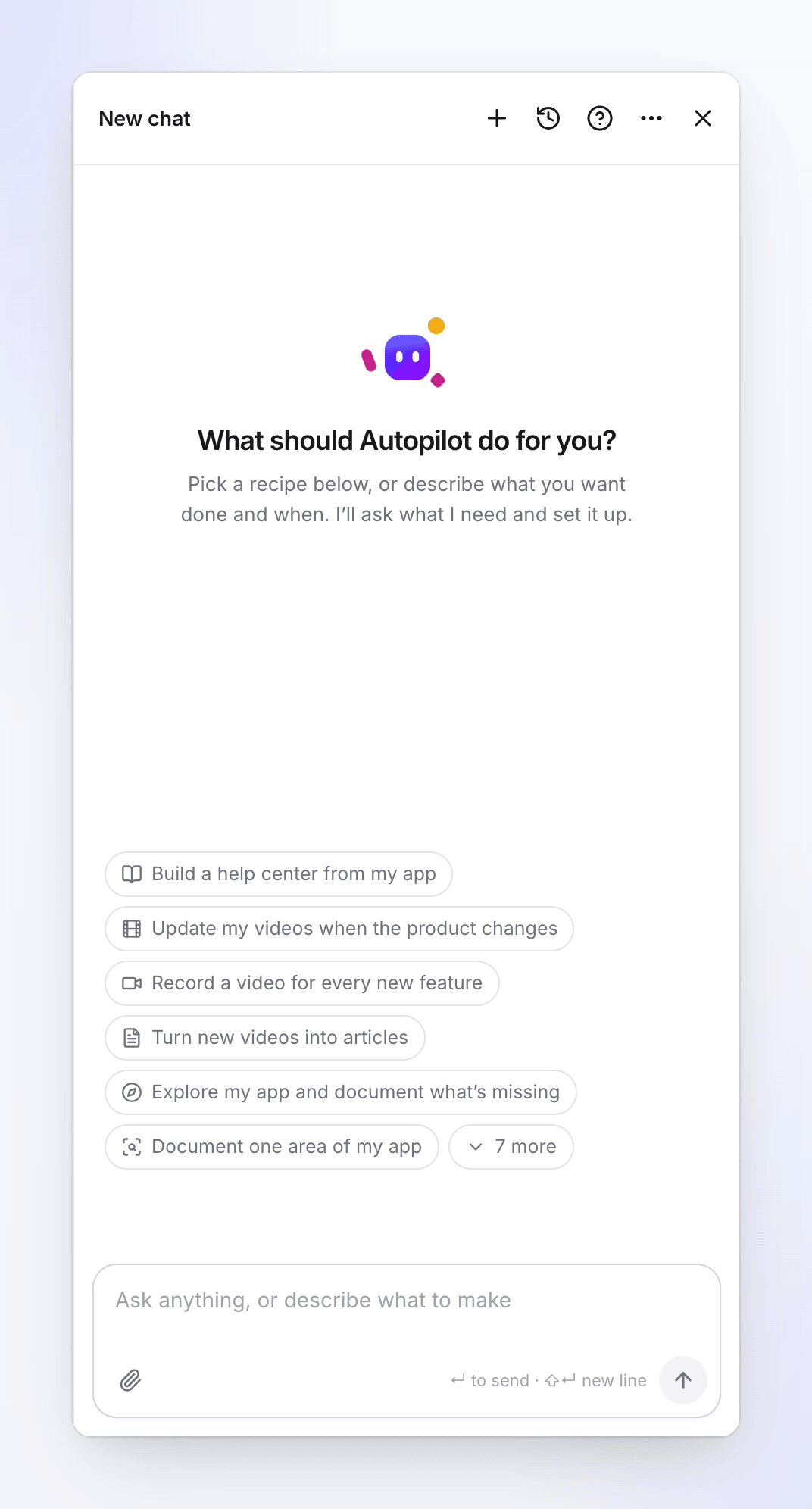
Set up a task
Open the setup card
Use any of the ways above. The chat panel opens on the right, titled with the recipe, and Clevera writes "Here’s the setup. Check it and click Continue." The card shows the recipe's name and what it does.
A short setup is filled in right on the card. A longer one shows a summary of up to four rows, starting with When. A row still missing something reads To fill in.
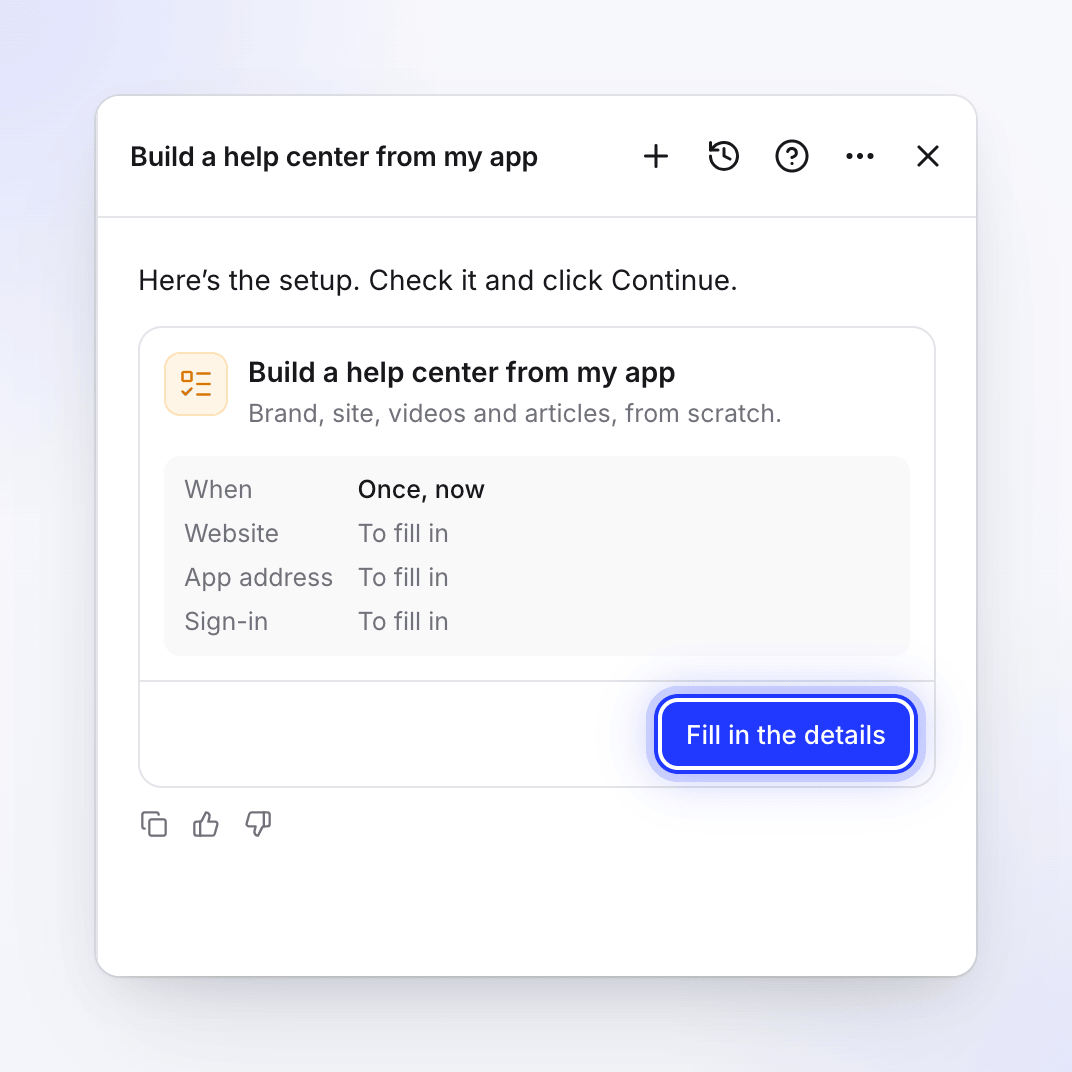
A longer setup shows a summary and Fill in the details. Fill in the details
On a longer setup, click Fill in the details. Once every required field is filled, the button becomes Edit details next to Continue. The dialog shows every field, section by section, starting with When. Click Close to go back to the card or Continue to check it.
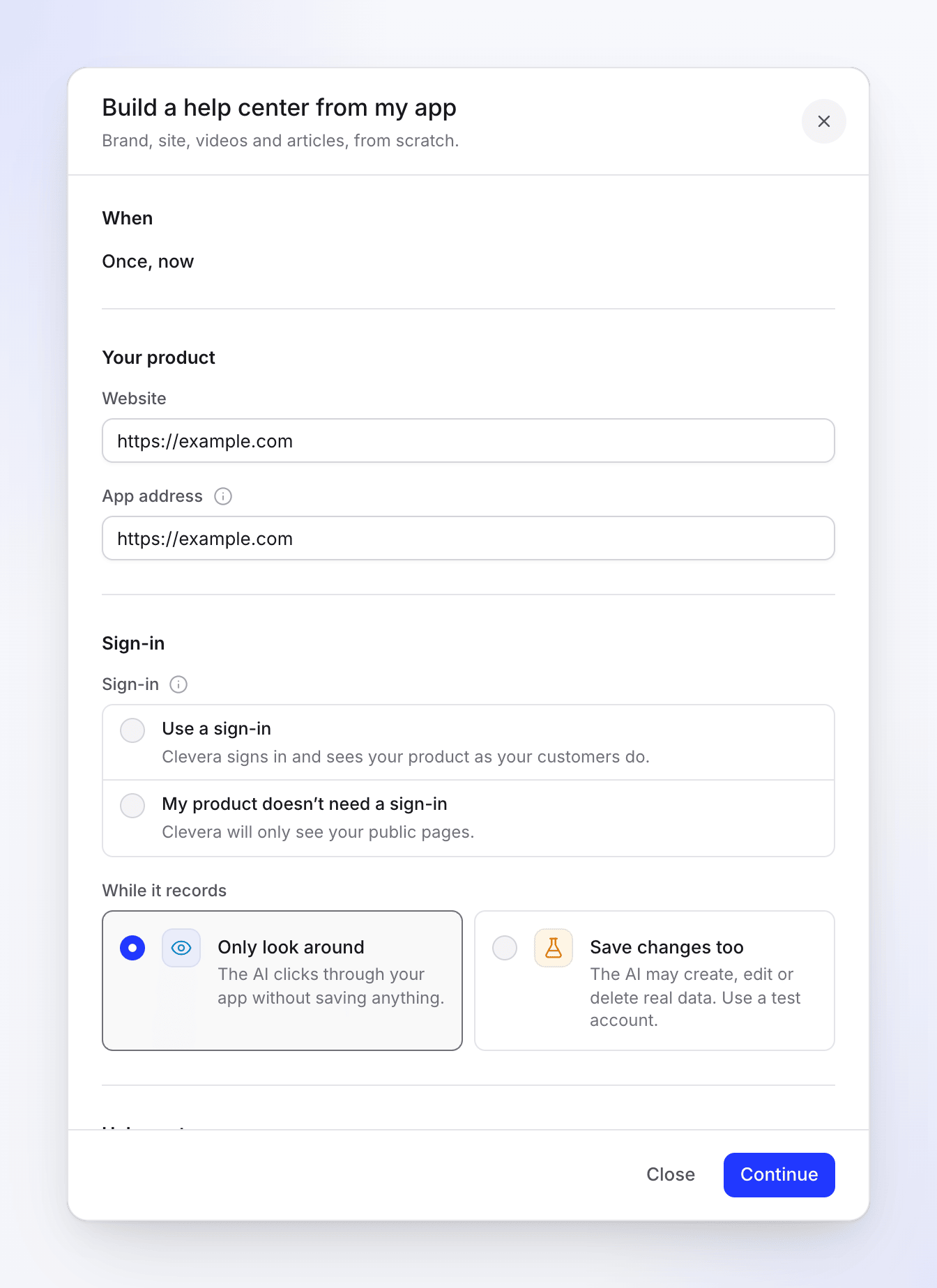
Every field of the recipe, with Close and Continue at the bottom. Your edits are kept on the card as you type, so closing the panel or reloading the page doesn't lose them.
Click Continue
Clevera checks the setup on the spot: your role, every field, and whether the recipe can run that way. A problem shows next to its field, or as a red line on the card. Fix it and click Continue again.
Read the summary
The card now shows the task's name and a short summary, then a line saying what happens next. Click Back to change something.
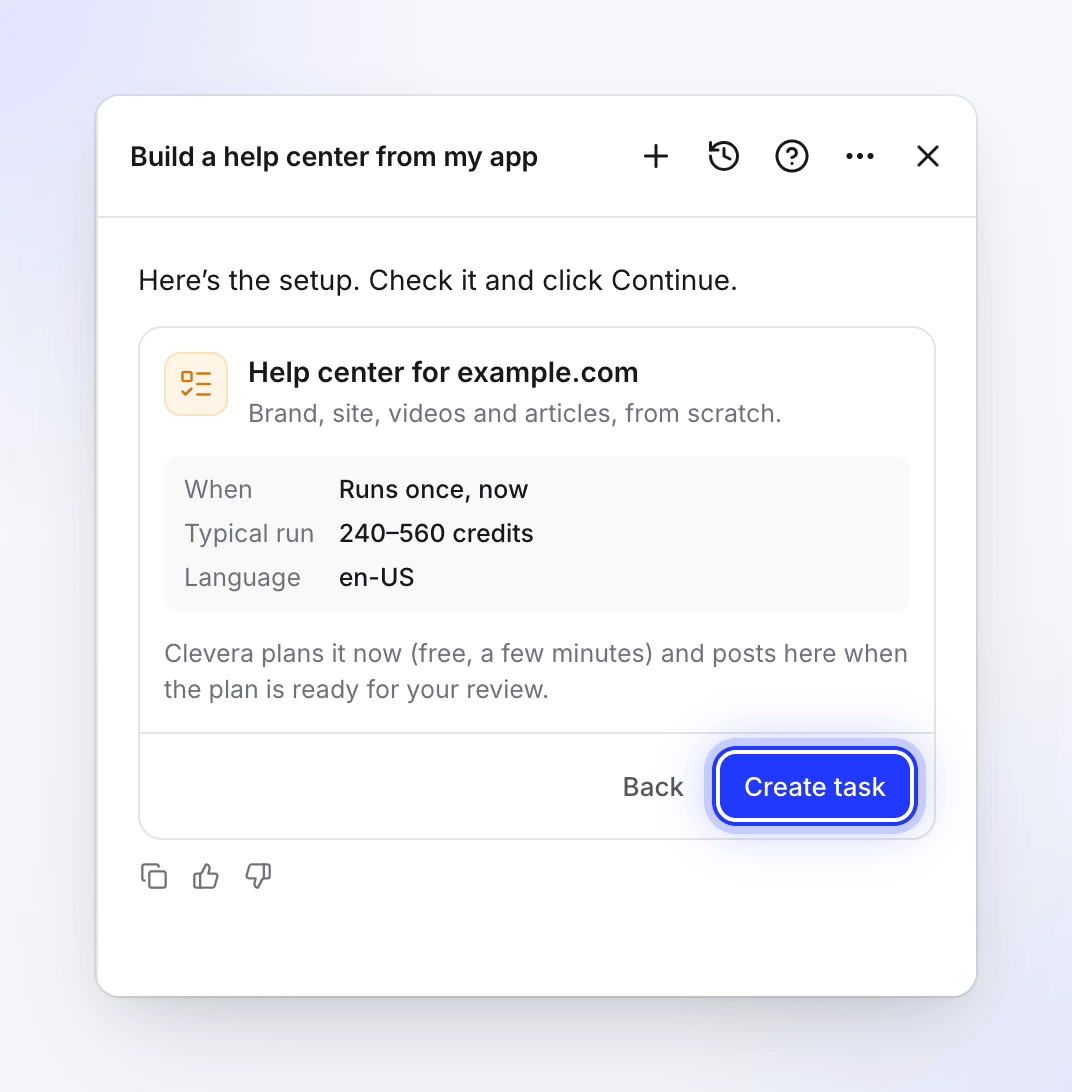
The summary after Continue. Nothing is made until you approve a plan. Click Create task
The card shows Task created and Open the task, and Clevera writes "Done: the task is set up. Clevera posts here when it needs you."
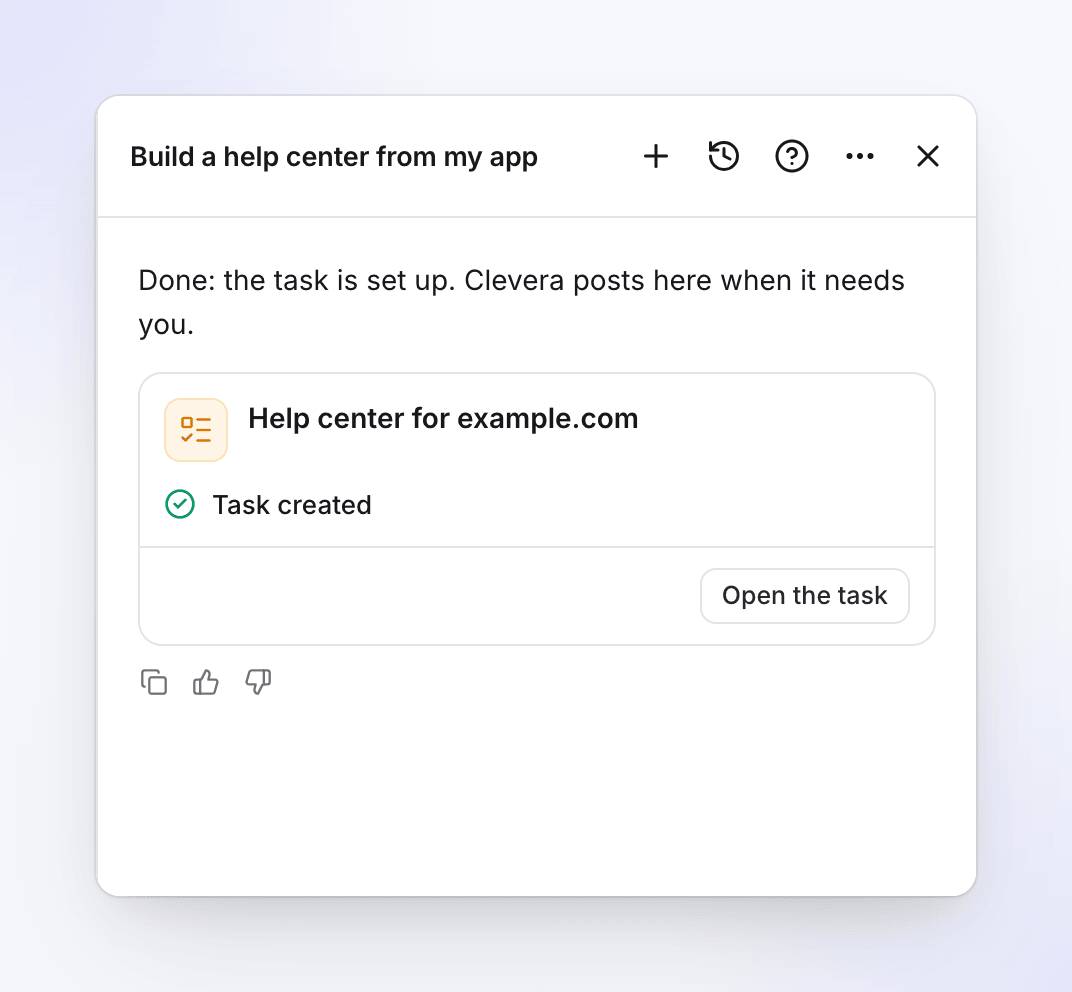
What happens after Create task
| The task runs | What happens now | Where you see it |
|---|---|---|
| Once, now | Clevera plans it right away. Planning is free and takes a few minutes, longer when the AI explores your app. When the plan is ready, Clevera posts in this chat and the task appears under Needs you. | Running now while it plans |
| On a schedule | Nothing now. Clevera plans a run at each scheduled time. | Always on, with a Repeats badge |
| Each release, A changelog page, Each new video | Nothing now. Each time it fires, Clevera plans a run and waits for your review. | Always on, with a Watching badge. The task page says No runs yet until the first one. |
The chat you set the task up in belongs to that task from now on: when its plan is ready, it fails or it needs you, Clevera posts there. If that chat was already about something else, the task gets a chat of its own and the card says "It has its own chat: updates on this task are posted there."
Then you review the plan on the task page: untick what you don't want and click Run. See Understand Autopilot.
The summary after Continue
| Row | What it shows |
|---|---|
| When | "Runs once, now", "After every release", "After every merged change", "Checks the page every day" or "Checks the page every week", "When a new video finishes" (or "…finishes in" a collection), or a schedule such as "Every Monday at 09:00 (America/New_York)" |
| Monthly budget | Only for a schedule: the most the task may spend in a calendar month |
| Approval | "Each run waits for your review". For Fill the gaps in my help center every week on a schedule set to Make drafts, I publish: "Makes drafts; runs that write from reader searches wait for your review". |
| Changes in your app | "Allowed while recording" when you let the AI save changes in your app |
| Import | The address of the help center you import, for Build a help center from my app |
| Typical run | A credit range, for the recipes that have one (see below) |
| Language | The language the task writes in, by name, for example "English (US)" |
The line under it says "Clevera plans it now (free, a few minutes) and posts here when the plan is ready for your review." for a one-off, or "Nothing runs now: Clevera plans a run each time it fires, and you review the plan on the task before anything is made." for everything else.
The recipes
The recipes appear in the same order on Autopilot home and under New task: first the ones you can start now, then the ones that need a help center, then the ones your role can't start.
| Recipe | When it can run (default first) | Needs | Typical run |
|---|---|---|---|
| Build a help center from my app | Once | — | 240–560 credits |
| Keep my help center up to date when we ship | Each release, A changelog page, Once | A help center | 10–150 credits |
| Update my videos when the product changes | Once, Each release, A changelog page | — | 10–150 credits |
| Record a video for every new feature | Each release | A connected repository | 10–150 credits |
| Turn customer questions into help articles | Once | A help center | 5–60 credits |
| Fill the gaps in my help center every week | On a schedule, Once | A help center | 5–60 credits |
| Turn new videos into articles | Each new video | — (a help center or a collection) | 5–60 credits |
| Explore my app and document what’s missing | Once | — | 100–260 credits |
| Document one area of my app | Once | — | 100–260 credits |
| Make getting-started videos for new users | Once | — | 100–260 credits |
| Edit a batch of videos at once | Once | — | Not shown |
| Translate new videos into my languages | Each new video | — | Not shown |
| Your own task | Once, Each release, Each new video | — | Not shown |
| Make a help center from a collection | Once | — | Not shown |
Make a help center from a collection is not on Autopilot home: it opens from a collection's Make a help center.
The typical run is a range from past runs, not a quote. Each plan shows the real estimate for every line before you run it, and you are charged for what each line really uses.
The When section
Every card starts with When. A recipe with one way to run shows it as plain text. A recipe with several shows a Runs switch.
| Option | What it means |
|---|---|
| Once, now | Plans as soon as you create the task |
| On a schedule | A Repeat: daily, weekly, every 2 weeks or monthly, at a time you pick, in your time zone. Only Fill the gaps in my help center every week has it. See Set a Repeat schedule and monthly budget. |
| Each release | After each release (or each merged change) of a connected repository. Repositories are checked about once an hour. See Connect a repository. |
| A changelog page | Clevera reads your release-notes page Daily or Weekly |
| Each new video | When a new video finishes, in All new videos or one collection (Which videos). New videos are checked every 15 minutes, so a run starts within about 25 minutes. Social clips and what the task itself made don't count. |
For every option except Once, now and On a schedule, the card notes: "Nothing runs now. Each time it fires, Clevera plans a run and waits for your review before anything is made."
Fields you see on many cards
Sign-in
Every recipe that records or explores your app asks how the AI gets in. Clevera never answers this for you.
| Choice | What it means |
|---|---|
| Use a sign-in | "Clevera signs in and sees your product as your customers do." Pick a saved sign-in from Choose a sign-in, or Add a sign-in… to save a new one. If exactly one saved sign-in matches the app's address, it is picked for you. |
| My product doesn’t need a sign-in | "Clevera will only see your public pages." |
Add a sign-in… opens Add an app sign-in ("Use a demo or staging account. The AI signs in as it while it records."): the app's address, the login, and two-step verification if your app uses it. The login is encrypted and never shown again after saving, and you confirm with your Clevera password. Only a reference to the sign-in goes into the task: the password never passes through the chat. See Save an app sign-in.
While it records
| Choice | What it means |
|---|---|
| Only look around (default) | "The AI clicks through your app without saving anything." |
| Save changes too | "The AI may create, edit or delete real data. Use a test account." |
Explore recipes call this While it explores. Your own task has a checkbox instead: Let the AI save changes in your app (use a test account). Clevera never ticks it for you.
Your app
Keep current, Update my videos, the article recipes and Your own task ask whether Clevera may use your app: Use my app (then App address, prefilled with your workspace website, and Sign-in) or Don’t use my app. Without your app, Clevera only updates or writes words; it doesn't record new screens.
Languages
Content language is the language the task writes in. It defaults to your workspace's. Translations adds more languages, up to 5 in total. Translate new videos into my languages takes 1 to 4 languages.
Fields by recipe
| Recipe | Sections on the card |
|---|---|
| Build a help center from my app | Your product: Website (from your brand, else the workspace website) and App address (follows the website until you change it). Sign-in and While it records. Help center: brand, Site name (optional), Anything Clevera should know? (optional). Languages. Existing help center: Import it or Start fresh; to import, pick the platform (Intercom, Zendesk, Help Scout, GitBook, ReadMe, Mintlify, Document360, Docusaurus or another docs site), its address and tick I own this content or may copy it. |
| Explore my app, Document one area, Getting-started videos | Goal (Fill help center gaps, Document one area, Getting-started path, What changed) and Anything to focus on? (optional). Your app with While it explores. Area (Document one area only). What to make: Videos, Videos and articles or Articles only, and How many (1–30; getting-started 5–8; defaults 10, 8 and 6). Languages. |
| Keep my help center up to date when we ship | Help center and Check (Videos and articles, Articles or Videos). What to watch: A repository (pick it, then Read: Releases or Merged changes), A changelog page (its address, Daily or Weekly) or Just this change (describe What changed). Anything Clevera should keep in mind? (optional). Your app. |
| Update my videos when the product changes | Like Keep current, but Videos comes first: All my videos or A collection, and New-feature videos go to (optional). No help center needed. |
| Record a video for every new feature | Like Update my videos, but What to watch offers only A repository (its Releases or Merged changes): no changelog page and no Just this change. |
| Turn customer questions into help articles | The help center, Your questions (one per line, up to 30), an optional note, Your app. |
| Fill the gaps in my help center every week | The help center, an optional note, Your app, then Runs: Once or Repeat. A Repeat adds How often, the day and Time, At most each time (1–12 articles, default 5), Monthly budget and When a plan is ready. With Make drafts, I publish, the form notes "A run that writes from reader searches still waits for your review." |
| Turn new videos into articles | Which videos, then Where should articles go?: My help center ("Drafts land there for your review.") or A collection (or Top of the library). With no help center, only the collection choice shows. |
| Edit a batch of videos at once | Videos (the ones you picked, or a collection) and What should change (3–2,000 characters; it can change the narration, the video title and chapter headings). Up to 40 videos. |
| Translate new videos into my languages | Which videos and Translate into (1–4 languages). A video already in that language is skipped. Up to 20 videos per run. |
| Your own task | Instructions (3–2,000 characters), Your app, where articles go, languages. See Set up your own Autopilot task. |
| Make a help center from a collection | Videos to use, Your website (optional), Site name (optional), Anything we should know (optional). Uses the newest 60 videos. |
Approval and budget
When a task's plan is ready, someone has to approve it, with one exception.
| Task | Who approves each plan |
|---|---|
| One-off (Once, now) | You. The plan waits on the task page until you click Run. |
| Each release, A changelog page, Each new video | You, every time. These runs always wait for your review. |
| Fill the gaps in my help center every week on a schedule | You choose under When a plan is ready: Ask me first ("Plans, then waits for your Run.") or Make drafts, I publish ("Drafts within the budget. You publish."). With drafts, a run may go ahead on its own within the monthly budget. A run that writes from what readers searched for or asked still waits for your review: that is someone else's text, and Clevera never acts on it unseen. |
Articles Autopilot writes on your help center always land as drafts that wait for approval: nothing is published for you. Publish for me isn't offered by any recipe.
A schedule also has a Monthly budget in credits (1–100,000). It starts at a suggestion worked out from how often it runs and how many articles it writes each time, for example 300 credits for 5 articles every week. Only a workspace owner or admin can set a budget above the suggestion. See Set a Repeat schedule and monthly budget and Choose how much Autopilot can do on its own.
What setup costs
| Part | Cost |
|---|---|
| The chat and the setup card | Free |
| Planning a run | Free (Clevera has a daily planning limit per workspace) |
| Running an approved plan | The credits each line really uses. The plan shows an estimate first. |
| A schedule | At most its monthly budget each calendar month. At the budget it pauses and tells you. |
What Autopilot can't set up yet
When you ask for something no recipe or trigger covers, Clevera says so in one sentence, offers the nearest thing that works and passes your request on to the product team. Today that includes:
- Posting or sending anything: Slack, Notion, YouTube, social networks or e-mail. Everything a task makes already shows to the team in a team-wide collection, so there is no "share" step.
- Social clip tasks and blog-post tasks. These are on hold for now.
- Making or exploring new videos on a schedule. Recording and exploring run once, or on each release (Record a video for every new feature).
- Running every hour, or once on a set date.
- Your own task editing or cutting existing videos. Use Update my videos when the product changes or Edit a batch of videos at once.
- Other triggers, such as a new ticket in a support tool.
If a task that already does the job exists (the same recipe, help center or videos, and the same kind of trigger), Clevera shows no new card. It names that task and offers to change it instead. See Change or pause an Autopilot task.
Troubleshooting
| You see | What it means | What to do |
|---|---|---|
| "This one needs a help center first." and "This works on a help center, and this workspace has none yet. Build one first, then set this up." | The recipe works on a help center and you have none | Click Build my help center: that recipe's card opens in the same chat. Or set up Turn new videos into articles with A collection, which needs no help center. |
| "Choose a sign-in, or say your product doesn’t need one." / "Pick a sign-in, or add one." | The sign-in question isn't answered | Pick a sign-in or My product doesn’t need a sign-in |
| "Add the address to go on." / "This doesn’t look like a web address." | An address field is empty or not a web address | Enter the full address, for example https://app.example.com |
| "Use a public https:// address the AI can open." | Clevera can't open the app address | Use the public https:// address of your app |
| "This app sign-in is for" a host | The sign-in you picked belongs to another site | Pick a sign-in for this app's address, or change the address |
| "This task can’t be started that way. Pick one of the choices under When." | The recipe can't run on the trigger you picked | Pick another option under When |
| "Only the workspace owner or an admin can set a budget above" N "credits." | Your budget is above the suggestion | Lower it, or ask an owner or admin |
| "Your plan holds" N "help centers. Pick one to build into." | Your plan's help-center limit is reached | Pick an existing help center to build into |
| "This platform imports with a token. Import it from Docs settings once the site exists." | That help-center platform can't be imported from its public address | Choose Start fresh, then import from the doc site's settings |
| "Confirm that you own this content or have the right to copy it." | I own this content or may copy it isn't ticked | Tick it, or choose Start fresh |
| "A task edits up to 40 videos. Pick fewer." | Too many videos for Edit a batch of videos at once | Pick fewer videos, or split them into two tasks |
| "Check the setup with Continue first." / "This task was already created." | You clicked Create task twice, or before Continue | Click Open the task, or Continue first |
| "The choices could not load." | The card couldn't load your help centers, collections or sign-ins | Click Try again |
| "Planning is free up to a daily limit for each workspace, and this workspace has reached it for today. Please try again tomorrow." | Your workspace's free planning for today is used up | Try again tomorrow. Triggered tasks catch up on the next day. |
| A recipe card is greyed out | Your role can't start that kind of task | Ask a workspace owner or admin for a role that can create content |