

Add an AI avatar and set its screen time
Add an AI avatar who presents your social clip on camera, pick their look, and choose how much of the clip they're on screen. Avatars are on paid plans and add credits on top of the clip's estimate, based on screen time.
An AI avatar is a presenter who speaks your clip's script on camera. You choose the person and their look, and how much of the clip they're on screen; the AI director cuts between the avatar and your product. You can add one to any social clip, and the AI avatar type is built around one.
Before you start
- A paid plan. On the Free plan you can browse the avatars, but you can't use one: "AI avatars are on paid plans. Upgrade to use one."
- Credits on top. An avatar adds credits to the clip's estimate, priced by how long the avatar is on screen. See What it costs.
- A voice-over. An avatar always speaks, so adding one turns the voice-over on.
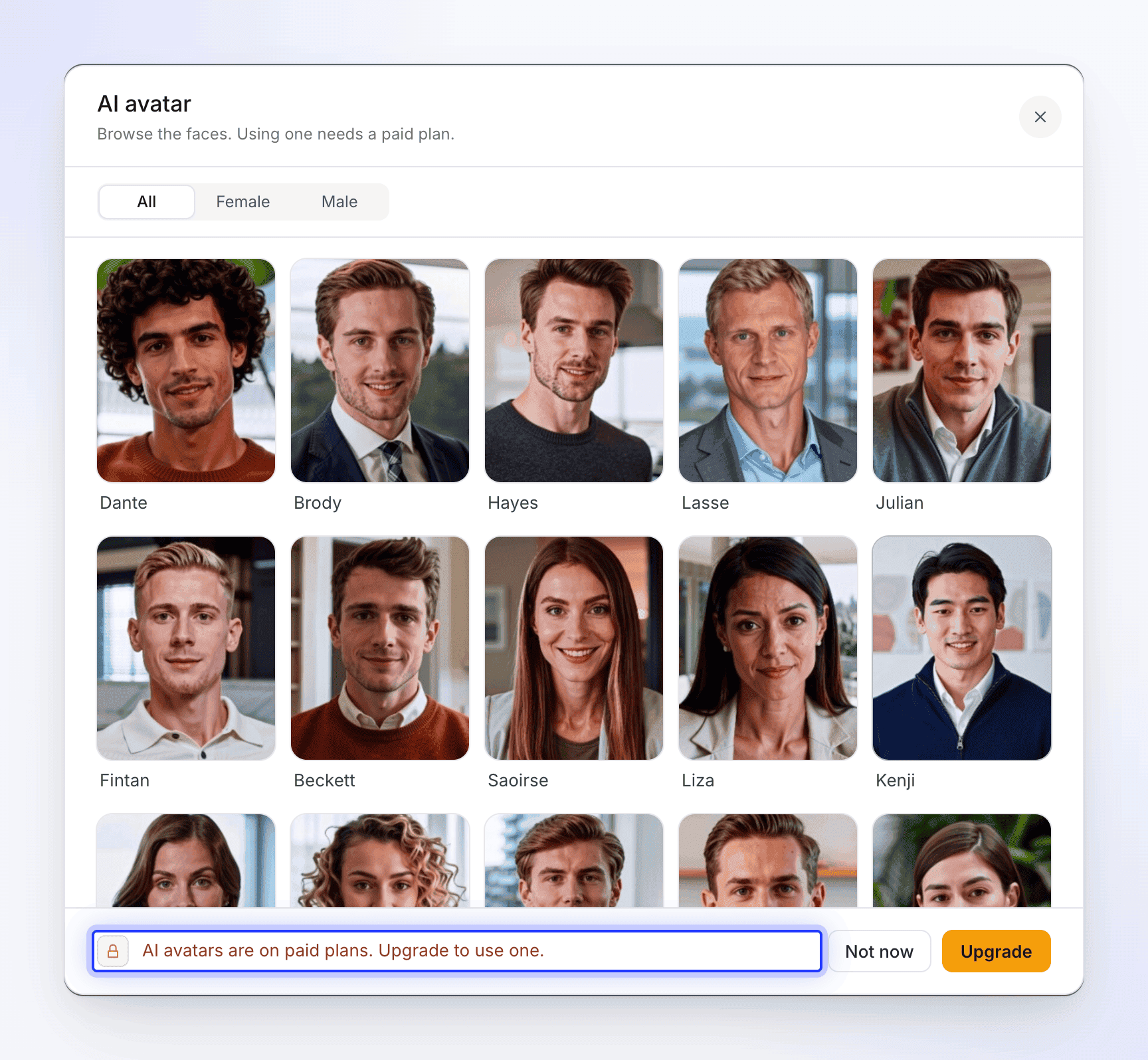
Add an avatar
Open the AI avatar pill
On the Compose page of a social clip, click the AI avatar pill. It reads No avatar, or Choose avatar on the AI avatar type. The AI avatar window opens: "Choose who presents your video, then pick their look."
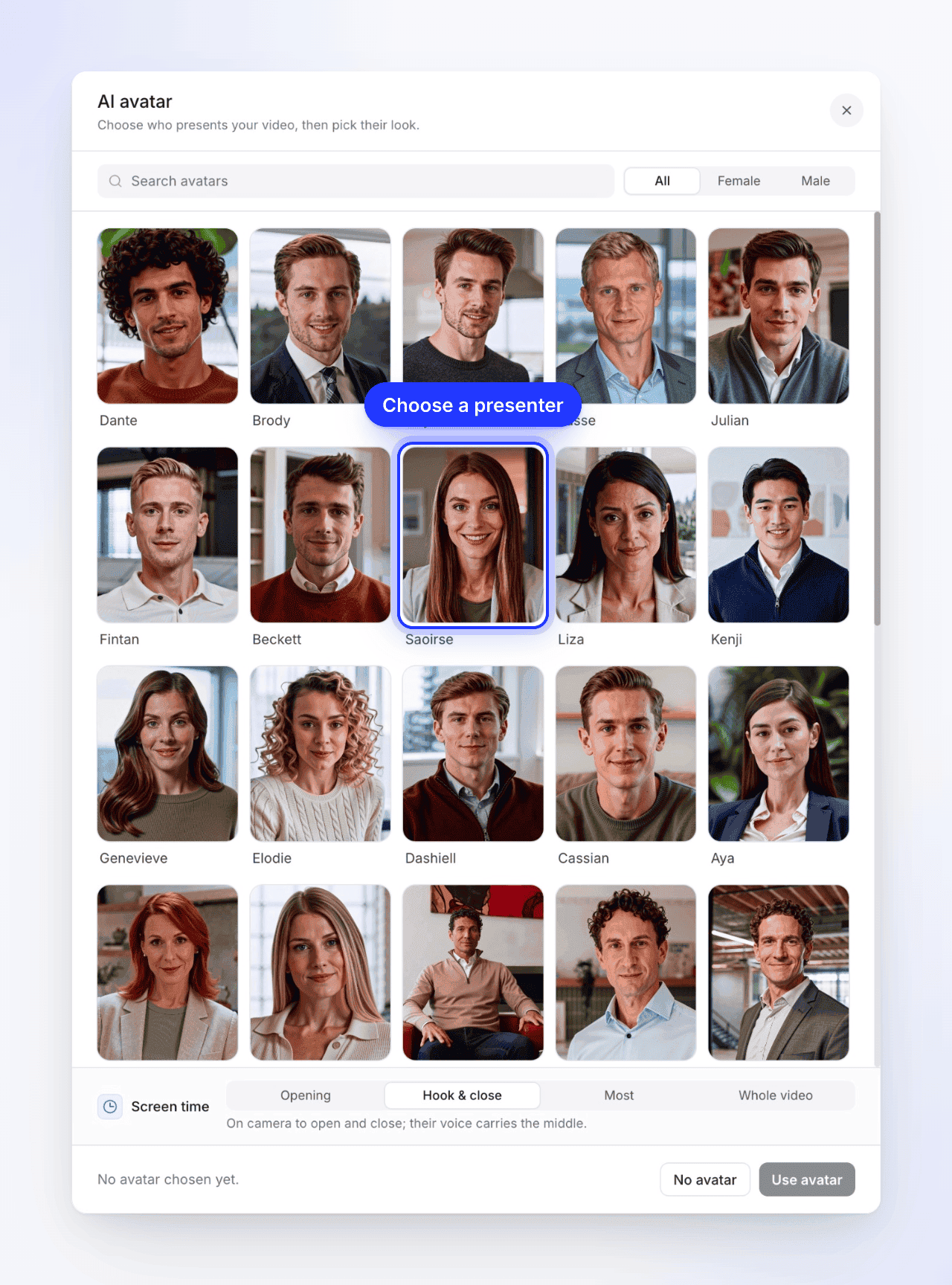
Choose who presents
Browse the faces, or use Search avatars and the gender filter (All, Female, Male). Click a face to see their looks.
Pick a look
"Pick how {name} looks on camera." Each look is the same person in a different outfit or setting. Click one; the footer shows the name and look you picked. Use the back arrow (All avatars) to choose someone else.
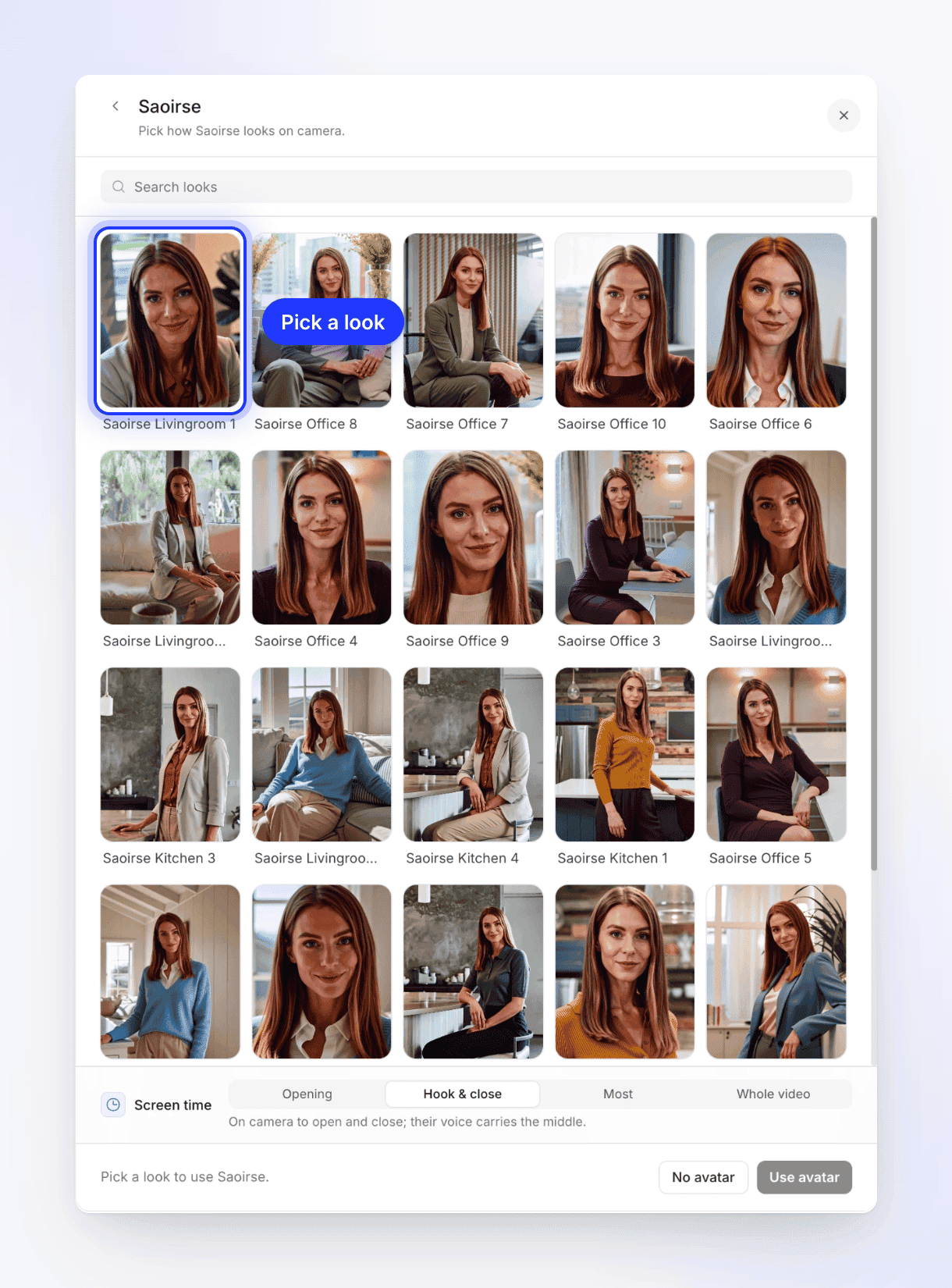
Each look is the same presenter in a different outfit or setting. Set the screen time
Under Screen time, pick how much of the clip the avatar is on camera. The line underneath says what each option does. See Screen time.
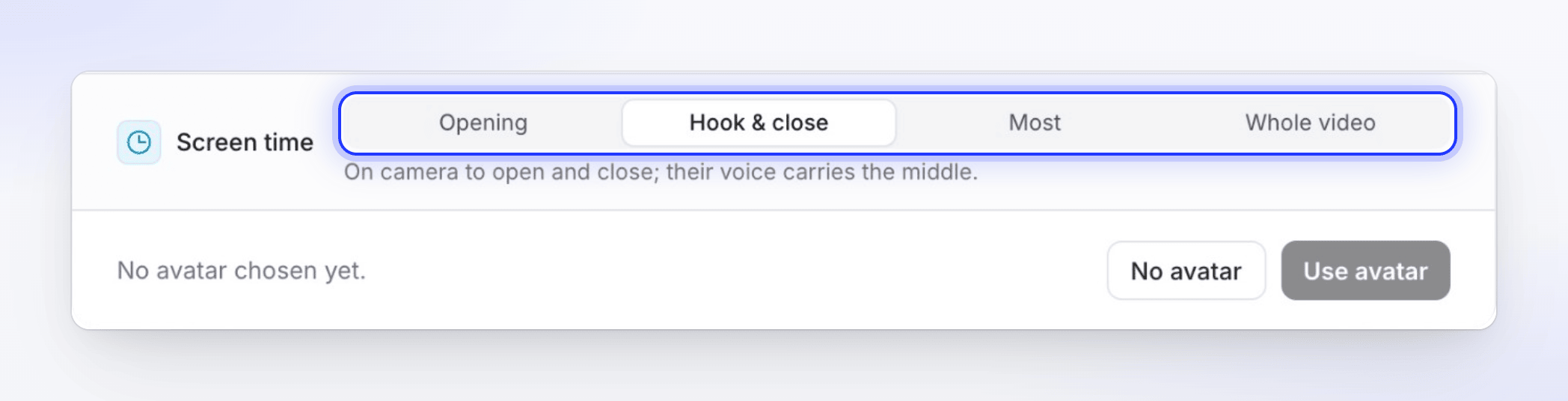
Hook & close is the default and keeps your product on screen in the middle. Use the avatar
Click Use avatar. The pill now shows the avatar's name and face, and the Voice pill switches to that avatar's voice.
To remove the avatar, open the pill again and click No avatar at the bottom of the window. The voice goes back to a built-in voice. The ✕ in the corner closes the window without changes.
Screen time
| Option | What viewers see | Roughly on camera |
|---|---|---|
| Opening | "On camera to open, then just their voice." | 10–30% of the clip |
| Hook & close (default) | "On camera to open and close; their voice carries the middle." | 25–55% |
| Most | "On camera most of the way, cutting away when the product needs the screen." | 60–100% |
| Whole video | "On camera from the first word to the last." | All of it |
With every option except Opening, the avatar moves between full screen and a corner over your product, so viewers can see both. Where the avatar isn't on camera, their voice carries on as a voice-over.
The avatar's voice
While an avatar is on, the Voice pill lists only that avatar's voices, filtered to the clip's language, and there's no No voice row: an avatar always speaks. Picking an avatar sets their default voice; you can choose another of their voices from the pill. Built-in and ElevenLabs voices come back when you remove the avatar. See Choose a voice and preview it.
Captions work as usual: they show the spoken words.
What it costs
The avatar is priced on top of the clip's effort range, by how long they're on screen. The estimate beside Generate goes up as soon as you add an avatar, and changes when you change the screen time or the length.
| What moves the price | Effect |
|---|---|
| Screen time | More time on camera costs more. Whole video costs roughly three times Opening for the same clip. |
| Length | A longer clip has more on-camera seconds. |
| The avatar's voice | The speech is priced with the avatar. |
You're charged for avatar footage that's actually made. If the avatar can't be made, it isn't charged. If you stop a generation yourself, an avatar that hasn't started rendering is cancelled; one that has already started rendering is charged. If the generation fails on our side, the credits it used are returned.
What can go wrong
The clip still finishes in these cases, with an amber note on the generation page:
| Heads-up | What happened |
|---|---|
| "Heads-up: I left the avatar out of this one." | The avatar couldn't be made this time, for example because the workspace didn't have enough credits. The clip uses the voice-over and your product instead. |
| "Heads-up: the avatar's voice did not work, so this one is narrated by a built-in voice, without the avatar." | The avatar's voice failed before the first line, so the clip switched to a built-in voice with no presenter. |
If you need the avatar, generate the clip again. See My video came out silent, without music or without the avatar.
Limits
| Situation | What happens |
|---|---|
| AI avatar type with no avatar chosen | Generate points at the pill: "Choose an avatar — this style is built around one." |
| Avatar picked but no look | "Choose an avatar before generating." |
| Translating a clip with an avatar | The translation keeps the translated voice but drops the avatar's face; the new language plays as a voice-over. See Translate a finished video. |
| Avatars paused by us | The window says "AI avatars are temporarily unavailable" with the reason. Try again later. |
| How-to videos, demos and articles | No avatar option. Avatars are for social clips. |