

Use sync and pacing to match footage to narration
Choose which parts of your recording play under each narrated step, and how fast: add and trim clips, set speeds from 0.5× to 8×, hold a frame with a freeze, and read how video and narration fit.
Sync & pacing decides which parts of your recording play while a step's narration is spoken, and how fast. Use it when the picture and the voice drift apart: the voice talks about a button the viewer can't see yet, a slow page load drags, or the video runs on after the narration has finished.
Before you start
- Sync & pacing is in how-to videos and product demos made from a recording you made with the Clevera desktop app, or from a video file you uploaded.
- Recordings made with an older version of the desktop app use Event settings instead. See Change event speed and visibility in older recordings.
- Social clips work differently: select the screen recording in the clip and use Segments in its options. See Edit a social clip.
- You need edit rights on the video. Changing sync and pacing is free; it doesn't record the voice again.
How a step is put together
A how-to video is a row of steps. Each step pairs one narration line with the parts of your recording that play while it's spoken. Those parts are called clips here.
Your recording (one long take)
0:00 ───────[ A ]──────────[ B ]────────[ C ]──────────── 4:12

Step 3 on the timeline
┌──────────────┬────────┬───────────┐
│ Clip A at 1× │ freeze │ Clip B 2× │      ← what viewers see
└──────────────┴────────┴───────────┘
"Click Invite, type Sam's email, then press Send."   ← narration
Three rules explain everything the window does:
- A step lasts as long as the longer of its two halves: the narration, or the clips plus freeze frames. Nothing is cut.
- Clips play in recording order. You choose which moments to show and how fast, not their order. A clip you add lands in its place in the recording's timeline.
- Each step owns its own clips. Editing step 3 never changes the footage of step 2 or step 4. Steps after it move later or earlier on the timeline if step 3 gets longer or shorter, and their zooms and elements move with them.
When the clips are shorter than the narration, the last frame holds until the voice finishes. When the clips at Normal speed are a little too long, Clevera speeds them up to at most 1.25× so they fit. Beyond that, the video runs past the narration in silence, and the step gets longer.
A muted step has no narration to match, so it lasts exactly as long as its clips and freeze frames.
Open the window
Use any of these:
- In the Script tab, hover a step (or select it) and click Edit sync and pacing (the timer icon).
- On the timeline, double-click the step, or right-click it and choose Edit Sync and Pacing.
- For a Clip or Voice clip scene (including the clips of a Polish video), double-click it on the timeline or right-click it and choose Edit Sync and Pacing.
The first time you open it, a three-part tour points out the recording, the scene and a clip. Finish or close it before you save ("Finish the tour first").
What's in the window
| Area | What it shows |
|---|---|
| Preview (top left) | The video. Preview shows switches between Scene ("Play the scene as viewers will see it") and Recording ("Play the original recording"). Back one frame and Forward one frame step through it; Space plays. |
| Recording lane | Your whole recording, with its total length. Parts already in this step are lit and numbered. Two markers show Previous scene ends here and Next scene starts here, so you can see the neighbouring steps' footage. |
| Scene lane | The step as viewers see it, left to right, with its length on screen. The same numbers link each block to its part of the recording. The bar underneath is the narration. A striped Hold block is the automatic last-frame hold. |
| Timing panel (right) | Two bars, Narration and Video, and a line that tells you how they fit. |
| Selection panel (right) | The selected clip or freeze frame and its settings. With nothing selected, a short Editing list of how to edit. |
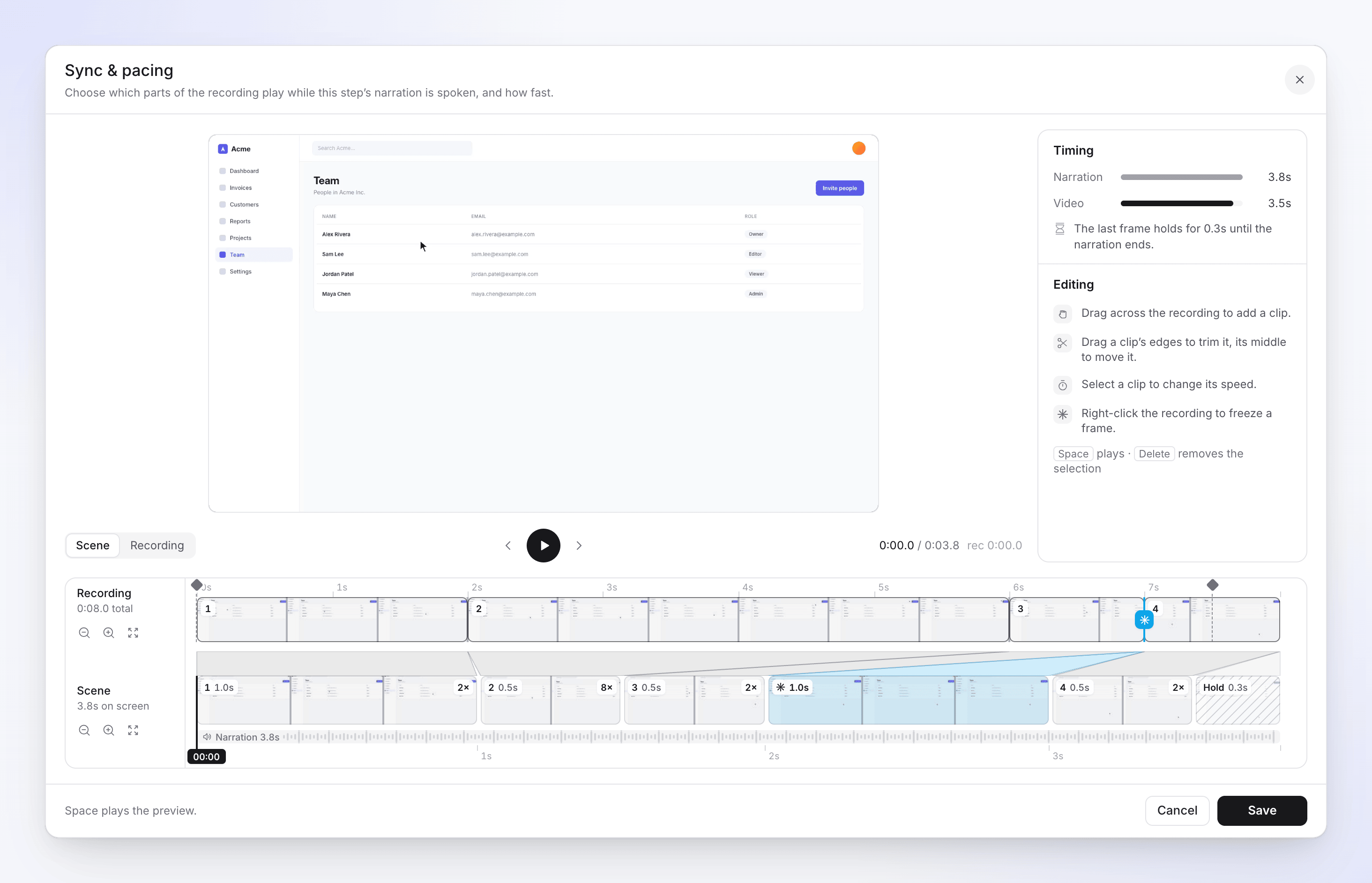
Each lane has Zoom out, Zoom in and a fit button (Show the whole recording on the recording lane, Fit to width on the scene lane).
Read the timing panel
| Message | What it means | What to do |
|---|---|---|
| "The video covers the narration." | Picture and voice end together. | Nothing. |
| "The last frame holds for 2.4s until the narration ends." | The clips run out early; the last frame stays still. | Fine for a short hold. For a long one, add a clip or slow one down. |
| "The video runs 3.0s past the narration. Trim a clip or speed one up." | The picture keeps going in silence after the voice stops. | Trim a clip, pick a faster speed, or remove a clip. |
| "Clips set to 1× play at 1.12× to fit the narration." | Clevera sped up your Normal clips slightly to make them fit. | Nothing, or pick a speed yourself. |
| "No clip yet. Drag across the recording to add one." | The step has no footage. | Add a clip; Save stays off until you do ("Add a clip to scene timeline first"). |
| "This runs as long as its clips: 6.0s." | A Clip scene has no narration, so its length follows its clips. | Nothing. |
Add, trim and remove clips
| To | Do this |
|---|---|
| Add a clip | Drag across dimmed footage on the Recording lane. A card asks "Add this clip to the scene?" with the range and length. Click Add clip. |
| Trim a clip | Select it, then drag its left or right edge (Drag to trim the start / Drag to trim the end) on either lane. |
| Move a clip to other footage | Drag the lit part on the Recording lane. |
| Remove a clip | Select it and press Delete, or open Clip actions (⋯) and choose Remove clip. |
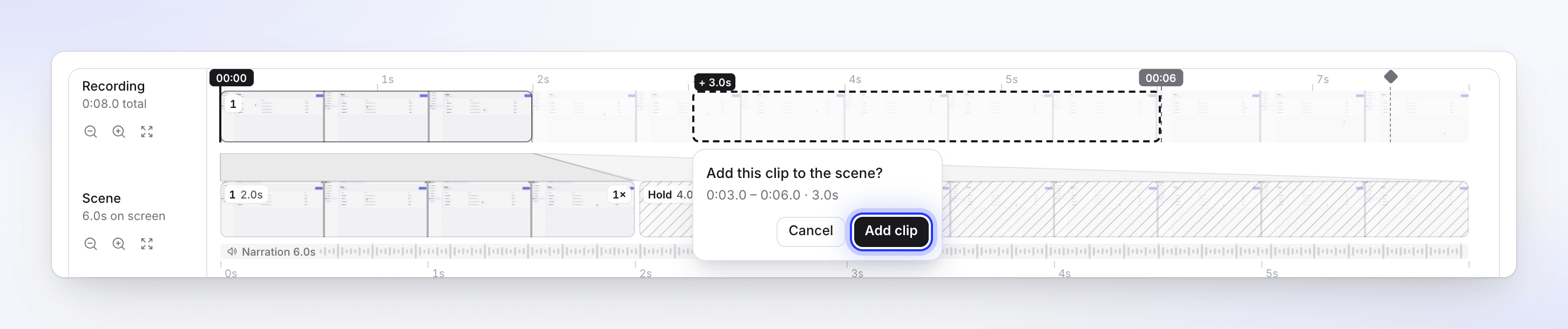
A clip can't overlap footage already in the step: "That range is already covered by clips or freeze frames." A step always keeps at least one clip, so Remove clip is off for the last one. Clips are at least 0.1 seconds long.
Change a clip's speed
Select a clip. The panel shows Clip 2 of 3, its range From the recording (for example "0:41.2 – 0:58.0"), how long it is On screen, and eight speeds:
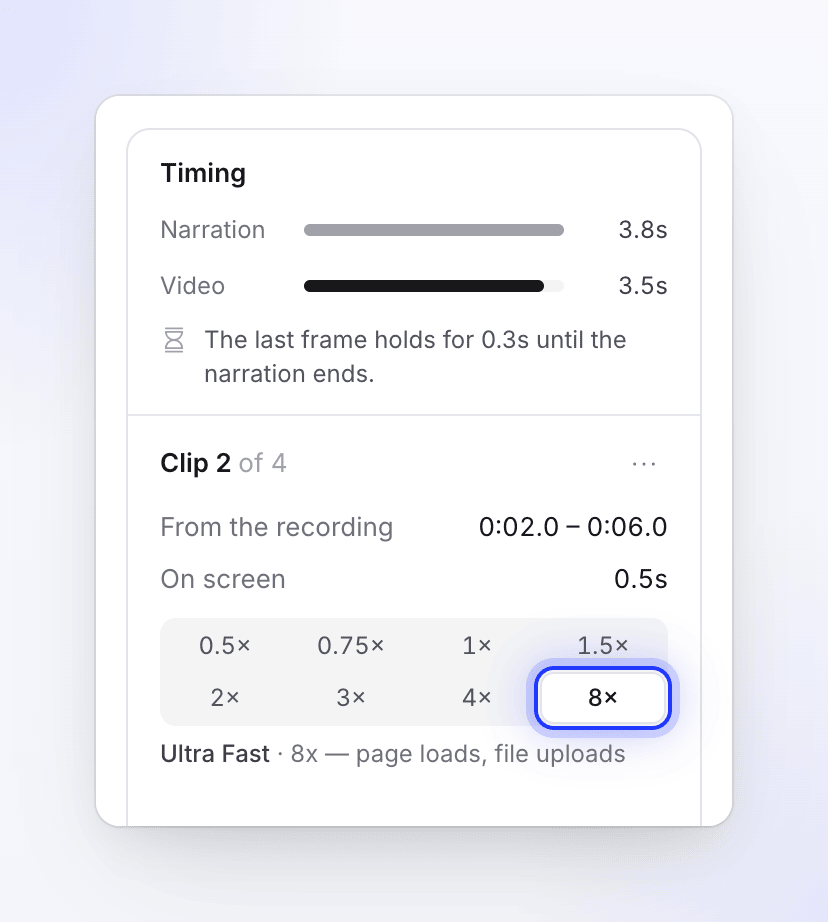
| Speed | Label | Good for |
|---|---|---|
| 0.5× | Very Slow | "savor a tiny detail" |
| 0.75× | Slow | "gentle linger" |
| 1× | Normal (default) | "actual speed" |
| 1.5× | Moderate | "slightly faster than normal" |
| 2× | Fast | "predictable repetitive UI" |
| 3× | Brisk | "brisk navigation" |
| 4× | Very Fast | "long scrolls / form fills" |
| 8× | Ultra Fast | "page loads, file uploads" |
A clip 10 seconds long in the recording takes 5 seconds at Fast and 1.25 seconds at Ultra Fast. The arrow keys move through the speeds once the picker has focus.
Two clips that sit right next to each other in the recording and end up at the same speed join into one clip.
Only Normal clips are sped up automatically to fit the narration. A clip you set to any other speed keeps that speed exactly.
Hold a frame with a freeze frame
A freeze frame stops the picture on one frame for as long as you set, for example to let the viewer read a dialog while the voice explains it.
Put the playhead on the frame
Play or step the preview to the frame you want to hold.
Add the freeze
Right-click the Recording lane at that point. A card asks "Add a freeze frame here?" ("Holds the frame at 0:47.3"). Click Add freeze. Or select a clip, open Clip actions (⋯) and choose Freeze frame at playhead; that option is on only while the playhead is inside the clip.
Set how long it holds
The freeze is selected and the preview switches to Scene. Change Holds for (0.2–60 seconds, default 1 second), or drag the freeze block's edges on the scene lane (Drag to change how long it holds).
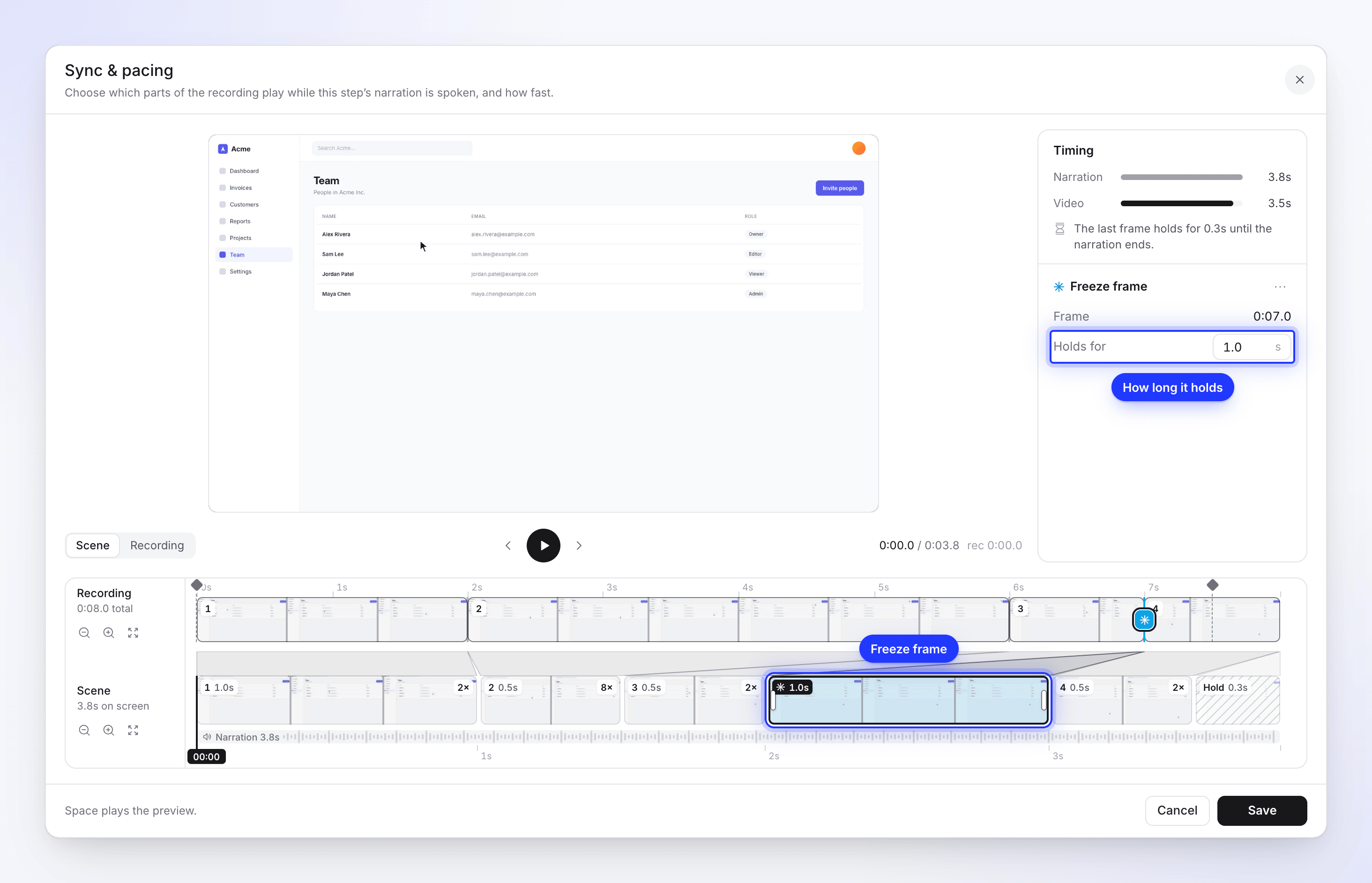
A freeze in the middle of a clip splits it in two around the frozen frame. Remove freeze frame (in the freeze's ⋯ menu, or Delete) joins the two halves again. Freeze frames follow recording order like clips: "Video clips and freeze frames must stay in recording order."
Save or undo your changes
- Save writes the step and reloads the timeline: "Scene video parts saved." The narration audio stays exactly as it was.
- Reset changes (bottom left, after you change something) puts the window back to how it was when you opened it.
- Cancel closes without saving.
The top-bar Undo doesn't take back a saved sync and pacing change: Undo covers zooms, elements and other tracks, not the steps themselves. To go back, open Revision history and restore the version from before. See Restore an earlier version of a video.
Sync and pacing belongs to the language you're editing. A translation made later starts from your edited steps; a translation made earlier keeps its own. See Understand language versions.
Intros, outros and freeze-only steps
Some steps hold one frame for their whole narration instead of playing footage: the Introduction and Conclusion, and a voiceover you added with Freeze frame under What viewers see. For those, the window opens in a simpler mode: "Pick the frame of the recording that stays on screen while the narration plays." Click or drag on the recording to choose the frame, then Save ("Freeze frame saved."). The step's length always follows its narration.
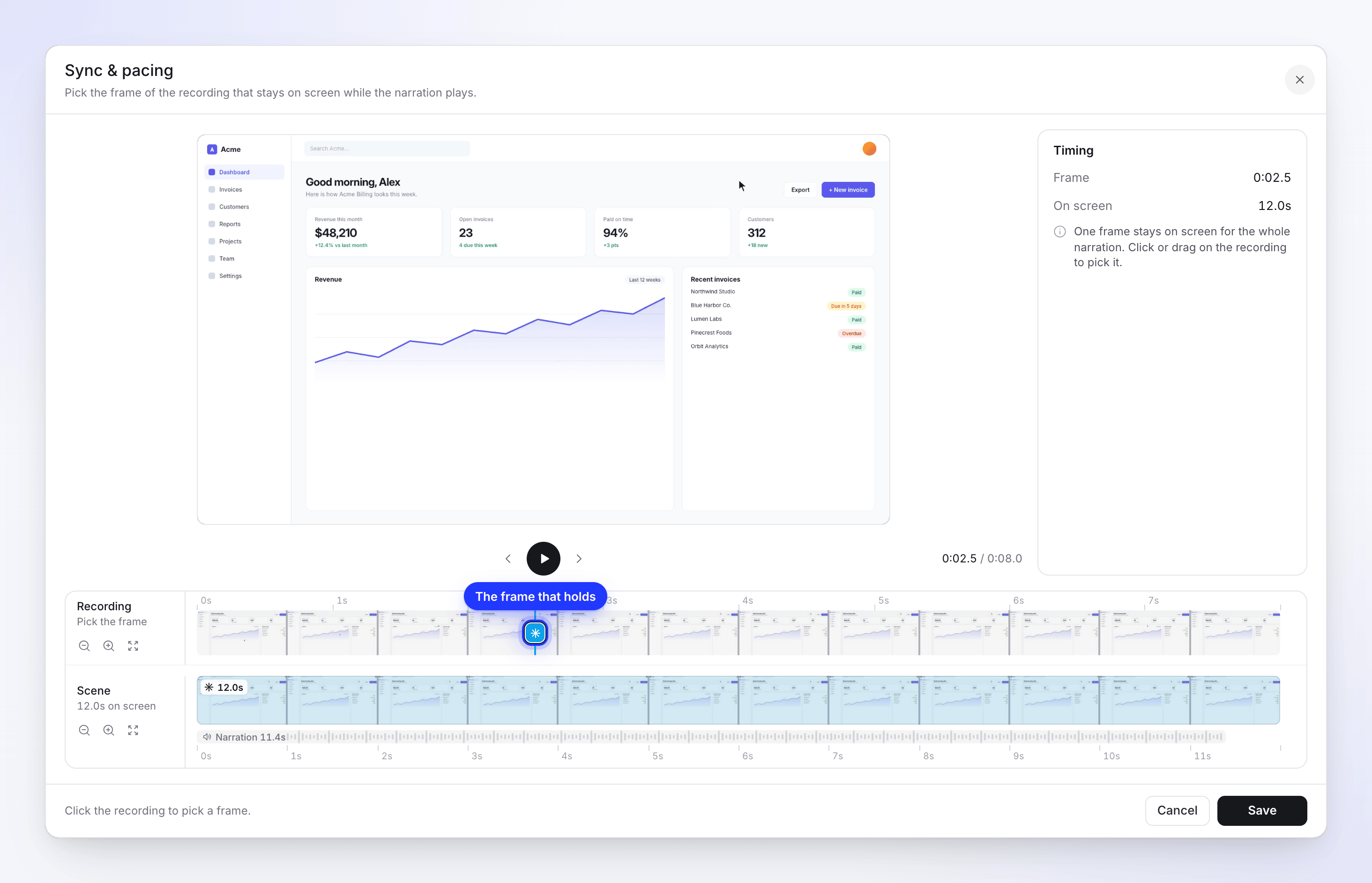
An introduction made as a preview of moments from across the recording plays clips instead, and opens in the normal mode.
Clip and Voice clip scenes
A Clip ("Silent clip from your screen recording.") and a Voice clip (with your own recorded voice, in Polish videos) have no AI narration, so their length is simply the length of their clips. The window says "Choose which parts of the recording play, in what order and how fast." and its lower lane is called Clip. In a Voice clip, your recorded voice speeds up or slows down with the picture.
A picture scene (Image) has no footage to edit: "A picture scene has no video range to edit. Change its length from the timeline."
Worked example
Step 4 of "Invite a teammate to Acme" says: "Open Settings, then Members, and click Invite." The narration is 6.0 seconds. Its one clip plays 0:40–0:54 of the recording, 14 seconds, because the Settings page took 6 seconds to load (0:44–0:50).
- Open Edit sync and pacing on step 4. The panel says "The video runs 8.0s past the narration. Trim a clip or speed one up."
- Select clip 1 and drag its right edge back to 0:44, where the page starts loading.
- Drag across 0:44–0:50 on the recording and click Add clip. Then drag across 0:50–0:54 and add that too. The step now has three clips.
- Select clip 2 (the loading) and choose Ultra Fast (8×). Six seconds of loading now take 0.75 seconds.
- The panel says "The video runs 2.8s past the narration." Select clip 1 and choose Fast (2×), then do the same for clip 3. The panel now says "The last frame holds for 1.3s until the narration ends."
- Right-click the Recording lane at 0:53, where the Invite button is in view, click Add freeze, and leave Holds for at 1 second so the viewer sees the button before the click. The freeze splits clip 3 in two, so the step now shows four numbered clips with the freeze between the last two.
- The panel says "The last frame holds for 0.3s until the narration ends." That's close enough. Click Save.
Step 4 is now 6 seconds long instead of 14, and steps 5 to 8 move 8 seconds earlier, with their zooms and elements.
Troubleshooting
| Message | What to do |
|---|---|
| "The recording isn't available" | Click Reload. If it stays, the recording's file can't be found; contact support. |
| "Thumbnails could not be read from this video, but timing and editing still work." | Edit as usual; only the picture strip is missing. |
| "This clip is too short to split." | Move the playhead further from the clip's edges before adding a freeze frame. |
| "Segment 2 is too short. Minimum length is 100 ms." | Lengthen or remove that clip. |
| "Freeze frame 1 is too short. Minimum length is 200 ms." | Raise Holds for to at least 0.2 seconds. |
| Edit sync and pacing is missing on a step | The recording is from an older desktop app (use Event settings), the step is a card or a picture, or you don't have edit rights. |