

Use Autopilot suggestions and the setup checklist
Autopilot suggests tasks from your own workspace, each with its evidence, under Clevera noticed and on the Suggestions page. Plan it opens the setup card in the chat. Also: Not now, and the four-step Get started checklist for owners and admins.
A suggestion is a task Clevera thinks you should run, with the reason it thinks so. Everything in it comes from your own workspace: your videos, help centers, reader searches and connected repositories. You decide: plan it, or hide it. Nothing runs until you create the task and approve its plan.
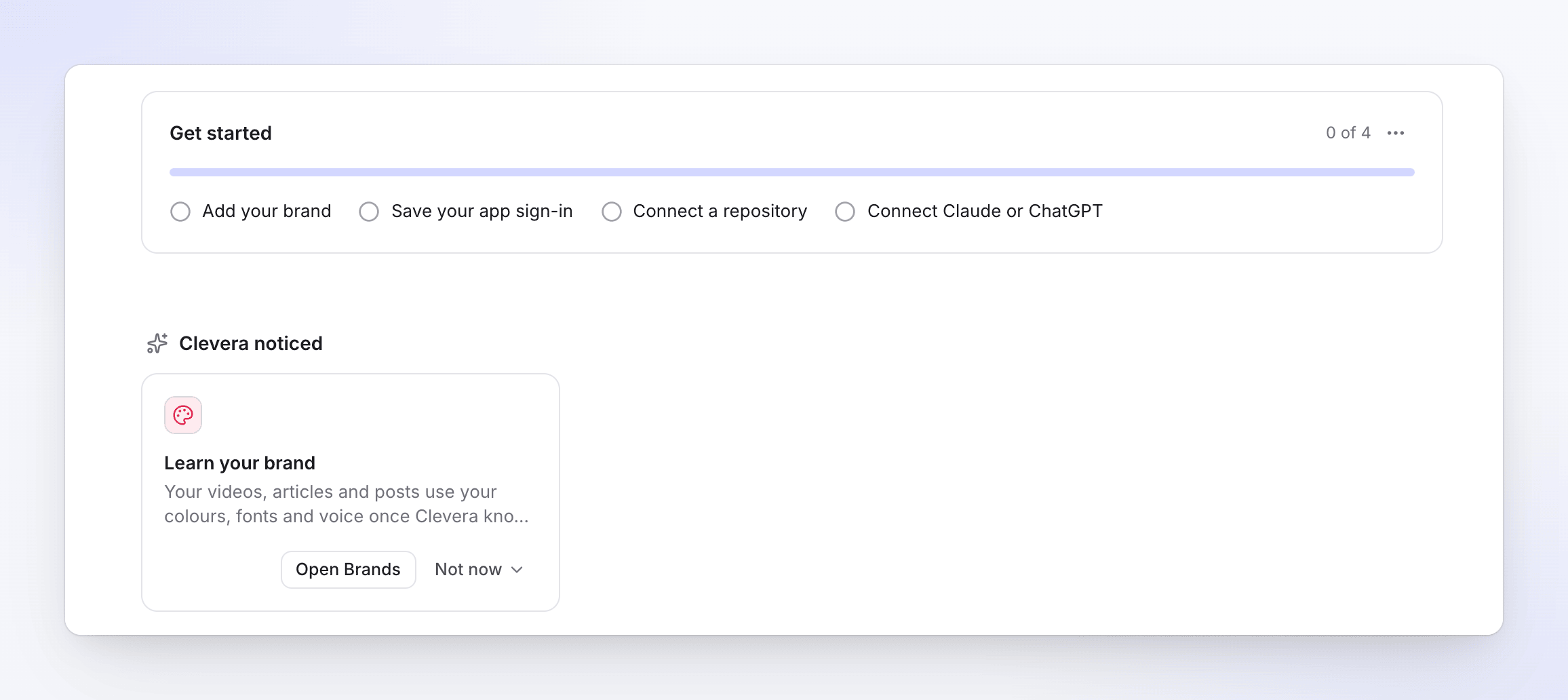
What a suggestion shows
| Part | What it shows |
|---|---|
| Title | What the task would do, for example "Write articles for what readers couldn’t find on Acme Help" |
| Reason | The evidence, for example "4 searches and questions found nothing in the last 7 days." |
| Examples | Up to three titles it found, with "+2 more" for the rest |
| Usually | A typical credit range, for example "Usually 5–60 credits" |
| Needs | A badge such as Needs a help center when the task needs something first |
| Buttons | Plan it (or Open Brands for the brand suggestion) and Not now ▾ |
Clevera reads your workspace again once a day, and when something it watches changes.
Where suggestions appear
| Where | What you see |
|---|---|
| Autopilot → Overview | Clevera noticed: the top three, with View all when there are more |
| Autopilot → Suggestions | Every open suggestion |
| Home | The top suggestion, in the Autopilot card |
| Content, a collection, a doc site's Overview and Search | One or two that fit what you're looking at |
| A video in the editor | A banner when your app changed after the video was made |
You only see suggestions for tasks your role may start. Editors see them on the Autopilot pages, locked.
What Clevera looks for
| It suggests | When |
|---|---|
| Learn your brand | Your workspace has no brand yet. It opens Brands. |
| Build your help center | You have no help center. |
| Write articles for what readers couldn’t find on a site | At least three searches or assistant questions on that site found nothing in the last 7 days, not counting ones marked covered |
| Turn N videos into articles for a site | At least three finished videos aren't on any help center. With no help center yet: Build a help center from your videos. |
| Check N videos on a site after your latest release | Videos on a help center are older than the latest change read from a connected repository |
| Keep your help center current with a repository | A repository is connected and allowed, and nothing watches it. It ranks higher when a release came out that no task has checked. |
| Write articles for a collection | A collection has at least three finished videos and no article. Without a help center: Make a help center from it. |
| Check a collection is current | Untouched for 90 days, and your app changed since |
Clevera doesn't suggest blog or social clip tasks while those are on hold.
Plan it
Click Plan it. The chat opens with the matching recipe's setup card, already filled in from the suggestion's evidence (the help center, the videos, the repository). Check it, click Continue, then Create task, as in Set up an Autopilot task. Once the task is created, the suggestion goes away. If that task fails or is canceled and the reason still holds, it comes back.
When a suggestion needs something first, Plan it opens a short popup instead: Needs a help center, why ("Articles go into a help center, so build one first." or "This task keeps a help center up to date, so build one first."), and a button to fix it, or Not now.
Hide a suggestion
Open Not now ▾:
| Choice | What it does |
|---|---|
| Not now · 14 days | Hides it for 14 days |
| Not useful | Hides it until something new turns up |
| Already done | Marks it done. It comes back only when something new turns up. |
"Something new" means the evidence changed and at least half of what it finds now wasn't there before. Hiding applies to everyone in the workspace. Click Undo in the message to bring it back.
The Get started checklist
Owners and admins see Get started on Autopilot home, under the recipes (and Set up Autopilot on Home), until every step is done. These aren't tasks to run: they are what makes Autopilot work best.
| Step | Opens | Done when |
|---|---|---|
| Add your brand | Brands | Your workspace has a brand |
| Save your app sign-in | App sign-ins | A sign-in is saved. See Save an app sign-in. |
| Connect a repository | Connections | A repository connection works (GitHub, GitLab or Bitbucket). See Connect a repository. |
| Connect Claude or ChatGPT | AI agents | An AI assistant or an API token is connected. See AI agents & API. |
You don't tick steps; each one completes when Clevera sees the result. The count reads, for example, "2 of 4". To hide the checklist, click ⋯ → Hide the checklist. To bring it back, click ⋯ → Show setup again on Overview.
Blog tasks are on hold for now, so the checklist doesn't ask you to connect a blog. A blog you already connected stays under Connections.