

Use several recordings, pictures and PDFs in one video
A how-to or product demo can combine up to 3 recordings, 20 pictures or PDF pages and 3 PDFs. Set the order of the videos, say what each file is, and choose which pictures and pages appear on screen.
A how-to video or product demo doesn't have to come from one recording. You can give it several takes, screenshots, slides and PDFs, and the AI tells one story across them: it plays the videos in your order, shows pictures where the narration needs them and reads PDFs for facts.
This works for How-to and Product demo videos. Polish and articles use one video only.
What you can add
| Material | Up to | Size per file | Used for |
|---|---|---|---|
| Videos | 3 | MP4 up to 250 MB | Shown in order. The first one is the main recording. |
| Pictures | 20 pictures and PDF pages shown, in total | 8 MB | Shown by default, held on screen for their narration. |
| PDFs | 3 | 40 MB, 30 pages | Read for facts by default. You can show chosen pages instead. |
A picture or PDF page you set to Facts only doesn't count toward the 20 shown. Links can't be used in how-to and demo videos.
Add your materials
Add the videos
Click + and use Record your screen, Upload a video or Choose from library once for each video. The rows disappear from the menu when you have 3.
Add pictures and PDFs
Click + → Upload images or PDF, or drop files on the box. While a PDF is being read, its tile says so, and Generate waits with "Your PDF is still being read — one moment."
Put the videos in order
With more than one video, a list appears under the box: "We'll tell the story in this order". Use Play earlier and Play later to reorder them. In What it shows (optional), add a short note the narrator reads, for example "The admin view" (up to 120 characters).
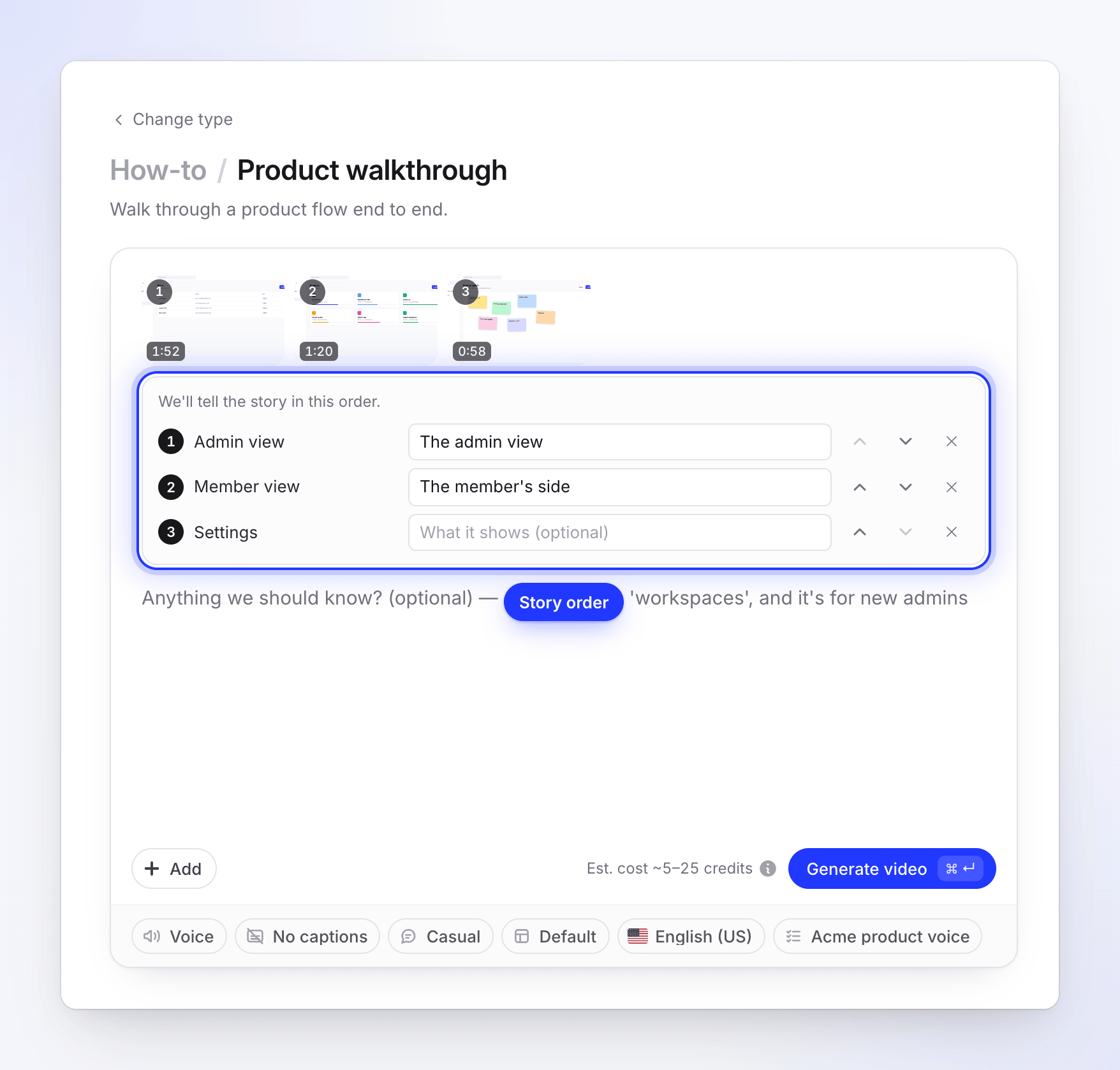
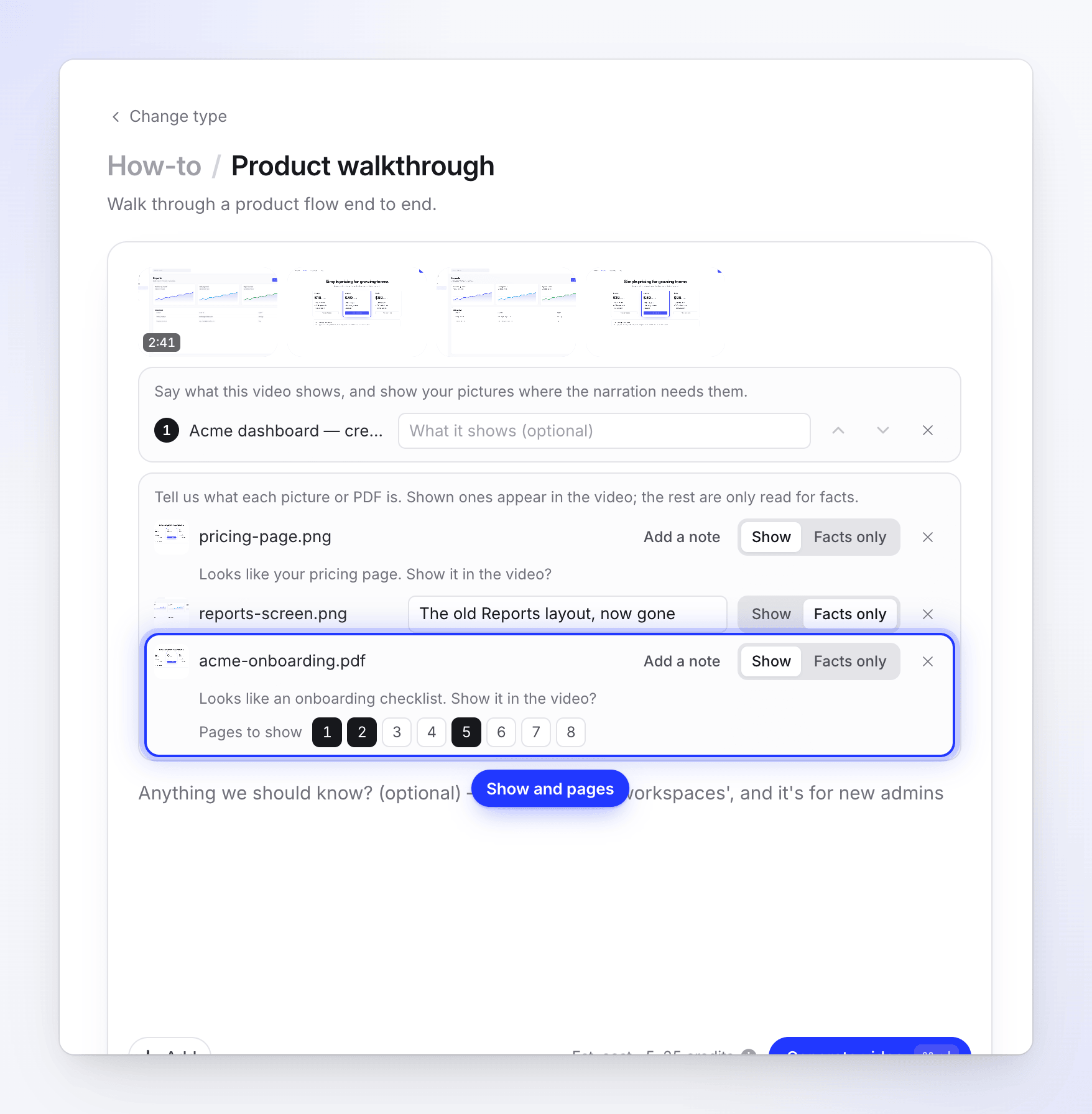
Say what each picture and PDF is
A second list shows each picture and PDF with a Show / Facts only switch and a note box, "What is this? How should we use it?" (up to 120 characters). Once the AI has guessed what a file is, the note box is folded behind Add a note. For a shown PDF, use Pages to show to pick the pages; if you pick none, all pages count, from the first.
Generate
Click Generate video. If the AI couldn't tell how to use some files, a sheet opens first; see When the AI isn't sure.
How the AI reads your files
As soon as you attach a picture or PDF, the AI looks at it. The row shows "Reading this…", then a guess such as "Looks like your pricing page. Show it in the video?" with its suggestion already selected. Change it if it's wrong.
| Choice | What happens |
|---|---|
| Show | The picture or page appears in the video, held while the narration talks about it. The AI decides where it fits: in the intro, beside a step, in a recap or at the end. |
| Facts only | The file isn't shown. The AI reads it for names, numbers and wording to use in the script. |
Pictures start on Show and PDFs on Facts only. Your note matters more than the file name: "This is the old layout, mention it's gone" tells the AI something no file can.
When the AI isn't sure
If the AI couldn't place a file, its row is marked Needs your answer. When you press Generate video, a sheet titled "A few quick questions" lists those files with "This looks like …, but we're not sure. Show it in the video?" Pick Show it or Facts only for each, and add a note if you like. Let AI decide accepts every suggestion. The button reads "2 left to answer" until each is answered, then Generate.
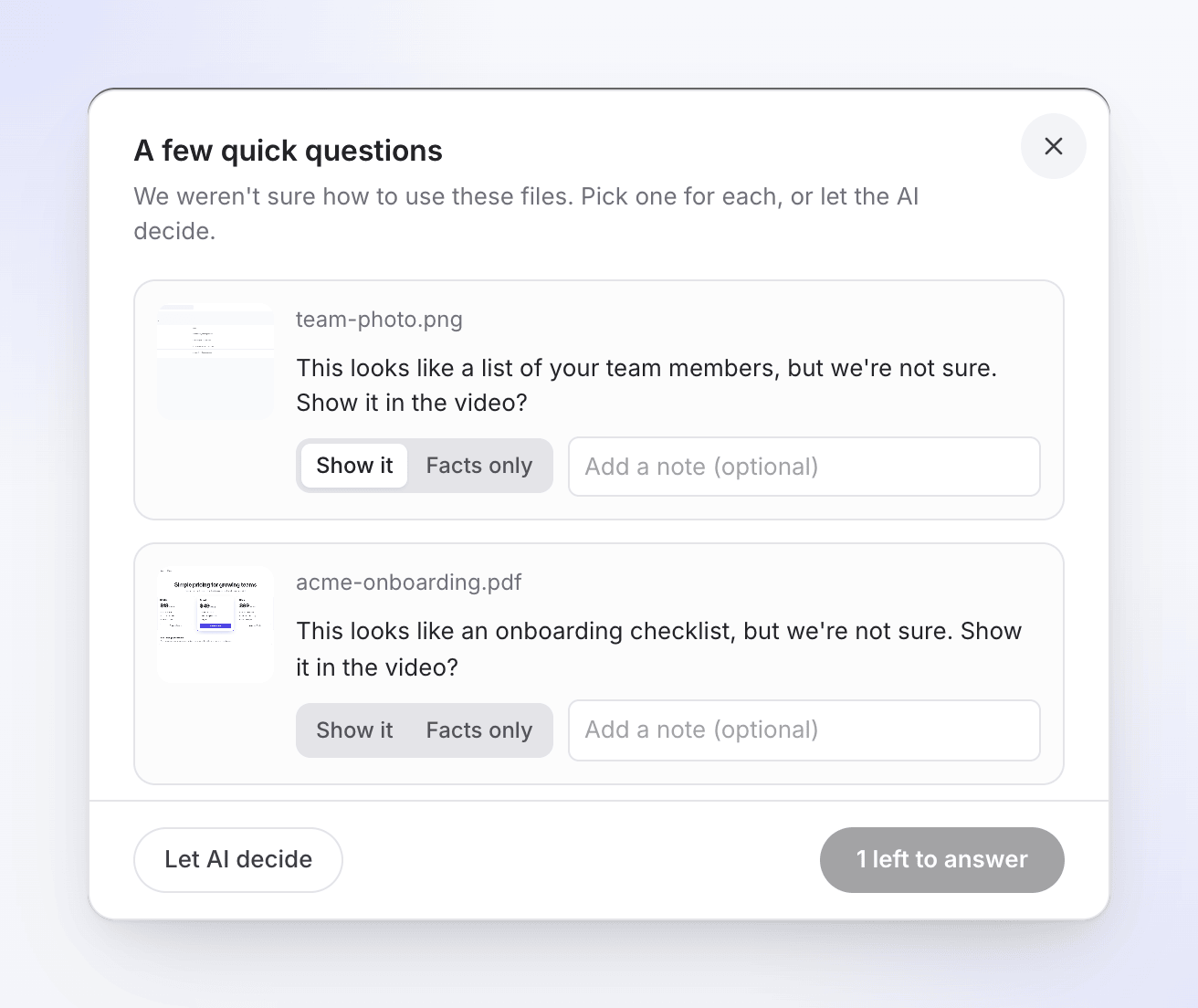
The AI may also ask during generation, "Should this appear in the video?". If you don't answer within 10 minutes, it keeps the choices you already made. See Answer the AI's questions during generation.
Cost and length
The estimate is based on the total length of everything shown: the videos plus a few seconds for each shown picture or page. A how-to or demo is usually 5–25 credits for up to 5 minutes of footage. On the Free plan the whole video can be up to 3 minutes.
Captions, voice, tone and template work the same as for a single recording.
Messages you may see
| Message | What to do |
|---|---|
| "Use at most 3 videos in one how-to or demo." | Remove a video. |
| "Show at most 20 pictures and PDF pages in one video. Set the rest to "Facts only"." | Set some pictures or pages to Facts only, or pick fewer Pages to show. |
| "Attach at most 3 PDFs to one video." | Remove a PDF, or combine them into one file. |
| "Video 2 is still processing. Wait until it is ready." | Wait for that video's processing to finish. |
| "Video 2 is already in this video. Remove the copy." | The same recording was added twice. |
| "Video 2 was itself made from pictures or other videos. Add the originals instead." | Add the original recordings and pictures. |
| "We couldn't prepare video 2 for AI analysis. Upload it again." | Upload that file again. |
| "SVG pictures cannot be shown in the video yet. Export it as PNG, or set it to "Facts only"." | Export the SVG as PNG, or set it to Facts only. |
| "We couldn't show the pages of …, so it is used for facts only." | The PDF's pages couldn't be turned into pictures. Export the pages as images and upload those. |