

Translate a finished video
Translate a finished how-to video, product demo or social clip from the editor's language menu. Each language becomes its own version with a new voice-over. Usually 3–10 credits per language.
Translate a finished video into other languages from the editor's top bar. Each language becomes its own version of the same video, with a new voice-over in that language, and you switch between them from the language menu.
Before you start
- You need edit rights on the video.
- Translation works for how-to videos, product demos and social clips. Videos made with Polish (clean-up or styled for sharing) have no language menu and can't be translated.
- Translation uses credits: usually 3–10 credits per language, depending on how long the video is and whether there is a voice-over to record again. The dialog shows the estimate before you start.
- 74 languages are available on every plan.
Translate a video
Open the language menu
In the editor's top bar, click the language button (it shows the current language's name). The menu lists the languages the video already has; the one it was made in is marked Original.
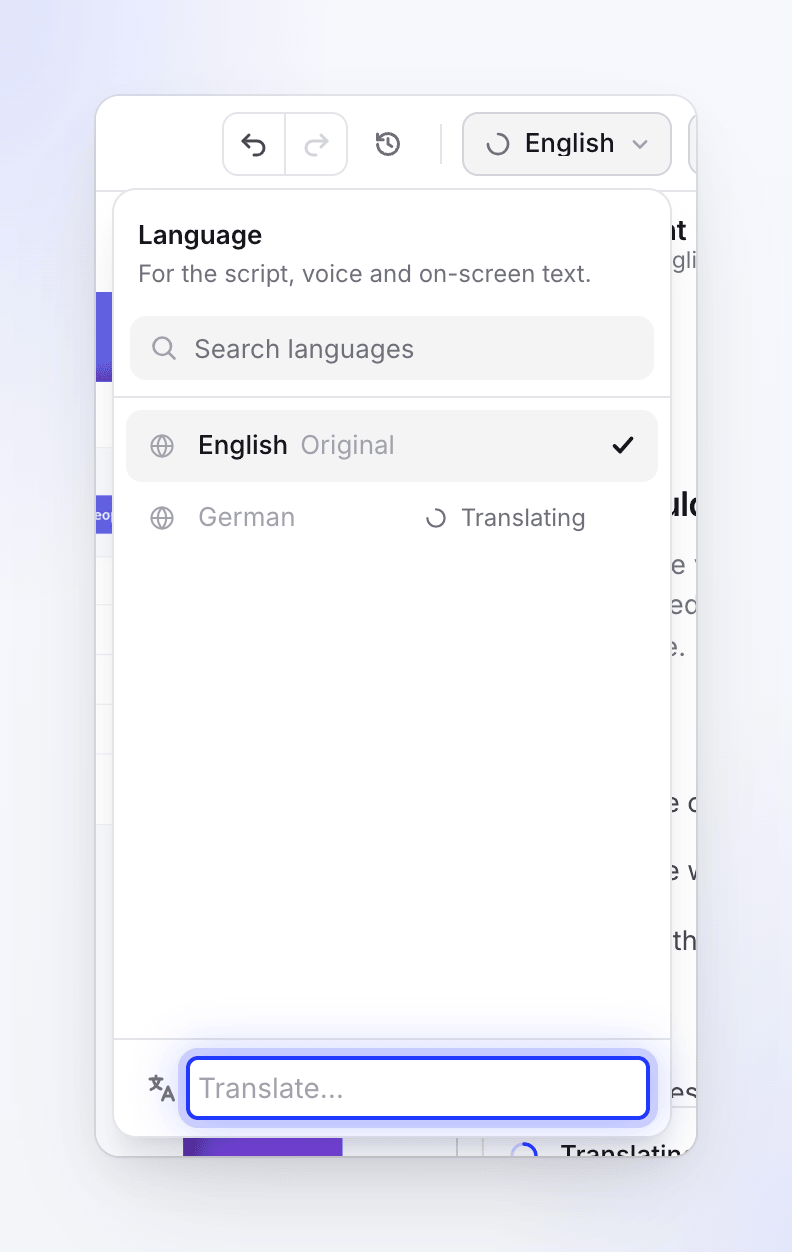
Choose Translate…
Click Translate… at the bottom of the menu. The Translate dialog opens and shows the source language under the title ("From" and the language).
Pick one or more languages
Search or scroll the list and click each language you want. Your picks appear under Selected; each one "becomes its own version of this video". Languages you used recently are listed first under Recent. Languages the video already has show Translated or Translating… and can't be picked again.
Check the credit estimate
The footer shows the total, for example "About 9–30 credits", and the range per language. The ⓘ explains what moves the cost.
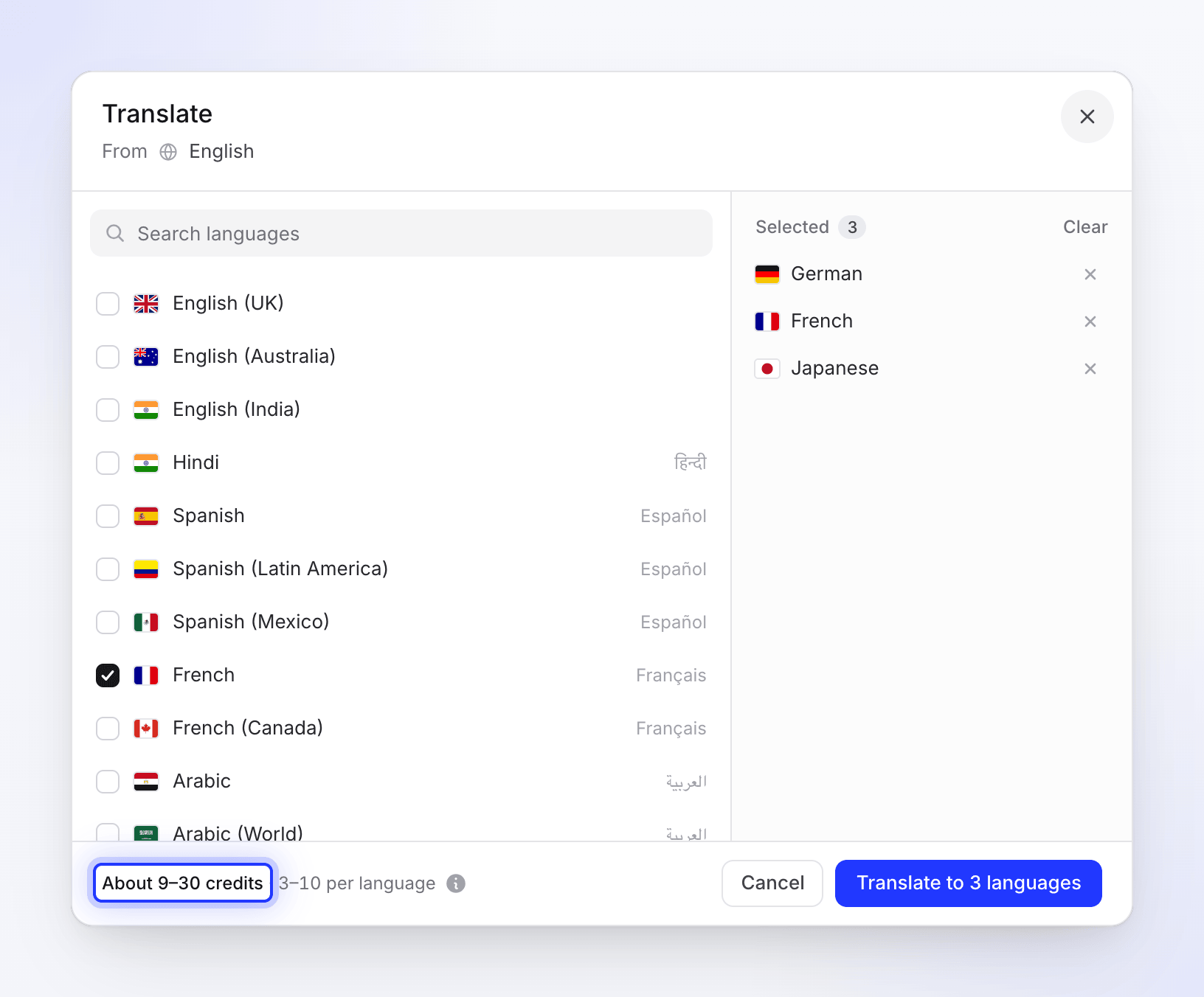
Each language becomes its own version of the video. Click Translate
The button says Translate to German for one language or Translate to 3 languages for several. Each language shows Waiting, Starting, then Started, and the dialog closes once they've all started.
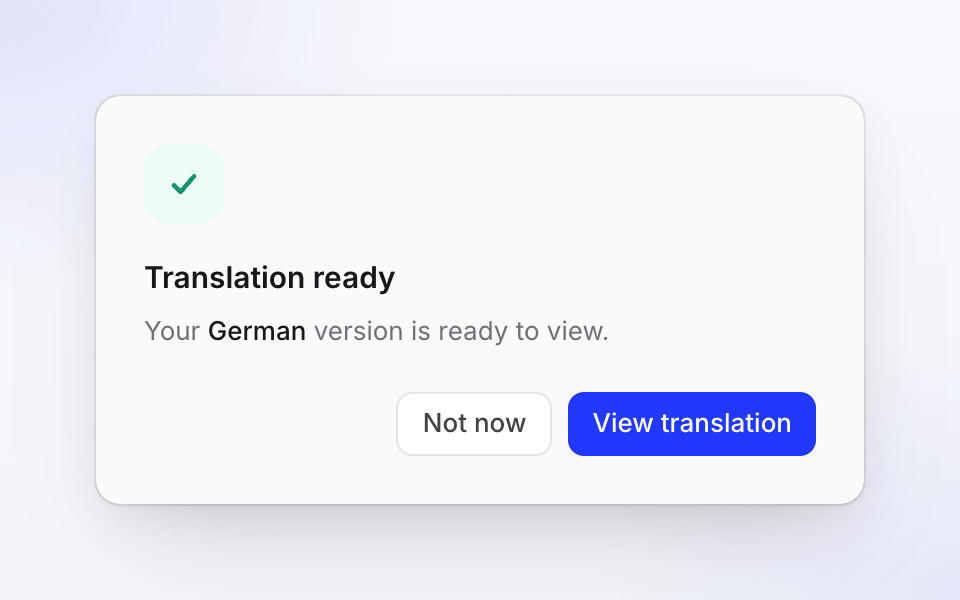
You can keep working while translations run. The language menu shows a spinner and Translating next to each language in progress. When one is done, a Translation ready dialog says "Your German version is ready to view." Click View translation to open it, or Not now to stay where you are.
What gets translated
Videos made from a recording
| Part | What happens |
|---|---|
| Voice-over | Every narration line is translated and recorded again in the new language. The voice choice is saved per language. |
| Scene timing | Scenes are re-timed to the new voice-over, and elements on the timeline are moved to follow them. |
| Zooms and elements | Copied from the original into the new language, then moved to follow the re-timed scenes. |
| Title and chapters | Translated. |
| Intro, title and logo cards | Their on-screen text is translated. |
| Captions | Each language has its own, and they may need regenerating. If the translation has none, switch to it and click Generate captions in the Style tab. |
| Companion article | An article is made for the new language too. |
Text you added yourself as elements, such as text boxes, is copied but not translated. Switch to the new language and change it there.
Social clips
The words on screen and the voice-over are translated, and every voice-over line is recorded again in the new language and fitted into its existing place: scenes never move. When some translated text no longer fits the way it did, the Translation ready dialog lists Scenes to check so you can look at them first.
Edit a translation
Each language is edited on its own. Switch to it in the language menu and use the editor as usual: changes in one language don't change the others, and each language has its own revision history.
If you change the original after translating, the translations don't update by themselves. In videos made from a recording, you can ask the assistant to update a translation; it shows the credit cost first and starts only when you click Translate.
You can't switch language while the editor is saving. The menu says "Saving your changes. You can switch in a moment."
Redo a translation
There's no re-translate button. To make a language again from scratch, delete that translation, then translate into the same language again. The new version copies the zooms and elements from the original once more, so edits you made only in the old translation are not kept.
Delete a translation
Switch to the language, open the ⋯ menu in the top bar and choose Delete German translation (with that language's name). Confirm with Delete translation.
Limits
| Limit | Value |
|---|---|
| Languages per video | Any of the 74, except the video's own |
| Social clips translating at once | 5 languages |
| Same language twice | Not possible while it's translating or once it's done; a failed one can be retried. To redo a finished one, delete it first. |
| Free plan | One generation at a time, including translations |
What it costs
Each language is charged what its translation actually uses. The dialog's range is an estimate, not a limit. The run starts only if your balance covers the low end of the estimate; if it doesn't, the dialog says "Not enough credits for this." with your balance and a Buy credits (or Upgrade) link. Translations appear on the Usage page as Translation. If a translation fails on our side, the credits it used are returned to your balance. See Understand credits.
Troubleshooting
| Message | What to do |
|---|---|
| Translation failed: "We couldn't finish translating to German. Please try again." | Click Retry. In the Translate dialog, a failed language shows Failed with Retry under In this video. |
| "Couldn't start German. Please try again." | That language didn't start. Try it again; the others did start. |
| "A translation process is already running for this language." | Wait for it to finish. |
| "This language is already translated." | Switch to it in the language menu. To redo it, delete the translation and translate again. |
| "At most 5 languages can be translating at once; 2 already are." | Social clips only. Wait for some to finish, then pick the rest. |
| "The Free plan runs one generation at a time…" | Wait for the current generation to finish, or upgrade. |
| Translate… is greyed out | Another translation is starting, or you don't have edit rights. |