

Read the credit estimate before you generate
Beside Generate, Compose shows an estimated credit range for your video. Learn what moves it, what the low-balance lines mean, which work is billed on top, and why it's an estimate rather than a limit.
Before you press Generate, the Compose page shows how many credits the video is likely to use. It's a range based on recent videos like yours, and it updates as you change the options.
Where to find it
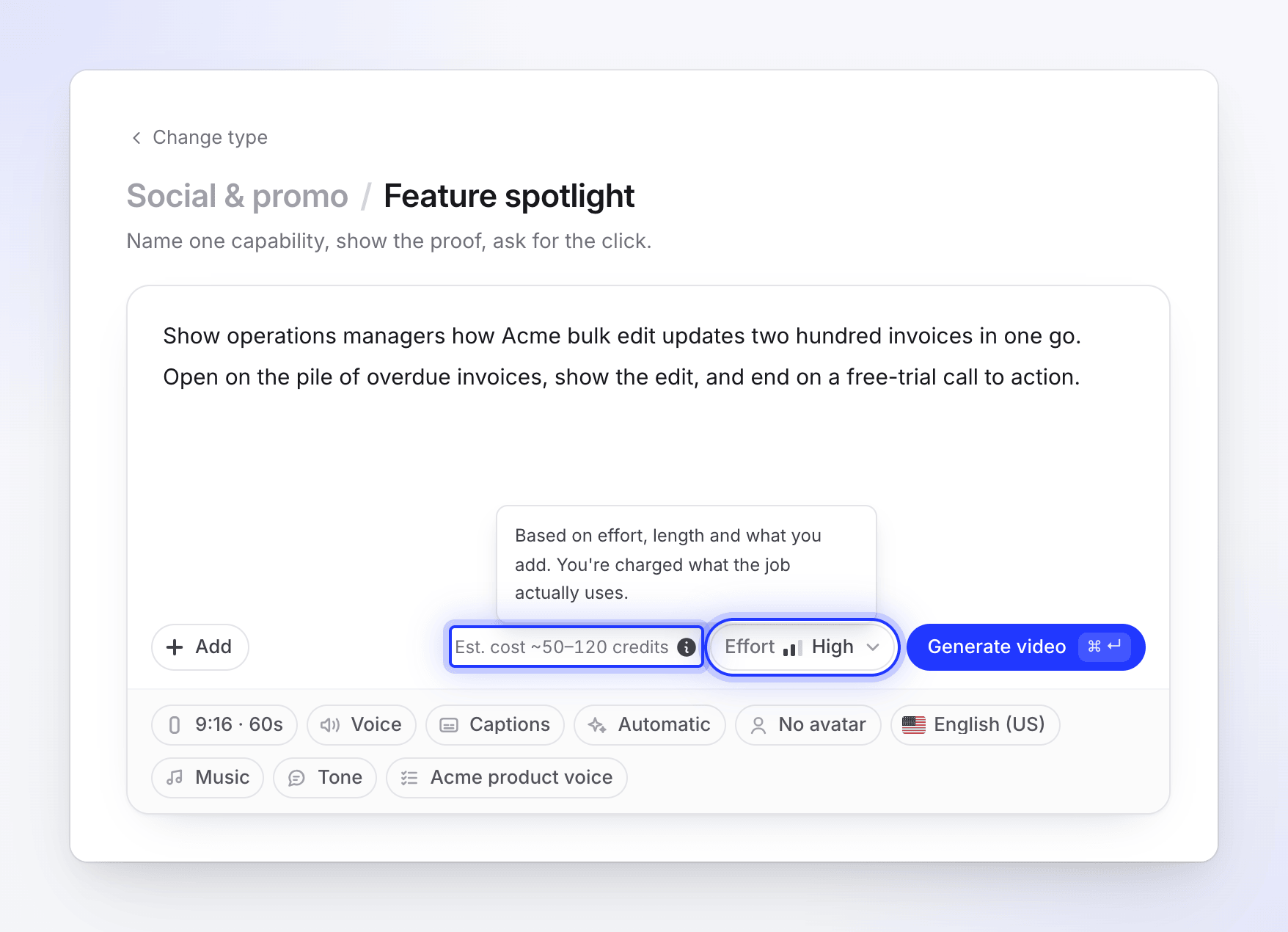
The estimate sits next to Generate at the bottom of the Compose box, for example Est. cost ~50–120 credits. While it's being worked out it reads "Estimating credits…".
Hover the ⓘ beside it ("What affects the credit cost") for a one-line explanation:
| Video type | What the ⓘ says |
|---|---|
| Social clips | "Based on effort, length and what you add. You're charged what the job actually uses." |
| Videos from your recording and articles | "Based on your recording's length and the options you pick. You're charged what the job actually uses." |
Typical ranges
| What you're making | Typical credits |
|---|---|
| How-to, product demo or clean-up video, from a recording up to 5 minutes | 5–25 |
| The same, from a longer recording | A higher range, scaled to the recording's length |
| Styled for sharing, from a recording up to 5 minutes | 1–5, for the automatic zoom pass. A longer recording scales the range, and the estimate never shows more than 6. |
| Article | 5–15 |
| Social clip, Medium effort | 30–60 |
| Social clip, High effort (default) | 50–120 |
| Social clip, Extra effort | 80–160 |
| AI avatar on a social clip | Added on top, based on how long the avatar is on screen |
For a social clip, Effort moves the estimate the most, then the length and the AI avatar's screen time. For a video from a recording, the recording's length matters most.
Work billed on top
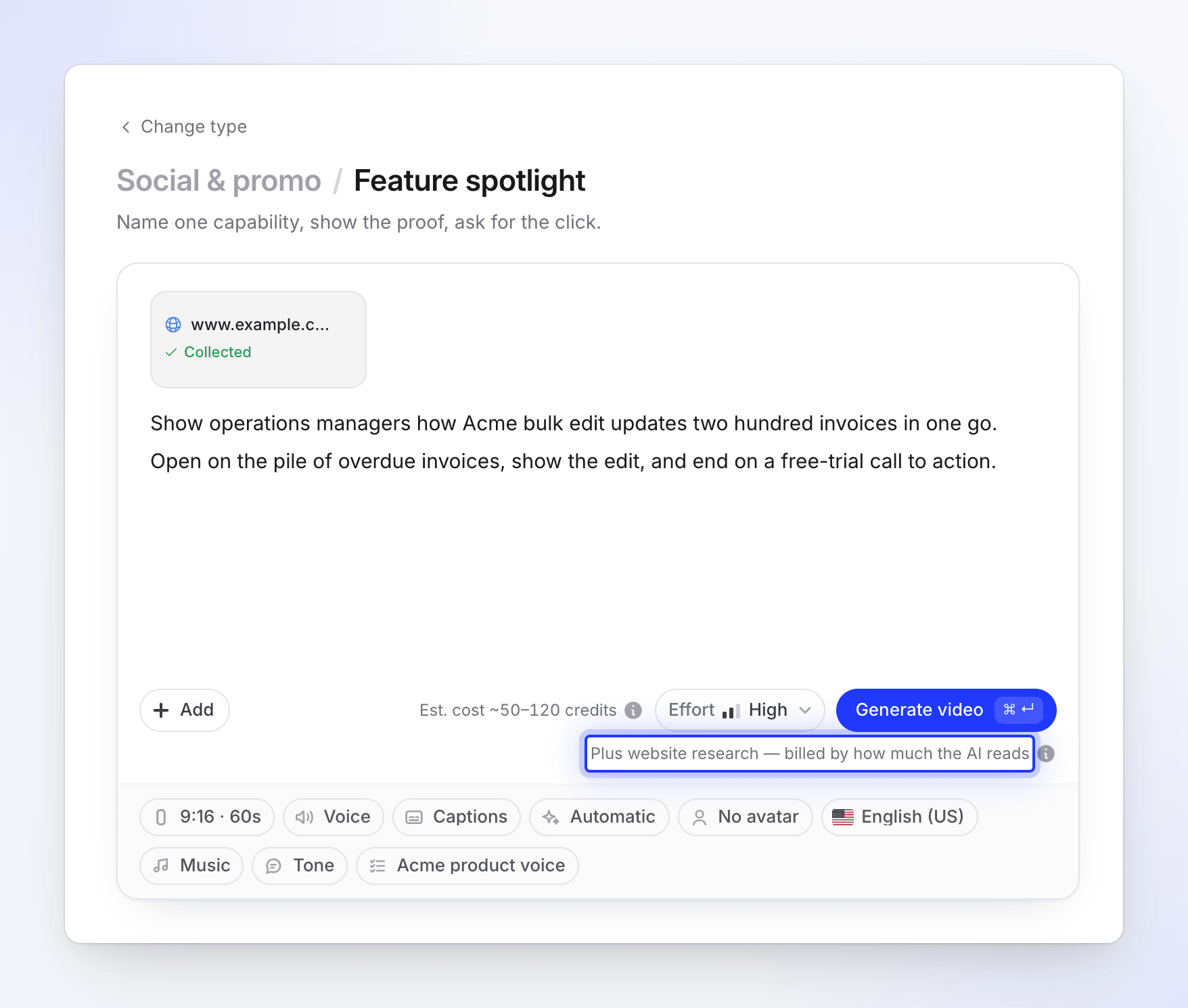
Some work depends on how much the AI has to do, so it can't be priced in advance. When you add it, a line appears under the estimate:
| Line | When it appears | How it's billed |
|---|---|---|
| Plus AI recording time — billed by how long the AI works | You added Record with AI | "Billed by how long the AI records, on top of the estimate." |
| Plus website research — billed by how much the AI reads | You added Research a website | "Billed by how much of the site the AI reads, on top of the estimate." |
Research and recordings start as soon as you add them, before you press Generate, and are billed from that point. Reusing an earlier result from Previous research doesn't cost again. See Understand what website research and Record with AI cost.
Low-balance lines
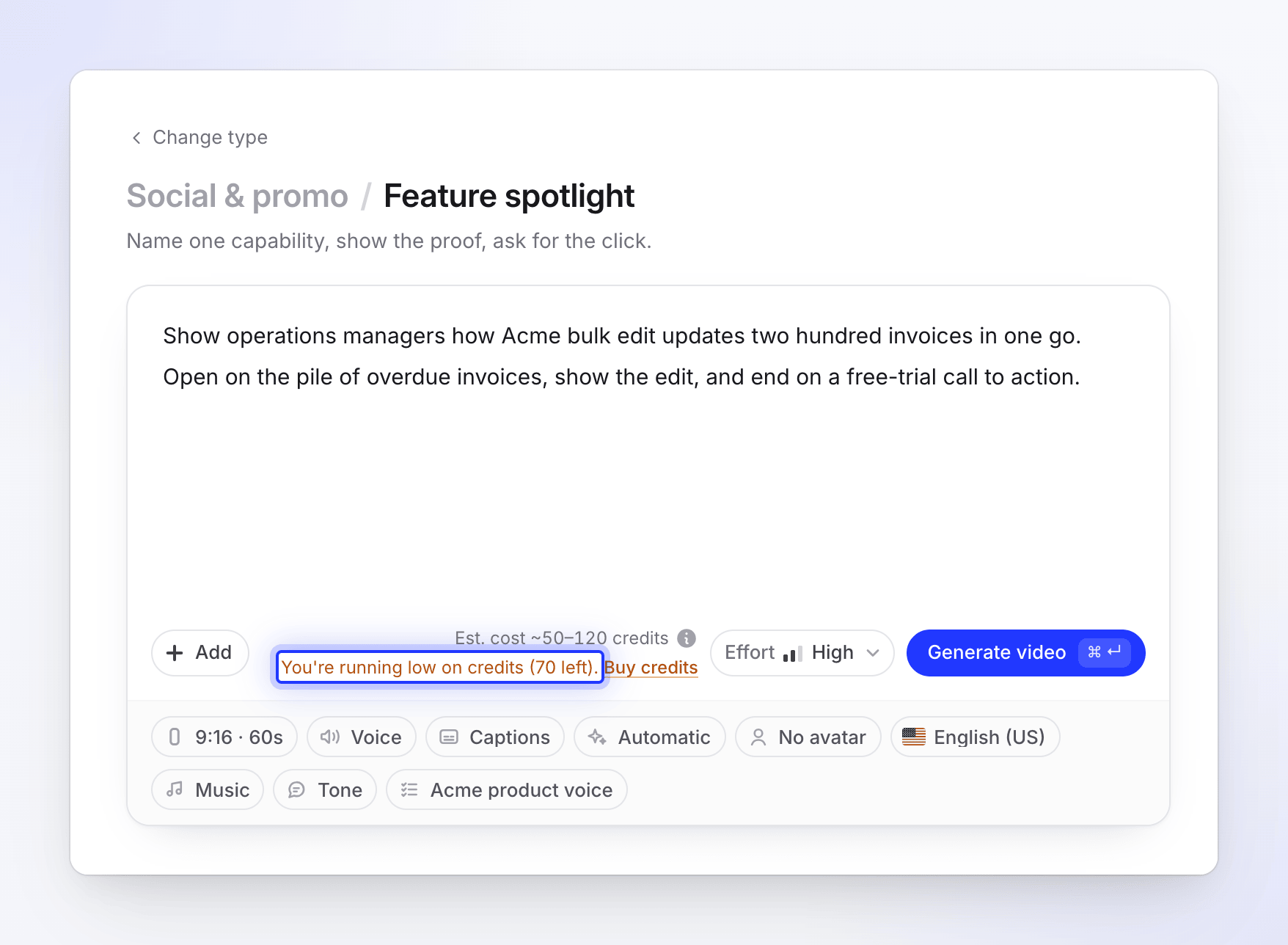
The estimate also checks your workspace's balance. A video needs enough credits to start: your balance has to cover at least the low end of the range.
| What you see | Meaning |
|---|---|
| "You're running low on credits (N left)." with Buy credits | You have enough for the low end of the range but maybe not the high end. The video can start. |
| "You have N credits." with Buy credits (or Upgrade on Free) | Your balance is below the low end of the estimate. The video can't start until you add credits. |
A video that has started is never stopped for credits. If it uses more than you have left, the extra comes out of your next credits. See Buy extra credits.
An estimate, not a limit
"An estimate, not a quote or a limit: you are charged the credits the job actually uses." A video can use fewer credits than the range, or more. Credits are taken as the work happens, and you can see exactly what each video used on the Usage page. See Check where your credits went.
What's never in the estimate, and why:
- Exports are always free, at any resolution.
- Editing by hand is free.
- Changes you ask the assistant for later, and translations, are charged when you make them, with their own estimate where they have one.