

Recover a Chrome recording that didn't upload
The Chrome extension keeps every recording in Chrome until Clevera confirms the upload. What each upload card means, how to upload or delete a waiting recording, and how long it's kept.
Your recording is safe. The Chrome extension saves every recording in Chrome while you record and keeps that copy until Clevera confirms the upload, so a lost connection or a closed browser doesn't lose it. This article explains what each upload card in the Clevera popup means and how to upload or delete a recording that's waiting.
How Clevera keeps your recording
- Every second of the recording is saved in Chrome, on this computer, while you record.
- Parts upload while you record; the rest uploads when you stop.
- The copy in Chrome is removed only when Clevera confirms the upload, when you delete the recording, or 7 days after a recording that never uploaded, with a notice first. See How long a recording waits.
When a recording needs you, the Clevera icon shows ! ("Clevera, needs attention"). Click it: the card is at the bottom of the popup, below Start recording. The popup shows up to three cards at a time. Cards don't show while you're signed out or while a recording is running.
Connection drops
If your connection drops while a recording uploads, the upload waits and continues by itself when you're back online. You don't need to do anything, and a recording that's running keeps going. Starting a new recording needs a connection.
If the upload still can't finish after about 15 minutes without progress, it stops and the card says Couldn't upload this recording.
Couldn't upload this recording
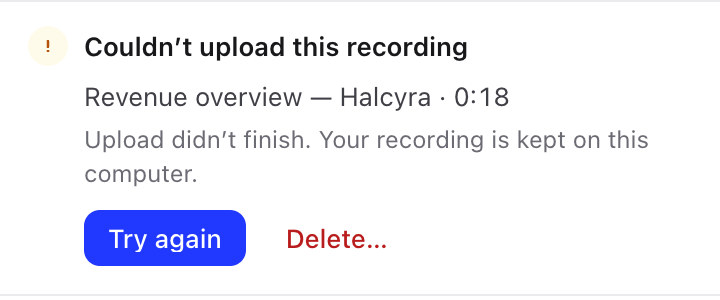
Check your connection, then click Try again. The upload starts again from the copy in Chrome.
| The card says | What to do |
|---|---|
| "Upload didn't finish. Your recording is kept on this computer." | Click Try again. If it keeps failing, send logs and contact support. |
| "Clevera can't accept this recording, so it can't be uploaded. Delete it when you no longer need it." | Clevera's server refused this recording, so trying again won't help, and the card has only Delete…. This can happen when you no longer have access to the workspace, or your role can't record there. See Roles and creator seats. |
| "The local copy of this recording is missing, so it can't be uploaded." | The copy in Chrome is gone, so there is nothing to upload. Click Delete… to remove the card. |
We kept your recording
This card appears when a recording ended in an unusual way: "Chrome stopped the recording early. Everything recorded is saved. Upload it, or delete it if you don't need it."
It happens when, for example:
- you quit Chrome, or Chrome or your computer shut down, while you were recording,
- the extension's recorder stopped unexpectedly.
Click Upload to send what was recorded, or Delete… if you don't need it.
When you open Chrome again
- A recording that was uploading when Chrome closed continues uploading by itself the next time Chrome runs. If it still can't finish after a few tries, its card says Couldn't upload this recording.
- A recording that was being recorded when Chrome closed comes back as We kept your recording.
- A recording that was waiting for you is still waiting.
Delete a recording
Click Delete… on the card. Clevera asks Delete this recording? ("It's removed from this browser and can't be recovered."). Click Delete. Nothing reaches your workspace.
How long a recording waits
A recording that never uploaded is removed from Chrome 7 days after it was recorded. Clevera tells you first:
- From two days before, the card says, for example, "It will be removed from this browser on" and the day and time, and the Clevera icon's tooltip says "Clevera, a recording will be removed soon".
- The recording is never removed sooner than a day after that notice first appeared.
- A recording that is uploading is never removed.
Upload or delete waiting recordings before then.
Signing out and removing the extension
- Recordings in Chrome stay there if you sign out. Their cards come back when you sign in again. You can't sign out while you're recording ("Available after the recording finishes.").
- Removing the extension deletes its data in Chrome, including recordings that haven't uploaded. Upload or delete them first.
- Recordings are kept in the Chrome profile you recorded in. Deleting that profile deletes them.