

Understand automatic zooms and cursor effects
Clevera zooms in on your clicks and typing automatically and redraws your cursor smoothly. Here's how the desktop app's click and cursor data drives the camera, what changes for uploads, and what you can adjust afterwards.
When Clevera makes a how-to, product demo or Polish video, it moves the camera for you: it zooms in on the button you click or the field you type into, holds on the result, then pulls back out. It also redraws your mouse pointer so it glides instead of jittering. This article explains where that comes from and what you can change.
Where the zooms come from
The Clevera desktop app records more than pixels. While you record, it also notes:
- where your pointer moves,
- each click (left, right and double click), drag and scroll,
- when you type and when you press keyboard shortcuts.
It does not draw the pointer into the video. Clevera keeps the pointer's path as data and draws it back in later. That's what lets the camera follow the pointer, the clicks get a highlight, and the pointer move smoothly at any zoom level.
When you make a video, the AI reads the recording together with this click and pointer data and plans the camera from it. You don't set anything: there's no zoom switch on the Create page.
How a zoom is planned
| Rule | What it means for your video |
|---|---|
| Clicks, drags and typing start a zoom | The camera frames the control you clicked, the field you typed into or the area you dragged across, not wherever the pointer happens to rest. |
| Close actions share one zoom | Actions within about 1.5 seconds of each other, in the same part of the screen, are framed together, so the camera doesn't bounce. |
| The camera arrives early | It zooms in up to 1.5 seconds before the action, so the viewer sees the click land. |
| It holds on the result | It stays about 1 second on what changed before pulling back. |
| Typing is framed briefly | The camera stays on a field for up to 3.5 seconds of typing; the rest of a long entry plays wide. |
| Scrolling pulls back | A scroll ends the zoom, because the viewer needs the whole page to follow it. |
| Depth fits the target | Zooms are 1.5× to 1.8×: small buttons get the closest zoom, large panels the widest. |
| Zooms aren't too short or too close | A zoom usually lasts at least 4 seconds, with at least 1 second between zooms. Quick clicks next to each other are joined with a pan instead of zooming out and back in. |
| Only kept footage is zoomed | Zooms are placed after the AI has cut your recording, so none land on removed footage. |
While zoomed, the camera follows your pointer. It pulls back when the page changes, when you scroll a long way, when you move to a different area of the screen, or when the interface fills the whole screen.
How it differs by video type
| Video | Zooms |
|---|---|
| How-to | On each step's clicks and typing, as above. |
| Product demo | Short accents of at most 12 seconds, never covering most of a section, so viewers also see the whole product. |
| Clean-up | Simpler zooms that follow your pointer, without the click-by-click planning. |
| Styled for sharing | Added to desktop app recordings only, not to uploaded videos. This zoom pass is the one part of Styled for sharing that uses credits. |
| Pictures and PDFs alone | None: there are no clicks to follow. |
| Social clips | Your recording is placed inside the clip with its own camera moves: pushing in on the clicked control, then panning to the result. These can't be edited in the Zoom tab; ask the assistant for closer or wider shots instead. |
How it differs by recording source
| Source | Pointer | Zooms |
|---|---|---|
| Desktop app (Mac or Windows) | Redrawn and smoothed; cursor settings available. | Planned from your real clicks, pointer path and typing. Best result. |
| Record with AI | The AI's pointer path is recorded too. | Planned from the AI's actions; the camera can follow its pointer. |
| Uploaded video | Part of the video; can't be restyled. | The AI watches the video to find what was clicked, and zooms to a fixed point on screen rather than following the pointer. |
Cursor effects
For desktop app recordings, the pointer is drawn by Clevera:
- Smoothed movement. Small shakes are smoothed out, but at each click the pointer lands exactly where you clicked.
- Click highlight. A thin ring grows from the pointer tip and fades, so viewers see each click.
- Click sound. A short sound plays on each click.
- Idle bounce. The pointer floats gently while it waits between movements.
- Hidden on cards. The pointer disappears during the intro card and title cards.
Change these in the editor under Style → Cursor:
| Setting | Options | Default |
|---|---|---|
| Size | 50–300% | 100% |
| Click sound | Clear, Smooth, Vintage (press play to hear each) | Clear |
| Volume | 0–100; 0 turns the click sound off | 100 |
| Idle bounce | On or off | On |
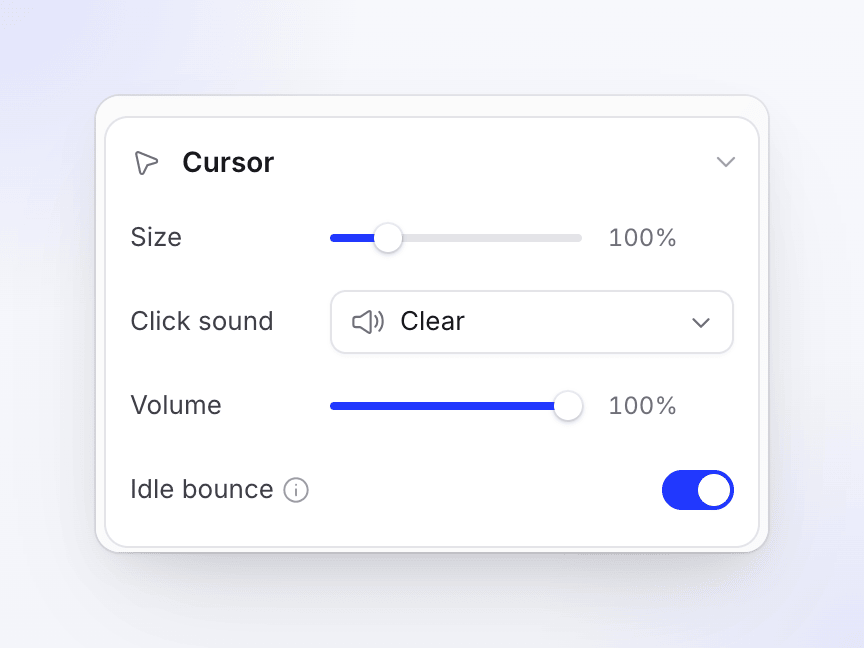
The Cursor section only appears for recordings where Clevera draws the pointer. For uploaded videos the pointer is part of the picture, so there's nothing to restyle.
Change the zooms afterwards
Open the video in the editor and choose the Zoom tab. The header shows the count, for example "22 zooms · 3 off".
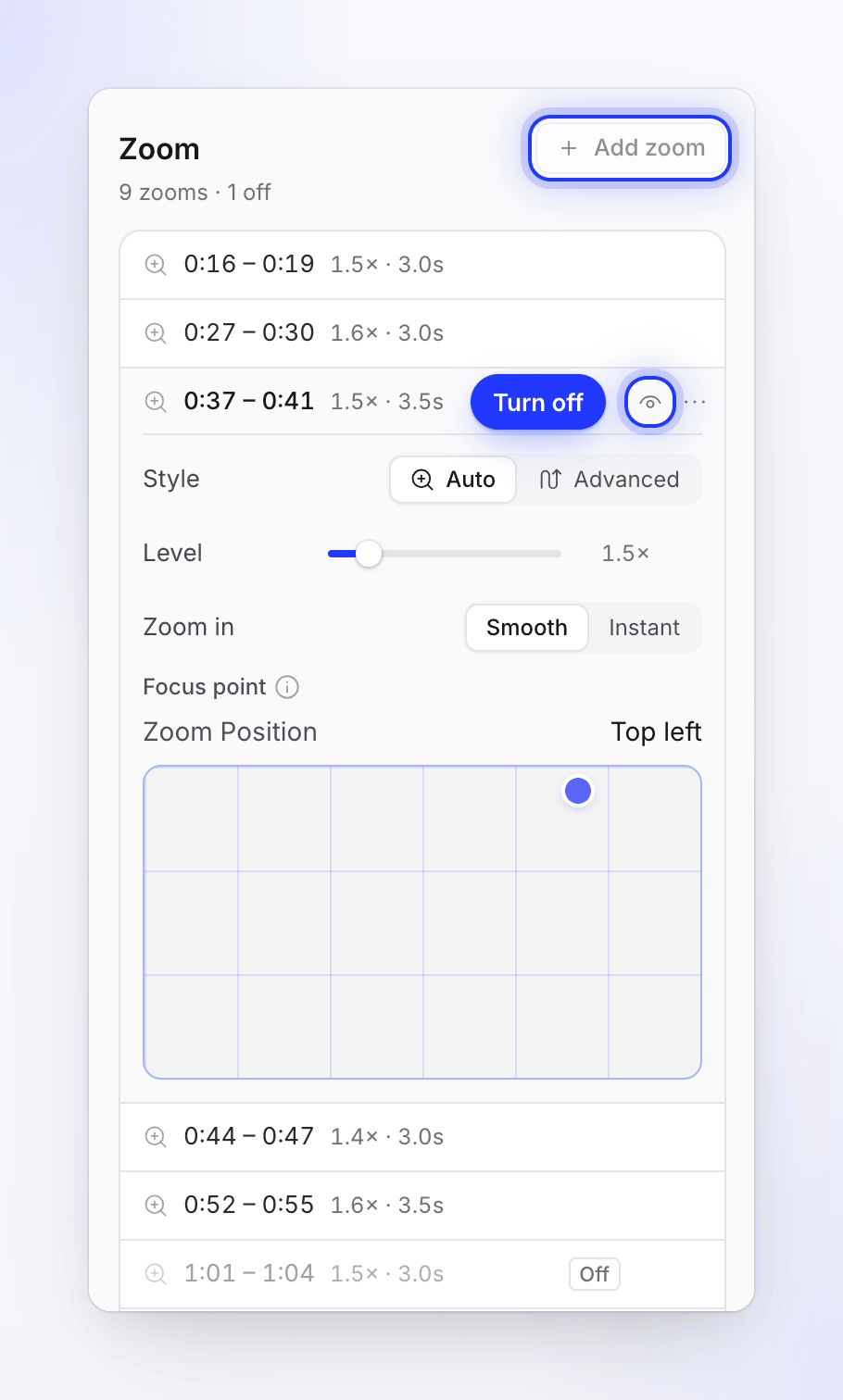
- Turn a zoom off with its eye icon (Turn this zoom off); it stays in the list with an Off badge. Turn it back on the same way.
- Delete a zoom from its menu with Delete zoom. Undo brings it back.
- Add a zoom: move the playhead to where the viewer should look closer and click Add zoom. It adds a 5-second zoom.
- Adjust a zoom: choose Style Auto (follows the pointer) or Advanced (your own zoom and pan path, via Edit path…), set the Level from 1.1× to 4× (new zooms start at 1.5×), and pick Zoom in: Smooth (eases in) or Instant (cuts straight in).
- Focus point: for videos with no pointer to follow, such as uploads, choose where on screen the camera zooms to.
See Adjust zooms and camera moves for the full editor guide.