

Keep an API reference up to date
Keep your doc site's API reference in step with your API: upload a new file, sync from a link on a schedule or push from CI, then review what changed before it goes live. Notes, addresses and redirects carry over.
When your API changes, your API reference follows: upload the new file, let Clevera check a link on a schedule, or push the file from your CI. Clevera compares the new file with the live one, and you review what was added, changed and removed before anything changes on your site.
Before you start
- This is for a Synced reference, one made from a file or link. To make one, see Add an API reference to a doc site.
- Your role: anyone who can edit the site's pages can upload a new file, click Sync now and review changes. Only owners and administrators can change the link, the schedule, the review settings and push from CI.
- Your plan sets how often a link is checked: not automatically on Free, Once a day on Starter, Every hour on Pro, Business and Custom. Push from CI is on Pro and up.
Ways to bring in a new version
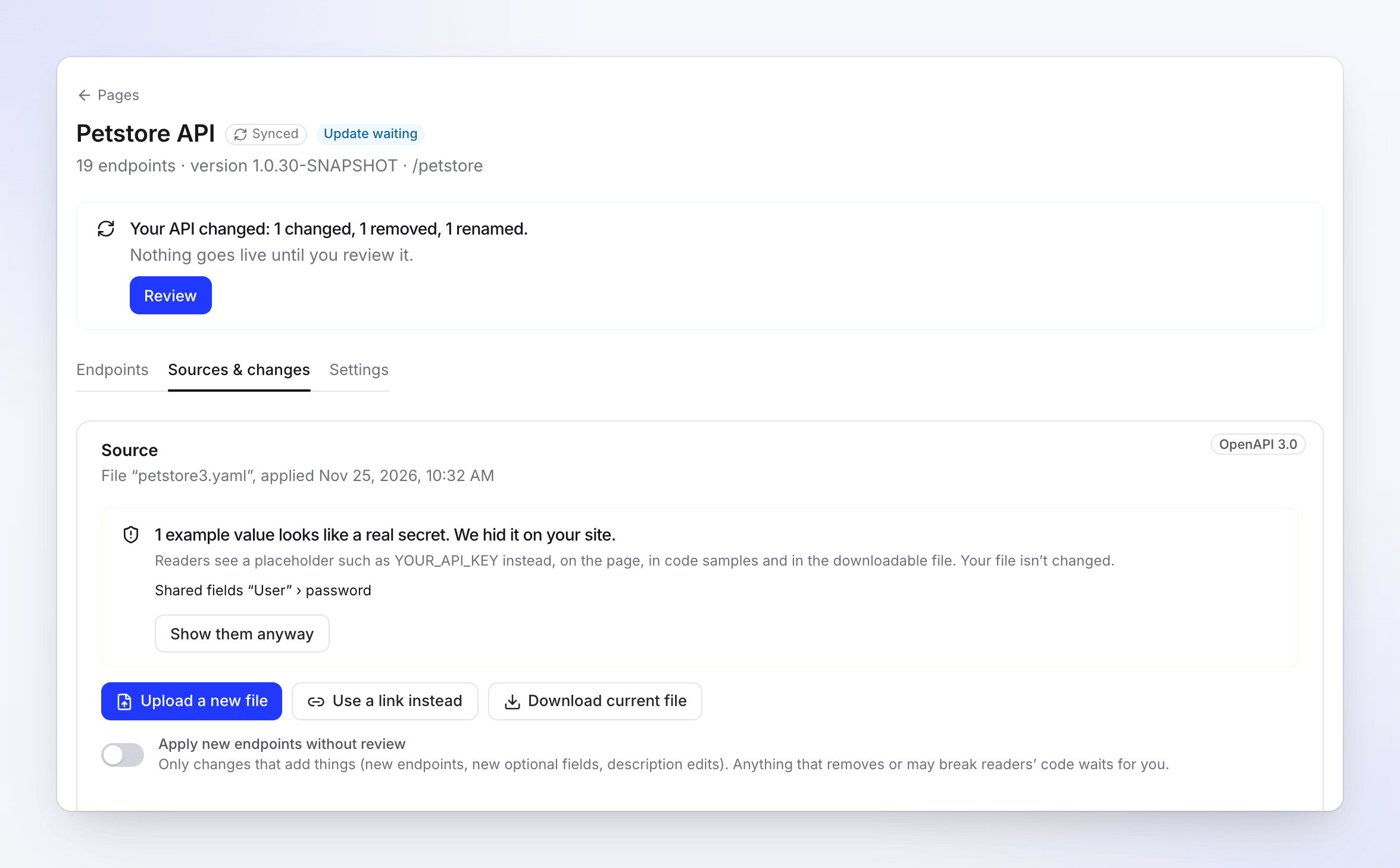
Open the reference from Pages and go to Sources & changes. The source card shows where the reference comes from (an uploaded file, a link, or Pushed from CI), when it was last checked and changed, and when the next check is.
| Way | How |
|---|---|
| Upload a new file | Choose the new version of your file. Any plan. |
| Sync now | Reads the link again right away. Any plan. |
| A schedule | For a link: Keep in sync with Once a day or Every hour, as your plan allows. Clevera skips the file when it hasn't changed since the last check. |
| Push from CI | Your CI sends each new version of the file to Clevera (see Push from CI). |
Change link points the reference at another link, and Use a link instead switches an uploaded reference to a link. Download current file downloads the version that is live now.
Review the changes
When a new version differs from the live one, the reference shows "Your API changed:" with what was added, changed and removed, and "Nothing goes live until you review it." Click Review.
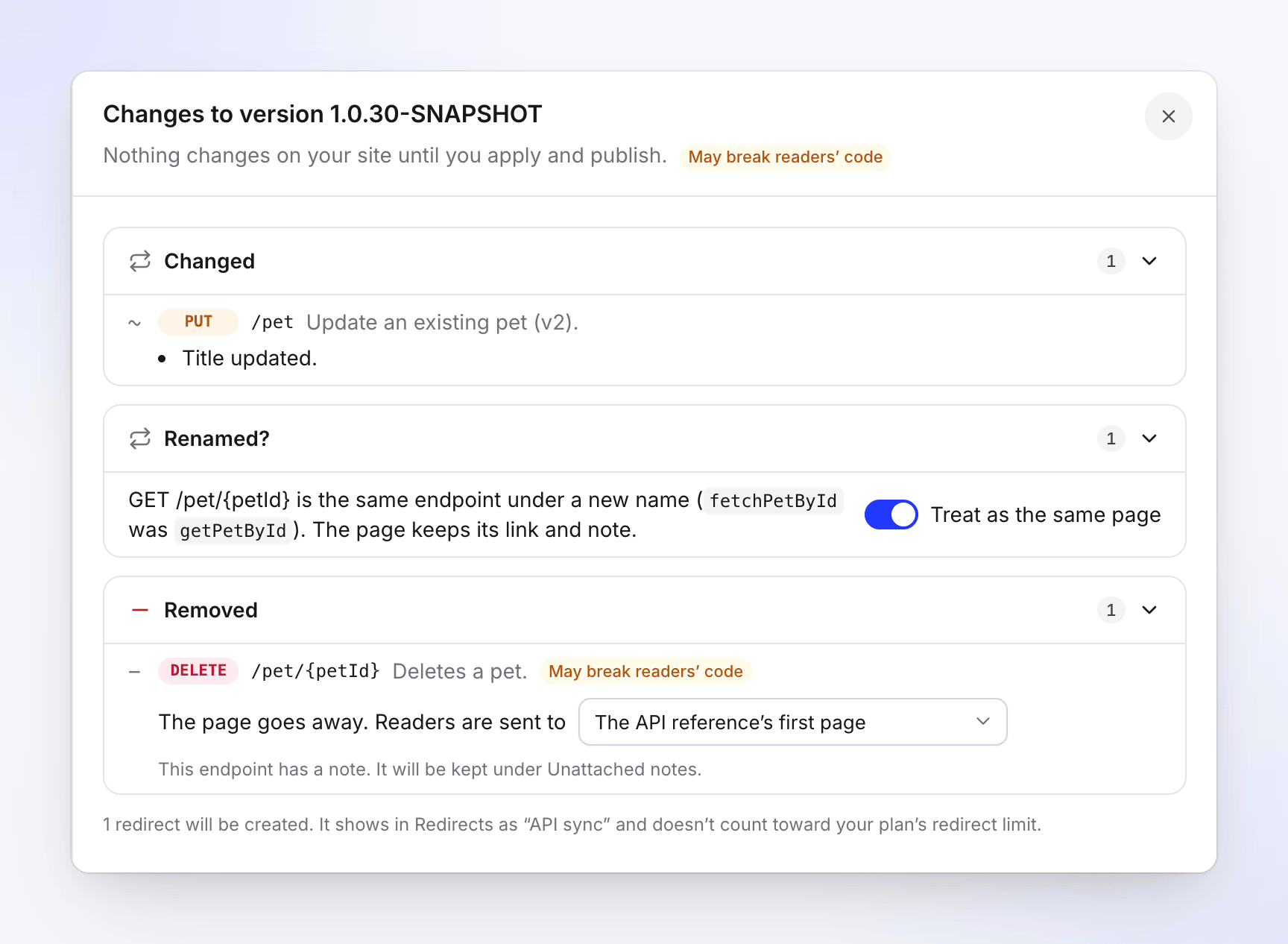
The review groups the changes:
- Added: new endpoints and where they go.
- Changed: each change in plain words, such as a new parameter or a field that is now required. Show every change lists them all.
- Removed: "The page goes away. Readers are sent to" The API reference's first page by default. Pick another page under Redirect to, or Don't redirect. An endpoint that was never published is simply removed.
- Renamed?: Clevera pairs a removed and an added endpoint that look like the same one. Treat as the same page keeps its address, note and history.
Changes that can break code written against your API are marked May break readers' code: a removed endpoint, parameter or field, a newly required one, a changed type, a removed choice or response, or a different way to sign in.
Then choose:
| Button | What happens |
|---|---|
| Apply changes / Apply and draft a changelog entry | The new version becomes your reference's pages. With Draft a changelog entry ticked, Clevera also drafts an entry in your site's changelog. |
| Not now | The update keeps waiting. The reference shows Update waiting. |
| Dismiss this update | The new version is set aside and your reference stays as it is. |
Applied changes go live with your next publish, or by themselves if your site publishes changes automatically. See Publish a doc site.
Apply new endpoints without review
Apply new endpoints without review (owners and administrators, on Sources & changes) applies "Only changes that add things (new endpoints, new optional fields, description edits). Anything that removes or may break readers' code waits for you." It is on by default; turn it off to review every change.
What stays the same
- Addresses. Once an endpoint is published, its address stays the same even if its operation ID or title changes in your file. An endpoint that moves to another group gets a redirect from its old address.
- Redirects. Every redirect a sync makes shows in Redirects as API sync, where you can change or delete it. They don't count toward your plan's redirect limit, and the review says how many it will make.
- Your notes. A note stays with its endpoint across syncs and follows it when you accept a rename.
- Your choices. Hidden endpoints, per-endpoint Try it and your Organise order are kept.
Unattached notes
When an endpoint leaves your file, its note moves to Unattached notes on Sources & changes: "Notes whose endpoint left your API file. They are never deleted on their own: attach each to an endpoint, or delete it." If the endpoint comes back later, its note returns to it by itself.
The changelog draft
With Draft a changelog entry when you apply changes on (Settings → Changelog, on by default), each applied update except the first drafts an entry in your doc site's changelog. It is titled with the API's version, such as "API 2.4.0", or "API update" with the date when the version didn't change. It lists what is New, Changed and Removed, links each endpoint's page and marks breaking changes. Changes to descriptions alone draft nothing.
The draft is never published by itself: edit and publish it like any changelog entry. See Publish a doc site changelog.
Push from CI
On Pro and up, your CI can send the file each time it changes, for example when you merge to main. The reference must come from an uploaded file: a reference that follows a link checks the link instead.
Set up the push address
On Sources & changes, under Push from CI, click Set up push from CI.
Create a token
Click Create the token. It opens AI agents & API with the API reference push preset. In your repository settings, save the token as a secret named
CLEVERA_TOKEN.Add the workflow
Copy the workflow shown on the card into
.github/workflows/api-reference.ymland changeopenapi.yamlto your file's path. Other CI tools send the file with an HTTPPUTto the push address, with the token as a Bearer token: use Copy the address.
Each push is handled like any other update: changes that only add things apply by themselves when Apply new endpoints without review is on, and the rest wait in the review. See Create an API token.
Sync history
Sync history lists every update with when, how it came in (Upload, Sync now, Scheduled check, Push from CI…), what changed and its result: Applied, Waiting for review, Over your plan, Failed, Dismissed or No changes. See changes opens its review.
When a sync fails
Your site always keeps the last version that worked.
- The link can't be read: the card shows Last check failed with "We couldn't use your link on…" and the reason, and "We'll try again" with when. Clevera waits longer between tries after each failure. After 10 failures in a row, "Automatic checks are paused after repeated failures. Sync now resumes them."
- The file can't be read: the report says why, as when you added the reference.
- The new file has more endpoints than your plan includes: the update shows Over your plan. Upgrade, or choose which endpoints to show.
Write the endpoints in Clevera instead
To stop syncing and edit the endpoints by hand, open Settings → Edit here instead and click Take over editing. "Your file stops syncing. Endpoints become editable here. Notes are kept. This can't be undone, but you can download the current file first." An edited reference can still bring in a file with Import from a file on Import & export.