

Pause, restart or cancel a recording
Use the Clevera recording control bar to pause, resume, restart, cancel or finish a recording, and learn which ways of restarting or cancelling skip the confirmation on Mac and Windows.
While you record, a small dark control bar sits on the right edge of your screen. Use it, the keyboard shortcuts, or the Clevera icon in the menu bar (Mac) or notification area (Windows) to pause, start over, throw a take away or finish. The control bar is never in your recording.
The control bar
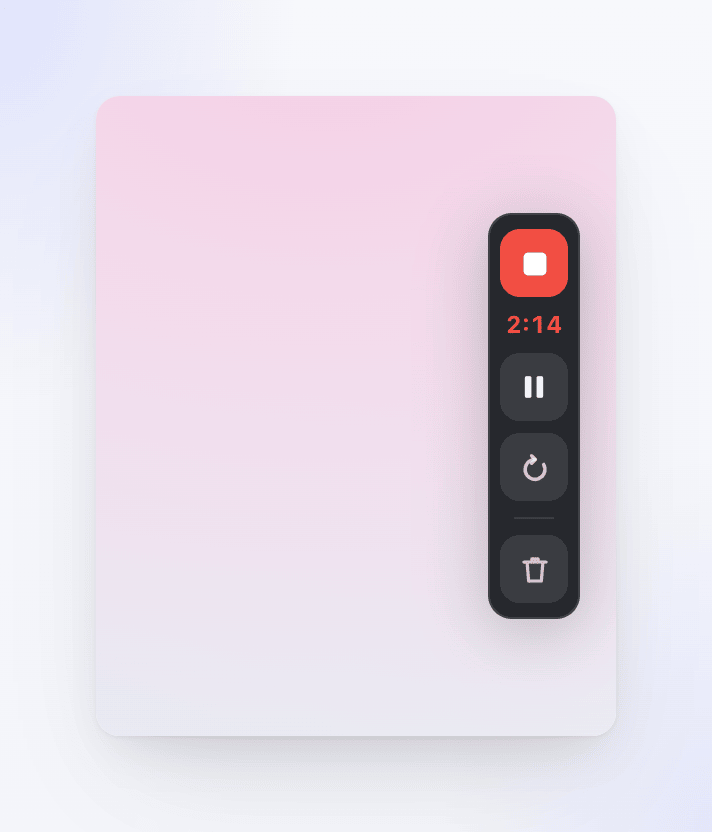
From top to bottom:
| Control | Tooltip | What it does |
|---|---|---|
| Stop square | Complete Recording | Stops recording and uploads the take. |
| Timer | — | Time recorded so far (m:ss). Shows Paused in amber while paused. |
| Pause / play | Pause Recording / Resume Recording | Pauses or resumes. |
| Circular arrow | Restart Recording | Throws away the take and starts again. Asks first. |
| Trash can | Cancel Recording | Deletes the take. Asks first. |
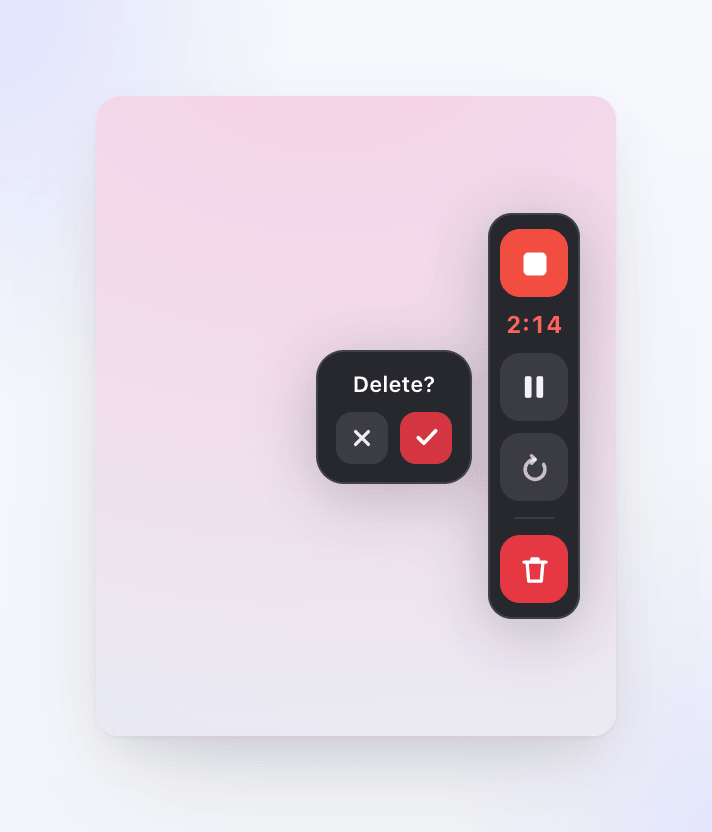
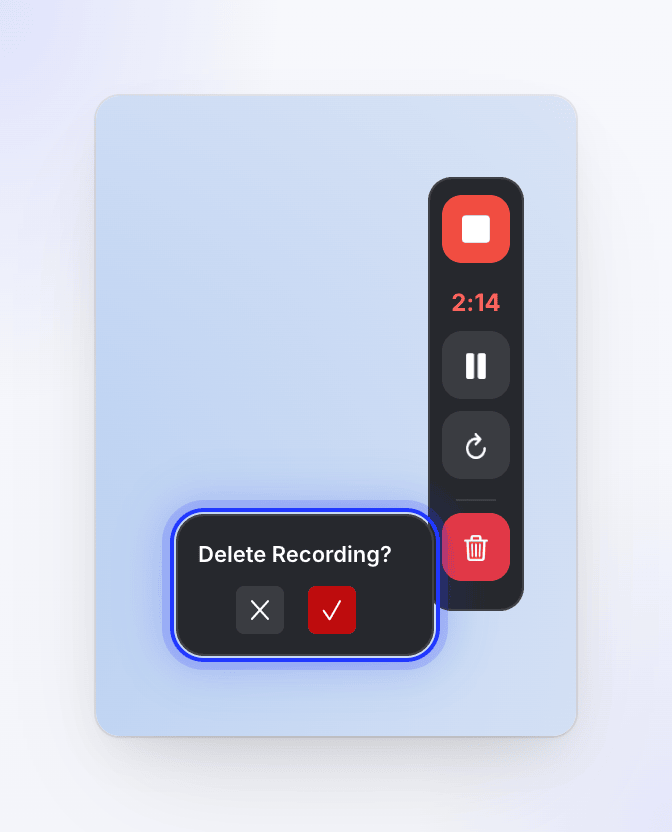
The confirmation reads Restart? and Delete? on a Mac, and Restart Recording? and Delete Recording? on Windows. Confirm with ✓, or click ✕ to keep recording.
Pause and resume
Click pause on the control bar, or press ⌘ ⌥ ⇧ P on a Mac (Ctrl Alt Shift P on Windows). Clevera pauses everything together: screen video, microphone, camera, system audio and your clicks and keystrokes. The timer shows Paused.
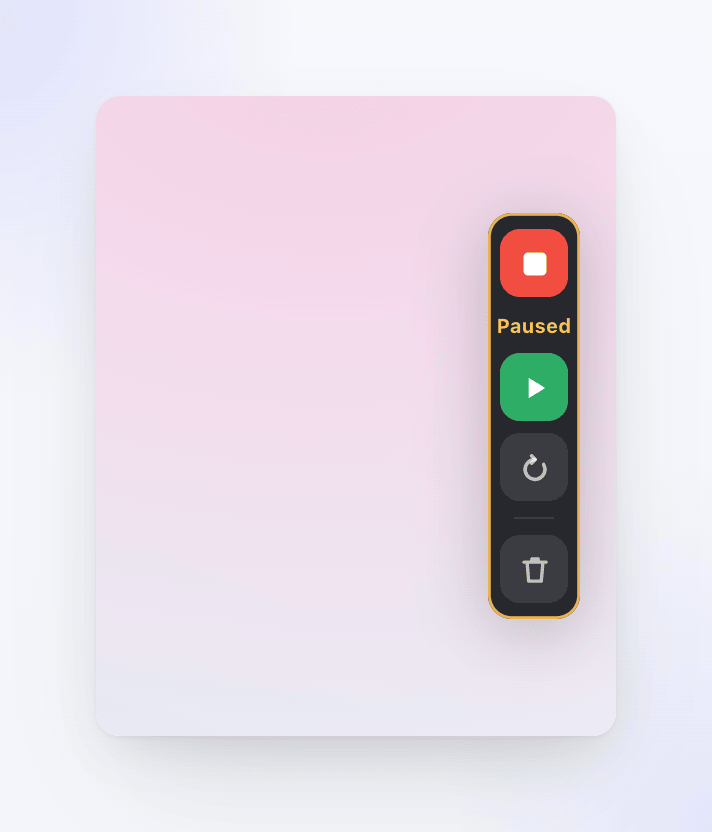
Click play or press the same shortcut to resume. Paused time isn't in the recording, so you can pause to look something up, type a password or take a break.
Restart a recording
Restart throws away everything recorded so far and starts a fresh take straight away, without a countdown. The new take replaces the old one; nothing from the discarded take is kept.
- Control bar: click the circular arrow, then confirm with ✓ next to Restart?.
- Keyboard: press ⌘ ⌥ ⇧ R.
- Menu bar: click the Clevera icon → Restart Recording.
@tab Windows
- Control bar: click the circular arrow, then confirm with ✓ next to Restart Recording?.
- Keyboard: press Ctrl Alt Shift R.
The tray menu has no restart option.
Cancel a recording
Cancel stops the recording and deletes the take, on your computer and in Clevera. Nothing is uploaded to your library.
- Control bar: click the trash can, then confirm with ✓ next to Delete?.
- Keyboard: press ⌘ ⌥ ⇧ X.
- Menu bar: click the Clevera icon → Cancel Recording.
- Control bar: click the trash can, then confirm with ✓ next to Delete Recording?.
- Keyboard: press Ctrl Alt Shift X.
- Tray: right-click the Clevera icon in the notification area → Cancel recording.
Finish a recording
- Control bar: click the stop square (Complete Recording).
- Keyboard: press ⌘ ⌥ ⇧ Return.
- Menu bar: click the Clevera icon → Complete Recording.
@tab Windows
- Control bar: click the stop square (Complete Recording).
- Keyboard: press Ctrl Alt Shift Enter.
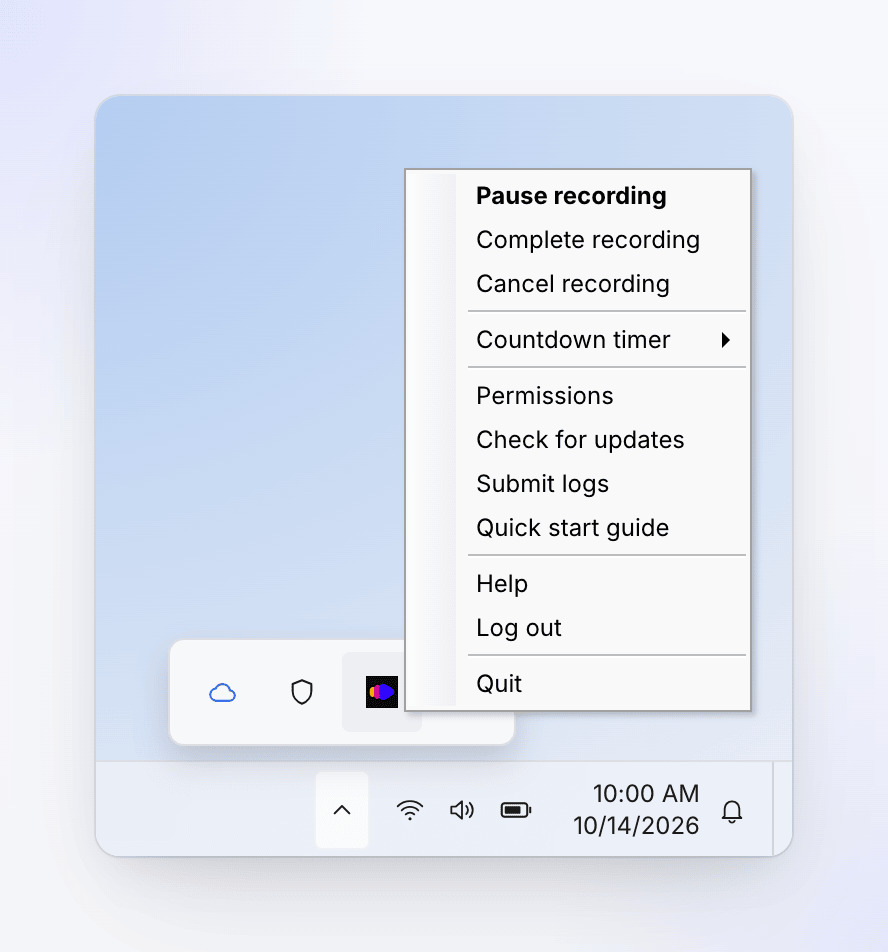
- Tray: right-click the Clevera icon → Complete recording.
The tray menu also has Pause recording and Resume recording while you record.
The upload window opens and your browser opens the recording when it's done. See Find your recording after it uploads.
Hide the control bar
If the bar is in the way, press ⌘ ⌥ ⇧ C (Ctrl Alt Shift C on Windows) to hide it, and press it again to bring it back. The recording keeps running while the bar is hidden. The bar isn't in the video either way; hiding it only clears your view.
Stop before the recording starts
During the countdown, click Cancel to stop before anything is recorded, or Start now to skip the rest of the countdown.
Don't quit during a recording
Quitting Clevera doesn't ask for confirmation. If you quit while recording, the take is deleted. If you quit while the take is still uploading, or while the upload window shows an error, the recording never reaches Clevera and nothing uploads it later. Finish or cancel the recording and wait for Upload Complete before you quit.