

Understand how the AI makes your video
What happens after you press Generate: how the AI builds a video from your recording, how the AI director designs and checks a social clip, how an article is written, and which parts you decide versus the AI.
When you press Generate, the AI takes over: it reads your material, plans the video, writes and records the voice-over, builds the scenes and assembles the result. How it works depends on what you're making. This page explains each path in plain words, what you see while it runs, and which parts you control.
The short version
| Videos from your recording | Social clips | Articles | |
|---|---|---|---|
| Starts from | Your screen recording (or pictures and PDF pages) | A website, pictures, a PDF, a video or your brief | One screen recording |
| The AI's job | Narrate and stage your real footage | Design every scene from scratch, as motion graphics | Write a guide and illustrate it with screenshots |
| What stays yours | The footage, step by step | The facts you gave it | What you did and said in the recording |
| Checks its own work | Matches the narration to what happens on screen | Watches the scenes back and fixes what looks wrong | Picks the right screenshot for each step |
Videos from your recording
How-to videos, product demos and Clean-up keep your recording at the center. The AI's job is to explain what you did, not to invent anything new.
Watch the recording
The AI watches your recording to understand each step: where you clicked, what changed on screen, what you typed. Recordings from the Clevera desktop app include every click and cursor move as separate data, which makes this more precise.
Write the narration
It writes a script for the type you chose (a walkthrough, a troubleshooting fix, a sales pitch) in the video's language, using your brief for emphasis and anything to skip.
Match the narration to the video
Each line is timed to the moment it describes, so the voice says "click Save" while the cursor is on Save.
Choose a title and chapters
The AI names the video and splits it into chapters that viewers can jump between.
Record the voice-over
The script is read in the voice and speaking style you picked.
Add the finishing touches
Zooms that follow your clicks, captions if you turned them on, and the background, music, intro and title cards from your video template.
If you add pictures or PDFs, the AI reads them for facts. When it isn't sure whether a picture should also appear on screen, it may ask you during generation. With no recording at all, a how-to or demo is built as a narrated slideshow from your pictures and PDF pages, each held on screen as long as its narration, up to 20 pictures.
Social clips
A social clip is designed from scratch by the AI director. It works like a small studio in one: it writes, records, designs each scene as code-driven motion graphics, then watches its own work back.
Pick the music
Before the director starts, a track that fits the pace and mood is picked from Clevera's music library, unless you chose No music. Every track is royalty-free or AI-generated, and licensed for commercial use in your videos.
Ask for any missing fact
Offer promos, event promos and customer stories rest on a fact only you can give. If your brief doesn't include it, a question card asks you for it before anything else is made.
Read your materials
The director reads your website (when you attached one), pictures, PDFs, videos and brief. If you gave it more than fits in one video, it uses the strongest of it.
Plan the scenes and write the voice-over
It plans the video beat by beat, then writes and records the voice-over first, so the scenes can be timed to the words.
Design each scene
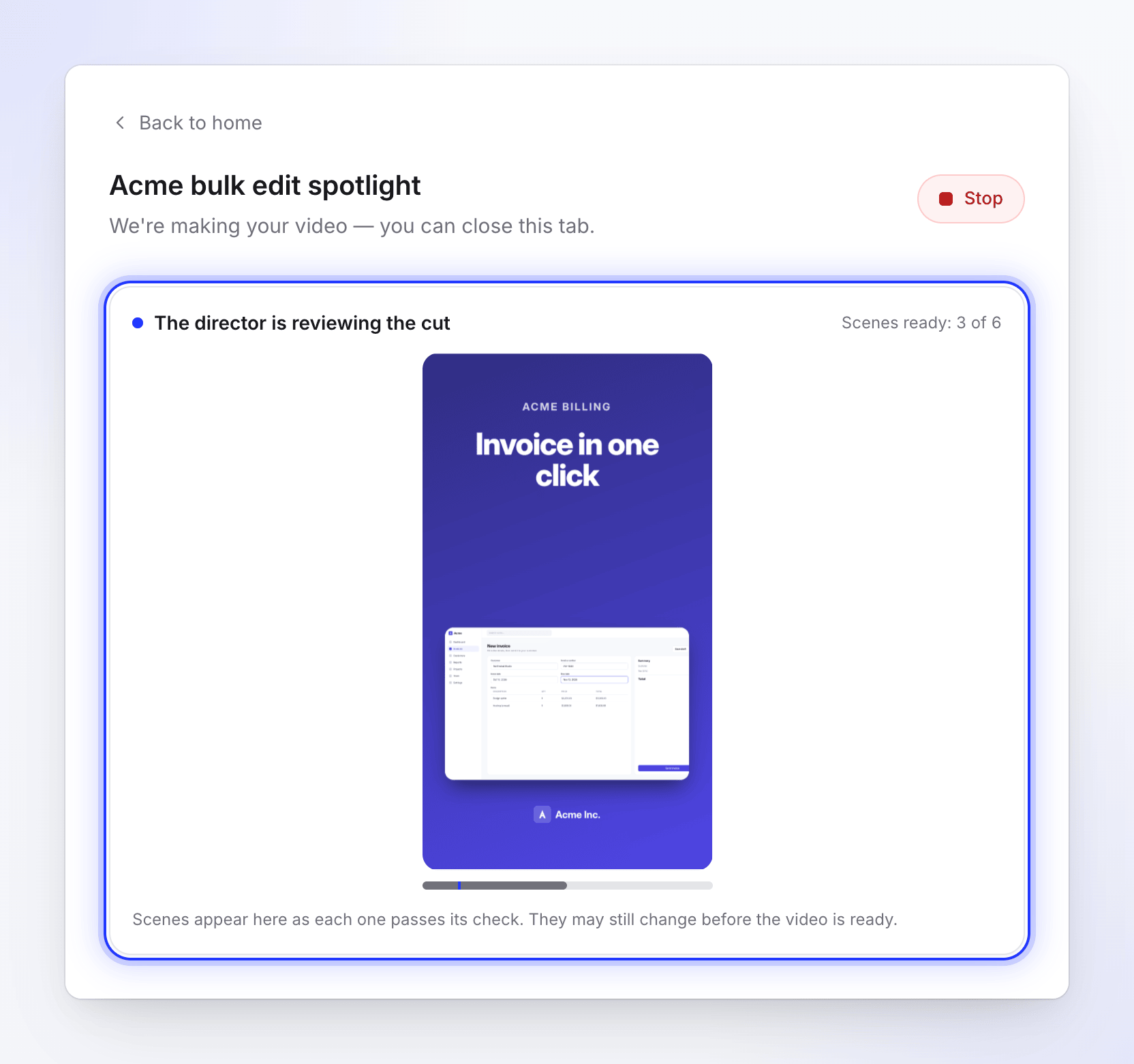
Each scene is built in the look you chose (or one it picks to match your material), with your brand mark where it fits. Each finished scene shows in the live preview as it passes its check.
Watch the scenes back and fix them
The director renders stills of its own scenes, looks at them and fixes what's wrong: text that overflows, elements that clash, timing that drags. Extra effort adds more review rounds on every scene.
Assemble and title
It adds sound effects from Clevera's library, puts the clip together and gives it a title.
Where your logo comes from
For social clips, the AI looks for your brand mark in this order: a file you attach named "logo" (for example logo.png), the logo on the website you attached, your workspace logo, a site seen in your footage, then a mark taken from a frame of your footage. If it finds none, it sets your brand name in type. See Get your logo into a social clip.
Articles
An article is written from one recording.
- If your recording has speech nobody has transcribed yet, the AI first listens to what you said while recording.
- It watches the recording and takes candidate screenshots from it.
- It writes the draft in the tone and depth you chose.
- It turns the draft into your article and picks the right screenshot for each picture, with a colored marker where you clicked.
See Turn a recording into an article.
What you control and what the AI decides
| You decide | The AI decides |
|---|---|
| The type and kind of video | The script and every line of narration |
| Your material and the brief | Which parts of your material to use, and in what order |
| Video language (74 languages and variants) | Timing of each line and scene |
| The voice, tone or speaking style | The scenes and their layout (social clips) |
| Captions on or off | Zooms and camera moves on your footage |
| Format and length (social clips) | The music track, unless you choose No music |
| The look: a style and palette, or Automatic | Sound effects (social clips) |
| An AI avatar and its screen time (social clips, paid plans) | The title and chapters |
| Effort: Medium, High or Extra (social clips) | When to ask you a question |
| AI rules the AI must follow |
Everything the AI decides can be changed after the video is made, in the editor or by asking the assistant. Create and apply AI rules lets you set standing instructions, such as words to avoid, that apply to every video.
What you see while it works
The generation page, We're making your video, shows five stages:
| Videos and social clips | Articles |
|---|---|
| Looking at your materials | Looking at your materials |
| Planning the story | Writing the article |
| Designing the scenes | Laying out the article |
| Adding music & polish | Adding the screenshots |
| Finishing up | Finishing up |
Under the stages, a feed shows what the AI is doing in plain words, such as "Watching your video", "Writing the voice-over" or "Watching the scenes back". There's no time estimate, because each video takes as long as its material needs. You can close the tab: the work continues, and you'll be notified when it's ready.
Questions during generation
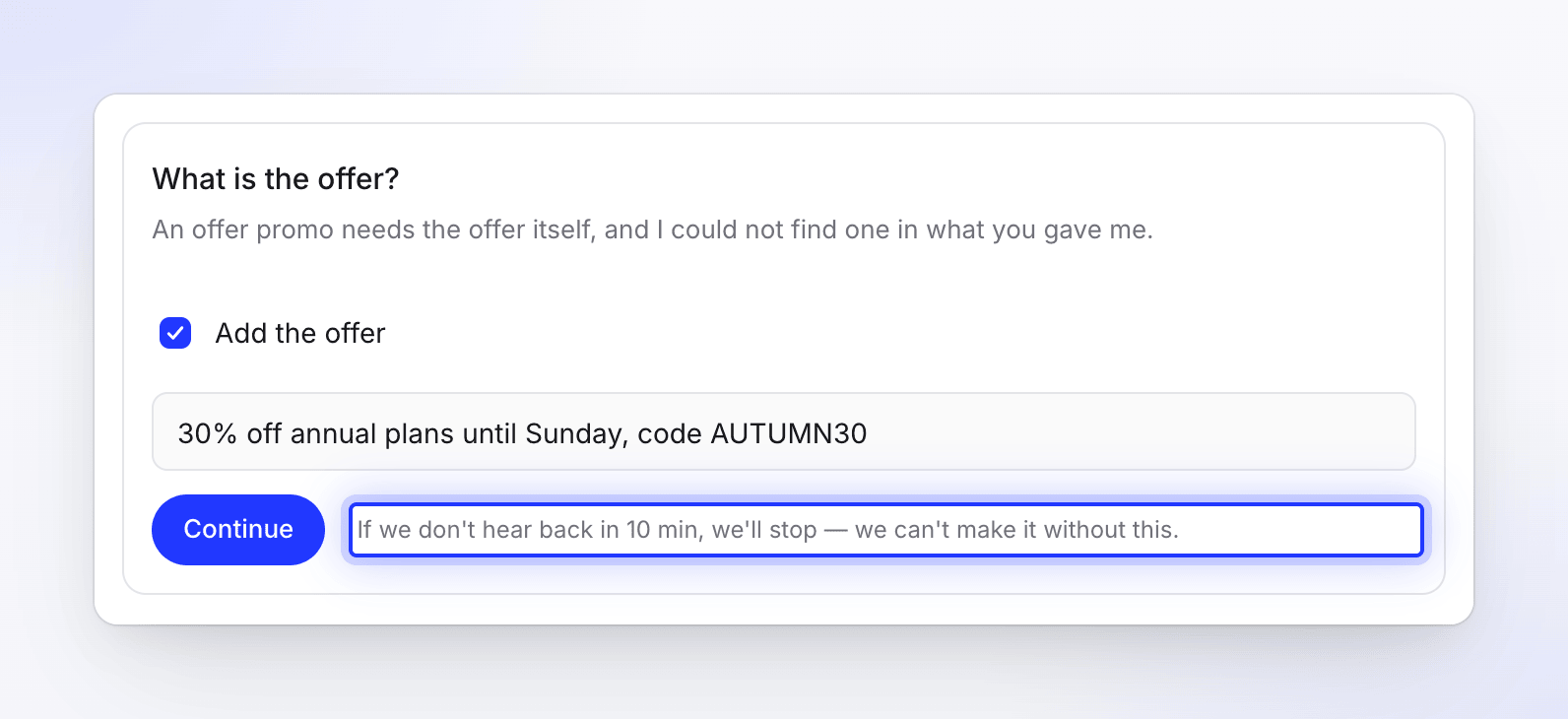
Sometimes the AI needs an answer from you, such as a missing offer or whether a file should appear on screen. A question card appears and a chime plays. Every card says what happens if you don't answer: questions wait 10 minutes, then the AI carries on with the suggested answer. A question about a required fact (offer, event, customer quote) stops the video instead, because it can't be made without it. See Answer the AI's questions during generation.
Heads-up notes
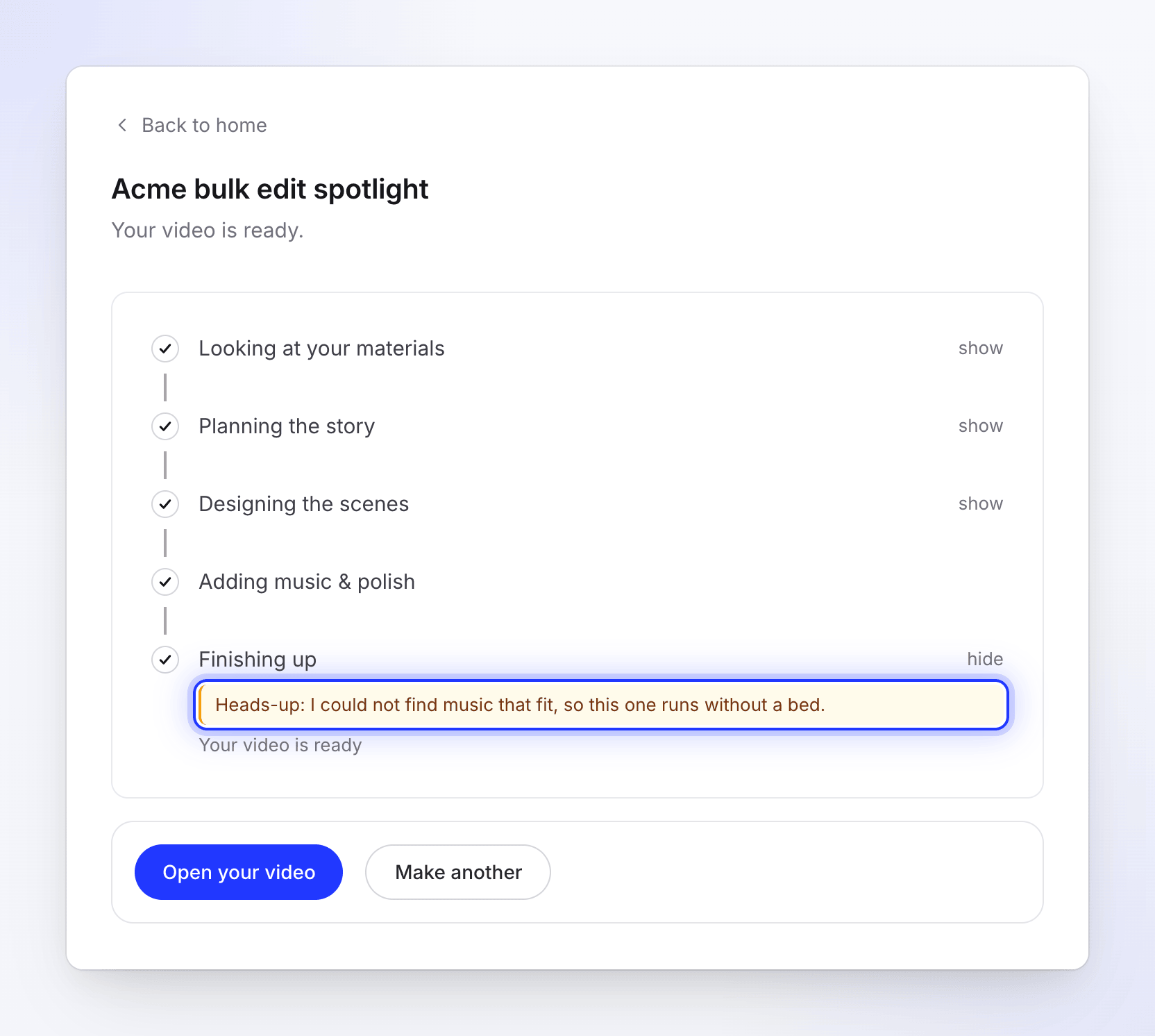
When the AI had to work around a problem, the finished video carries an amber heads-up, so you know where to look:
| Heads-up | What it means |
|---|---|
| "Heads-up: there was not much on that page, so the video leans on what you wrote." | The website had little content. Add pictures or a fuller brief next time. |
| "Heads-up: I couldn't read {host}, so I worked from what you wrote." | A website couldn't be read. |
| "Heads-up: I could not watch your recording closely, so the video uses it as one long take." | The footage couldn't be analyzed, so it plays without cuts or zooms. |
| "Heads-up: I could not find music that fit, so this one runs without a bed." | There's no music. Add a track in the editor. |
| "Heads-up: the voice did not come out at all, so this one is silent." | Regenerate the voice in the editor. |
| "Heads-up: I left the avatar out of this one." | The avatar couldn't be made for this video, for example because the workspace didn't have enough credits. |
All heads-ups are explained in My video came out silent, without music or without the avatar.
Credits
A generation needs enough credits to start: your balance has to cover at least the low end of the estimate beside Generate. After that, credits are used as the work happens, not reserved up front, and the job is charged what it actually uses. Website research and Record with AI are billed on top, by the work they do. If a video fails on our side, the credits it used are returned to your balance. See Know when credits are charged.