

Organize videos in collections and folders
Group videos and articles into collections, sort them into folders (one level, one folder per item), and control who can open or edit each collection with Team-wide, Private or Specific people access.
Collections group your videos, clips and articles, and decide who on your team can open and edit them. Inside a collection, folders sort items one level deep. This article covers creating collections, access and roles, folders, branding and deleting.
How collections work
- An item is in at most one collection at a time. Moving it to another collection takes it out of the first.
- Folders are one level deep. No folders inside folders, and an item sits in one folder or in none.
- Access is set per collection: Team-wide, Private or Specific people.
- Items outside any collection show in the Content library only for the person who made them, the workspace owner and Administrators. Other teammates don't see them in their library or search, but can open one if you send them its link. Only the person who made it and the workspace owner can edit it. Put shared work in a collection.
- Who can create collections: the owner, Administrators and Content Creators.
Create a collection
Start a new collection
Open Collections in the sidebar and click New collection.
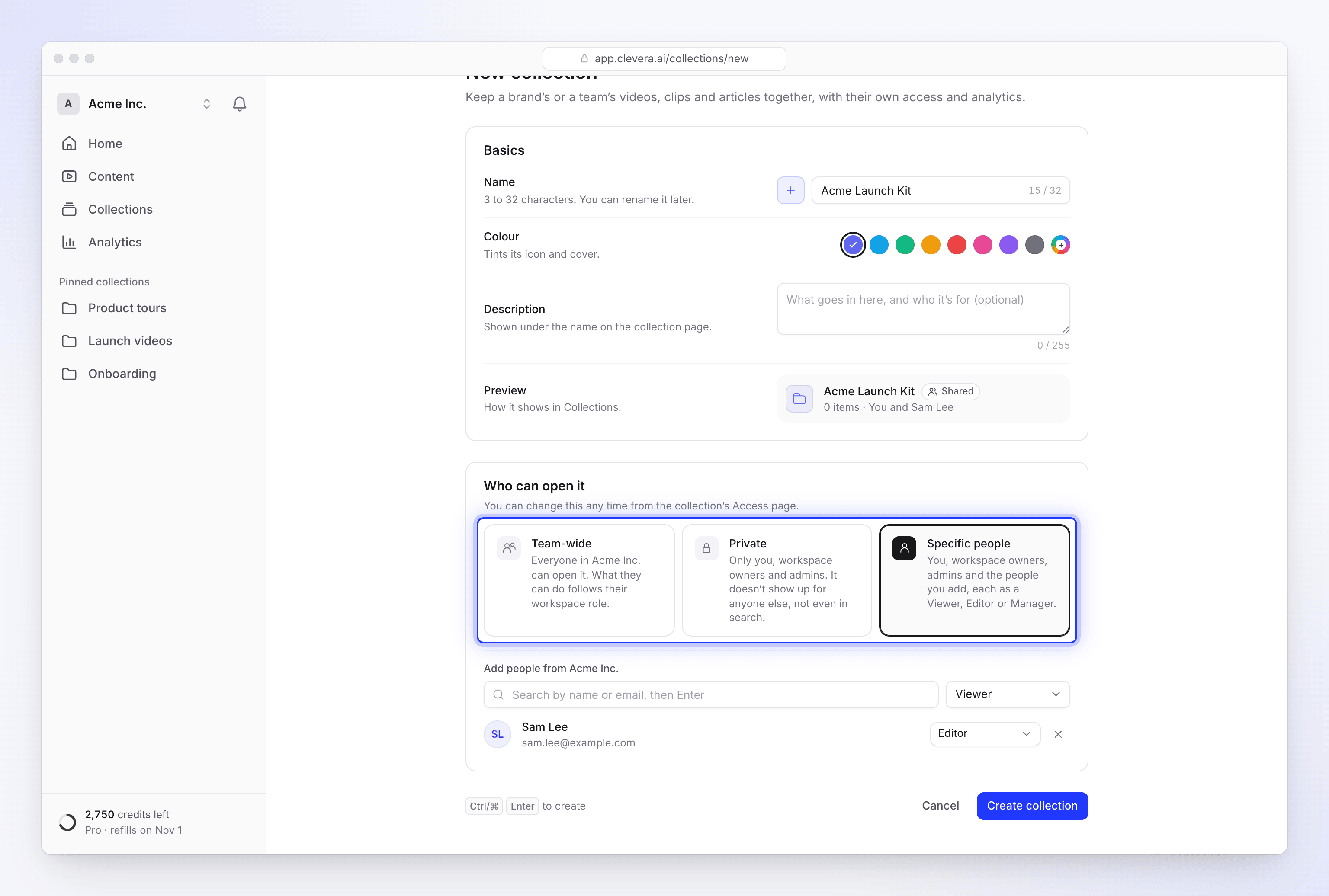
Fill in the basics
Field Rules Name 3 to 32 characters. "You can rename it later." Icon Pick one next to the name Colour "Tints its icon and cover." Description Optional, up to 255 characters. "Shown under the name on the collection page." Choose who can open it
Under Who can open it, pick an access mode (see Access and roles). For Specific people, search teammates "by name or email, then Enter" and give each one a role.
Create it
Click Create collection.
Access and roles
| Access | Who can open it |
|---|---|
| Team-wide | "Everyone in Acme Inc. can open it. What they can do follows their workspace role." |
| Private | "Only you, workspace owners and admins. It doesn’t show up for anyone else, not even in search." |
| Specific people | "You, workspace owners, admins and the people you add, each as a Viewer, Editor or Manager." |
People you add to a Specific people collection get one of three roles:
| Role | What they can do |
|---|---|
| Viewer | "Opens and watches everything in the collection." |
| Editor | "Also edits content and adds new items." |
| Manager | "Also changes settings and access, deletes items and the collection." |
The collection's creator, the workspace owner and Administrators always have full access to every collection, Private ones included, and can't be removed from one. Workspace roles still apply on top: an Editor in the workspace can't create new videos in any collection. See roles and creator seats.
To change access later, open the collection's menu and choose Manage access. People without that right see See who has access.
Add items to a collection
- From your library or the editor: Add to collection on an item (or Change collection if it's already in one). In the library, press M on a selected item.
- From the collection: the collection's menu → Move existing content here.
New videos you start from inside a collection land in it.
Organize with folders
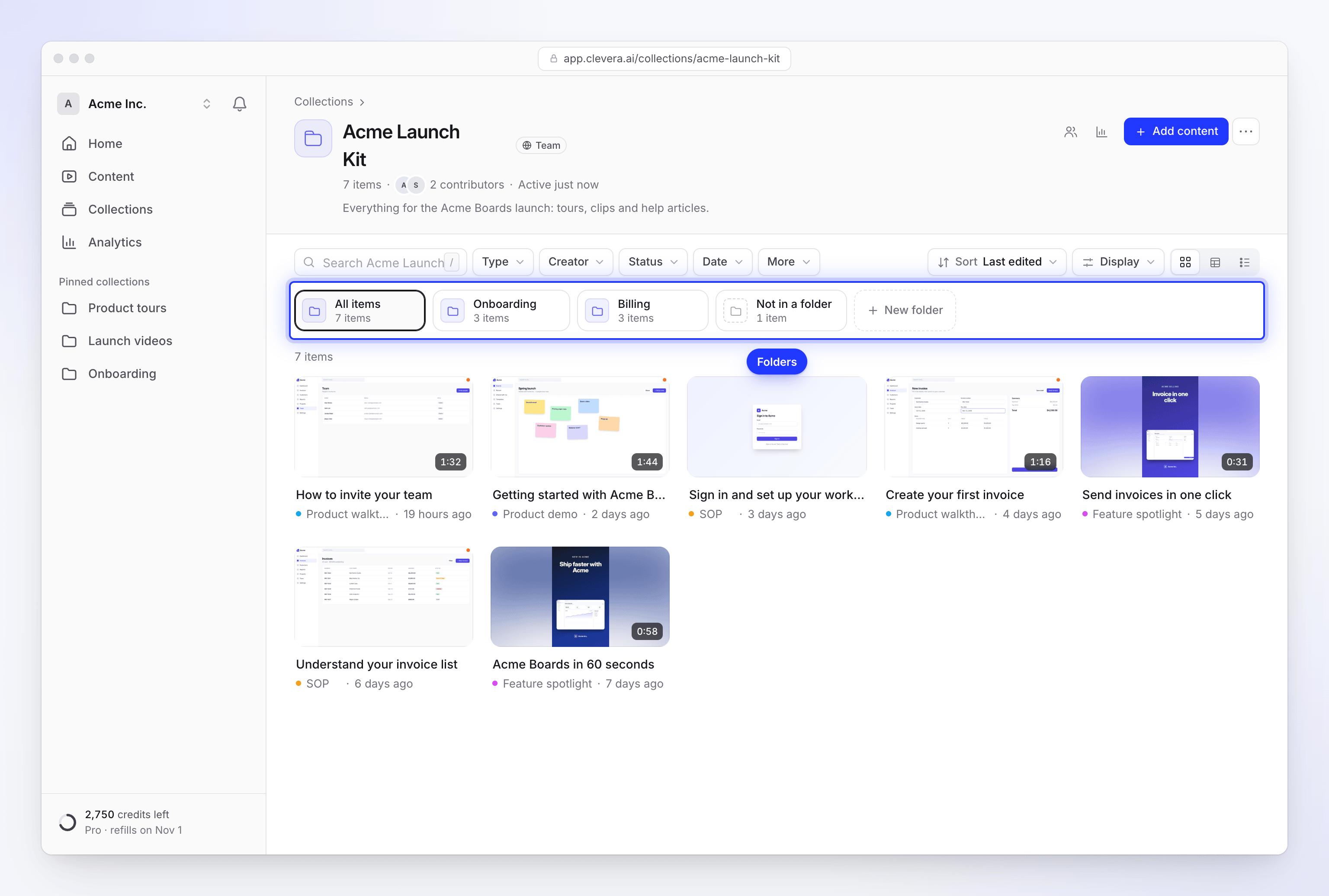
A collection shows a row of folders above its items: All items, each folder, and Not in a folder. Click a folder to see only its items, with a breadcrumb back to the collection. You can also group the whole list by folder.
Create a folder
Click New folder. Set the Icon and name, a Colour and, with + Add a description, a description of up to 500 characters. Click Create folder.
Move items in
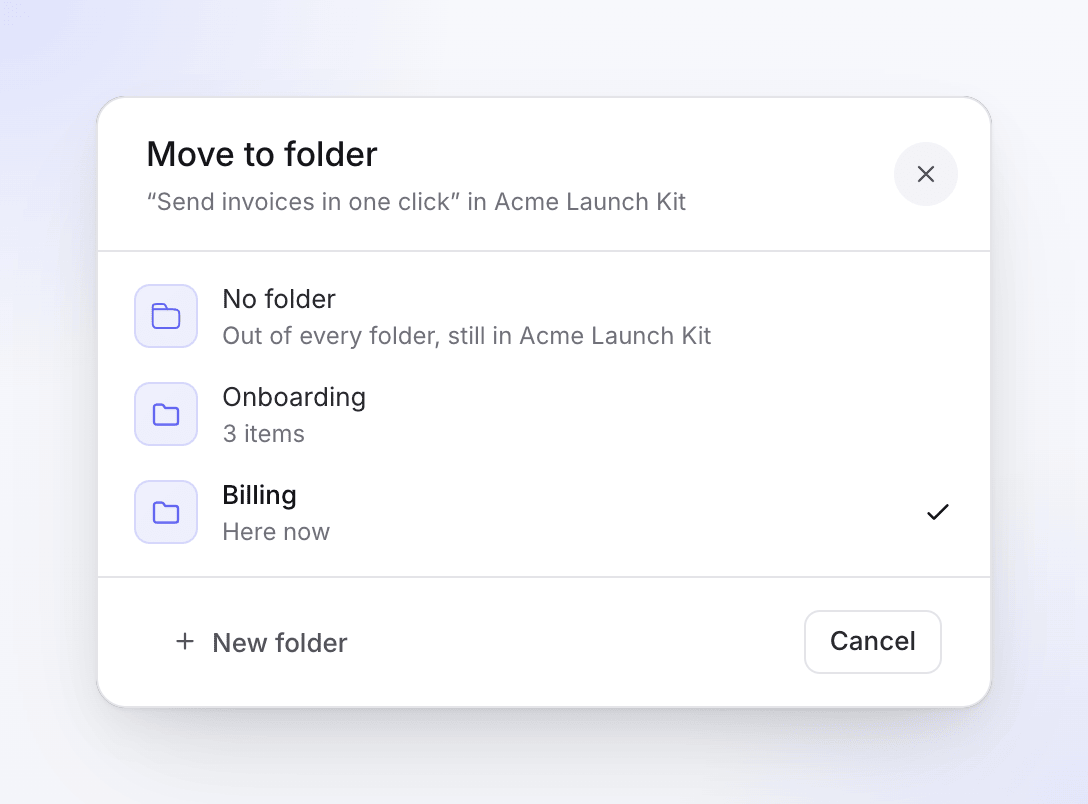
Drag items onto a folder, or use Move to folder… on an item or a selection. The picker lists No folder ("Out of every folder, still in" the collection), each folder (the current one reads "Here now") and New folder. Every move offers Undo.
Take items out
Drag items onto the collection's name in the breadcrumb ("drop items here to take them out of the folder"), or choose No folder in Move to folder.
Arrange folders
From a folder's menu, choose Rename and style, move it up, down, left or right, or Delete folder.
Deleting a folder never deletes items: "Its 12 items go back to Acme Launch Kit; nothing else is deleted."
| Folder action | Who can do it |
|---|---|
| Create, rename, reorder, delete folders | Collection Managers, the creator, the owner and Administrators |
| Move items between folders | Anyone who can edit items in the collection |
Branding and settings
Open the collection's menu and choose Settings:
| Setting | Details |
|---|---|
| Name, Description | Same rules as when you created it |
| Accent colour | "Tints its icon, cover and embeds." |
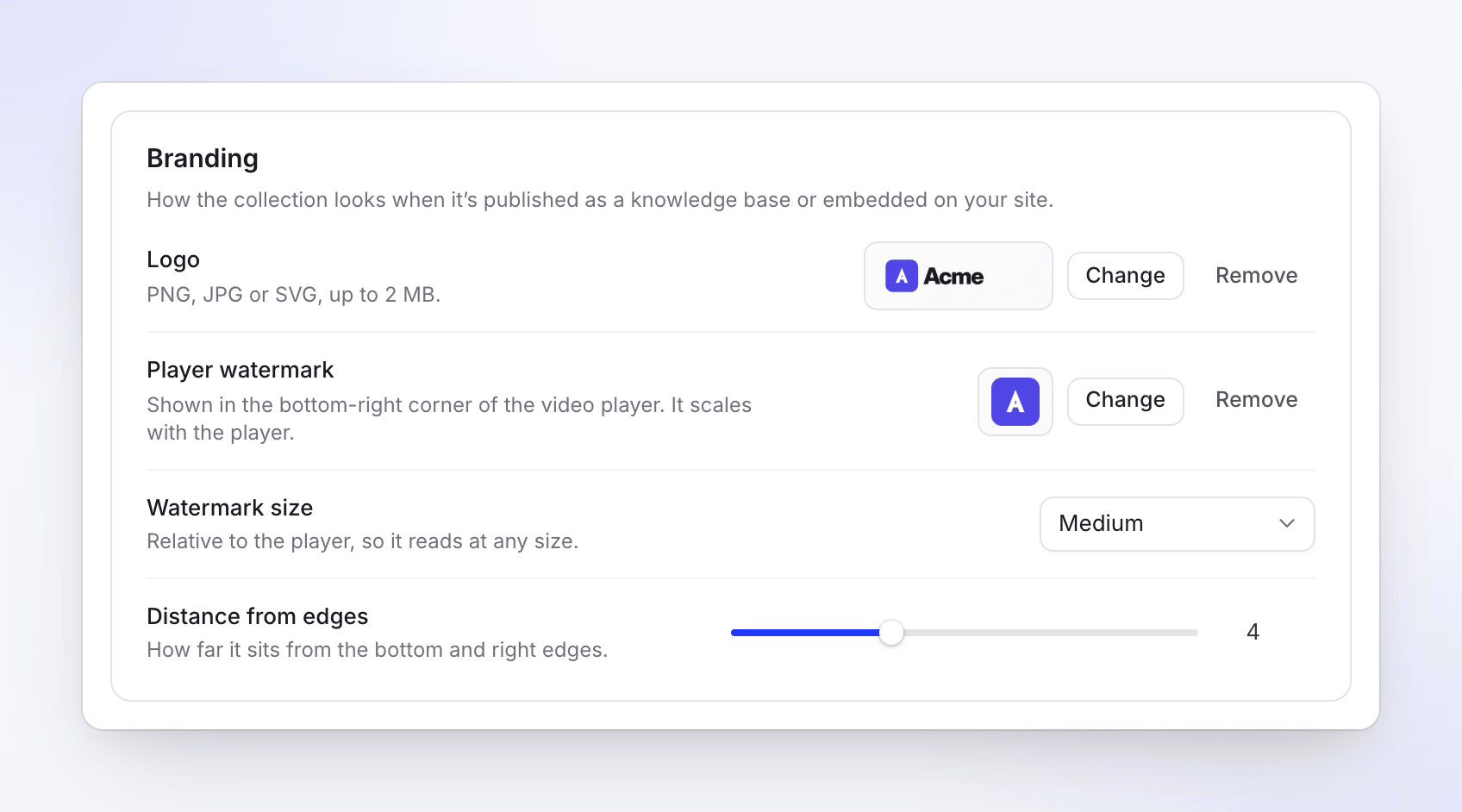
| Logo | "PNG, JPG or SVG, up to 2 MB." Used on shared pages and embeds |
| Player watermark | "Shown in the bottom-right corner of the video player. It scales with the player." PNG, JPG or SVG, up to 2 MB |
| Watermark size | From Extra small to Extra large |
| Distance from edges | 1–10, default 4 |
Pin, find and delete
- Pin to sidebar keeps a collection one click away. Unpin from sidebar removes it.
- The collections list sorts by Last activity, Name, Items or Date created, and filters All, Team or Private.
- See analytics shows views for everything in the collection.
- Delete works only on an empty collection. With items left you see "Empty the collection first" and "Move them to another collection or delete them, then delete the collection." An empty one asks "Delete collection?" and warns it "will be deleted for everyone in the workspace. This can’t be undone."
Troubleshooting
| You see | What to do |
|---|---|
| "Use at least 3 characters." / "Use 32 characters or fewer." | Collection names are 3–32 characters. |
| "Add at least one person, or choose Private." | Specific people needs at least one person. |
| "Please select a JPEG, PNG, or SVG file." / "Logo must be smaller than 2MB." | Use a smaller PNG, JPG or SVG. |
| "Give the folder a name." | Folders need a name. |
| "Couldn’t move the items. Nothing was changed." | Try again; check you can edit items in this collection. |
| A teammate can't find a collection | It's Private, or they weren't added to a Specific people collection. |
| A teammate can't find an item that isn't in a collection | Items outside collections only show in their maker's library (and for the owner and Administrators). Move it to a collection they can open, or send them its link. |