

Set the format, size and length
Set a social clip's shape and length with the Format pill: four common aspect ratios, four more sizes, a custom size in pixels, and lengths from about 35 seconds to about 4 minutes. Some lengths hide for shapes whose platforms cap video length.
The Format pill sets two things for a social clip: its shape (aspect ratio or a custom size in pixels) and its rough length. Every type starts on its own default, for example 9:16 at about 60 seconds for a Feature spotlight. Change it before you generate, because the AI director designs every scene for that frame and that timing.
Change the format
Open the Format pill
On the Compose page, click the first pill under the brief. It shows the current shape and length, for example 9:16 · 60s. The panel opens with "Shape and rough length." under its title.
Pick an aspect ratio
Click one of the four tiles under Aspect ratio. Each tile draws the shape to scale. Hover a tile to see where that shape is watched, for example "Vertical — TikTok, Reels, Shorts, Stories".
For other shapes, click More sizes (it lists 4:3 · 3:4 · 2:3 · 12:5 · Custom) and pick one. Once open, the row reads Fewer sizes.
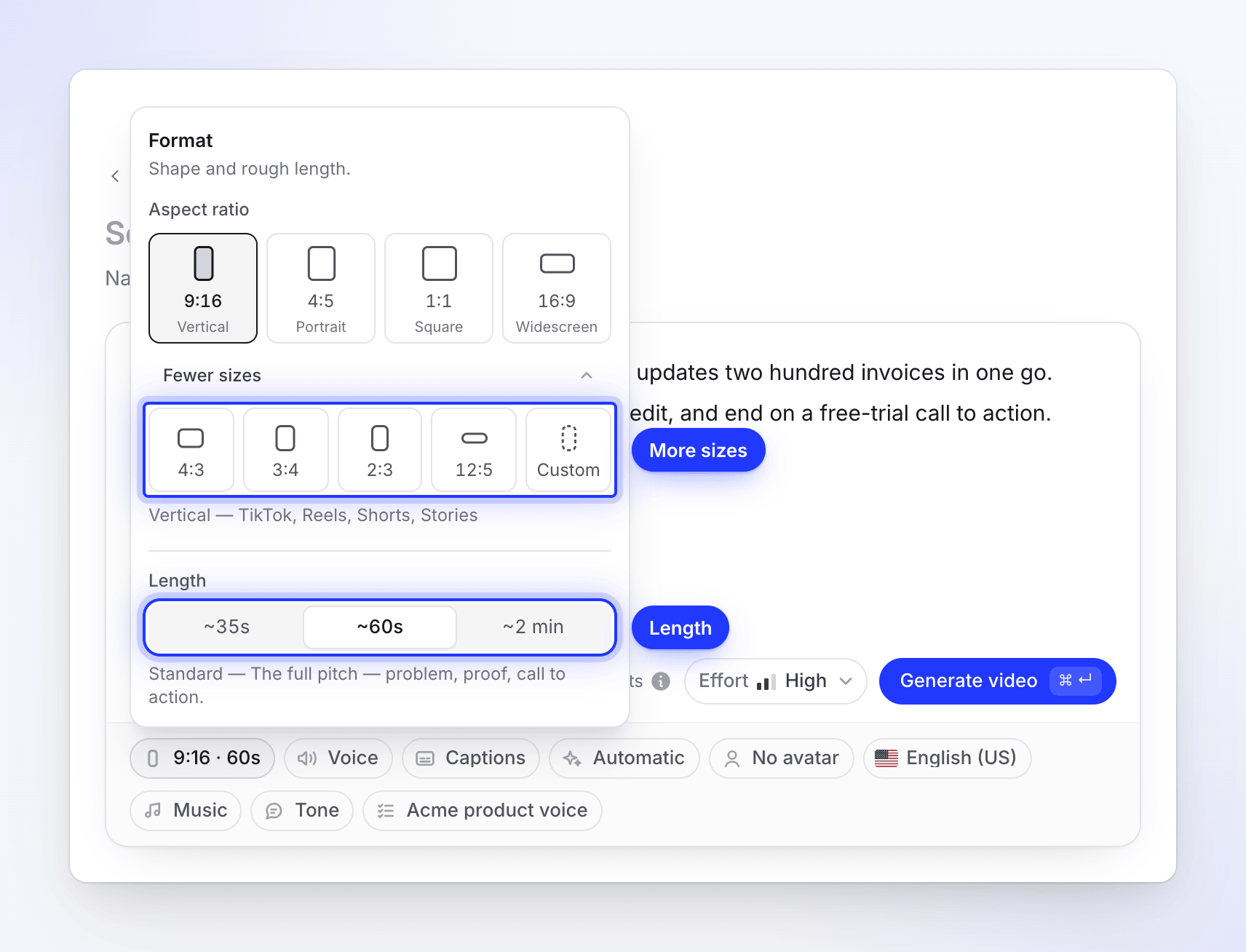
At 9:16 the ~4 min length is hidden. Pick a length
Click a length under Length: ~35s, ~60s, ~2 min or ~4 min. The line underneath says what that length is for. The pill updates straight away, for example to 16:9 · 2 min.
Click outside the panel to close it. A pill you changed shows as set by you; click its ✕ to go back to the type's default.
Aspect ratios
| Tile | Name | Where it's watched | Canvas |
|---|---|---|---|
| 9:16 | Vertical | TikTok, Reels, Shorts, Stories | 1080 × 1920 |
| 4:5 | Portrait | Instagram and LinkedIn feed posts | 1080 × 1350 |
| 1:1 | Square | Feed posts that work anywhere | 1080 × 1080 |
| 16:9 | Widescreen | YouTube, your site, and email | 1920 × 1080 |
| 4:3 (More sizes) | Classic | Presentations and classic landscape | 1440 × 1080 |
| 3:4 (More sizes) | Upright | Portrait presentation and print-adjacent | 1080 × 1440 |
| 2:3 (More sizes) | Tall | 1080 × 1620 | |
| 12:5 (More sizes) | Banner | Wide hero banners for a site | 1920 × 800 |
| Custom (More sizes) | Custom size | Any width and height, in pixels | You choose |
The canvas is the size the clip is designed at. When you export, you pick 1080p, 2K or 4K (depending on your plan) and the clip is scaled to fit that resolution, so a 9:16 clip can still be exported in 4K. See Export a video as MP4.
Custom size
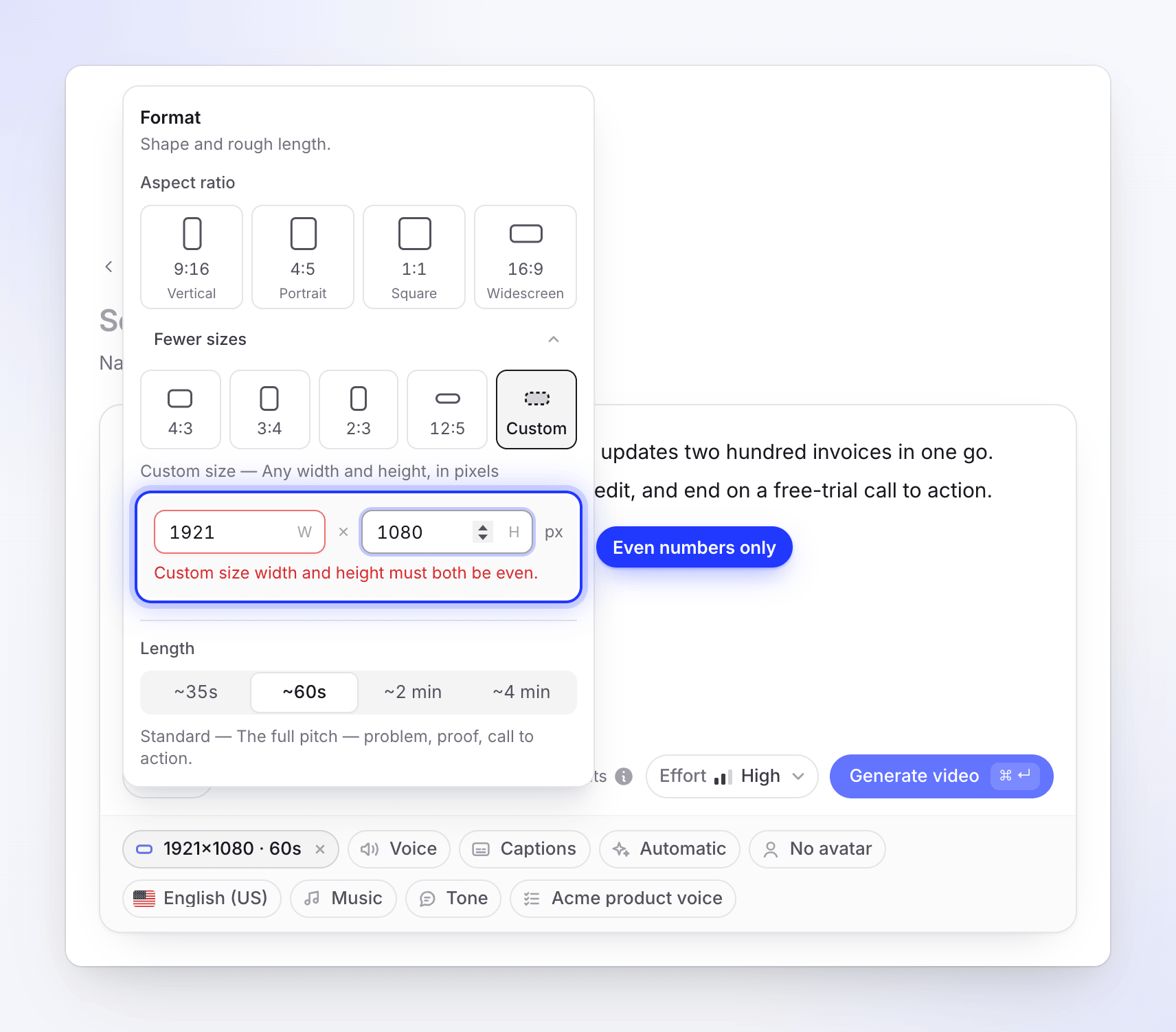
Pick Custom under More sizes and type a width (W) and a height (H) in pixels. The fields start from the shape you were on, with the long side at 1920 px: 16:9 opens at 1920 × 1080, 9:16 at 1080 × 1920.
| Rule | Limit | Message if you break it |
|---|---|---|
| Both fields filled | — | "Enter both width and height." |
| Each side | 256–3840 px | "Custom size dimensions must be between 256 and 3840." |
| Even numbers | Width and height both even | "Custom size width and height must both be even." |
| Total size | At most 3840 × 2160 pixels in all (about 8.3 million) | "Custom size exceeds the maximum pixel budget." |
| Shape | Between 1:3 (tall) and 3:1 (wide) | "Custom size aspect ratio must be between 1:3 and 3:1." |
The field at fault turns red. The pill shows a custom size as 1080×1920 · 60s.
Lengths
| Button | Name | Target window | What it's for |
|---|---|---|---|
| ~35s | Short | 30–45 seconds | "One idea, one hook. Built for the feed." |
| ~60s | Standard | 45–90 seconds | "The full pitch — problem, proof, call to action." |
| ~2 min | Long | 90 seconds–3 minutes | "Walk through the features and how they work." |
| ~4 min | Full walkthrough | 3–5 minutes | "Everything, step by step, nothing skipped." |
The length is a target, not an exact cut. The AI director plans the number of scenes and the amount of voice-over to land inside the window, and every clip is at least 30 seconds long.
Length affects the estimate ("Based on effort, length and what you add."). With an AI avatar it matters more, because the avatar is priced by its time on screen.
Why a length disappears
Some platforms stop playing vertical video after 3 minutes, so 9:16 hides Full walkthrough (~4 min). If you switch to 9:16 while Full walkthrough is selected, the length moves to the longest one that fits, Long. Every other shape, including custom sizes, offers all four lengths.
Before and after you generate
- Settle the shape before you press Generate. The AI director lays out every scene for that frame, so a different shape is a different clip.
- The editor's assistant can change words, timing, pictures and sound, but it can't change the aspect ratio. To get the same message in another shape, make a new clip with the same brief and settings.
- Need both 9:16 and 16:9? Make two clips. Using Medium effort for the second one keeps the cost down. See Choose an effort level.