

Restore an earlier version of a video
Open a video's revision history to see every change, preview an earlier version, and restore the whole video or only its captions, music, look or layers. Restoring is free and can be undone.
Every change to a video is kept in its Revision history: your own edits, the assistant's changes and the original generation. Open it to see what changed and when, preview an earlier version, and restore the whole video or only some parts of it.
Before you start
- You need edit rights on the video. Viewers see the History button greyed out with "You don't have permission to edit".
- Revision history works the same way for videos made from a recording and for social clips.
- Each language of a video has its own history. Switch to the language you want to restore first, from the language menu in the top bar.
Open the revision history
Click the clock button in the editor's top bar (tooltip Revision history (H)), or press H while you're not typing in a field. On a phone, it's in the ⋯ menu as Revision history.
The Revision history drawer opens on the right. The video stays usable beside it. Press Esc or the × to close it.
Read the list
Entries are grouped by day (Today, Yesterday, then dates), newest first. Each row shows what changed, who did it and when, for example "You · 7 min ago · 2 layers, Background".
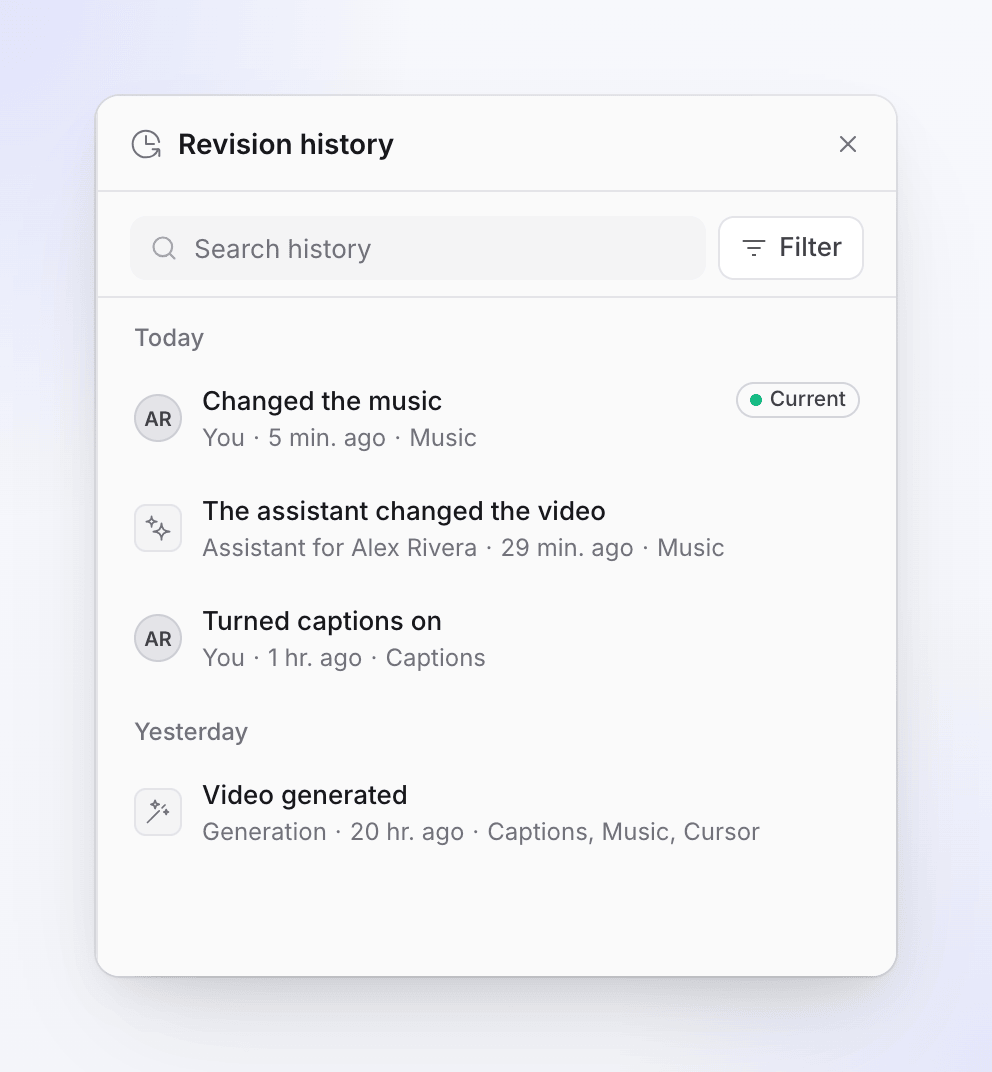
| Who | What it means |
|---|---|
| You or a teammate's name | Edits made by hand in the editor |
| Assistant for you / Assistant for a name | A change the assistant made for that person |
| Generation | The AI building the video, or a translation run |
| System | Automatic steps, such as captions being timed to the voice-over |
Typical entries are "Video generated", "Translated with AI", "The assistant changed the video", "Changed the music", "Turned captions on", "Changed the zooms" or "Made 3 kinds of changes". A dot marks The version you are editing.
Search and filter
Type in Search history to find an entry by its description. The filter button next to it has:
| Filter | Options |
|---|---|
| Whose changes | Everyone (default), Mine |
| Source | All (default), Assistant, Generation |
| Named versions only | Shows only versions you named |
| Pinned versions only | Shows only pinned versions |
Mine and Assistant or Generation exclude each other, so the last one you pick wins.
Preview an earlier version
Select an entry
Click a row. Its details open under the list: who made it, when, and the lines that describe what changed.
Click Preview
The canvas shows the video as it was. A bar at the top says Previewing with the time, and "Read-only, nothing is saved".

Compare
Use the This version / Current switch in the bar to flip between the old version and your current one.
Leave the preview
Click Back to current in the bar, or Stop preview in the entry's details. To keep the old version, click Restore… instead.
Restore a version
Choose Restore…
Select the entry and click Restore…. The Restore this version? dialog says "You get the video back as it was on" and the exact date and time.
Choose what to restore
Under What to restore, pick Whole video or Only some parts. With Only some parts, switch on the parts you want back (see the table below).
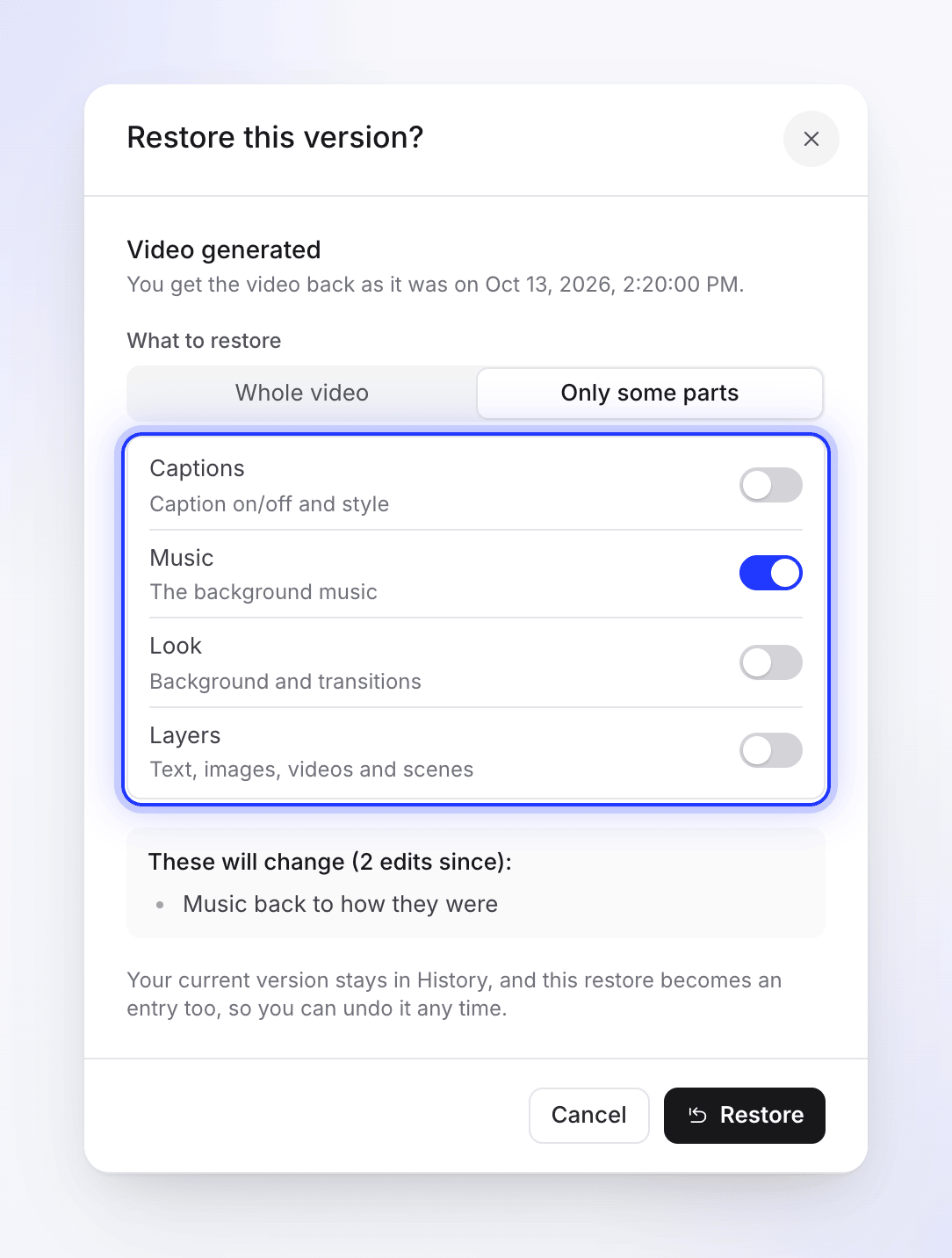
Restore just the parts you want back. Check what will change
The dialog lists the changes that will be taken back and how many edits were made since. If you have unsaved changes, they're saved first so nothing is lost.
Click Restore
The video reloads as it was, a toast says "Restored. You can undo this from History." and the drawer shows the new entry.
| Part | What comes back |
|---|---|
| Captions | Caption on/off and style |
| Music | The background music |
| Look | Background and transitions |
| Layers | Text, images, videos and scenes |
Your current version is never lost. It stays in the history, and the restore becomes an entry of its own ("Restored from 10:42", or "Restored Music from 10:42" for a partial restore).
What Only some parts covers
Only some parts brings back the four parts above and leaves everything else as it is now. Some things come back only with Whole video:
| Comes back with | Videos made from a recording | Social clips |
|---|---|---|
| Captions | Caption on/off and caption style | Same |
| Music | The background music track, its volume, trims, fades and dips | The music in the clip |
| Look | The background around the recording, and transitions between scenes | The background beds and transitions |
| Layers | Elements: text boxes, images, videos, blur, highlights, shapes, emoji, audio and sound effects | Scenes, pictures, voice-over lines, sound effects: everything except the music |
| Whole video only | Zooms and camera paths; narration and steps, including their sync and pacing; intro and title cards and other scenes; chapters; the title; cursor settings | The title |
Example: you liked yesterday's music but have fixed narration since. Restore yesterday's version with Only some parts and Music on: the music comes back and your narration fixes stay.
Undo a restore
Right after a restore, the drawer shows "Restored the version from…" with Undo restore. Later, find the version from before the restore in the list and restore it the same way.
Name and pin versions
Use the ⋯ button (More actions) in an entry's details:
- Name this version gives the entry a name of up to 120 characters, such as "Client approved". Named versions show "Saved a named version" and can be filtered with Named versions only. Use Rename this version to change the name.
- Pin to keep for good marks a version you want to keep. Use Unpin to remove the mark.
When someone else changes the video
If a teammate, the assistant or a generation changes the video while you're editing, your next save is held back and a banner says "Someone changed this video": for example, "The assistant changed this video while you were editing. Your recent edits have not been saved, so nothing was overwritten."
| Button | What it does |
|---|---|
| Reload latest | Loads the latest video. Your unsaved edits are discarded. |
| Save mine anyway | Saves your edits on top of the other change. That change stays in History. |
What restoring costs
Previewing and restoring are free. They don't use credits, because nothing is generated again: the editor puts back what was already made.
Troubleshooting
| Message | What to do |
|---|---|
| "This version was made for a different video shape, so its layers and captions can't be restored." | The video's aspect ratio changed since. Restore only the music or the look, or choose another version. |
| "The video is being changed right now (a generation or the assistant). Try again in a moment." | Wait for the generation or the assistant request to finish, then restore. |
| "Someone changed this video while you were looking. Refresh to see the latest history." | Click Refresh and choose the version again. |
| "This version belongs to another language of the video." | Switch to that language in the top bar first. |
| "This version uses media from another workspace, so it can't be restored." | Choose another version. |
| "Your latest edits could not be saved first, so nothing was restored. Resolve that and try again." | Check your connection, let the editor save, then restore again. |
| "Already identical, nothing to restore." | The version you picked matches the current video. |
| "N media files are no longer available." | The restore worked, but some files it used were deleted. Replace them in the editor. |
| "Older edit, before details were kept" | The entry was made before the history kept full details. Restoring it may not match exactly what you saw then. |