

Edit a batch of videos at once
Make one change, like a product rename or friendlier narration, in up to 40 videos at once. Autopilot plans the change video by video, you check each one, and nothing is edited until you click Run.
Edit a batch of videos at once makes one change in many videos: you write the change once, Clevera plans it video by video, and you check every video's planned change before anything is edited. Use it to rename your product in every voice-over, make the narration friendlier across a collection, or bring chapter headings in line with new menu names.
Before you start
- Autopilot must be on for your workspace. Your role must be able to record and edit videos. See Get access to Autopilot.
- The videos must be how-to or product videos made in Clevera, with a script. Social clips and videos without a script yet are left out.
- One task edits up to 40 videos.
What it can change
The change is made by each video's AI Assistant, the same one you use in the editor, so it can change:
- the narration (voice-over lines are rewritten and spoken again in the video's voice),
- the video title,
- the chapter headings.
It can't cut or reorder the recording, change zooms, music, the look or the template, or edit social clips. For those, open the video in the editor.
Set it up
Pick the videos
There are two ways in:
- From your library: select the videos in Content, then click Edit with a task in the bar that appears. The setup card opens with those videos picked. Articles in the selection are skipped ("Pick at least one video. Articles can’t be edited this way.").
- From Autopilot: click the Edit a batch of videos at once recipe card, or describe the change in the What should Autopilot do? box. You then pick a collection on the card.
Fill in the card
The agent panel opens with the card. This recipe's fields fit on the card itself, so there is no separate dialog.
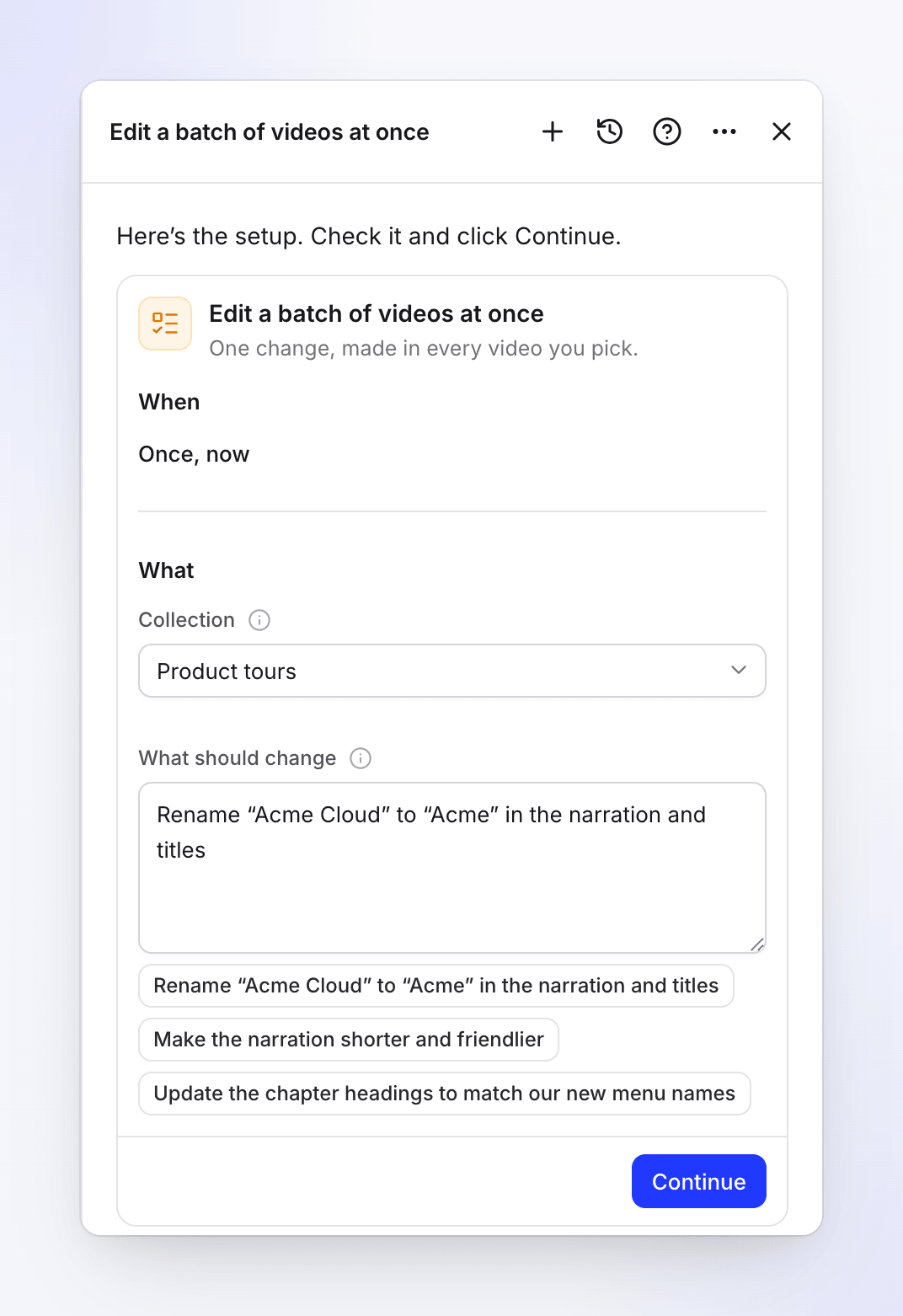
Field What it takes When Once, now. This recipe has no other choice. Videos Only when you came from the library: The 12 you picked (with your count) or A collection. Collection The collection whose videos to edit. Every video in it gets its own plan line. What should change One instruction for all the videos, 3–2,000 characters. Three examples under the box fill it in with one click: "Rename “Acme Cloud” to “Acme” in the narration and titles", "Make the narration shorter and friendlier", "Update the chapter headings to match our new menu names". Continue and create the task
Click Continue. Clevera checks the setup and shows the review (When "Runs once, now", Language) with "Clevera plans it now (free, a few minutes) and posts here when the plan is ready for your review." Click Create task, or Back to change something.
Review each video's change
Planning takes a few minutes: the Assistant works out the change in each video. The plan then has one line per video, ticked, with what would change (for example "3 voice-over lines, 1 chapter heading, Video title"), the change itself before → after, and its credit estimate. Untick any video you want to leave alone, or click Ask for changes to plan again with a note.
Run it
Click Run with the count and estimate. Each video is edited as planned.
Approval and limits
- Approval: this recipe always waits for you. Nothing is edited until you click Run.
- Valid until: each planned change can be applied until the time shown on the plan ("Valid until …"). After that the plan says "This plan expired on …. Re-plan it to run the same task with fresh changes." Click Re-plan. A plan also expires after waiting 7 days.
- How many: up to 40 videos per task. A larger collection is refused at setup ("A task edits up to 40 videos. Pick a smaller collection."). Split it, or pick videos from the library.
- Time: planning has about 20 minutes; a video that couldn't be planned in time is listed unticked with "There was not enough time to plan this video. Ask for changes to plan it again."
Cost
| Part | Credits |
|---|---|
| Planning | On us |
| Each video | Shown on its plan line. Changing words costs little; voice-over lines spoken again cost more. |
You are charged for what each video's change really uses. The setup card shows no Typical run for this recipe, because the cost depends entirely on the change and the videos.
After it runs
- The videos are changed in place, in the same collection. Each line links to its video.
- Undo on a line puts that video back; Undo all puts every change this task made back. Undo works only while nobody has edited the video since: otherwise it says "This video was edited after the change, so it can’t be undone from here. Use the video’s history in the editor."
- A video you already downloaded as a file doesn't change: export it again for the new version.
Troubleshooting
| What you see | What it means |
|---|---|
| "Describe the change in 3 to 2000 characters." | Write a longer (or shorter) instruction. |
| "Pick a collection." / "Pick a collection you can edit." | Choose a collection you have edit rights to. |
| "This collection has no videos the assistant can edit." | It holds only social clips, articles or videos without a script. |
| "A task edits up to 40 videos. Pick fewer." | Pick 40 videos or fewer. |
| "You can’t edit some of the videos you picked." | Your access to some of those videos is view only. |
| "None of the videos you picked can be edited by the assistant." | They are social clips or have no script yet. |
| "… videos in this collection cannot be edited by the assistant (social clips, or videos without a script yet) and were left out." | Shown in the plan summary; the others are planned. |
| "Nothing to change in this video." | The instruction doesn't apply to that video, so its line is unticked. |
| "The assistant could not make this change." | That video failed. Retry it, or edit it in the editor. |
| "Your role can’t start or change this kind of task in this workspace. Ask a workspace owner or admin." | Your role can't edit videos. |