

Search everything with ⌘K
Press ⌘K (Ctrl+K on Windows) to search your videos, articles, collections, templates and every page in Clevera. What it finds, the type filters, the keyboard, and who sees which results.
Press ⌘K on a Mac or Ctrl+K on Windows to open Clevera's search. One box finds your videos, social clips and articles, collections, templates and every page in the app, and can start a new video of any type. This article covers what it searches, the filters and the keyboard.
Open search
- Press ⌘K (Mac) or Ctrl+K (Windows) on Home or on the Content and collection pages.
- Or click the search box at the top of Home, or the Everywhere button (it shows ⌘K) at the end of the search field on Content or a collection.
- On Recordings, click the search icon at the top right (Search everywhere). That page has no search field of its own.
The search opens under the field and dims the page behind it.
Before you type
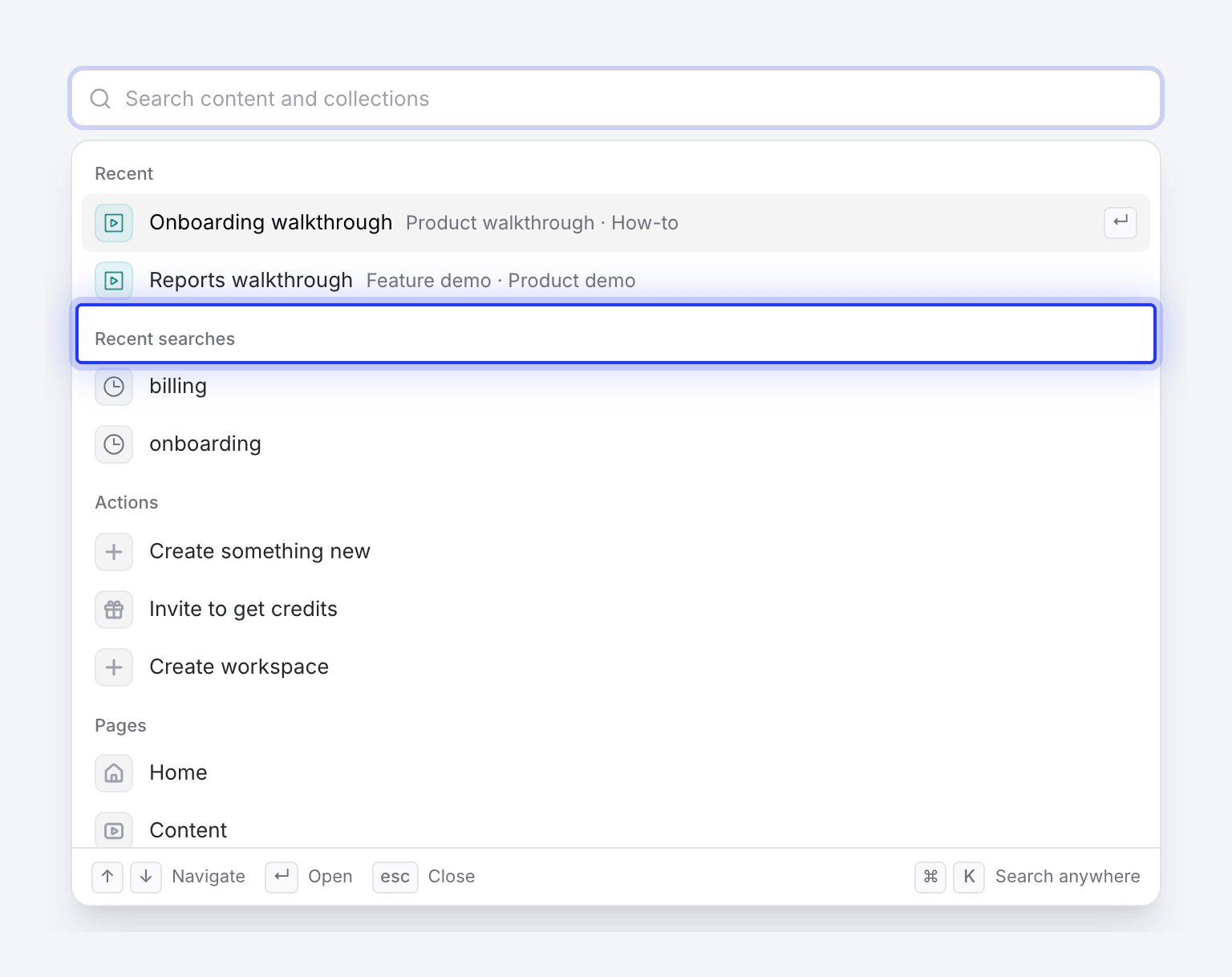
With an empty box, the search shows shortcuts in this order:
| Section | What's in it |
|---|---|
| Recent | The last 5 videos or articles you opened from search. |
| Recent searches | The last 5 searches you opened a result from. Click one to run it again; click its × to forget it. |
| Actions | Create something new, Invite to get credits and Create workspace. |
| Pages | Home, Content, Collections, Analytics, Recordings, Notifications, Trash, Integrations, plus Usage and Billing when your role has them. |
| Account | Each section of your account settings, such as Password, Two-factor authentication, Appearance, Notification settings or ElevenLabs API key. |
| Team | Owners and admins only: Team settings and its sections, such as Members, Invitations, Creator seats, Roles & permissions and Single sign-on. |
| Integrations | Each integration you can connect, such as Notion, Confluence, GitBook or WordPress. |
| Help | Contact support, Docs, What's new and Download desktop app. |
What it searches
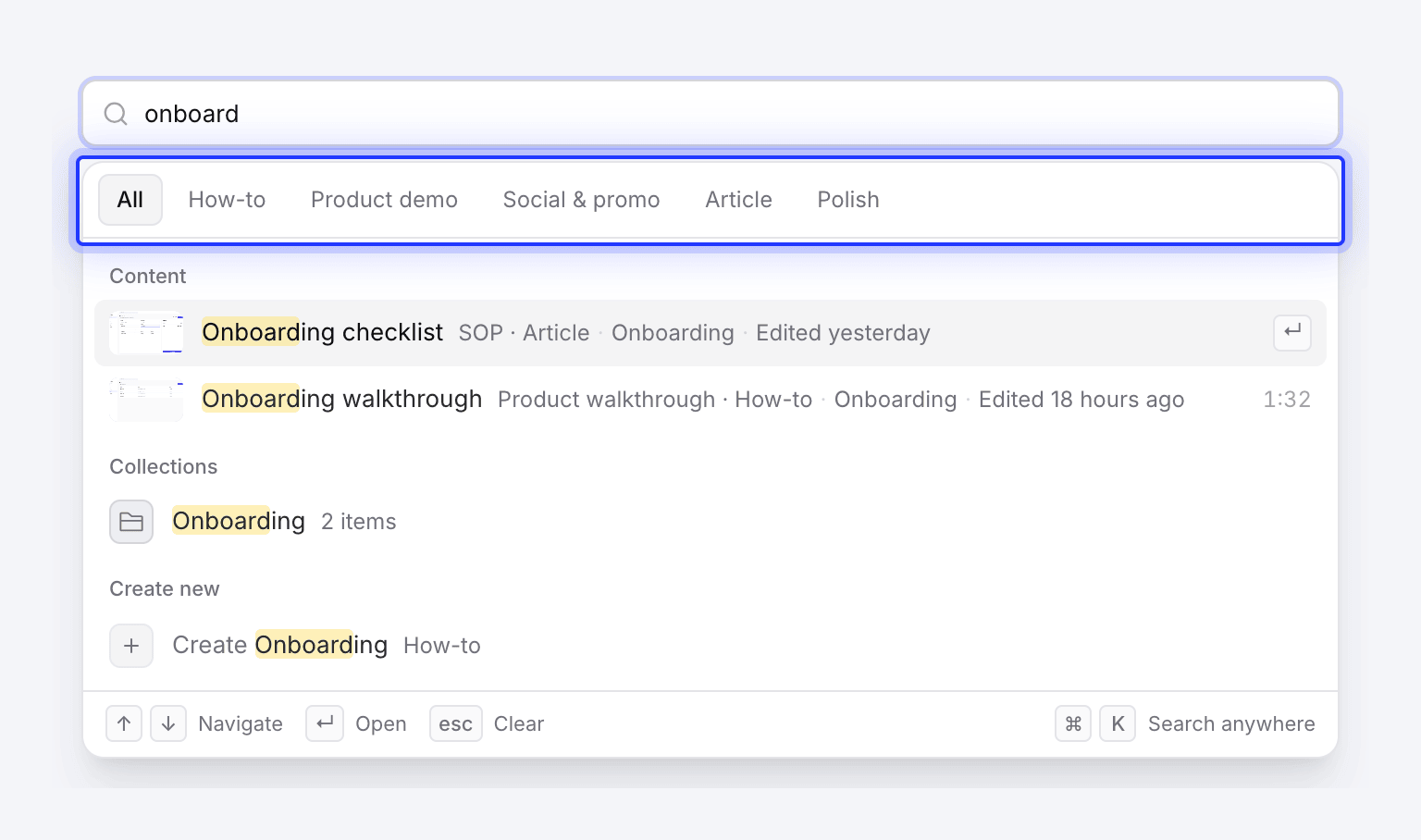
Results start after 2 characters. Matches are highlighted in yellow.
| Group | What matches | How many |
|---|---|---|
| Content | Titles of finished videos, social clips and articles, including their translated titles. When a translated title matched, it shows next to the original. | Up to 8 |
| Collections | Collection names and descriptions. | Up to 8 |
| Templates | Your workspace's video templates and AI rules, by name. Picking one opens Compose with that picker open. | Up to 4 |
| Create new | Video types whose name matches, such as "Create Feature spotlight". Picking one opens Compose for that type. | Up to 4 |
| Pages | Pages and settings whose name or a related word matches, such as "2fa", "invoices" or "dark mode". | All matches |
Search ignores capitals and accents, so "guncelleme" finds "Güncelleme". Each content row shows its type, collection and when it was last edited; when two results share a title, the row shows what tells them apart (a date, length, collection or author).
Search doesn't look inside scripts, transcripts or article text. Videos still being made don't appear until they finish. Recordings aren't listed one by one: to find a recording by name, use Choose from library in Compose. See Find and reuse your recordings.
Filter by type
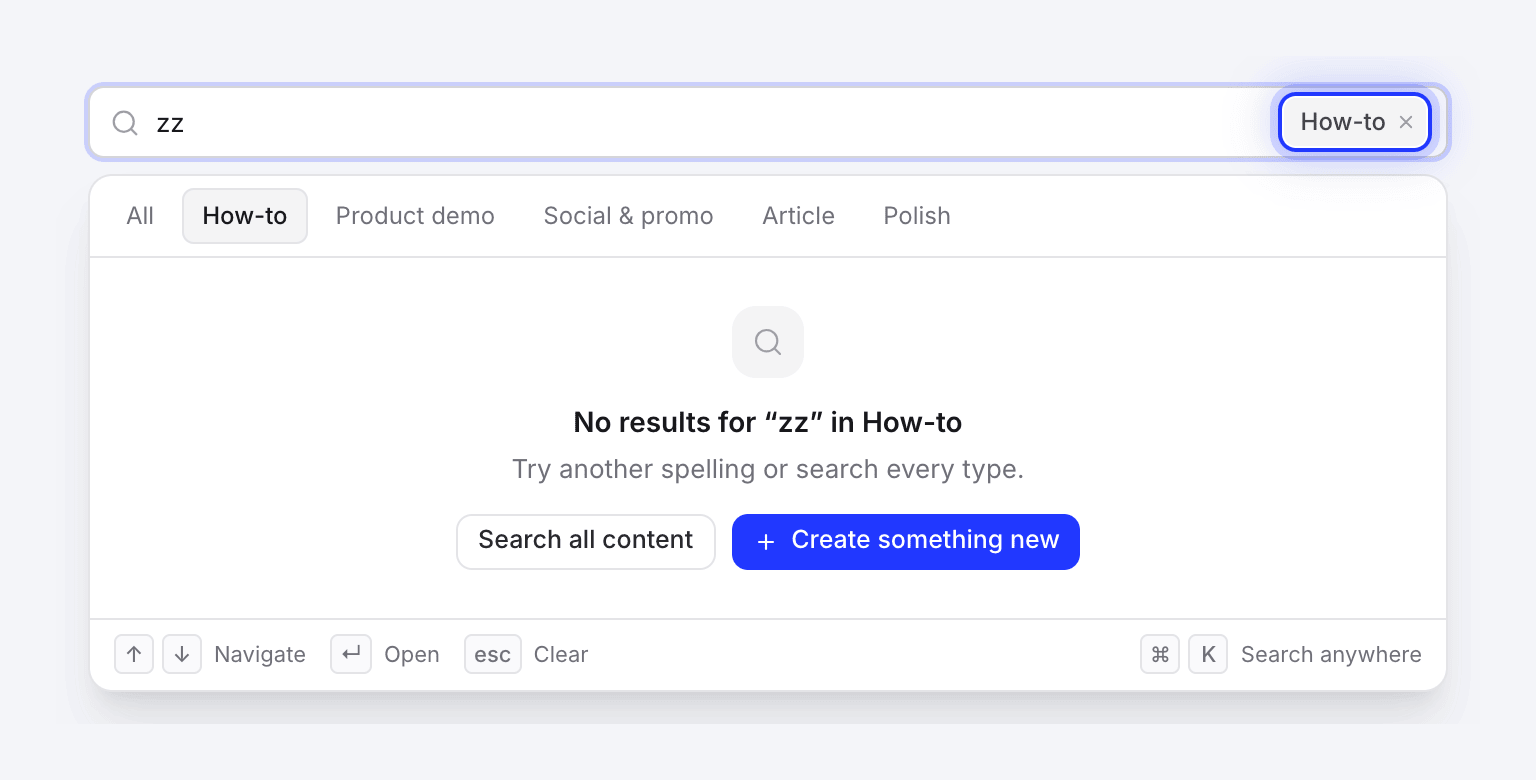
Once you've typed, chips across the top narrow the content results to one family: All, How-to, Product demo, Social & promo, Article or Polish.
The chosen family also shows as a chip inside the search box. Click its ×, or press Backspace in an empty box, to go back to all content. While a family is chosen, the Collections, Templates and Pages groups are hidden.
Keyboard
| Key | What it does |
|---|---|
| ⌘K / Ctrl+K | Open search from the page |
| ↑ ↓ | Move through every result, across groups |
| ↵ | Open the highlighted result |
| esc | Clear the box; press again to close |
| Backspace in an empty box | Remove the type filter |
| Tab | Close search |
Who sees what
Search finds your own content, wherever it is, and content in collections you can open. Content in a private collection you're not invited to never appears, and neither does the collection itself. A teammate's content that isn't in any collection doesn't appear either. Team settings and billing pages only appear for the roles that can open them.
Search a list instead
The field at the top of Content (Search this library) and of a collection works differently: it filters the list on the page as you type and keeps your other filters. Press / to jump to it. It matches titles and translated titles too. On the trash view it reads Search the trash. See Find your content.
Use that field to narrow a long list; use ⌘K to jump somewhere.
Troubleshooting
| What you see | What to do |
|---|---|
| No results for "…" | Check the spelling. If a type filter is on, click Search all content. Otherwise use Create something new, or a Create … suggestion, to start one. |
| Search didn't load | Check your connection and click Try again. |
| A teammate's video is missing | Search finds your own content and content in collections you can open. A teammate's video is missing when it's in a private collection you're not invited to, when it isn't in any collection, or while it's still being made. Ask them to add it to a shared collection, or to invite you. |
| ⌘K does nothing | Not every page listens for it. Go to Home or Content, or click the search box (on Recordings, the search icon). |