

Publish articles to ReadMe
Connect a ReadMe project with its API key and publish Clevera articles as guides in the category you pick, with screenshots uploaded to ReadMe. How callouts and video convert, how updates work, and every error.
Publish a Clevera article as a guide in your ReadMe project, filed under the guide category you pick. Screenshots are uploaded to ReadMe, and the video plays at the top of the guide.
Before you start
- In Clevera: the workspace is on the Pro or Custom plan, and you are an owner or admin to connect ReadMe. Anyone in the workspace can publish once it's connected. See Publish articles to your other tools.
- In ReadMe: a project you can manage, with at least one category in its Guides section. One key connects one project.
- A current ReadMe project: Clevera publishes through ReadMe's current (v2) API, which ReadMe offers to projects on ReadMe Refactored. Projects still on ReadMe's older platform can't be connected.
- Version: Clevera publishes to your project's main (stable) version of the Guides.
- An article: generate it first. Publishing sends the article; a video is only carried as a player inside it.
Find your ReadMe API key
In your ReadMe project, open Configuration → API Keys, then copy a key (create one if the list is empty). The key gives full access to that project, so keep it private.
Connect ReadMe
Open the connect window
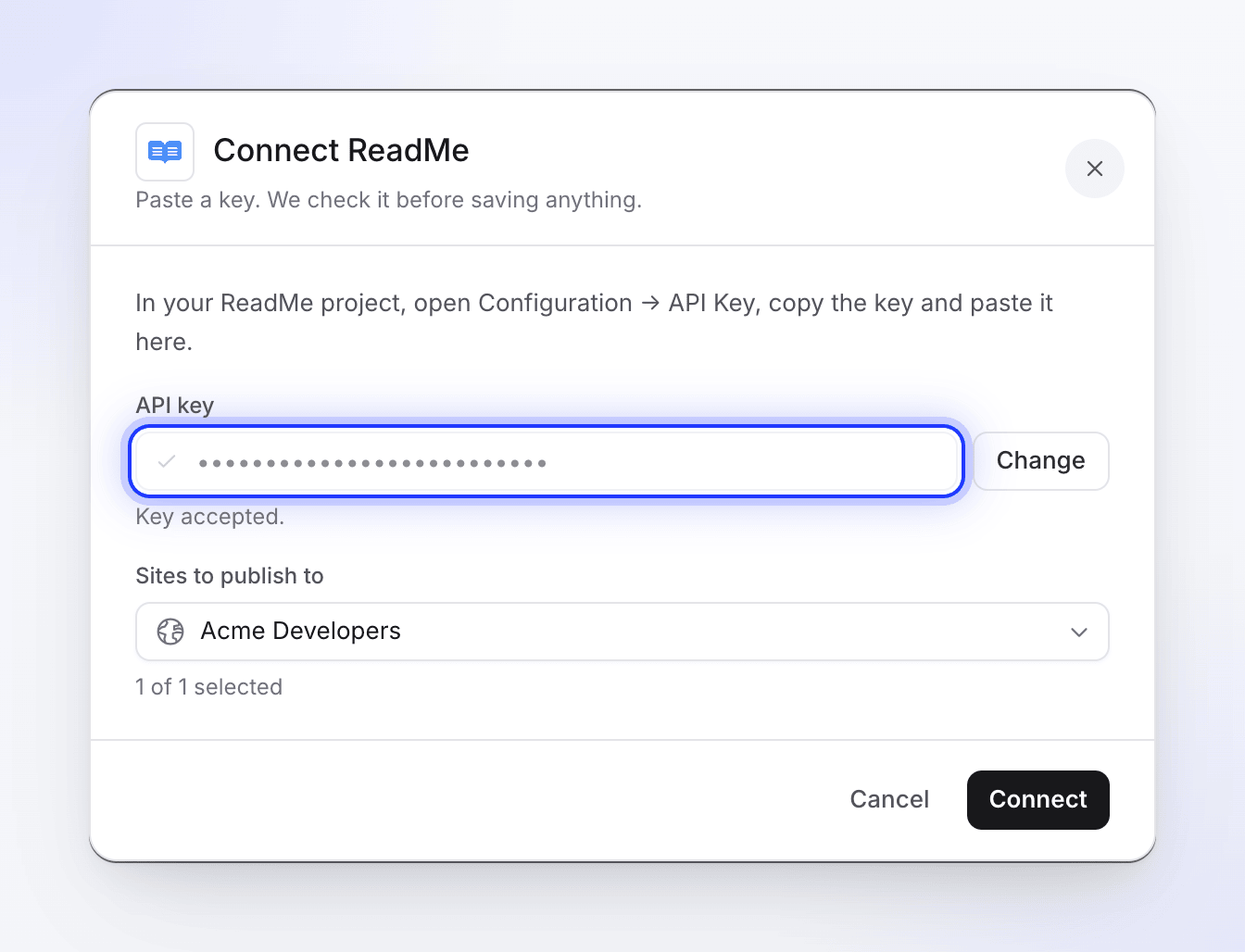
In Clevera, click your workspace name in the sidebar, choose Integrations, find ReadMe and click Connect. The Connect ReadMe window says "Paste a key. We check it before saving anything."
Paste and check the key
Paste the key into API key and click Check key. When ReadMe accepts it you see "Key accepted." and your project under Sites to publish to.
Connect
Click Connect. You see "ReadMe connected." and ReadMe appears under Connected with your project's name.
The key doesn't expire on Clevera's side. To connect a different project, use Reconnect on the ReadMe connection and paste that project's key; it replaces the old one.
Publish an article to ReadMe
Open the Publish tab
In the editor, click Share → Publish and click Publish next to ReadMe.
Choose a guide category
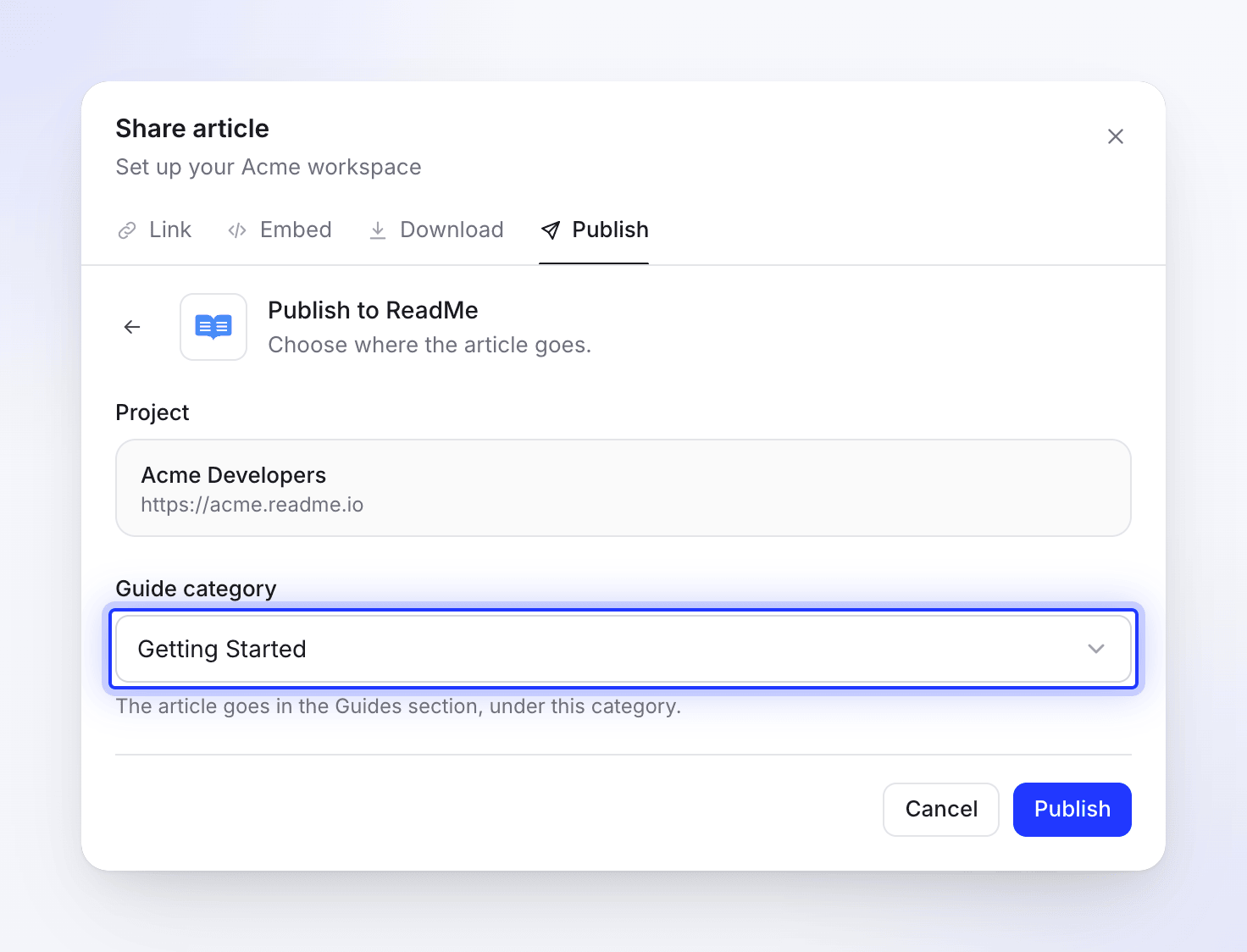
Project shows the connected project. Pick a Guide category: "The article goes in the Guides section, under this category." If you see "No guide categories yet", create one in ReadMe first.
Publish
Click Publish. If a guide with the same address already exists, choose what to do (see Update a guide). The guide opens in a new tab and you see "Published to ReadMe."
The guide's address comes from its title: "Set up billing" becomes /docs/set-up-billing on your docs site.
What the guide looks like in ReadMe
The guide title is the article's title. If the video's link is shared (Share → Link → General access set to Anyone with the link), the guide starts with an embedded player.
| In Clevera | In ReadMe |
|---|---|
| Headings, paragraphs | Headings and text |
| Bold, italic, strikethrough, inline code, links | Kept |
| Bulleted and numbered lists, checklists | Lists and checklists |
| Quotes | Quotes |
| Code blocks | Code blocks with the language set |
| Dividers | Dividers |
| Tables | Tables with the text of each cell |
| Callouts | ReadMe callouts: 📘 Info, 👍 Tip, ⚠️ Warning, 📝 Note, ✅ Success, 🚧 Danger |
| Numbered steps | A paragraph that starts with bold "Step 1:" |
| Collapsible sections | Expandable sections (titled "Click to expand" when untitled) |
| Screenshots | Images uploaded to ReadMe |
| A YouTube or Clevera video inside the article | An embedded player |
Screenshots are uploaded to ReadMe, so they keep working even if you delete the article in Clevera. A screenshot that fails to upload is linked from Clevera instead and stays valid for about a year.
Update a guide
Publishing only goes one way. The guide doesn't update when you edit the article in Clevera, and edits made in ReadMe never come back to Clevera. After you edit the article, publish it again.
- The same article again: if this article was published to ReadMe before, Clevera updates that guide in place: same address, new title and content. This happens even if you choose Publish as a new article.
- Another article with the same title: Clevera finds the guide with the same address anywhere in your Guides and asks "An article with this title already exists in ReadMe." Replace the existing article overwrites that guide. Publish as a new article creates a new guide under the title you enter, with its own address.
Changes made in ReadMe since the last publish are overwritten when Clevera updates a guide.
Disconnect and revoke access
- In Clevera, open Integrations, click ReadMe, then Disconnect and confirm. Guides you already published stay in ReadMe.
- In ReadMe, open Configuration → API Keys and delete the key you gave Clevera.
Troubleshooting
| You see | What to do |
|---|---|
| "Paste a key first." | The key field is empty. |
| "Invalid API key. Please check your ReadMe API key." | The key is wrong or was deleted. Copy it again from Configuration → API Keys. |
| "Failed to fetch project info from ReadMe." or "We could not check that key. Try again." | ReadMe didn't answer, or the project isn't on ReadMe Refactored, which Clevera needs. Try again, then try a new key; if the project is on ReadMe's older platform, it can't be connected. |
| "Could not validate API key. Please check your ReadMe API key." or "Failed to connect to ReadMe. Please check your API key." | Check the key and connect again. |
| "No guide categories yet" / "Create a guide category in ReadMe to publish here." | Add a category to your Guides in ReadMe, then reopen the Publish tab. |
| "Choose a category first." | Pick a guide category before Publish. |
| "API key not found. Please reconnect ReadMe." | Connect ReadMe again with a key. |
| "Article content is empty or invalid." | The article has no content yet. Open it, check it, then publish. |
| A message from ReadMe, such as one about the slug or category | ReadMe refused the guide. Check the category still exists, or rename the article and publish again. |
| "Failed to update guide in ReadMe" | The guide you tried to update was deleted or renamed in ReadMe. Publish as a new article with a different title. |
| "Failed to publish to ReadMe. Please try again." | Try again. If it keeps failing, connect again with a fresh key. |