

Understand what the desktop app captures
What the Clevera desktop app records while you record — screen, cursor, clicks, keystrokes, audio and camera — why the cursor isn't burned into the video, how typed text is handled, and the one-time consent screen on a Mac.
While you record, the Clevera desktop app captures more than a video of your screen. It also records where your cursor goes, what you click and what you type, so the AI can understand your task and Clevera can add zooms and cursor effects later. Nothing is captured when you aren't recording.
What's captured during a recording
| What | Always or optional | Used for |
|---|---|---|
| Screen video of the display, window, app or area you chose | Always | The footage in your video. Recorded at up to 60 frames per second on a Mac and 30 frames per second on Windows. |
| Cursor position (movement over time) | Always | Redrawing a smooth cursor and steering zooms and camera moves. |
| Clicks (left, right, double and triple clicks) and drags | Always | Click highlights and automatic zooms on the places you click. |
| Scrolling | Always | Understanding when you scroll through a page. |
| Keyboard input — shortcuts and the text you type | Always | Helping the AI understand what you did, for narration, captions and article steps. |
| App names — which app you were working in | Always | Context for the AI's script. |
| Low-resolution helper video with the cursor visible | Always | Lets the AI watch your recording quickly. It isn't used as footage. |
| Microphone audio | Optional | Context for narration and captions, and your own voice track. |
| Camera video | Optional | A webcam overlay in your video. |
| System audio (sounds from your apps) | Optional | App sounds in your video. |
The microphone, camera and system audio are each recorded as a separate track. In the video editor you can turn them on or off and change their volume.
When you pause, Clevera stops capturing everything — video, audio and input — until you resume. The paused time isn't in the recording.
Why the cursor isn't burned into the video
The main screen video is recorded without the mouse pointer. Clevera records the cursor's path separately and draws it back on top when it makes your video. This lets Clevera:
- smooth out shaky or jumpy mouse movement,
- show a highlight or ripple when you click,
- zoom in on the area you're working in and follow your cursor while zoomed,
- keep the cursor sharp at any zoom level.
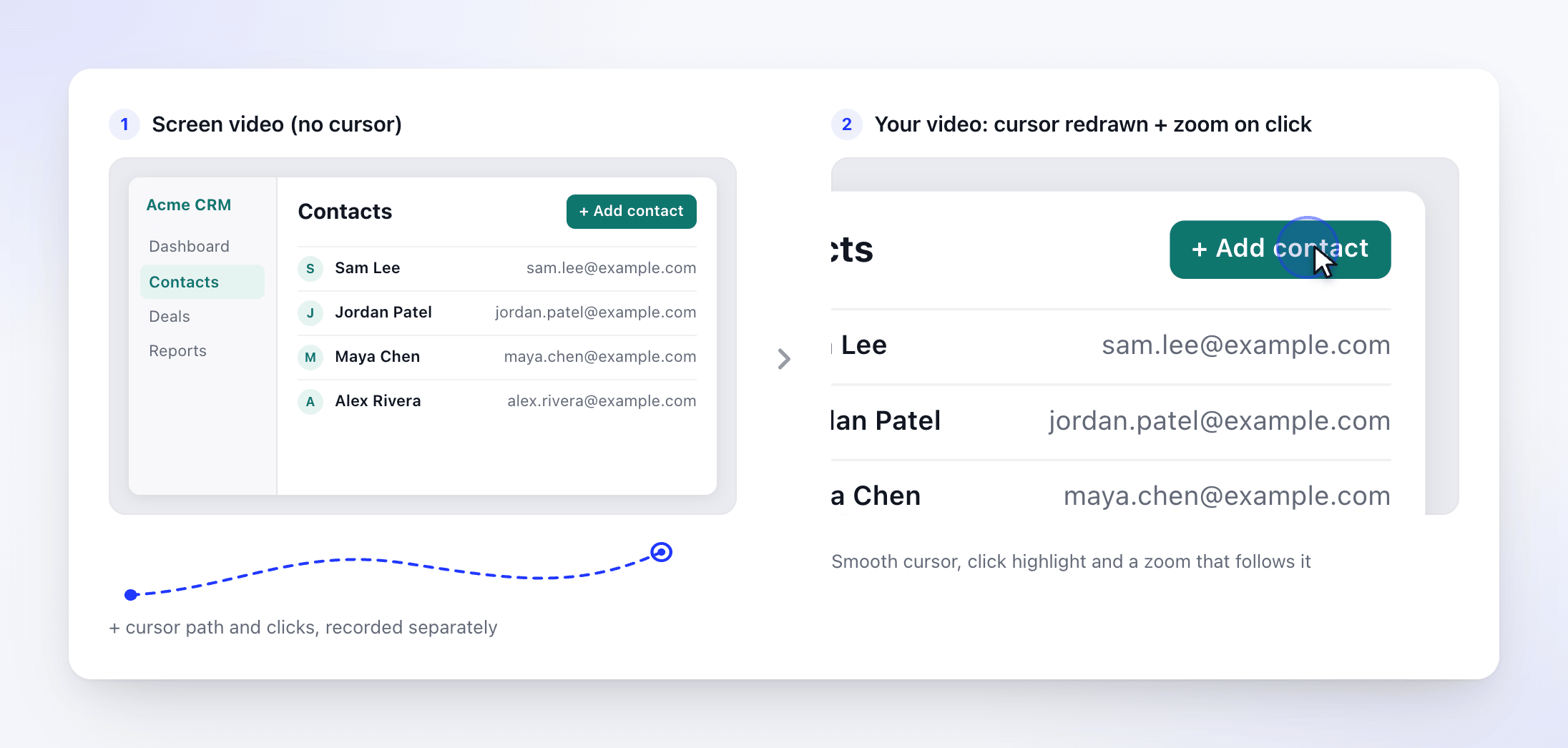
Zooms are added when you generate a video from the recording, not while you record. See Understand automatic zooms and cursor effects.
How typed text is handled
Clevera records the keys you press while recording, including keyboard shortcuts, and uploads that keystroke log with the recording. The keystroke log itself isn't masked.
The AI reads a summary of what you typed rather than the raw log. In that summary about one in four characters is replaced with * at random, so the AI can tell what kind of thing you typed (a search, a form field, a name) without reading the full text.
Anything visible on screen is also in the screen video, so text that appears in a window is recorded either way.
What isn't captured
- Anything outside a recording. Input capture starts when a recording starts and stops when it ends, is paused or is cancelled.
- Clevera's own windows. The recording window, the control bar, your speaker notes, the camera preview and the countdown aren't in the video, even in full-screen recordings. On Windows this needs Windows 10 version 2004 (build 19041) or later, and on some Windows 10 versions the speaker notes window can still appear.
- The start beep. It plays just before capture begins, so it isn't in the recording.
- Other displays or windows you didn't choose. When you record a window or an area, only that part of the screen is in the video.
The recording data consent screen
On a Mac, the first time you click Start recording, Clevera shows Recording Data Consent. It lists what's collected while recording, how typed text is handled, what isn't collected and when the data is uploaded, with links to Clevera's Terms, Privacy and Security and trust pages. The Windows app doesn't show this screen; the installer links to the same Terms, Privacy and Security pages.
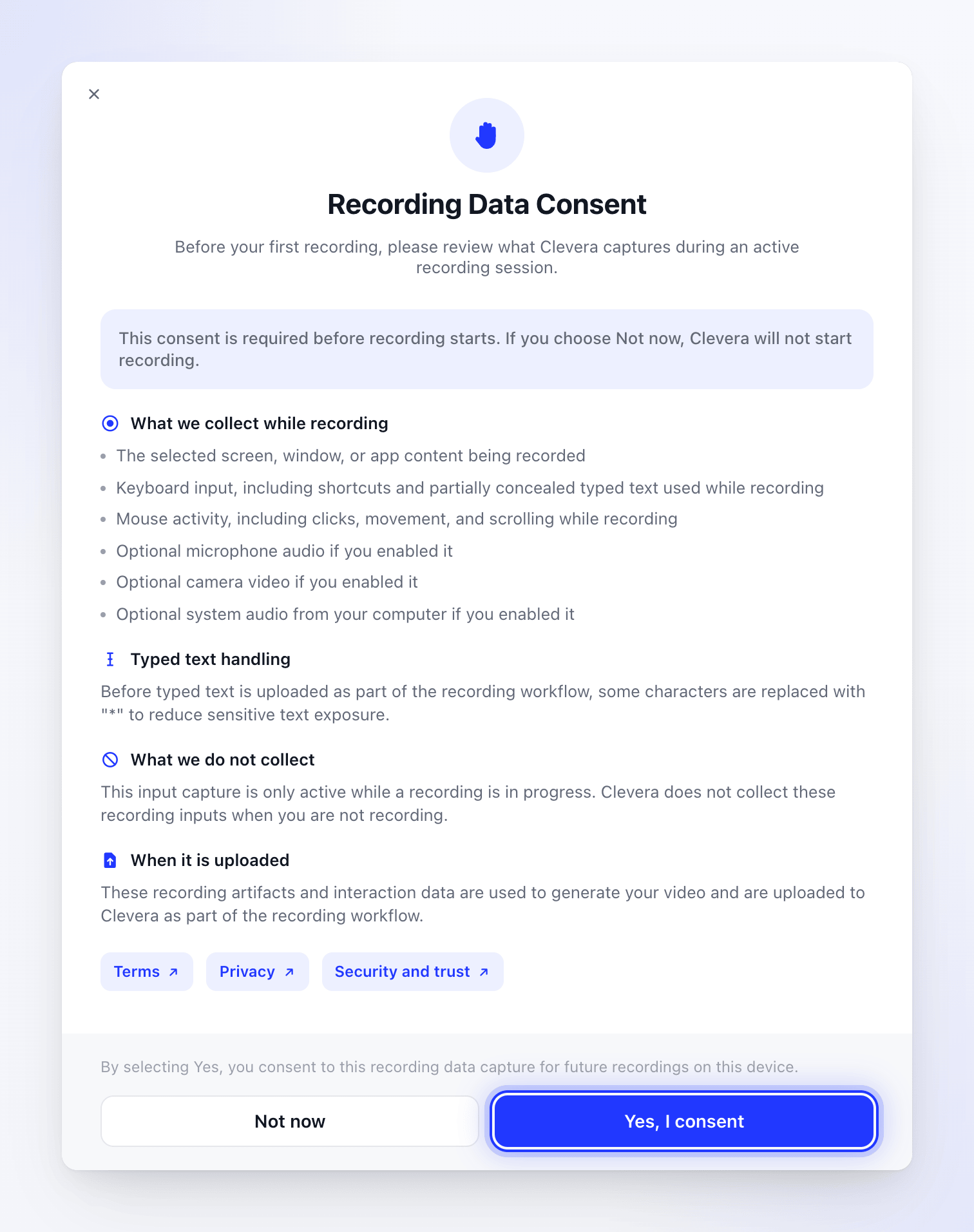
- Click Yes, I consent to continue. Clevera remembers your answer on this Mac and doesn't ask again.
- Click Not now to stop. The recording doesn't start, and Clevera asks again next time.
Consent is stored per computer, not per account. Signing out doesn't reset it.
Where the data goes
Everything is uploaded to your Clevera workspace while you record and right after you stop. See Find your recording after it uploads.
Clevera doesn't keep a copy on your Mac once the upload is done.
The Windows app writes each recording's working files to %TEMP%\Clevera\recordings and doesn't delete them after the upload. You can delete that folder yourself when Clevera isn't recording or uploading. You can't open these files in Clevera; your recording lives in your workspace.
While a recording runs, Clevera also keeps your computer and display from going to sleep, so a long take isn't cut off. Normal sleep settings return when you stop.