

Clevera asks me to refresh the page
When we release an update, Clevera asks you to refresh. Here's what "Clevera has been updated", the update banner and "Clevera needs a refresh" mean, and how Clevera waits for saves, exports and uploads first.
When we release an update, Clevera asks open tabs to refresh so everyone works on the latest version. It never refreshes over work that would be lost: it waits for saves, exports and uploads to finish first. This article explains each message and what to do.
"Clevera has been updated"
A window that says "Clevera has been updated" and "Refresh to get the latest version." means this update needs a refresh before you carry on.
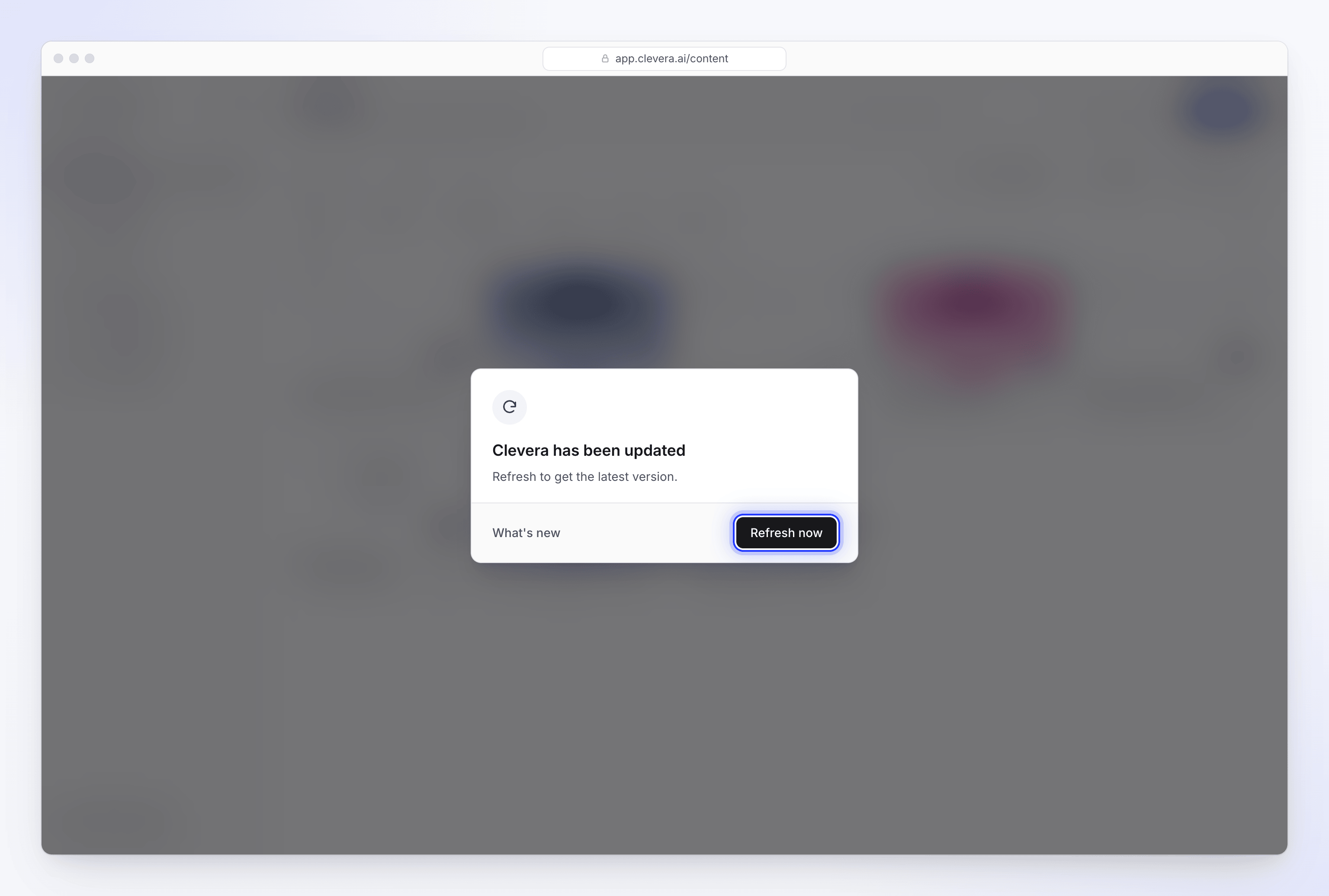
- Click Refresh now. The page reloads and you're back where you were.
- What's new opens the changelog in a new tab, so you can see what changed first.
- The window can't be closed, and Escape or clicking outside does nothing. The old version of the page may not work correctly with the updated app, so a refresh is the only way forward.
It can appear up to 45 seconds after the update is out, so not every tab asks at the same moment.
The update banner
A small banner at the top of the page that says "A new version of Clevera is available." means the update is recommended but not urgent. Click Refresh when it suits you, or What's new to read about it. You can keep working in the meantime.
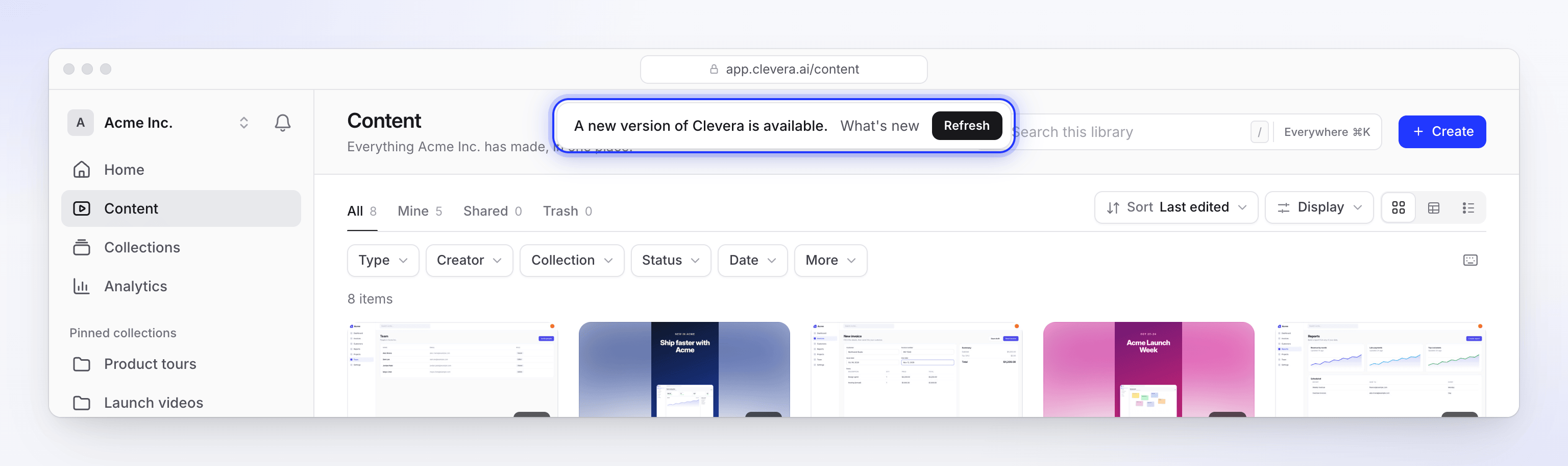
Some updates show nothing at all. You get them the next time you move to another page.
When Clevera waits for your work
If refreshing now would lose something, Clevera waits. The window shows "We will refresh right after" with what it's waiting for and a spinner, and refreshes on its own as soon as that's done:
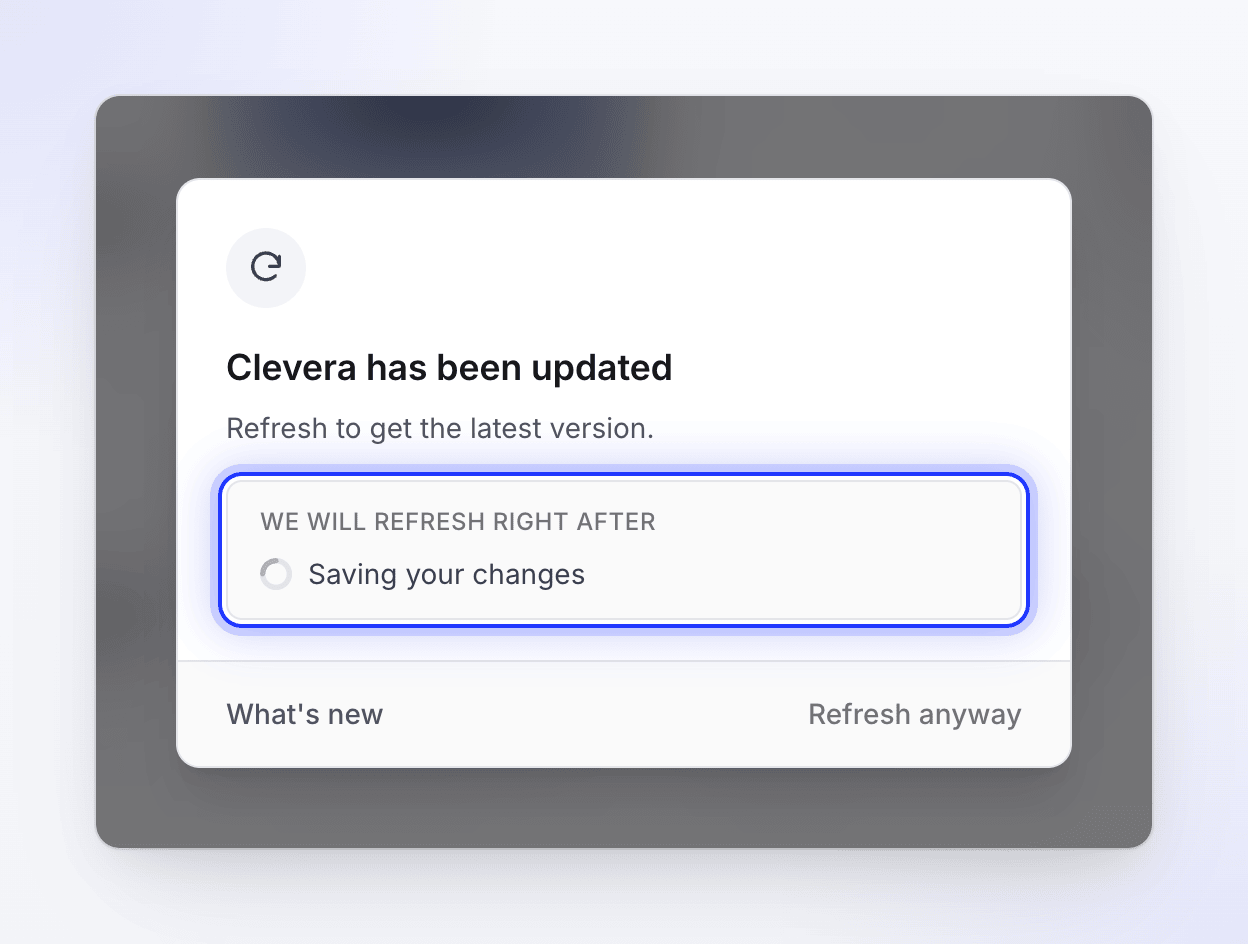
| What you see | What Clevera is waiting for |
|---|---|
| "Saving your changes" | Unsaved changes in the editor. Clevera saves them right away, then refreshes. |
| "Your export is finishing" | An export running in this tab, on your device. The file downloads first. |
| "Your video is uploading" | An upload in progress. |
| "Your files are uploading" | Files you're adding to a new video. |
Exports running on our servers aren't counted: they carry on through the refresh. See Understand on-device and cloud rendering.
Work only you can finish
Some work isn't something Clevera can wait out on its own, so it doesn't block the page. Instead a banner says "Clevera has been updated. We will ask you to refresh once this finishes:" followed by:
| Banner item | What it means |
|---|---|
| "Your Record with AI session is live" | A Record with AI session is running. See Let the AI record your product with Record with AI. |
| "We are reading a website for you" | Website research is running. |
| "Your unsent brief" | You've typed a brief on the Compose page that you haven't sent yet. |
Finish what you're doing and the refresh window appears. If you click Refresh now on the banner, the page reloads right away; your browser may ask you to confirm leaving the page.
Refresh anyway
If the window has been waiting for 90 seconds, Refresh anyway appears next to it. Use it only when something seems stuck.
Tabs in the background
A tab you're not looking at doesn't show any of this. When you come back to it, it reloads straight to the new version before you start using it, unless it's waiting for work to finish, in which case you see the messages above.
"Clevera needs a refresh"
"Clevera needs a refresh" with "Part of the app did not load. Refresh to carry on with the latest version." means a piece of the page couldn't be loaded, usually because an update came out while the tab was open. It appears right away. Click Refresh now.
If it comes back after you refresh, check your connection, turn off browser extensions that block scripts for Clevera, and then contact support with the message and the page you were on.
Where these messages don't appear
- Pages where people watch a video you shared, and videos embedded on other sites. Viewers are never interrupted.
- The Clevera desktop app. It has its own updates: see Update the desktop app.