

Check where your credits went
Use the Usage page to see how many credits your workspace used, on what, by whom and from which kind of credits, compare each job with its estimate, forecast whether credits will last the cycle, and export the history as CSV.
The Usage page shows every credit your workspace used and received: how many, on what, by whom and from which kind of credits. Use it to see what a video really cost, who is using the most, and whether your credits will last until the next refill.
Open the Usage page
You can get there several ways:
- Click your workspace name at the top of the sidebar, then Usage.
- Click the credits widget in the sidebar, then See usage.
- On Home, click Open Usage on the credits tile.
- In Billing, click View usage on the Credits card.
What you see depends on your role:
| Who | What the page shows |
|---|---|
| Owner, administrators, and members with billing access | The whole workspace: wallet, every member's usage, credits added and expired, and the forecast. The page is called Usage. |
| Everyone else | Only their own usage, plus a Team credits status (Credits available, Running low or Out of credits). The page is called Your usage. |
Collections you can't open are folded into "Collections you can't open", and their items aren't named.
Pick a period
The period picker at the top sets what every section shows: 1 day, 7 days, 30 days, This cycle (the default, from your last refill until today), Last cycle or Custom. Each period is compared with the one before, for example "last cycle, to date".
Read the summary
| Card | What it shows |
|---|---|
| Credits used | Credits spent on generations in the period, minus any credits we returned. Exports and edits by hand are free, so they never appear here. |
| Left this cycle / Credits left | Included, bonus and bought credits your workspace has right now. |
| Paid from | Which kind of credits paid for the period's usage: Plan, Bonus or Bought. Included credits go first, then bonus, then bought, so bonus only shows up once the plan's credits for the cycle are used. |
| Average per day | Credits used divided by the days in the period so far. Today counts as a day. |
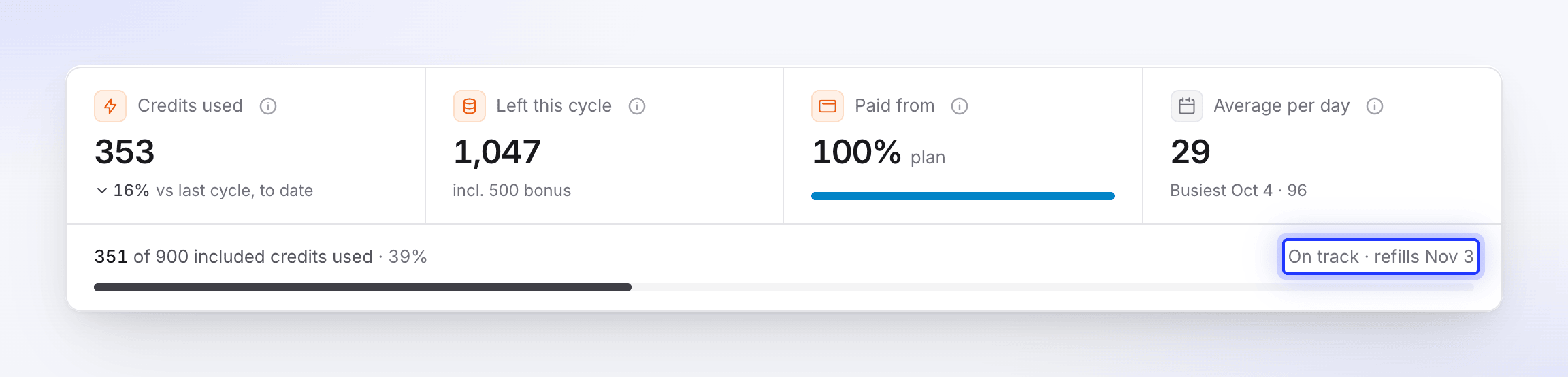
Under the cards, a bar shows how many of the cycle's included credits are used, and a short forecast tells you whether your credits will last, such as On track · refills Nov 3. Hover it for the full forecast:
- "On track: at this pace you'll use about 600 of 900 included credits by Nov 3."
- "Included credits run out around Oct 28; after that about 150 bonus and bought credits cover you until Nov 3."
- "At this pace you'll run out around Oct 30, 4 days before your included credits refill on Nov 3."
When credits look short, the forecast offers a button such as Buy 1 × 1,000 credits (owner) or Upgrade. The forecast appears after a few days of use.
See what used your credits
Look at the chart
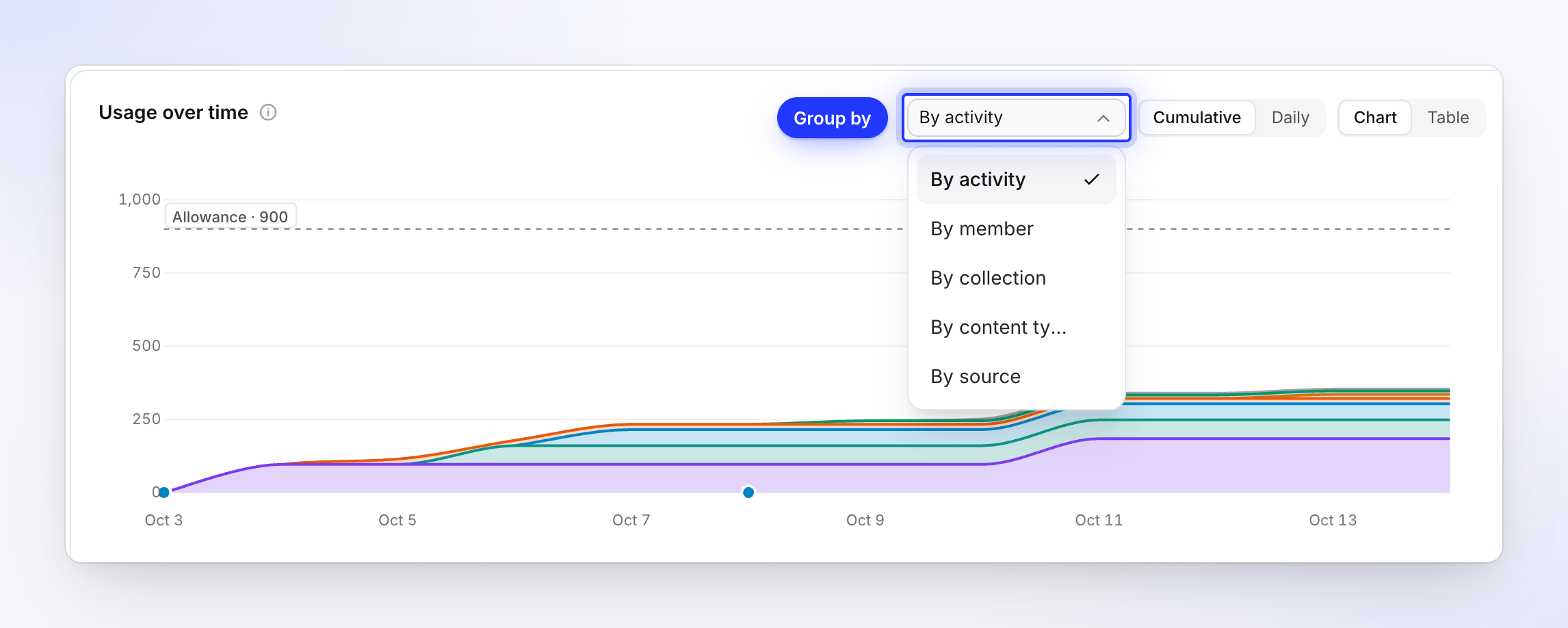
Usage over time charts credits per day (or per week for long periods). Use Group by to split it By activity, By member, By collection, By content type or By source, and switch to Cumulative to see the running total. The six largest groups get their own colour; the rest are grouped as Other.
Check the biggest jobs
What used them lists the items and runs that used the most credits. Each job shows the typical range we estimated before it ran, and whether it came in "Within the estimate of 50–120" or "Above the estimate of 50–120". Switch the tab to Activities or Content types for a donut chart instead.
Compare members and collections
By member shows each person's credits and how many items they worked on; Automated covers work no person started. By collection shows credits spent in each collection, counted where the item was when the credits were used.
Read the history
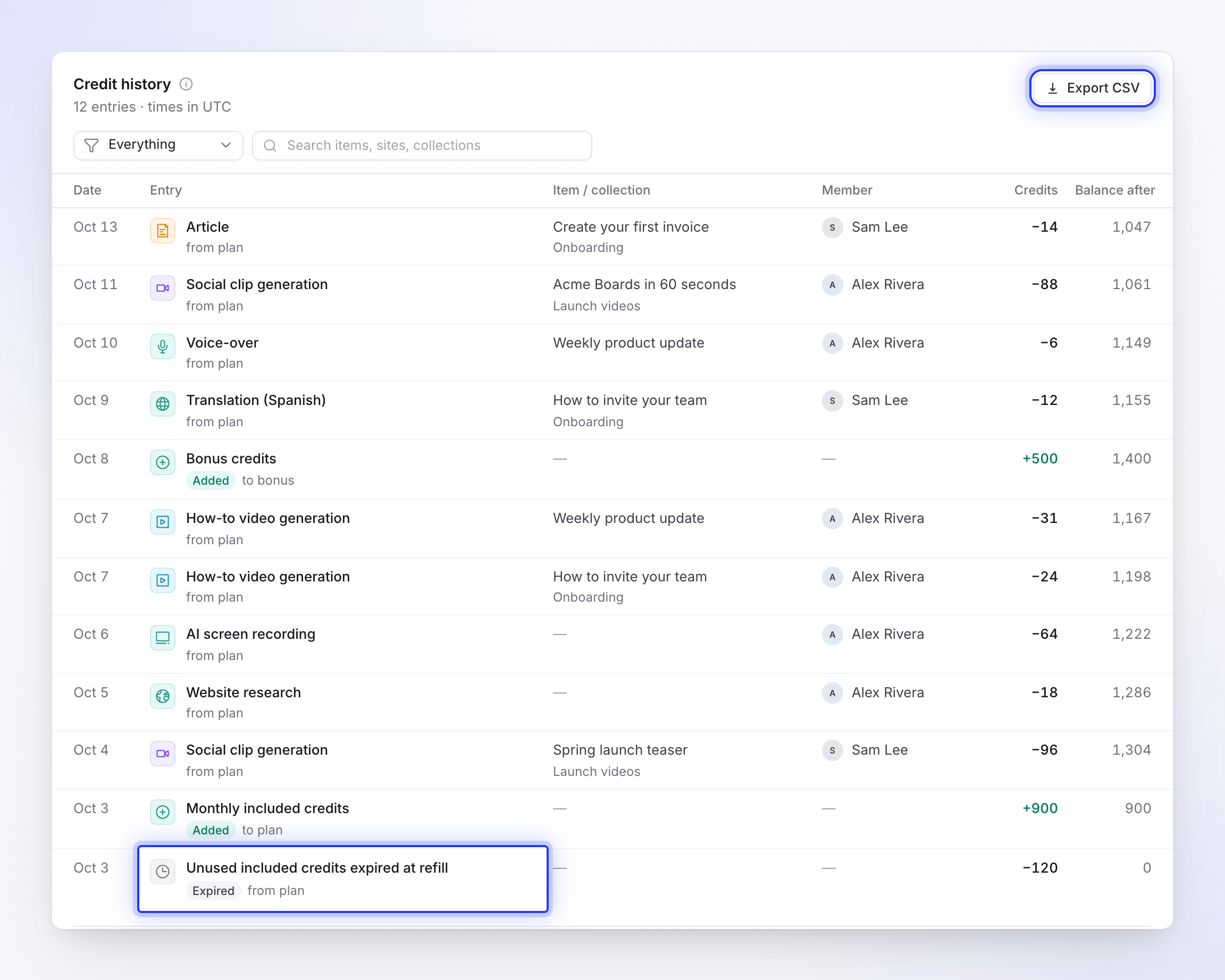
Credit history lists every movement, newest first, with Date, Entry, Item / collection, Member, Credits, Paid from and Balance after. Usage is grouped per item, activity and day. Filter by member, collection or activity, show only Usage, Credits added, Expired or Corrections, or search items, sites and collections. Click a row to open its details.
What each activity means
Each charge in the history is labelled with what the AI did:
| Activity | What it is |
|---|---|
| How-to video generation | Making a how-to video from a recording |
| Product demo generation | Making a product demo |
| Teaser clip generation | Making a short teaser from a recording |
| Video clean-up & styling | Cleaning up or restyling a recording with Polish |
| Social clip generation | Making a social clip |
| Article | Writing an article |
| Translation | Translating a video or article |
| AI avatar | Making the avatar video |
| Voice-over | Recording AI narration, including new voice-overs after script edits |
| AI images & music | Pictures or music the AI made for the video |
| AI assistant edit | A change you asked the assistant for |
| AI screen recording | Record with AI |
| Website research | The AI reading a website you linked |
| Document reading | Reading PDFs and documents you attached |
| Recording analysis | Understanding what happens in your recording |
| Premise check | Checking that the brief has the facts a video needs, such as the offer in an Offer promo |
| Other | Anything else |
Entries that add credits are tagged Added, for example Monthly included credits at each refill, Bonus credits, or a credit pack. Unused included credits expired at refill, tagged Expired, shows included credits that ran out at a refill, and Correction shows an adjustment.
Refunds for failed runs
When a generation, translation, Record with AI or website research run fails on our side, every credit it used is returned to the kind of credits it came from (included, bonus or bought). The return shows as its own line in the history, named after the activity it gives back, such as Failed run refunded · Social clip generation or Failed run refunded · AI avatar. A run that used several activities gets one line per activity. Credits used in the summary already nets the refund out. See Know when credits are charged for which runs are refunded.
Export the history as CSV
Click Export CSV above the credit history. The file covers the period and filters you picked, with these columns: Date, Time, Entry, Activity, Item, Collection, Content type, Member, From / to, Included credits, Bonus credits, Bought credits, Credits, Charges, Balance after.
Troubleshooting
| You see | What to do |
|---|---|
| "No credit activity yet" | Nothing has used credits in this workspace yet. Credits are used when you generate videos, clips, articles and translations. |
| "No credits used in this period" | Pick a longer range. |
| "Too many entries to search at once" | Pick a shorter date range, or clear the search or the activity filter. |
| "We couldn't load the summary." | Reload the page. Your numbers are safe. |