

Use your brand in videos, clips and Autopilot
Where a brand shows up: Apply my brand in the Templates window for how-to and demo videos, the For picker in a social clip's Look, and Autopilot tasks. What it changes, what it leaves alone, and how the default brand is picked.
Once you've added a brand, you pick it where you make things, and Clevera puts its logo, colors, fonts and voice into the result. This article lists each place and what the brand changes there.
| Where | How you pick the brand | What the brand changes |
|---|---|---|
| How-to videos and product demos | Apply my brand in the Templates window, or Brand in the template studio | Logo and fonts on every template; colors on templates set to brand colors |
| Social clips | For at the top of the Look window | Logo, colors, fonts (if you choose), voice and your call-to-action button |
| Autopilot | Brand in the setup form of Build a help center from my app; other tasks use Autopilot's Default brand | The brand its videos, articles and sites are made for |
New videos and clips start with the workspace's Default brand. Change the default on the brand's page (⋯ → Set as default).
How-to videos and product demos
Open the Template section on the Create page and click Explore templates. Apply my brand at the top of the Templates window shows every template made for the brand you pick: "Every template here, and your video, gets this brand's logo and fonts. Templates set to brand colours also take its colours; the others keep their own." Use template puts the template and that brand on the video. Next time, Clevera starts with the template and brand you used last for that kind of video.
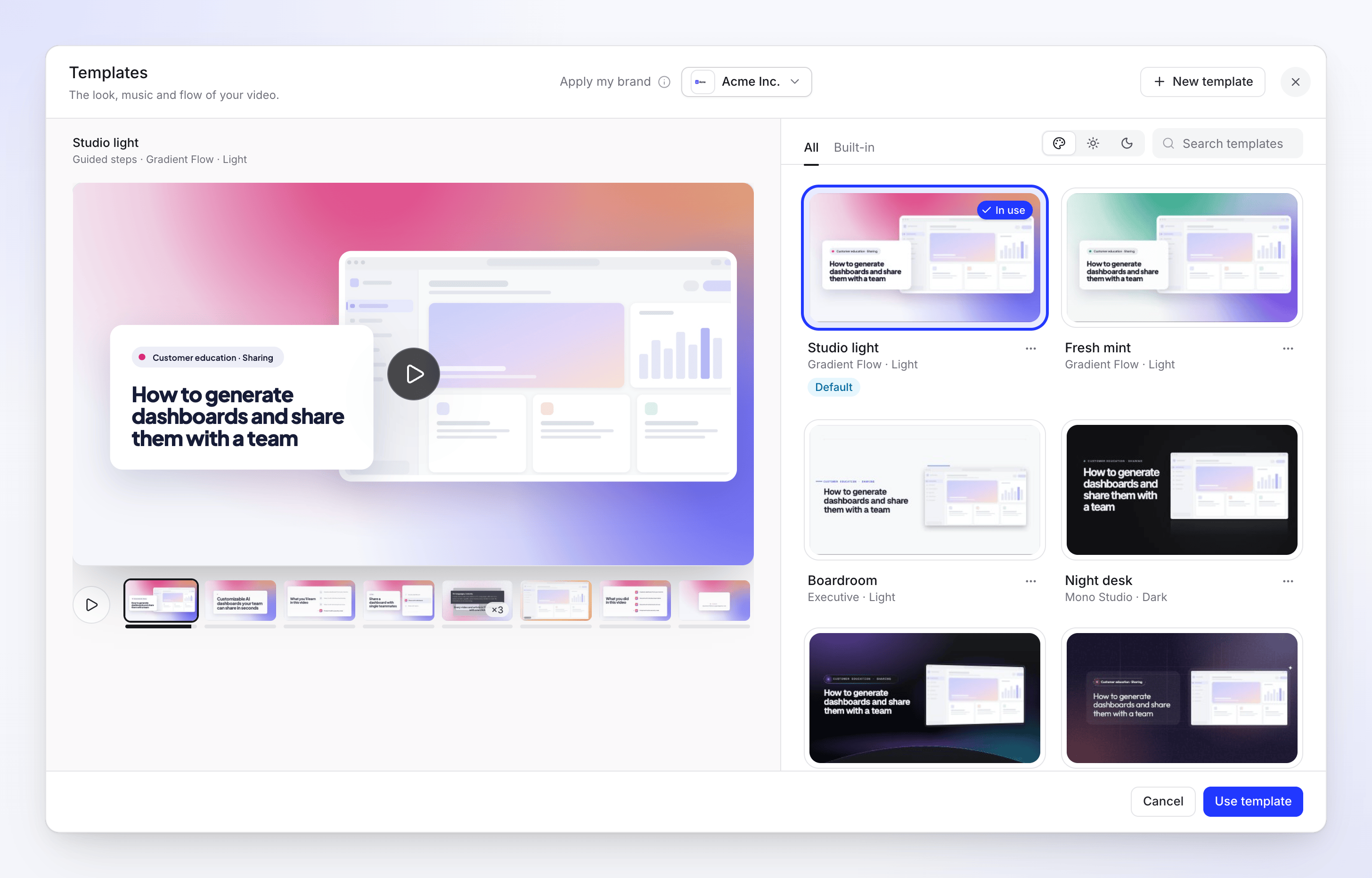
In your own templates, you decide how much of the brand to use:
| In the studio | Brand option |
|---|---|
| Colours | Your brand: its colors fitted to the style, adjusted where text would be hard to read. |
| Style → Fonts | Brand's: its heading and body fonts. A font that can't be loaded is replaced by the closest one. |
| Logo | Brand logo, drawn in the version made for a light or dark background. If one is missing, upload it to the brand from there. |
See Use a template for how-to and demo videos.
Social clips
On a social clip's Create page, open the Look pill. For at the top picks the brand ("Pick a brand to use its logo, colours, voice and button."), and chips show what it brings: Logo, Colours, Voice and Button. Edit brand opens its page.
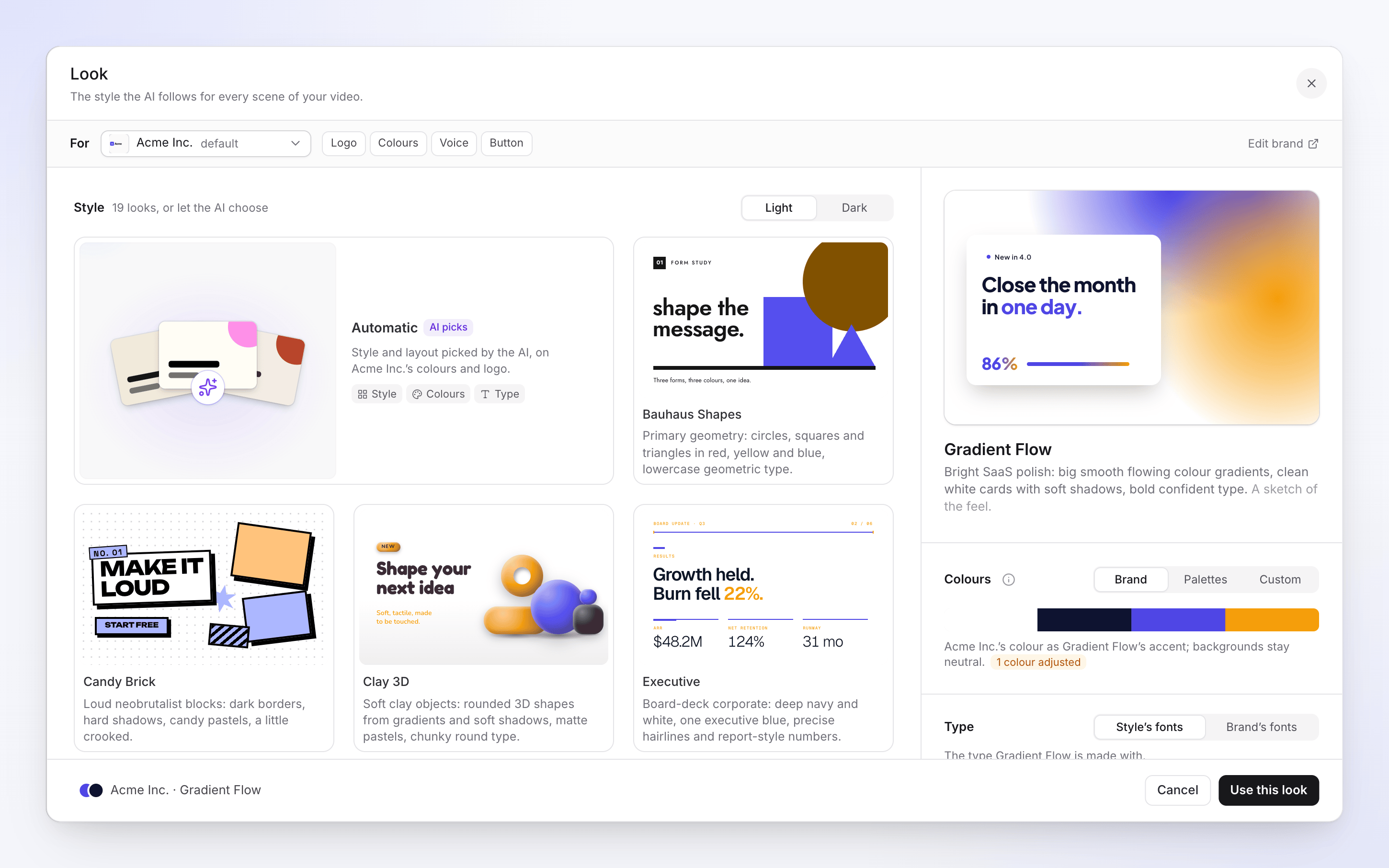
With a brand picked:
- Colours → Brand uses the brand's color as the style's accent: "backgrounds stay neutral". Palettes and Custom still replace it if you prefer.
- Type switches between Style's fonts and Brand's fonts.
- On Automatic, the AI picks the style and layout "on {brand}'s colours and logo".
- The clip's call to action uses the words of your brand's own button.
See Pick a look.
Autopilot
Autopilot tasks that make videos, articles or a help center are made for one of your brands.
- Build a help center from my app shows the brand in its setup form, under Help center. With more than one brand you pick it under Brand ("The site’s colours, logo and fonts come from it. Picked from your website until you choose."): until you choose, it's the brand whose website matches the one you entered. With no brand yet, the form says "No brand yet. Clevera learns it from your website first.", and the task learns it as its first step.
- Every other task uses the Default brand in Autopilot's settings ("The look, voice and website tasks use when a task names no brand."), or the workspace's default brand when none is set there. Only the workspace owner or an admin can change Autopilot's settings.
See Understand Autopilot and Build a help center with Autopilot.
What a brand doesn't change
- Videos already made. Changing or deleting a brand changes nothing that was already made.
- Your words on screen. Clevera shows your branding (logo, colors, fonts, button). Facts it read on your website, like numbers or customer names, inform the AI but aren't put on screen unless you give them as material.
- Polish videos (Clean-up, Styled for sharing). They use the earlier video templates, which have their own logo and colors.