

Find your way around the video editor
A tour of the video editor for how-to videos, product demos and Polish videos: the top bar, the Script, Style, Audio, Zoom and Elements tabs, the timeline, who can edit, and which edits use credits.
The video editor opens when your video is ready. This tour covers the editor for videos made from your recording (how-to videos, product demos and Polish videos): the top bar, the five side-panel tabs, the timeline, and what each person on your team can do. Social clips use a different layout; see Edit a social clip.
The first view
When you open a video straight after it's made, the editor shows just the player, with the side panel and timeline tucked away, so you can watch the result first. A slim player bar under the video plays and scrubs it. Click Edit in the top bar to open the side panel and timeline.
The top bar

| Control | What it does |
|---|---|
| Home and the collection name | Back to your content, or to the collection the video is in |
| Title | Click to rename the video (up to 255 characters). Enter saves, Esc cancels. |
| ⓘ (About this video) | Who made the video, what from, its languages, views and credits. See About this video. |
| Save status | Saving…, Unsaved ("Your changes will save in a moment") or Saved ("All changes saved"). The editor saves on its own. |
| Video / Article | Switches between the video and its article, for videos that have both |
| Undo / Redo | Steps back and forward through your edits to zooms, elements, music and style (⌘ Z / ⇧ ⌘ Z, or Ctrl Z / Ctrl Shift Z). Changes to steps and scenes go back through Revision history. |
| Clock button | Revision history (H): every earlier version. See Restore an earlier version of a video. |
| Language | The language you're editing, the other languages, and Translate…. Not shown for Polish videos. Each language is edited on its own; see Understand language versions of a video. |
| Assistant | Opens the chat that changes the video for you. Not available for Polish videos. See Ask the assistant to change your video. |
| Share | Link, embed, publish and MP4 download. Shows "Exporting N%" during an export. See Export a video as MP4. |
| ⋯ | Analytics, Add to collection (or Change collection), View source recording, Related content, Delete language translation (in a translation), Move to trash |
On a phone, Undo, Redo, Revision history and the language move into the ⋯ menu.
About this video
The ⓘ button next to the title opens About this video (About this social clip or About this article for those): everything about the piece on one card. Anyone who can open the video can see it. Press Esc or click outside to close it.
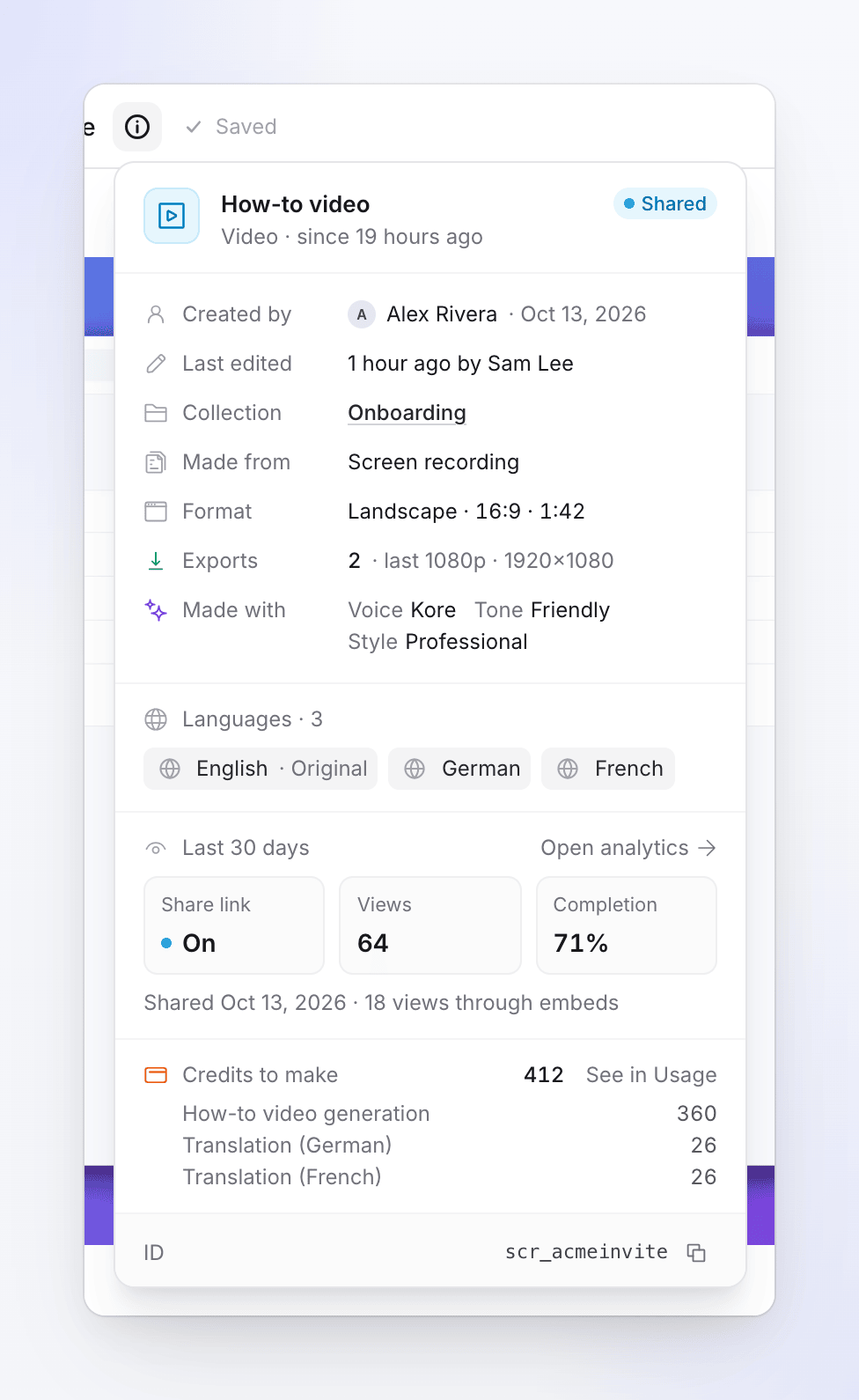
| Part | What it shows |
|---|---|
| Header | The kind of video, such as "How-to video", and its state: Draft, Generating, Ready, Shared (its share link is on) or Failed, with how long it has been in that state |
| Created by | Who made it, and the date |
| Last edited | When it was last changed, and by whom when that's known |
| Collection | The collection it's in, as a link (None if it isn't in one) |
| Made from | Its source: Screen recording, Uploaded video, AI recording, or the material a social clip was given, such as Website or Document |
| Format | The shape and length, such as "Landscape · 16:9 · 1:42" |
| Exports | How many MP4 exports finished, and the resolution of the last one, or Not exported |
| Made with | The choices it was made with, such as the Voice, Tone and Style (social clips: Voice, Tone, Look and Avatar) |
| Language / Languages | The original language and each translation. Click one to open it in the editor; a pulsing dot means it's still translating. |
| Last 30 days | Share link (On, Off or Not shared), Views ("Viewers who watched at least 25%") and Completion ("Views that reached the end"), plus views through embeds. Open analytics opens the full analytics. |
| Credits to make | The credits this video has used so far, split by what they were for (generation, translations and so on). See in Usage opens your Usage page filtered to this video. Only people who can see the workspace's billing see this line. |
| ID and Recording ID | The video's ID and its recording's ID, each with a copy button. Support may ask for them. |
If the details don't load, the card says "Couldn't load the details." with Try again.
The side panel tabs
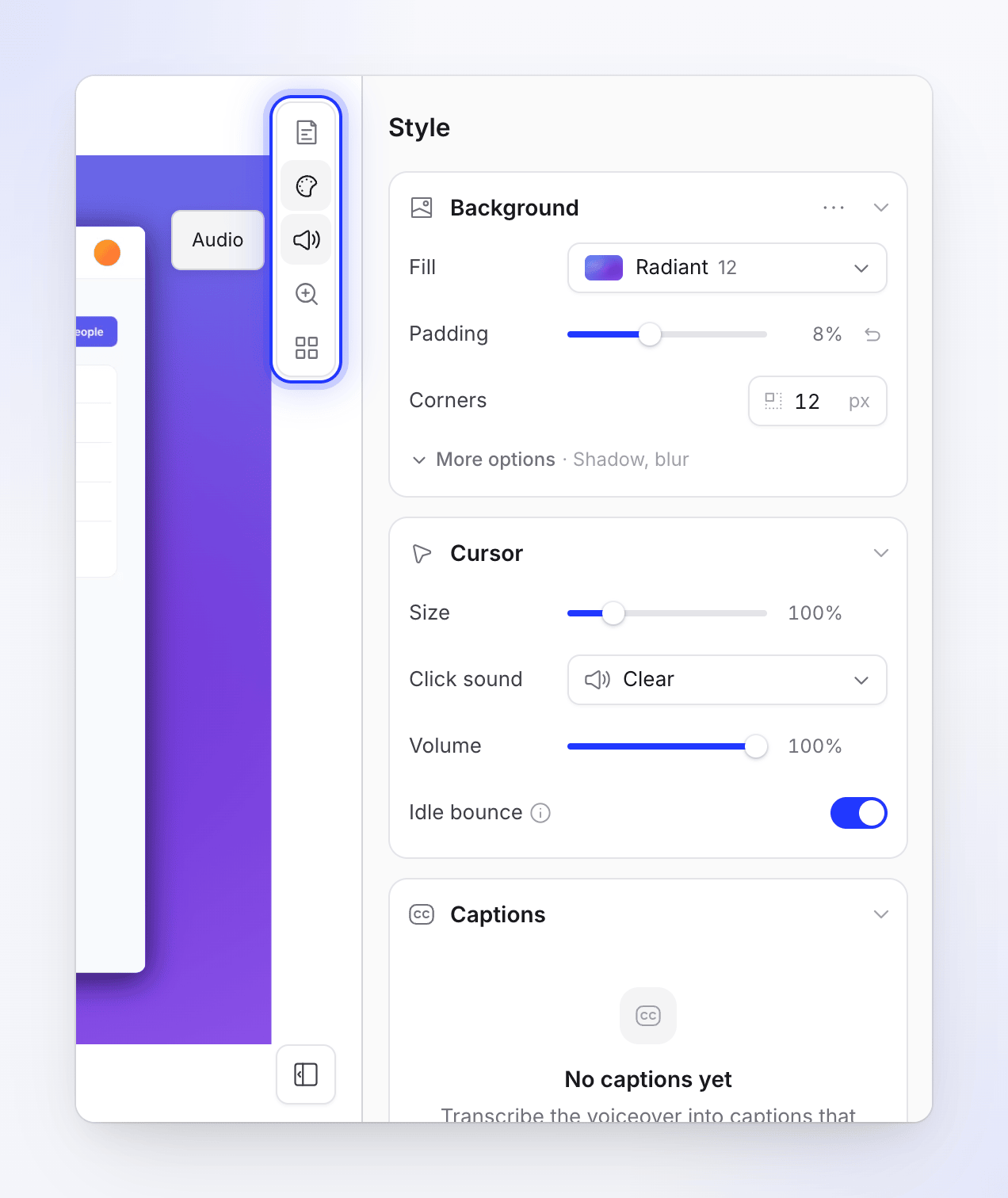
The side panel sits on the right, with a rail of icons to switch tabs. Selecting something on the timeline opens the tab that edits it.
| Tab | What you change there | Shown for |
|---|---|---|
| Script | The narrated steps and their voice-over lines, intro card, chapters, and which part of the recording plays under each step | How-to videos and product demos |
| Style | Background, cursor, captions and camera overlay | All |
| Audio | The voice, the background music and your recording's own sound | All (sections vary) |
| Zoom | Automatic and manual zooms | All |
| Elements | Text, images, blur, highlights, shapes, emoji and sounds on top of the video | All |
The editor opens on Script, or on Style for Polish videos, which have no voice-over. Click Hide side panel to give the player more room.
Each tab has its own article:
The timeline
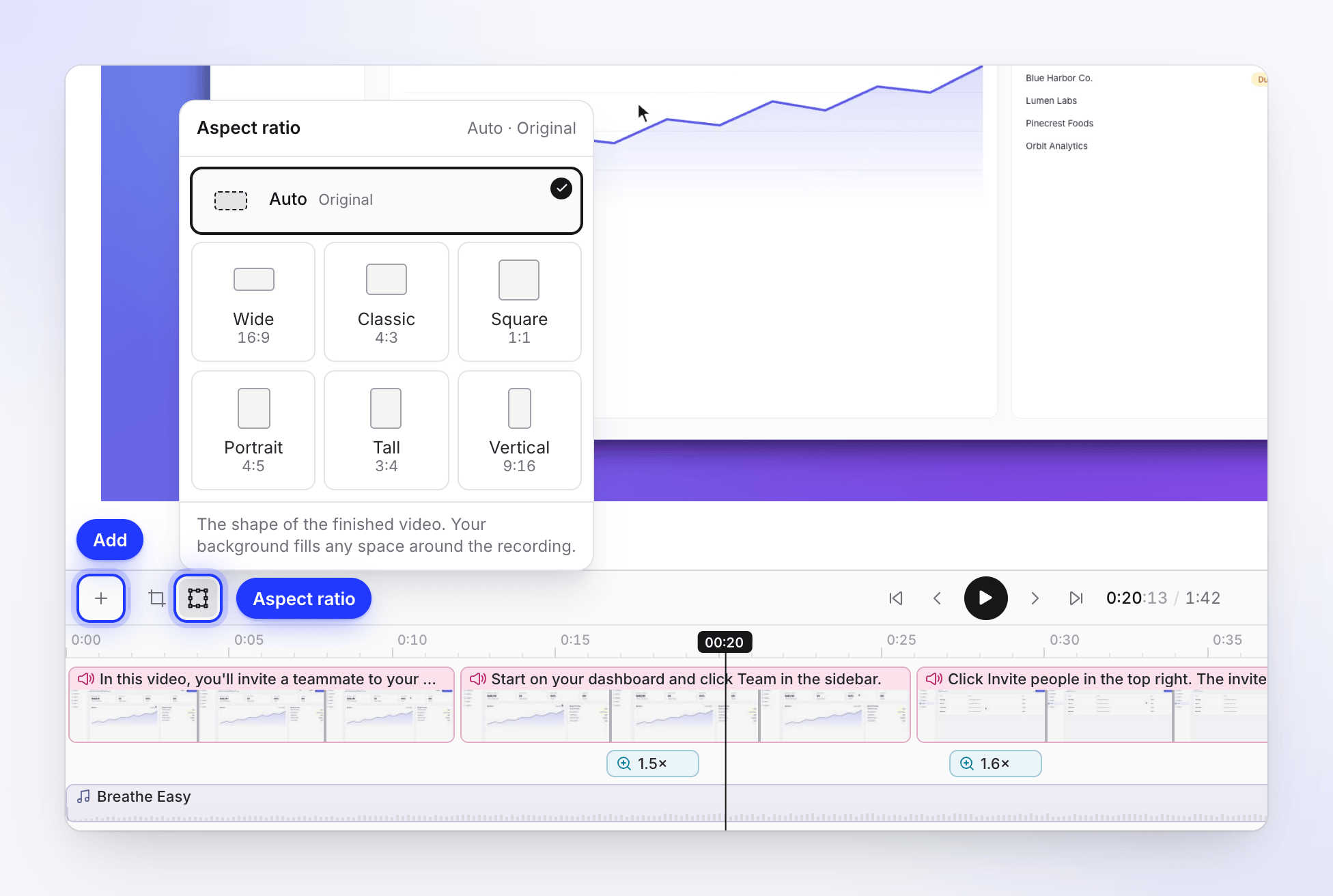
The timeline under the player shows every part of the video in time order: the steps and scenes, zooms, elements and music. Zooms and elements can be dragged and trimmed. Steps and scenes can't: their length comes from their narration, their footage or their Duration. Double-click a step to open Sync & pacing, a card to open its editor, or a zoom to open its settings. See Understand the timeline for every lane and what moves with what.
The toolbar above it:
| Button | What it does | Available for |
|---|---|---|
| + (Add to the timeline at the playhead) | Adds a voiceover, title card, video, logo reveal, list, text beats, a clip or picture from your recording, or a chapter. See Edit scenes and cards. | All |
| Split clip at playhead | Cuts the recording in two at the playhead | Polish videos |
| Crop video | "Keep the part of the recording you want to show. The crop applies to every language." Ratios: Free, Original, 16:9, 1:1, 9:16, 4:5. | Recordings from the desktop app and uploaded videos |
| Aspect ratio | The video's shape: Auto (Original), Wide 16:9, Square 1:1, Classic 4:3, Vertical 9:16, Tall 3:4, Portrait 4:5 | All |
| Play controls | Play / Pause (Space), Go to start, Previous frame, Next frame, Go to end | All |
| View | Mute, Zoom in (Ctrl + scroll) and Zoom out on the timeline, Fit the whole video, Fullscreen, Collapse timeline | All |
Between two scenes, an Add transition pill adds a transition (Fade, Slide, Wipe and more).
The compact player bar
When the timeline is collapsed, a single player bar takes its place. You see it on the first view of a new video, and whenever you click Collapse timeline. The editor remembers whether you collapsed the timeline, in this browser.

| Control | What it does |
|---|---|
| Play / Pause | Plays or pauses the video (Space) |
| Mute / Unmute | Hover it for a volume slider. This only changes what you hear in the editor, not the video. |
| Time | Where you are and the total length, such as "0:30 / 1:53" |
| Scrubber | Click or drag to jump; hover to see the time under the pointer. The small marks show where each step and scene starts. With the scrubber focused (Tab), ← / → move one second (Shift: five), Page Up / Page Down a tenth of the video, Home / End to the start or end. |
| Timeline | Show the timeline: brings back the full timeline and its toolbar |
| Fullscreen | Plays the video full screen |
Keyboard shortcuts
| Key | Action |
|---|---|
| Space | Play / pause |
| ⌘ Z / Ctrl Z | Undo |
| ⇧ ⌘ Z / Ctrl Shift Z (or ⌘ Y / Ctrl Y) | Redo |
| H | Revision history |
| G | Show or hide the placement grid |
| ← / → | Move the selected element one frame (Shift: one second) |
| Delete / Backspace | Delete the selected element |
| ⌘ Enter / Ctrl Enter | Save a narration line |
| / | Add a voice tag while writing narration. See Use voice tags in narration. |
Who can do what
What you can do depends on your role in the workspace and on the collection the video is in.
| You are | In the editor |
|---|---|
| The workspace owner or an administrator, the video's creator, or a teammate whose role allows editing and who has edit access to the video's collection | Everything: all tabs, the assistant, translate, share and history |
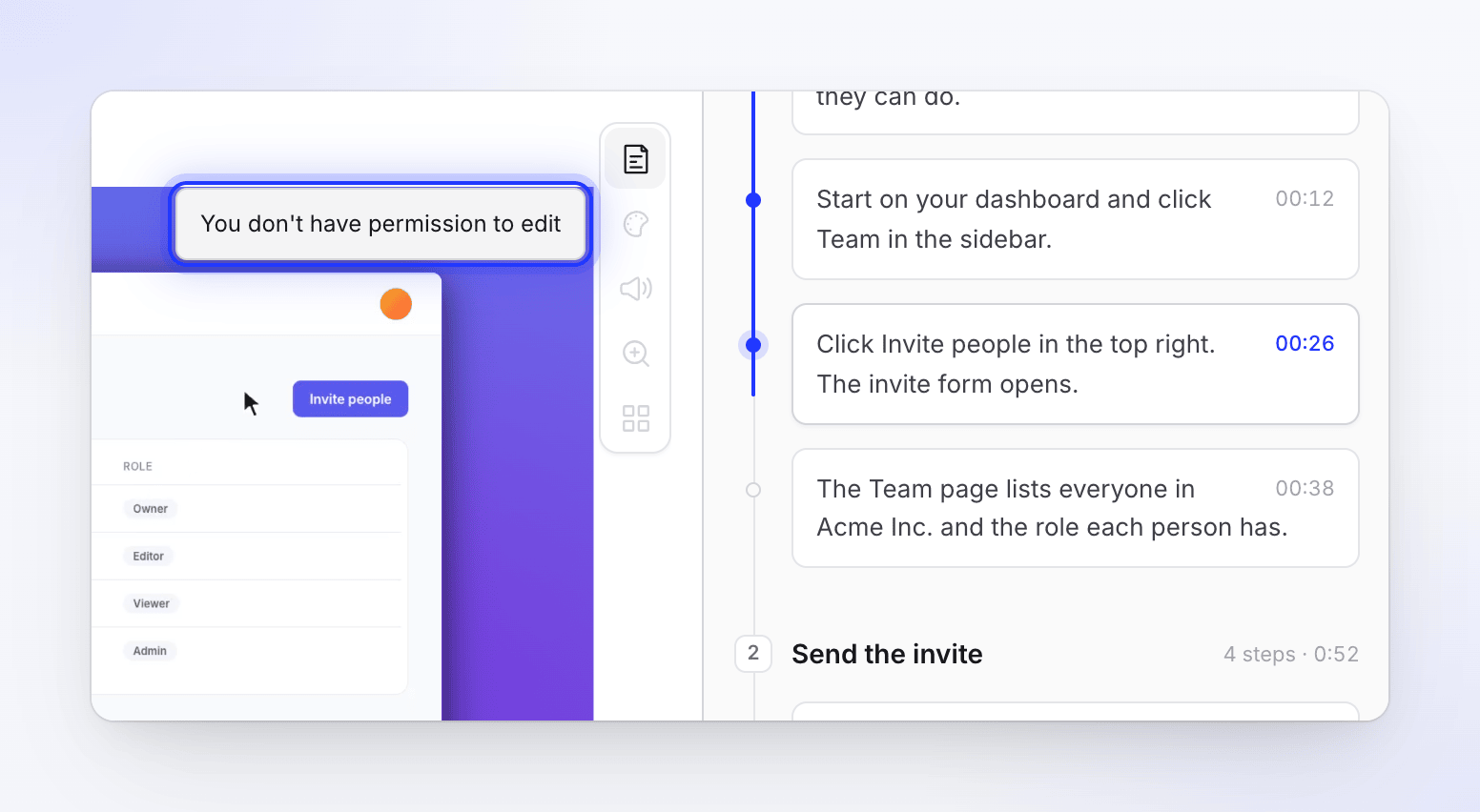
| Anyone else who can open the video | Read-only: the Script tab can be read; other tabs, Assistant, Share and Revision history show "You don't have permission to edit". |
Editors can edit existing videos for free; they don't need a creator seat. See Understand workspaces, roles and creator seats.
Saving and other people's changes
The editor saves a few seconds after each change. If a teammate, the assistant or a generation changes the video while you're editing, your save is held back and a banner says "Someone changed this video". Choose Reload latest to see their change (your unsaved edits are discarded) or Save mine anyway. Nothing is lost either way: both versions stay in the revision history.
If a payment fails, the editor shows "Payment failed — editing and generation are paused". The workspace owner can fix it from Billing.
What editing costs
Most edits are free: moving, trimming, styling, zooms, elements, music, captions style, sync and pacing, crop and aspect ratio. Edits that make something new with AI use credits:
| Uses credits | Article |
|---|---|
| Recording a voice-over line again, adding a line, changing the voice | Edit the script and voice-over |
| Generating captions (a very small amount) | Change the style, background and captions |
| Assistant requests | Ask the assistant to change your video |
| Translating | Translate a finished video |
Exporting an MP4 is always free. To see what one video has used so far, open About this video.