

Fix a failed payment
When a subscription payment fails, Clevera limits the workspace until it is paid. See what is blocked, update your payment details from Billing, and complete any remaining charges to restore full access.
If a subscription payment doesn't go through, Clevera limits the workspace until it's paid. Your videos are safe. This article shows what you'll see, what is paused, and how to update your payment details and restore full access.
How you'll know
- Your inbox: "Payment failed — Update your payment details to keep Acme Inc. running."
- Billing shows a Payment issue badge on the Plan card, the line "Your subscription is past due. Update your payment method to avoid losing access.", and a Payment required notice: "We couldn't process your latest payment. Update your billing details to restore full access."
- Elsewhere in the app, actions that need an active plan show "We couldn't process your latest payment. Open Billing to update your billing details and restore access."
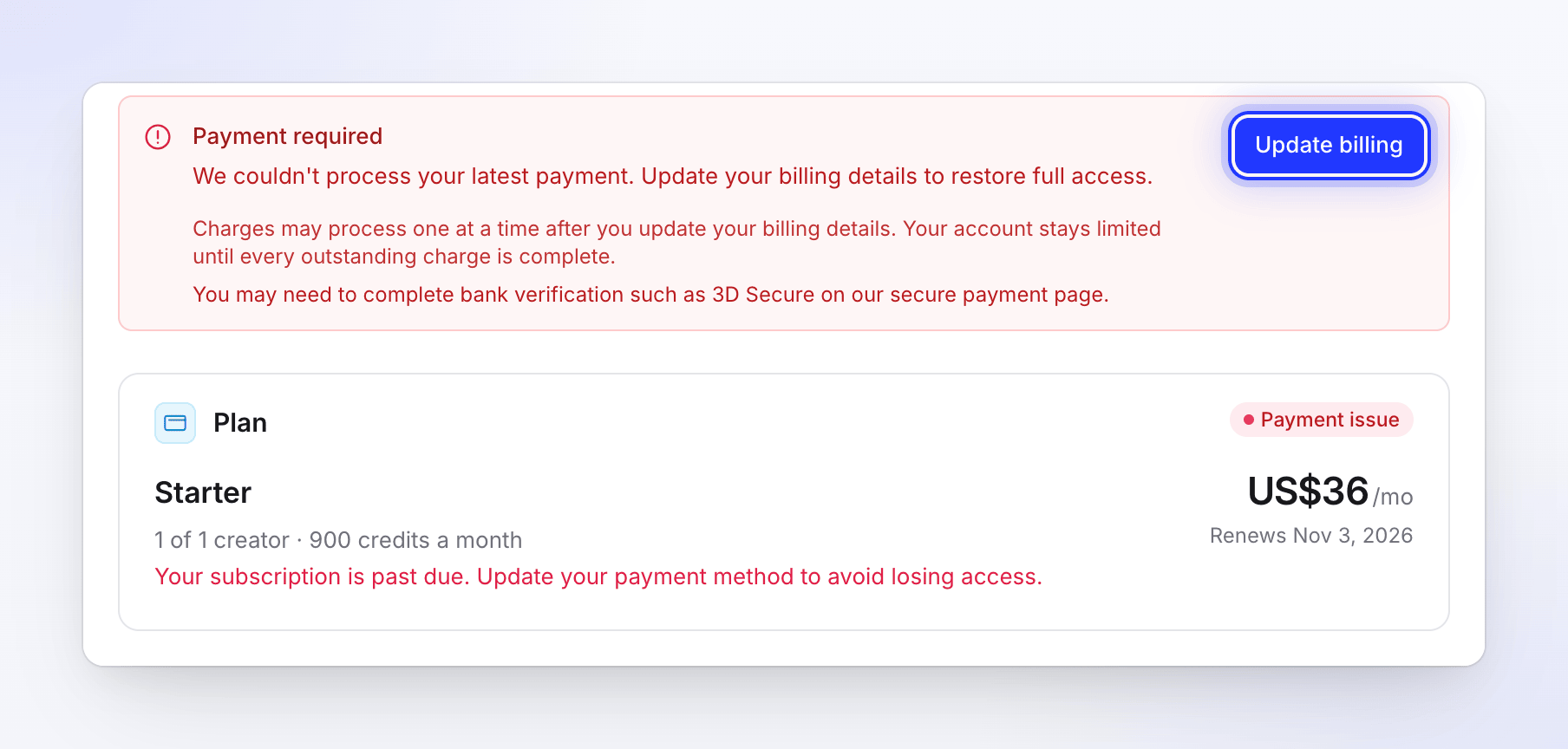
What is paused while a payment is overdue
| Paused until the payment goes through | Not affected |
|---|---|
| Generating new videos, clips, articles and translations | Your videos, recordings, articles and collections |
| Exports | Your credits: nothing is removed |
| Most edits to videos | Scheduling a downgrade |
| Plan upgrades and extra seats | |
| Buying credit packs | |
| Low-credit reminder emails |
Update your payment details
Only the workspace owner can fix a payment. Other members see "Ask your team owner to update the payment method on this page."
Open Billing
Open Billing from the credits menu in the sidebar.
Click Update billing
In the Payment required notice, click Update billing (or Payment details on the Plan card). Our payment provider's secure page opens.
Update your card and pay
Enter a new card or update the current one, then pay the outstanding amount. "You may need to complete bank verification such as 3D Secure on our secure payment page."
Check Billing
Back in Billing, the notice disappears once every charge is paid, and your inbox shows "Payment received — You're all set." Everything that was paused works again.
When there is more than one charge
A plan change can create more than one charge, for example a renewal and a prorated upgrade. In that case the notice lists each charge as Paid or Still due, and may say:
- "Your recent plan change created 2 separate charges. Review what is paid and what is still outstanding below."
- "Your recent payment was successful. One remaining charge of US$88.00 still needs to be completed." with Complete remaining payment, and a counter such as "1 of 2 payments complete".
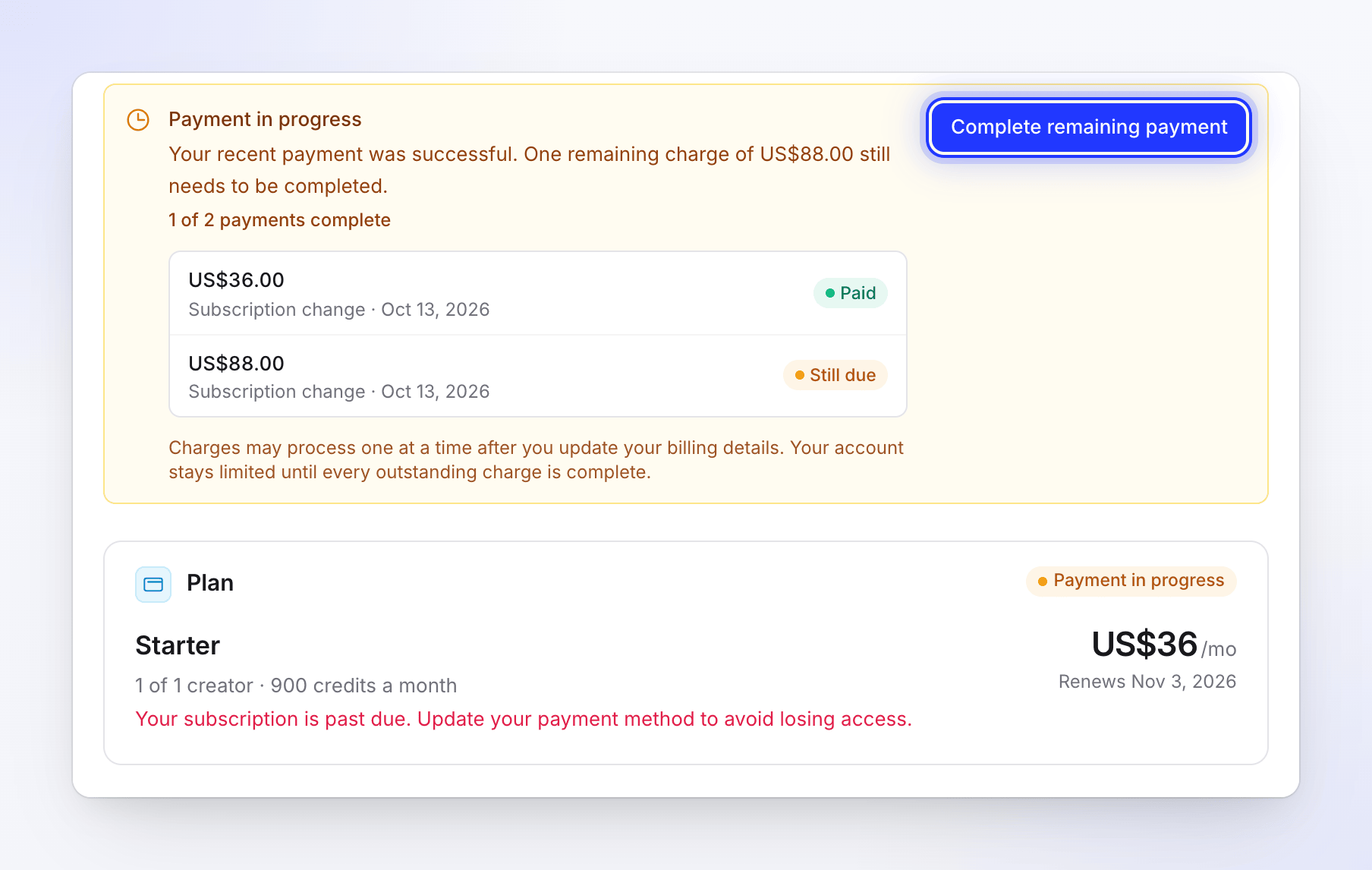
While part of it is paid, the badge reads Payment in progress. "Charges may process one at a time after you update your billing details. Your account stays limited until every outstanding charge is complete."
Check your invoices
Invoices in Billing lists "Every payment on this workspace, with a receipt", with a status for each:
| Status | Meaning |
|---|---|
| Paid | The payment went through. |
| Outstanding | Still due. Pay it with Update billing. |
| Failed | The charge was declined. Update your card and pay again. |
| Refunded | The payment was refunded to you. |
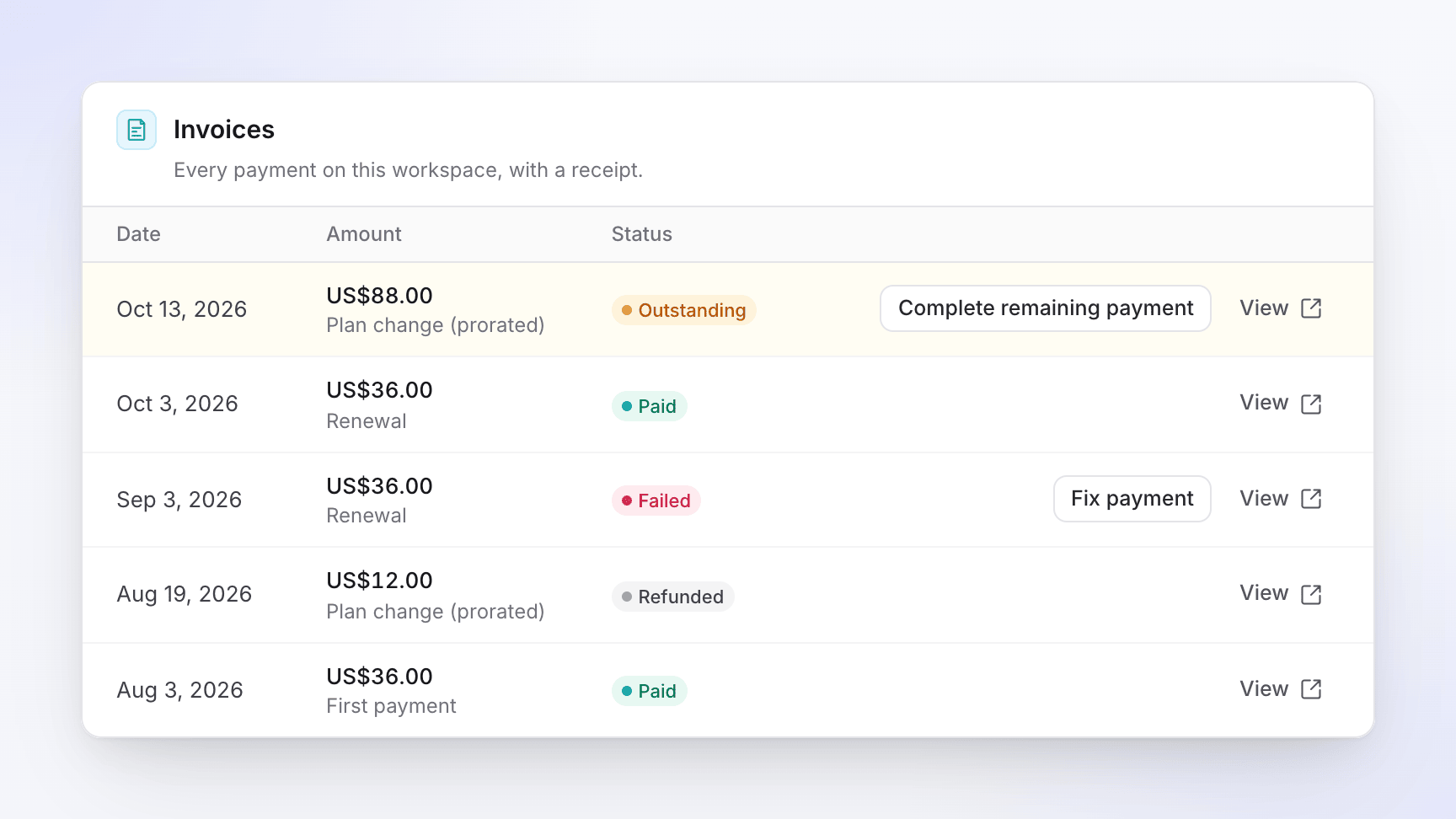
Each invoice is also labelled First payment, Renewal or Plan change (prorated), so you can tell a plan change from a renewal.
Why payments fail
- The card expired or was replaced.
- The bank declined the charge, often for an unusual amount such as a prorated upgrade.
- 3D Secure or another bank check wasn't completed.
- There weren't enough funds when the renewal ran.
If the bank keeps declining, ask them to allow payments to Clevera, or use another card.
A credit pack that isn't paid never blocks anything: it simply adds no credits. See Buy extra credits.
Still stuck? Contact support from the chat in the app.