

Save an app sign-in for Autopilot
Save a test account's login, and Autopilot's explores and recordings sign in to your app on their own. Add one from App sign-ins or the setup card's Sign-in section; logins and authenticator keys are encrypted and never shown again.
An app sign-in is a test account Clevera uses to sign in to your app when Autopilot explores or records it. Save one, and tasks sign in on their own, so nobody has to be there. Without one, Clevera only sees your app's public pages.
Before you start
- You need to be the workspace owner or an admin to add, change or delete app sign-ins. Everyone else sees the list ("Only the workspace owner or an admin can add or change app sign-ins."), and in a setup card Add a sign-in… is disabled for them with the same reason.
- Use a demo or staging account, not a real login: "The AI signs in as this account and clicks through your app, so anything the account can see can end up in a recording. Give it sample data and only the access your videos need." Clevera can't tell a demo account from a real one, so it won't stop you.
- If the account asks for a code at sign-in, you need its authenticator setup key (or a picture of the QR code). Codes by email, SMS or push can't be used.
Add a sign-in
You can add one in two places:
- Autopilot → App sign-ins (under Setup): click Add sign-in.
- While setting up a task: in the setup card's Sign-in section, choose Use a sign-in, open the list and pick Add a sign-in…. The new sign-in is picked for the task once saved. See Set up an Autopilot task.
Both open the Add an app sign-in dialog: "Use a demo or staging account. The AI signs in as it while it records."
App
Enter the App address, for example
app.example.com. The sign-in also works on its subdomains, likelogin.example.com. If your app signs people in on another domain, add it under Other sign-in addresses (optional), separated by commas; Clevera may ask you to confirm "These addresses belong to this app: type the login there too". Give it a Name (optional): "Shown in lists. Left empty, it’s the address." Click Next.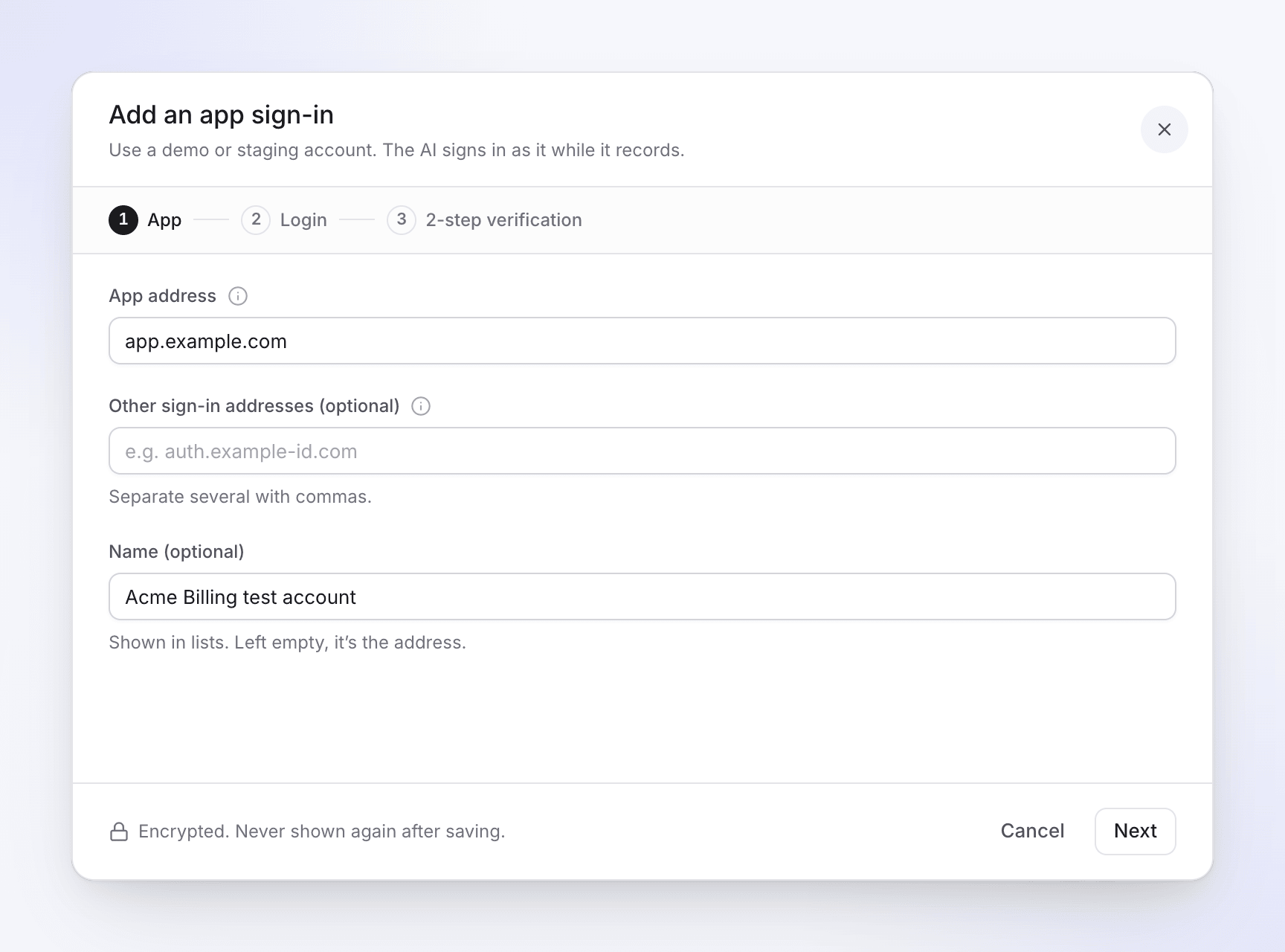
Login
Enter the Email or username and Password the AI signs in with. This step also shows how the sign-in is handled, including a box labelled Recording provider (see How Clevera keeps it). Click Next.
2-step verification
Answer "Does the app ask for a code when this account signs in?":
- It doesn’t ask for a code — "The account signs in with its password only."
- Authenticator app — "Your phone keeps working: Clevera makes the same codes from the same key." Paste the Setup key (or the setup link), or add a QR picture. Then type the code your authenticator app shows in Enter the code it shows: "the key is saved only when it matches."
Already set up on your phone? In Google Authenticator use Transfer accounts → Export, choose only this account and add a screenshot of the QR code. In other authenticator apps, set 2-step verification up again and scan the new QR code with your phone and here.
Save
Click Save sign-in. Clevera asks for your own Clevera password first: "For your security, enter your Clevera password to save a login or key."
How tasks use it
- In a setup card, Sign-in has two answers: Use a sign-in ("Clevera signs in and sees your product as your customers do.") or My product doesn’t need a sign-in ("Clevera will only see your public pages."). Clevera never answers this for you.
- When exactly one saved sign-in matches the app's address, it is picked for you. The list shows the sign-ins for that address ("Showing the sign-ins for app.example.com."), and warns when the one you chose is for another address.
- Recordings pick the sign-in whose address matches the app.
- Errors in the card: "Choose a sign-in, or say your product doesn’t need one." and "Pick a sign-in, or add one."
- If an explore can't sign in with the chosen sign-in, the task says "The explore couldn’t sign in to … with the chosen sign-in. Check it in Autopilot’s App sign-ins, then ask for changes to try again." Check its status on the App sign-ins page (below), fix it with Edit, then click Ask for changes on the task.
When a task meets a sign-in page
If an explore runs without a sign-in and finds a sign-in page, the task stops and shows Waiting for a sign-in: "Clevera found a sign-in page but has no sign-in, so it only saw the public site. Add a sign-in to explore again, or go ahead with the public pages only." You also get the notice "… is waiting for a sign-in" by email and in the inbox.
- Add a sign-in opens the same dialog. Once saved, Clevera explores again with it. Only the workspace owner or an admin sees this button.
- Go ahead with public pages plans from what Clevera could see without signing in.
Everyone else sees Go ahead with public pages and "Only the workspace owner or an admin can add a sign-in. Ask one of them to add it, or go ahead with the public pages."
You can also answer in the task's chat with the agent. More in Explore your app with Autopilot.
How Clevera keeps it
| What | How |
|---|---|
| Login, password and authenticator key | Encrypted with a key used only for sign-ins. Never shown again after saving, not even to you, and nobody at Clevera can read them in the app. When a recording runs, they are decrypted on our servers and typed into your app. |
| Recording provider | On some sites Clevera records in a browser run by our recording provider. When it does, the provider receives the login, password and one-time code as they are typed, can see the screen, and keeps the signed-in browser profile. The sign-in is cut from your video. Delete the sign-in at any time: its login, password, key and saved browser profile are deleted, here and at our recording provider. |
| Saved browser profile | After a signed-in recording, its cookies are kept so the next recording starts signed in. They stay encrypted on our servers, or at our recording provider if it ran the recording. Deleted after 30 days unused. |
| An unused login | Deleted after 90 days without use; using it starts the count again. The sign-in then shows Expired ("Unused for 90 days: enter the login again."). |
The App sign-ins page
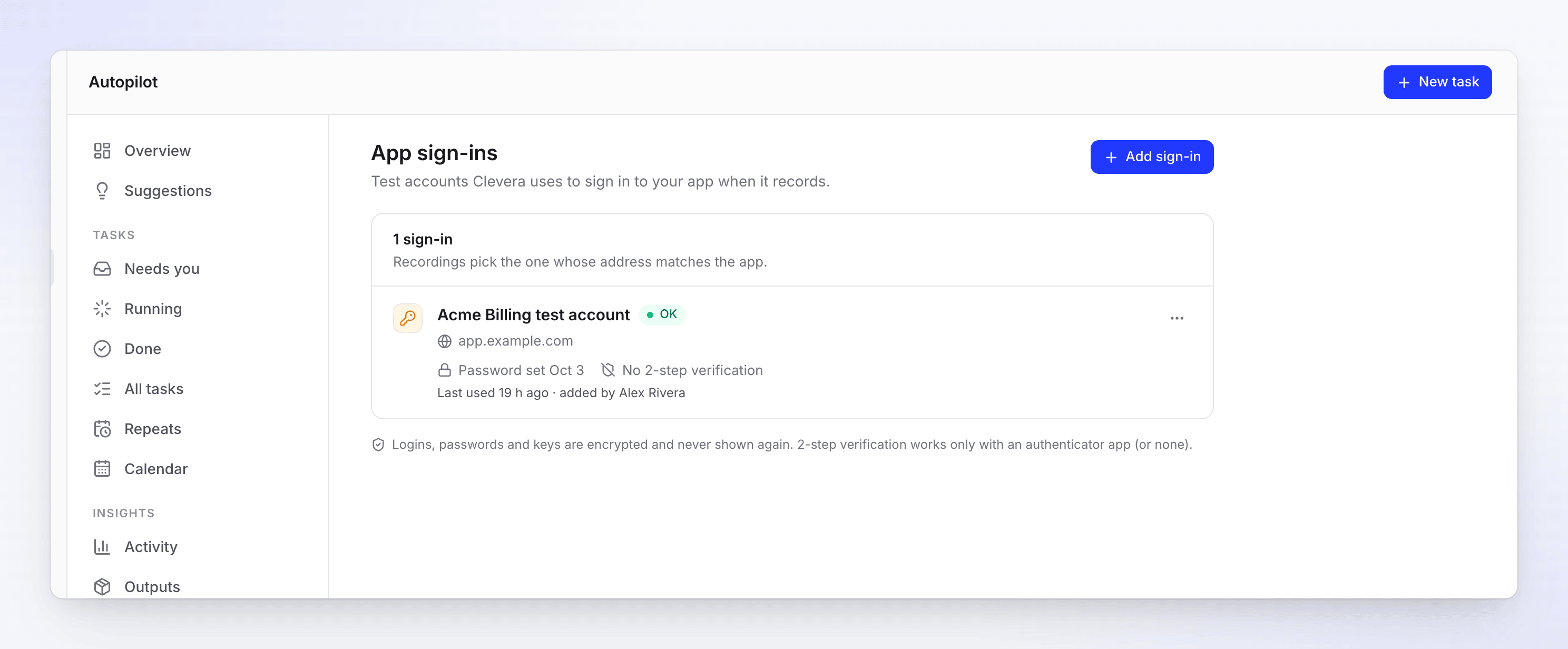
Each sign-in shows its address, when its password and key were set (or No 2-step verification), its saved browser profile, Last used and who added it, plus a status:
| Status | What it means |
|---|---|
| Not used yet | No recording has used it. |
| OK | The last sign-in worked. |
| Wrong password | The app refused the password. Edit it and replace the password. |
| Needs authenticator | The app asked for a code the sign-in can't make. Add an authenticator key. |
| Code rejected | The app refused the code. Replace the key. |
| Blocked | The app blocked the sign-in. |
| Needs attention | Something went wrong last time. Open it to see why. |
| Expired | Unused for 90 days. Enter the login again. |
Edit or delete a sign-in
Click ⋯ on a sign-in, then Edit or Delete sign-in.
- Edit shows the App, Login and 2-step verification sections at once. Saved values read "Saved — hidden for security"; use Replace login, Replace password, Replace key or Remove key to change them, and Save changes.
- Delete sign-in asks "Delete “Acme Billing test account”?" — "Its login, password, key and saved browser profile are deleted. Tasks that use it can’t sign in until you add one again."