

Choose a voice and preview it
Pick who reads your video's script: one of 30 built-in voices that speak all 74 languages, a voice from your own ElevenLabs account, or an AI avatar's voice. Preview each one for free before you generate.
The voice reads your video's script. On the Compose page you pick it from the Voice pill, and you can hear every voice before you choose. Previews are free.
Where voices come from
| Source | Tab | What you get |
|---|---|---|
| Built-in | Built-in (default) | 30 voices made for Clevera, each with a name, a gender and a style such as "Bright", "Warm" or "Firm". Every built-in voice speaks all 74 languages. Included in your credits. |
| Your ElevenLabs account | ElevenLabs | The voices in your own ElevenLabs library, including voices you cloned there. Needs your ElevenLabs key. See Use your own ElevenLabs voices. |
| An AI avatar's voice | No tab: the list switches when you add an avatar | The voices available for AI avatars. Only for social clips with an AI avatar, on paid plans. How-to videos, product demos and Polish videos use Built-in or ElevenLabs voices. |
Pick a voice
Open the Voice pill
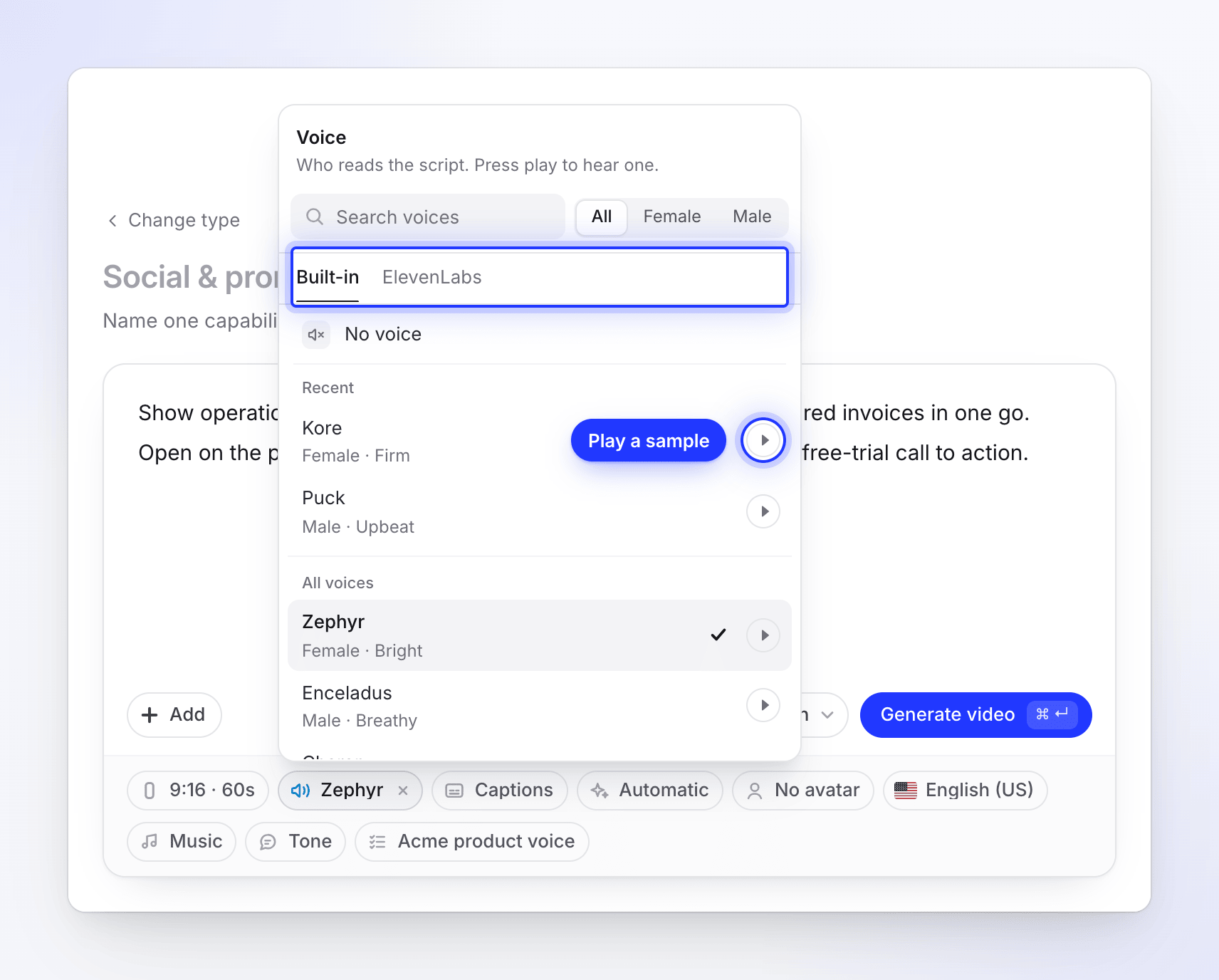
Click the Voice pill under the brief. Its menu says "Who reads the script. Press play to hear one." The pill shows the voice's name, or No voice.
Choose a source
Use the Built-in and ElevenLabs tabs at the top of the menu. Switching tabs picks that source's best voice for your language until you choose one yourself.
Find a voice
The list starts with No voice, then your Recent voices (the last three you used), then All voices. Each row shows the name and a short description such as "Female · Warm". Type in Search voices to match a name, style or language, and use the gender filter to narrow it down.
Play the sample
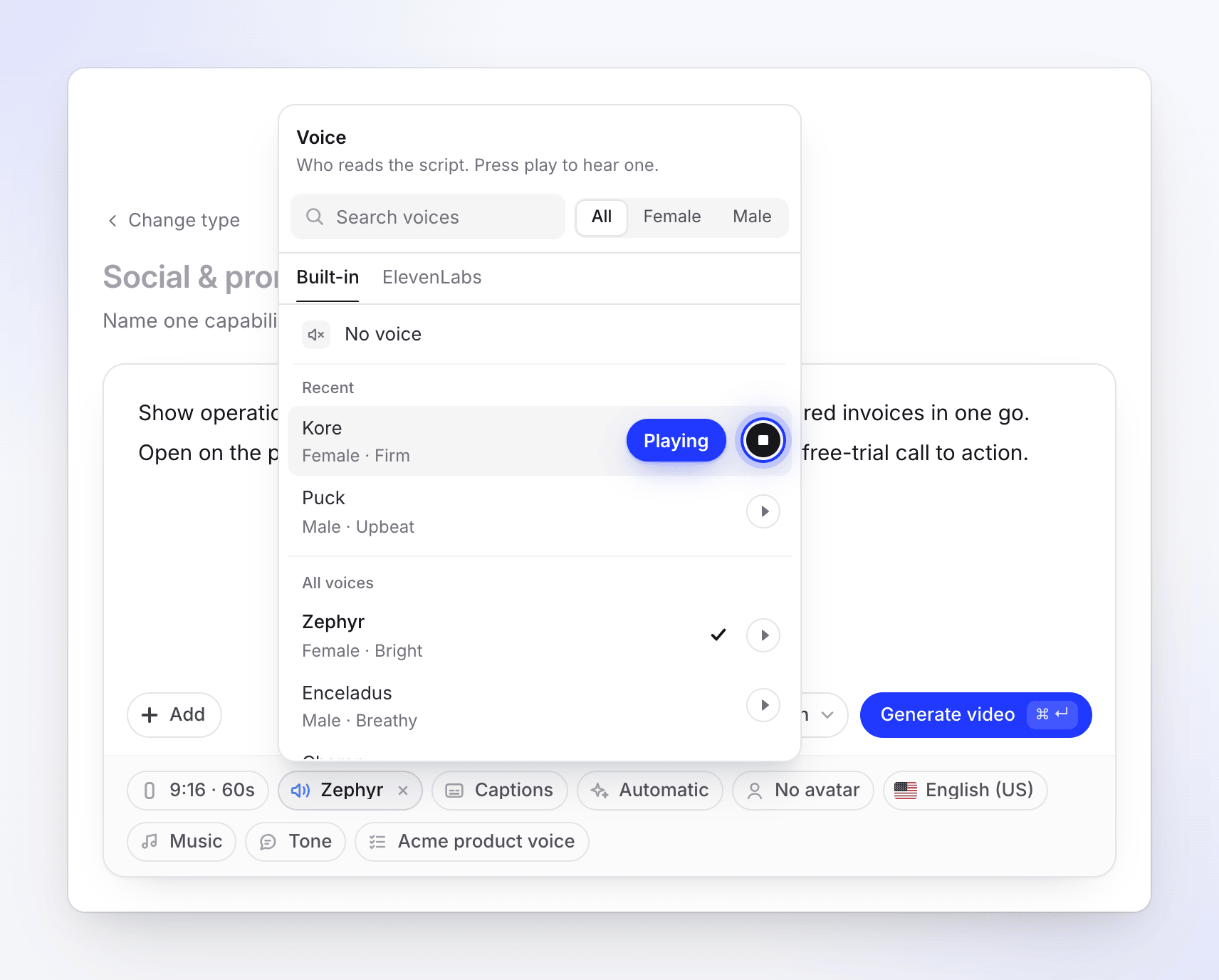
Click the play button on a row to hear that voice. Only one sample plays at a time; starting another stops the first. A voice without a sample has no play button.
Click the voice
The menu closes and the pill shows the voice's name. The pill turns to Set by you; click its ✕ to go back to the automatic voice.
The automatic voice
If you don't pick one, Clevera chooses the voice that best suits your video's language. Change the language and the list is reordered so the voices that suit it come first; if your current voice doesn't fit the new language, a suitable one is picked.
Clevera remembers the last voice you chose in this browser, per workspace, and starts your next video with it.
Voice on or off
| Video type | Default | Can I turn it off? |
|---|---|---|
| Social clips that tell a story (Feature spotlight, Feature announcement, Product tour, Customer story, Brand film, Start from scratch) | Voice on | Yes, pick No voice. The clip then relies on on-screen text and music. |
| Music-led social clips (Hook reel, Music & motion, Launch teaser, Mystery teaser, Offer promo, Event promo) | No voice | Yes, pick any voice to add narration. |
| AI avatar type, or any clip with an avatar | The avatar's voice | No, an avatar always speaks. Remove the avatar to choose another voice. |
| How-to and Product demo | Voice on | No. These videos are always narrated, so pick the voice you like best. |
| Clean-up | Your own recorded voice | No Voice pill: your voice is kept. |
Captions are the spoken words, so the Captions pill only appears while there's a voice.
Voices with an AI avatar
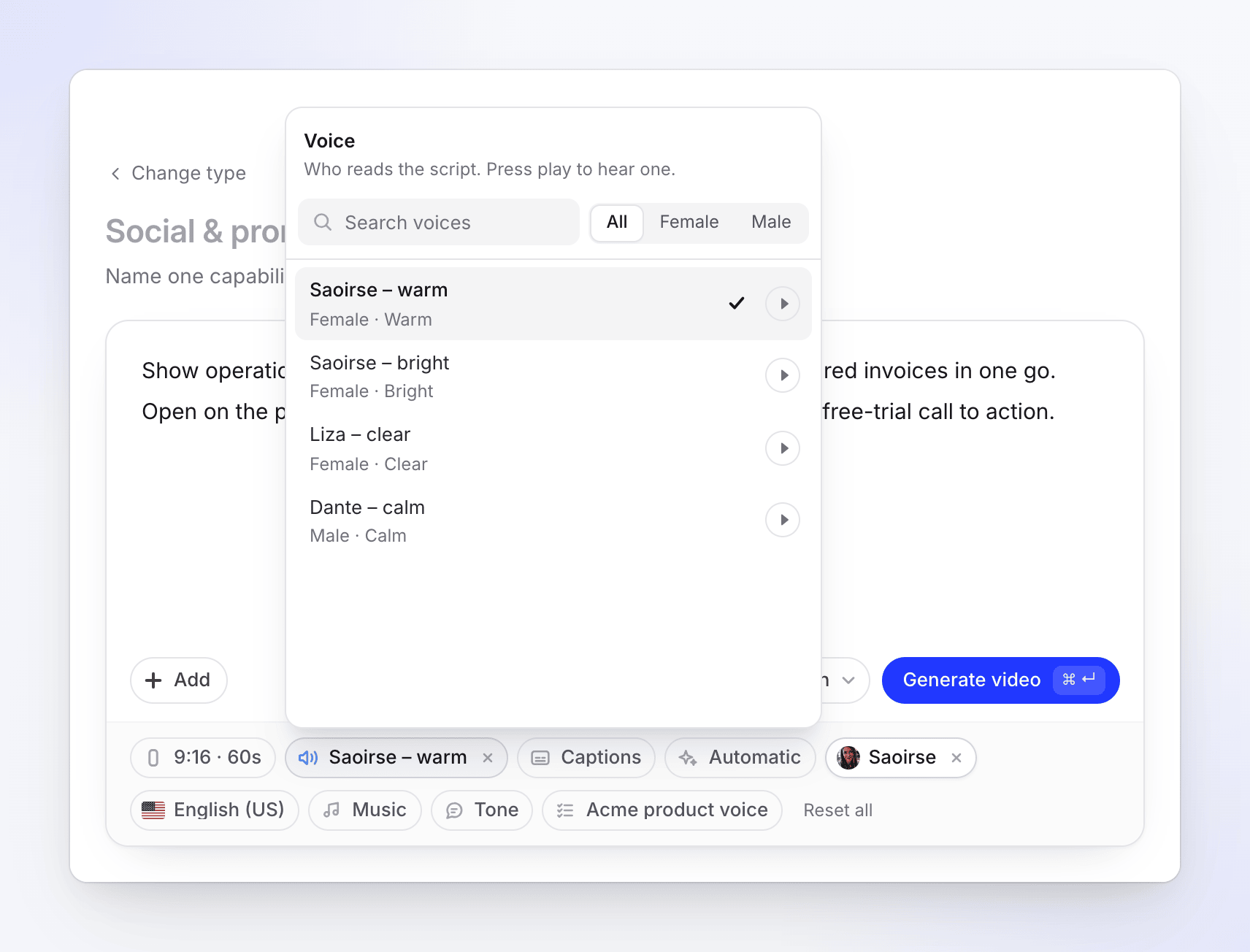
Avatar voices are only for social clips with an AI avatar. When you add an AI avatar to a social clip, the Voice menu shows only avatar voices, with no tabs and no No voice row. The avatar's own default voice is selected first. Avatar voices are priced together with the avatar. See Add an AI avatar and set its screen time.
Avatar voices aren't offered for how-to videos, product demos or Polish videos, either here or later in the editor.
What a voice costs
- Built-in and avatar voices: the voice-over is part of the video's credit cost. Avatar time is added on top, as the estimate shows.
- ElevenLabs: the speech is charged to your ElevenLabs account, not to your Clevera credits. The rest of the video uses credits as usual.
- Samples: playing a sample is always free.
If something goes wrong
| What you see | What it means |
|---|---|
| "Loading voices…" | The list is loading. It only loads the first time you open the menu. |
| "No voices match." | Nothing matches your search or gender filter. Clear them. |
| "No ElevenLabs voices yet — add your key in Account settings →" | You haven't connected an ElevenLabs key. Click the line to add one. |
| A load error with Retry | The list couldn't load. Click Retry. |
| "Heads-up: the voice did not come out at all, so this one is silent." (on the generation page) | The voice-over couldn't be recorded. The video finished without it; change the voice in the editor. |
| "Heads-up: the avatar's voice did not work, so this one is narrated by a built-in voice, without the avatar." | The avatar's voice failed, so a built-in voice was used and the avatar left out. |
You can change the voice of a finished video in the editor. See Change voice, music and sound.