

Add your brand from a website or files
Add a brand on the Brands page from its website, its files or both. Clevera explores it and saves its logo, colors, fonts, voice and competitors, so templates, social clips and Autopilot match it.
A brand is your company's look and voice, saved once: logo, colors, fonts, button style, how you write, what you sell and who you compete with. Add it on the Brands page from your website, your files or both, and Clevera fills in the profile for you. Templates, social clips and Autopilot tasks then use it.
Before you start
- A role that can create. Owners, admins and Content Creators can add, change and explore brands. Editors can open every brand but not change it: controls are turned off with "Your role can view brands but can't add or change them."
- Room on your plan. See Plan limits. Exploring a brand doesn't use credits.
Add a brand
Open Brands
Click Brands in the sidebar. The page lists your brands with "1 of 10 brands" (your count and your plan's limit) at the top right. You can also start from Set up your brand on Home, which shows until your workspace has a brand.
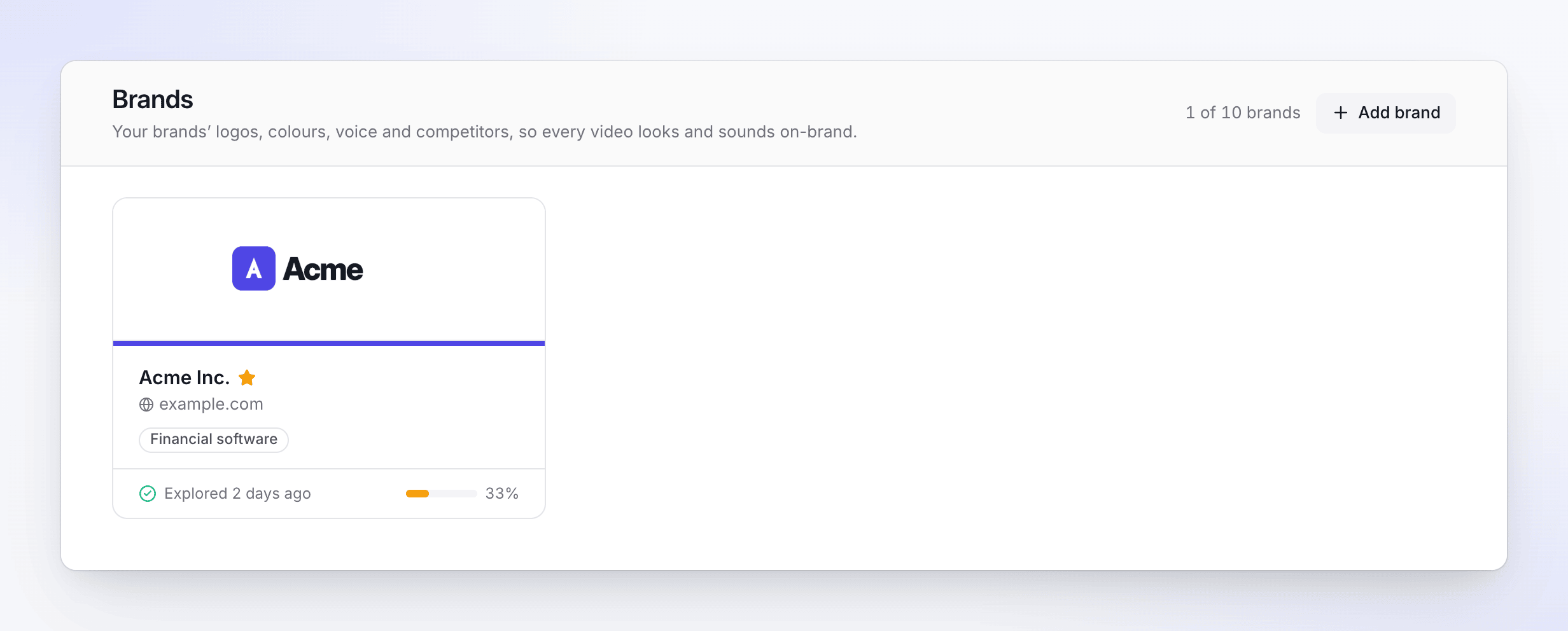
A star marks the default brand; the bar shows how much of the profile was found. Click Add brand
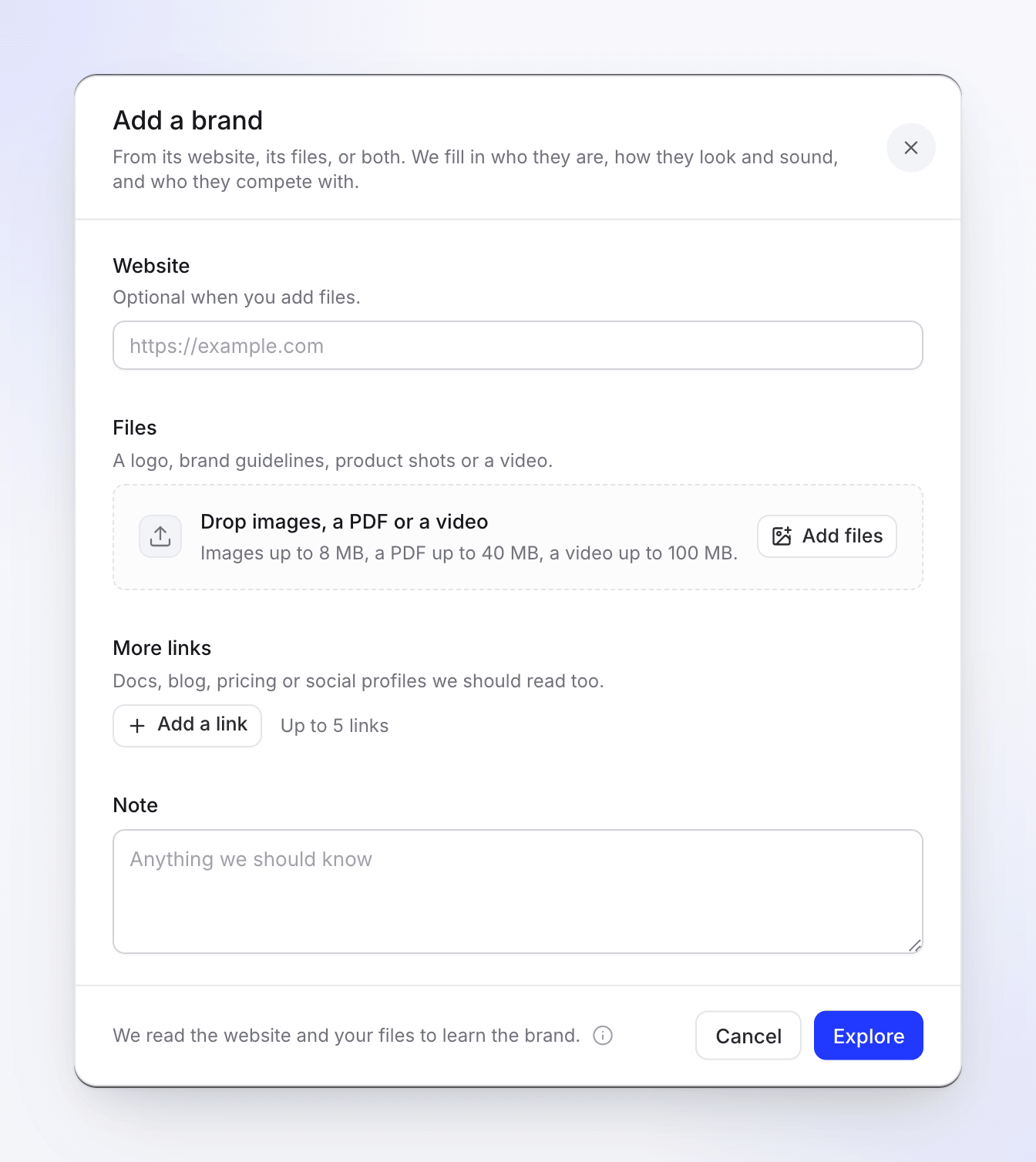
The Add a brand window opens: "From its website, its files, or both. We fill in who they are, how they look and sound, and who they compete with."
Give it a website, files or both
- Website: the brand's home page, for example
https://www.example.com. "Optional when you add files." - Files: "A logo, brand guidelines, product shots or a video." Drop them on the box or click Add files.
- More links (optional): "Docs, blog, pricing or social profiles we should read too." Click Add a link, up to 5.
- Note (optional): "Anything we should know", up to 2,000 characters. For example "Our product is called Acme Billing; ignore the old Acme Payroll pages."
- Website: the brand's home page, for example
Click Explore
The brand's page opens and shows the exploration as it runs. You can leave the page: it keeps going, and the brand card on Brands updates on its own.
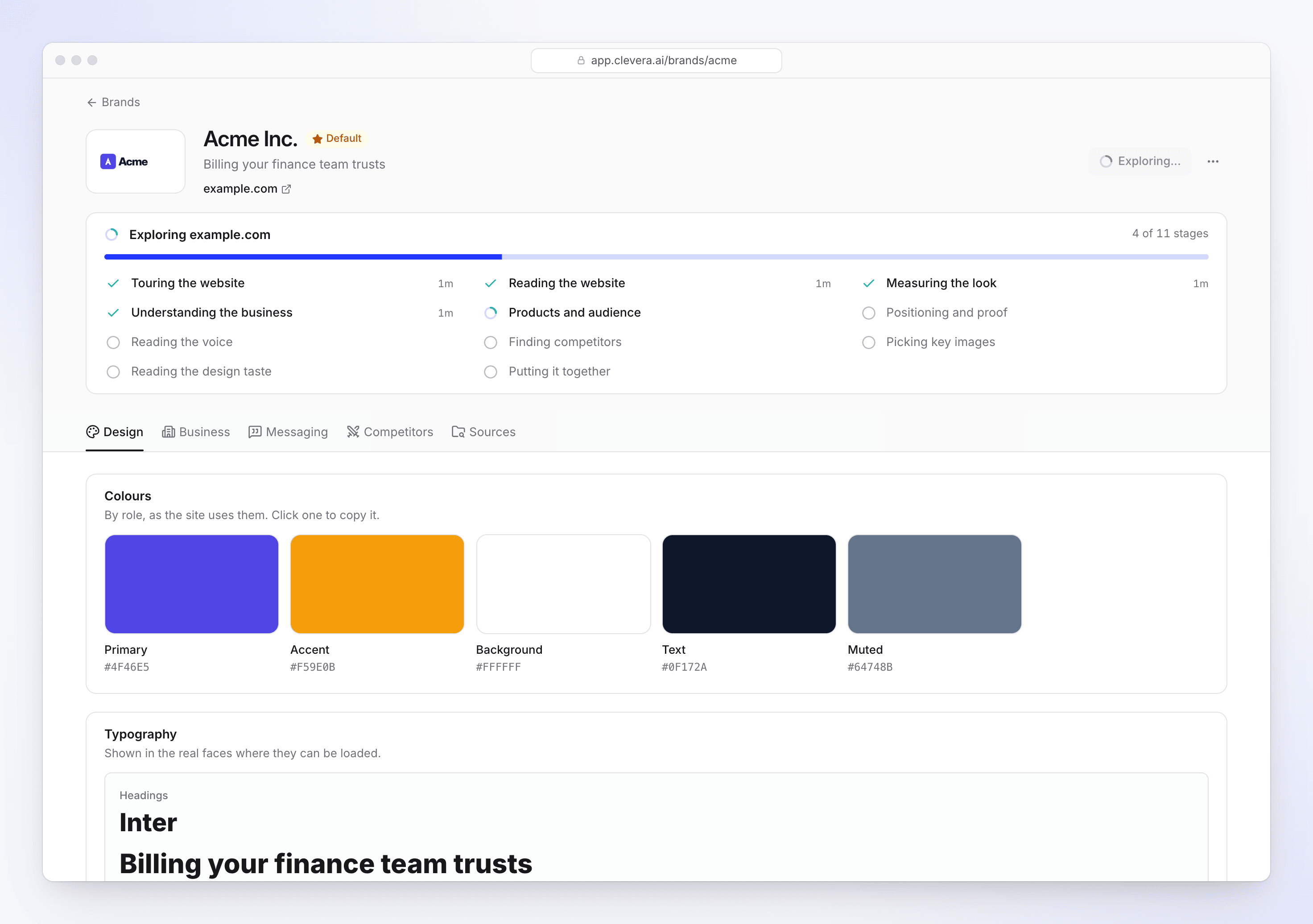
The profile fills in as each stage finishes.
The first brand you add becomes the workspace's Default brand. To make another one the default, open it and choose Set as default in its ⋯ menu. See Review and edit a brand.
Files you can add
| File | Up to | Size per file |
|---|---|---|
| Images (PNG, JPG, WEBP, SVG) | 10 | 8 MB |
| PDF (brand guidelines, a deck) | 1 | 40 MB |
| Video (MP4) | 1 | 100 MB |
Logos, colors, fonts, pictures and voice are read from your files as well as from the website, including from PDFs and videos. Without a website, the brand is named after your first file (rename it later) and shows From your files instead of a domain.
What exploring does
"We visit the website in a browser and read the files you add." A brand page lists each stage while it runs:
| Stage | What it finds |
|---|---|
| Touring the website | Clevera opens your site in a browser and looks around, so it sees the real pages, not only their code. |
| Reading the website | Up to 15 pages: home, product, pricing, about and the links you added. |
| Reading your files | Your logos, guidelines, pictures and video. |
| Measuring the look | Colors, fonts, corner radius and button style, measured from the site. |
| Understanding the business | Name, tagline, what the company does, where it is, when it started. |
| Products and audience | Products, features, integrations, who it's for and the problems it solves. |
| Positioning and proof | The category it claims, value propositions, customers, testimonials and numbers. |
| Reading the voice | How it sounds: tone, words it uses and avoids, how it asks for the click. |
| Finding competitors | Who it competes with and how it differs, with the research behind it. |
| Looking at imagery / Picking key images | The kind of pictures it uses, and the best ones from the site and your files. |
| Reading the design taste | How the site looks and feels, and what to keep or avoid in videos. |
| Putting it together | The finished profile. |
A stage that has nothing to read is marked Skipped, for example "No website given" for a brand made from files only. Exploring usually takes a few minutes.
Clevera only puts your branding on screen (logo, colors, fonts and your button). Facts it reads on your website, such as numbers or customer names, inform the AI but aren't shown in videos unless you give them as material.
Plan limits
| Plan | Brands per workspace |
|---|---|
| Free | 1 |
| Starter | 3 |
| Pro | 10 |
| Custom | 20 |
Deleted brands don't count. A workspace can explore up to 20 brands a day, counting new brands and Explore again.
Troubleshooting
| Message | What to do |
|---|---|
| "This plan's brand limit is reached. Delete one to add another." | Delete a brand you no longer use, or upgrade. See Choose a plan. |
| "Enter a website address or add files." | Fill in Website, add at least one file, or both. |
| "Enter a public website address." | Use an address anyone can open, not a local or intranet one. |
| "This workspace already has a brand for example.com." | Open the existing brand instead, and use Explore again to refresh it. |
| "This workspace has explored 20 brands in the last day. Try again tomorrow." | Wait a day. |
| "We can't use {file}. Try a PNG, JPG, WEBP or SVG image, a PDF, or an MP4 video." | Convert the file, or leave it out. |
| The last exploration failed on a brand's page | Click Explore again. Anything already found stays. |