

Import and export a doc site
Move your help center from Mintlify, GitBook, Zendesk, Intercom and other platforms into a doc site, review the report or undo it, and export a site as an HTML or Markdown zip.
Move your existing help center into a Clevera doc site, or download everything on a site as a zip. Imports bring over pages, images, structure, translations and old addresses; exports give you your content as HTML or Markdown files. Both are free.
Before you start
- Open your doc site and go to Settings → Import & export.
- Only the workspace owner can import or export. Admins can open the tab and look around, but its controls are off: "Only the workspace owner can import or export content."
- Importing and exporting cost no credits, on every plan.
- Imported pages aren't live until you publish, so you can review them first.
Import your docs
Pick your platform
Under Import content, click the platform your docs are on. If it isn't listed, pick Any other docs site.
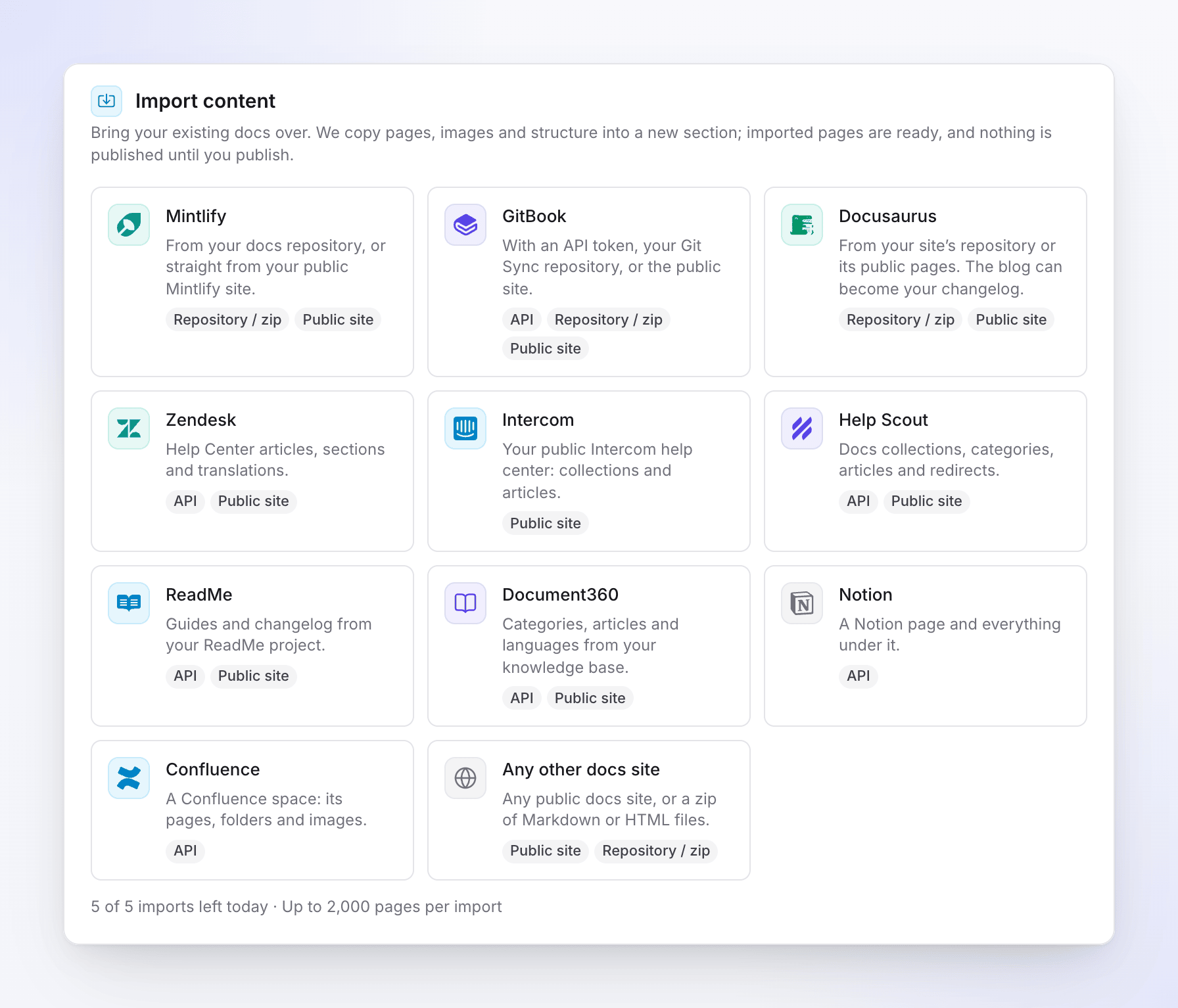
Pick the platform to import from Connect
Choose how to connect under How to connect, fill in the fields and click Check connection. See Platforms and methods for what each asks for.
Preview
Clevera lists the sections and pages it found. Untick pages you don't want. A large site can take a minute: "We're listing every section and page."
Choose the options
Pick where the pages go and which languages to bring over. See Import options.
Confirm and start
Check the summary, for example "We'll copy 120 pages into a new section, “Help center”." and the Estimated time, then click Start import.
You can close the window while it runs: "You can close this window. We'll email you when the import ends." The progress shows Importing pages, Copying images, Linking pages and Adding redirects, with counts of Pages, Images and Failed.
When it ends you get an email, "Your import from platform is ready", with View the report. Then review the pages and publish the site.
Platforms and methods
Each platform card shows the methods it supports: API, Public site and Repository / zip.
| Platform | Methods | What it brings |
|---|---|---|
| Mintlify | Git repository, zip, public site | Pages, snippets, images and every language in your navigation. The repository needs docs.json or mint.json. |
| GitBook | API token, Git repository (Git Sync), zip, public site | Spaces, pages, groups and images. |
| Docusaurus | Git repository, zip, public site | Docs and images. The blog can become your changelog. |
| Zendesk | API token, public site | Help Center articles, sections and translations. |
| Intercom | Public site | Collections and articles of your public help center. |
| Help Scout | API key, public site | Collections, categories, articles and Help Scout's own redirects. |
| ReadMe | API key, public site | Guides and changelog of your default version. |
| Document360 | API key, public site | Categories, articles and languages. |
| Notion | Connection token | A page and every page under it. |
| Confluence | API token | A space with its pages, folders and images. |
| Any other docs site | Public site, zip | Any public docs site, or a zip of Markdown or HTML files. |
The methods
Public site. Paste the address of your public docs (the home page or any docs page), under Site address. Clevera reads the pages listed in its navigation or sitemap, at a gentle pace that respects your robots.txt. Only pages under that address are read. Private articles and drafts aren't included.
API token or key. Paste a token you create in the other platform. Each platform card has the steps and a link to where you create it. Clevera only reads. Tokens are used while the import runs and deleted within 24 hours. You can revoke the token in the other platform once the import is done.
Git repository. Paste the Repository address (GitHub, GitLab or Bitbucket). For a private GitHub repository, add an Access token with read-only access to Contents. Clevera downloads the default branch as an archive and never runs its code.
Upload a zip. Upload a .zip of your docs, up to 200 MB. Clevera reads Markdown, MDX, JSON, YAML and images and ignores everything else. For Any other docs site the zip can hold .md, .mdx or .html files, and each top-level folder becomes a section.
Platform notes
- Intercom doesn't allow sharing access tokens with other apps, so Clevera reads your public help center.
- Zendesk API access needs an admin on a plan from Team up. Any agent reads published articles; a Guide admin also brings drafts and restricted articles.
- Help Scout lets you choose Published articles only or Published and draft articles. Its API keys can't be read-only, so delete the key afterwards.
- ReadMe API reference pages, recipes and custom pages stay on ReadMe.
- Document360 API access is on its Business and Enterprise plans and needs a newer API key.
- Notion needs the workspace owner to create the connection, with "Read content only".
- Confluence works with Confluence Cloud sites.
- Docs with several versions: only the newest version is imported.
Import options
| Option | What it does | Default |
|---|---|---|
| A new section / An existing section | Where the pages go. A new section gets a suggested name you can change. | A new section |
| Languages | Which of the source's languages to bring. A language your site doesn't have yet must be added to the site first. | Every source language your site has |
| Create redirects from the old addresses | Old links keep working once your domain points here. Each old address gets a permanent redirect to the new page. | On, when the source has web addresses |
| Skip pages that already exist here | Leaves out pages whose address is already used on this site. | Off |
For the Public site method you also tick "I own this content or have the right to copy it." before you start.
How the structure comes over
- Pages, images, sections, groups, translations, redirects and changelog entries are imported.
- Doc sites have sections with one level of groups under them. Deeper levels are moved up a level, with a warning in the report.
- Imported pages are ready to publish; they go live at your next publish. Imported changelog entries come in as drafts.
- Images are copied to the site. An image that can't be copied is left out with a warning, and its alt text stays.
- Links between imported pages are pointed at their new addresses. Links to pages that weren't imported keep their original addresses.
- Pages found only in the sitemap, not in the menu, go into a group named "More pages".
Limits
| Limit | Value |
|---|---|
| Pages per import | 2,000. A larger source imports the first 2,000. |
| Imports per site | 5 a day (a rolling 24 hours). |
| Imports at once | One per site. |
| Zip upload | 200 MB, up to 5,000 files and 500 MB unpacked. |
| Images | 25 MB each. |
| Public site reading speed | About 2 pages a second; a page that takes more than 30 seconds is skipped. |
| Redirects created | Count toward your plan's redirect limit. Ones over the limit are skipped. |
The card shows how many imports are left today and the page limit.
The import report
Click View report under Recent imports. The report shows the section, and totals for Imported, Skipped, Failed, Images and Redirects. Filter the pages by Failed, With warnings or Skipped, and click Open in editor to fix one.
Examples of warnings:
- "This page was nested deeper than doc sites allow, so it was moved up a level."
- "An image couldn't be copied, so it was left out"
- "A page with this address already exists here, so it was skipped."
- "Skipped: robots.txt or the site's address rules keep us from reading this page."
Undo or cancel an import
- Cancel import stops after the pages being read now. Pages already imported stay, and you can undo them from the report.
- Undo import deletes the pages, images, redirects and changelog entries the import created, and its new section if it's now empty.
Export a site
Choose a format
Under Export your data, pick the Export format: HTML (pages you open in a browser, images in their own folder) or Markdown (plain
.mdfiles, images in their own folder).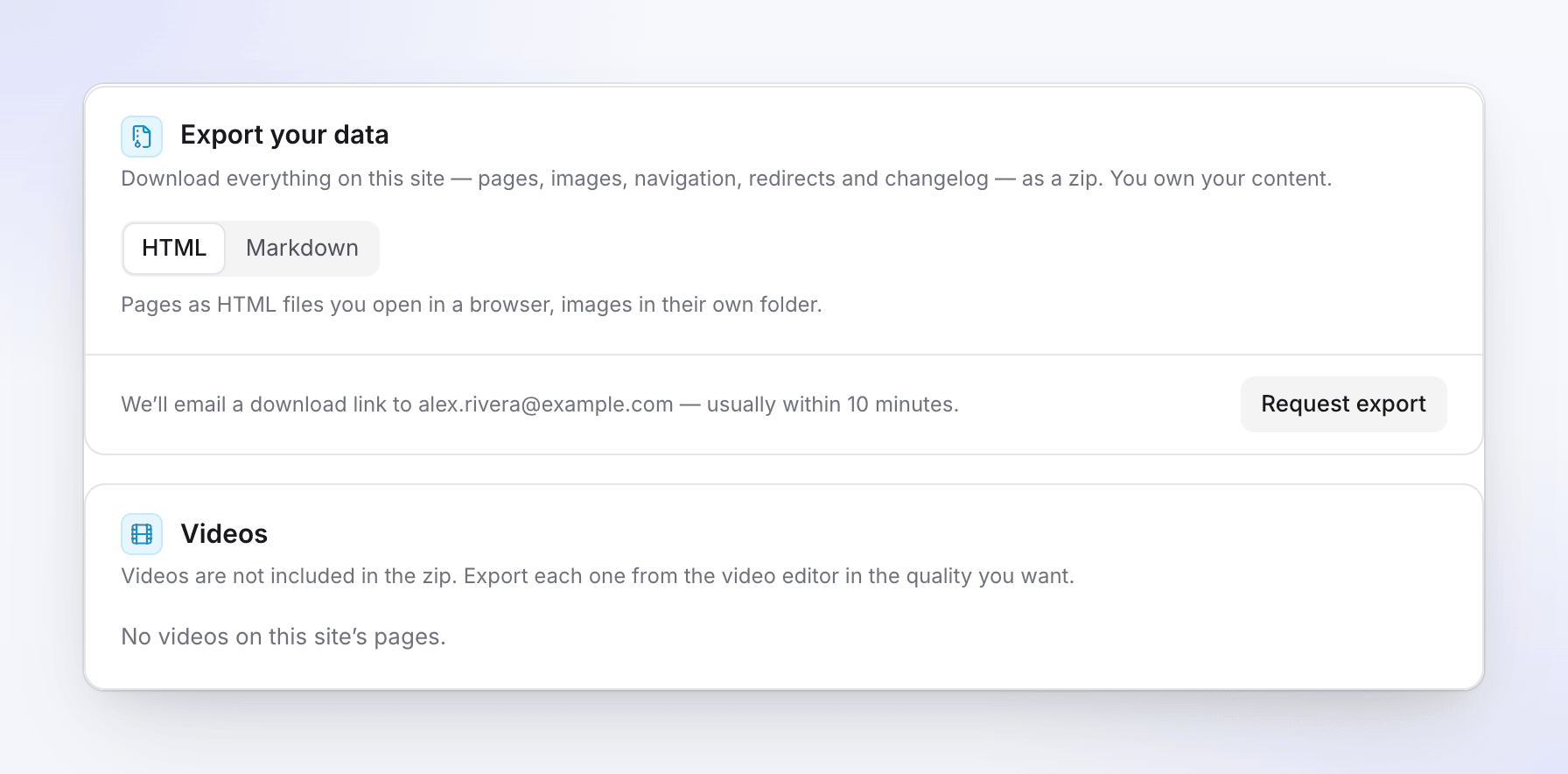
Choose a format and request the export Request it
Click Request export. You see "Export requested. We'll email a download link to" your address, "usually within 10 minutes".
Download it
Open the email "Your export of site is ready" and click Download export. You need to be signed in to Clevera. The link works for 7 days; the export also shows under the card with Download until it expires.
The zip contains:
- Every page on the site, drafts included and marked "Draft", in every language, site pages too.
- The changelog, drafts included.
- Images, each stored once.
- The navigation, site settings, redirects (
redirects.csv) and a list of videos (videos.csv), with aREADME.txtexplaining the files.
You can request 3 exports per site a day (a rolling 24 hours). A failed export doesn't count. Only the person who requested an export can download it. When the owner exports, admins get a notification that an export was made.
Videos
Videos aren't in the zip. In the files, each video is a link: "Watch / export this video". The Videos card lists every Clevera video on the site's pages with Export video, which opens the video so you can export it in the quality you want.
Troubleshooting
| You see | What to do |
|---|---|
| "That token didn't work. Check it was copied in full and has read access, then try again." | Create a new token with read access and paste it again. |
| "We couldn't reach the source. Check the address and try again." | Check the address opens in a browser. |
| "The site blocked our reader. We can only import public pages." | Use the API or zip method if the platform has one. |
| "This site's robots.txt asks crawlers not to read these pages." | Allow reading in robots.txt, or use another method. |
| "The source is larger than we can import. Upload just the docs folder." | Zip only the docs folder. |
| "This zip is over 200 MB. Import from the repository instead." | Use the Git repository method. |
| "You can start 5 imports a day on this site. Try again tomorrow." | Wait until the 24 hours pass. |
| "Another import is running on this site. Wait for it to finish." | One import at a time per site. |
| "None of the pages could be imported. The report lists why." | Open the report for each page's reason. |
| "You can request up to 3 exports a day." | The message says when the next one is available. |
| "This export has expired. Request a new one in the site's settings." | Request a new export. |