

Clevera can't record my screen
The desktop app won't start a recording, or stops with an error. Work through the quick checks, then match the exact message to its fix: missing permissions, an app update, your workspace role, the network, or the window you picked, on Mac or Windows.
If clicking Start recording in the Clevera desktop app shows an error, brings back the permissions window or does nothing, this page helps you find the cause. Most problems are a permission that needs to be granted again, an app update, or your role in the workspace.
Quick checks
- Is the app up to date? Clevera only records with the latest version. On a Mac, if you see Update Required, click Update Now. On Windows, open Check for updates from the tray icon. See Update the desktop app.
- Are you online? Starting a recording needs an internet connection.
- Are you signed in, to the right workspace? Recordings go to the workspace selected on the web. Switch there first.
- Does your role allow recording? Owners, Administrators and Content Creators can record. Editors can't.
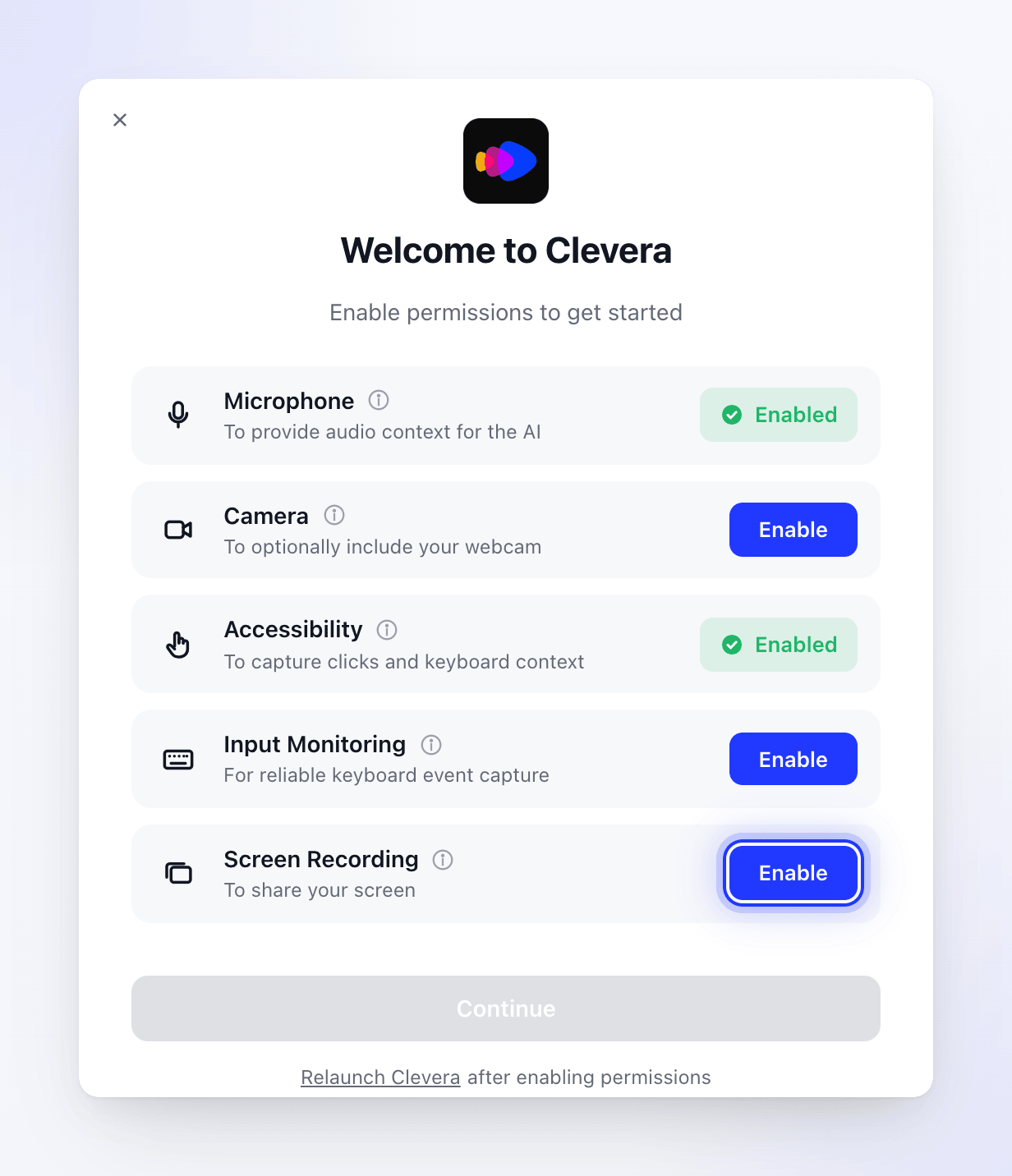
- Are the required permissions on? Open More → Permissions in the recording window. On a Mac you need Screen Recording, Accessibility and Input Monitoring; on Windows, Screen Recording and Mouse & Keyboard Capture.
- On a Mac: did you accept the recording consent? Before your first recording, Clevera asks you to review what it captures. If you choose Not now, it doesn't record.
- Restart Clevera. Quit it (⌘ Q on a Mac, tray icon → Quit on Windows), open it again and try once more.
Fix permissions
Clevera needs Screen Recording, Accessibility and Input Monitoring. If any of them is missing when you open the recording window, Clevera shows the permissions window instead. Microphone and Camera are optional.
The most common problem is a permission that shows as on but doesn't work, usually after an update or after moving the app. macOS keeps an old entry that no longer matches Clevera. Remove it and add it again:
Quit Clevera
Use More → Quit Clevera or press ⌘ Q.
Remove Clevera from Screen Recording
Open System Settings → Privacy & Security → Screen Recording (called Screen & System Audio Recording on newer macOS). Select Clevera and click −.
Add it again
Click +, choose Clevera in Applications and turn it on.
Repeat for Accessibility and Input Monitoring
If recording still fails, do the same in Accessibility and Input Monitoring.
Open Clevera
Open Clevera again and start a recording. Permission changes often need a fresh start of the app before they take effect.
Clevera needs Screen Recording and Mouse & Keyboard Capture. On most PCs both are already on; open More → Permissions to check.
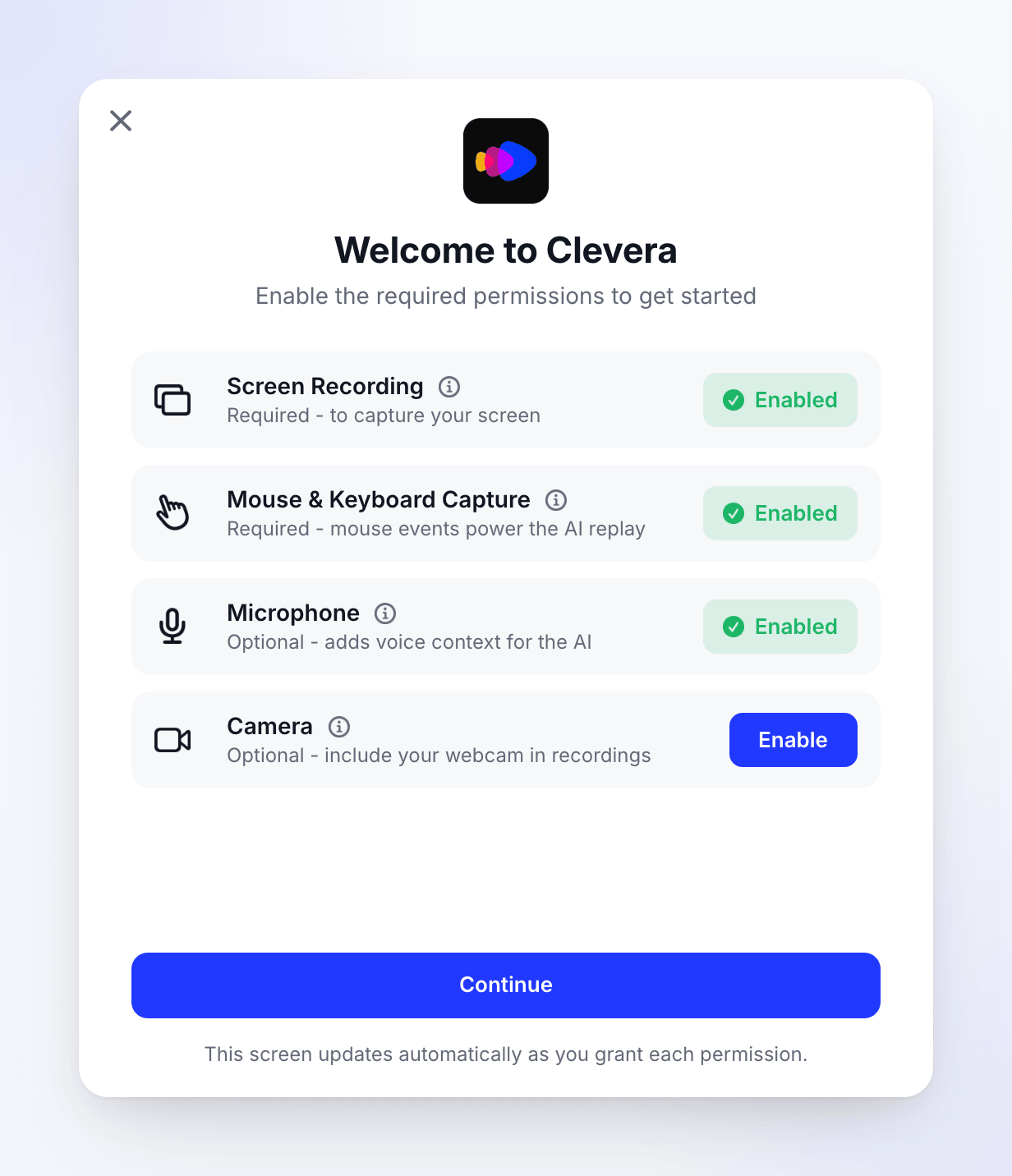
- Screen Recording — on Windows 11 and recent Windows 10 builds, Windows can ask you to allow it. If you denied it, Clevera offers to open the Windows screen capture privacy settings so you can allow it.
- Mouse & Keyboard Capture — there's nothing to grant, but security software, a Remote Desktop session or a company Group Policy can block it. Try outside Remote Desktop, or ask your IT team.
- Microphone and Camera — optional. Allow them under Settings → Privacy & security → Microphone and Camera, including access for desktop apps.
Then quit Clevera from the tray icon and open it again.
Each permission and why Clevera needs it: Grant the permissions Clevera needs to record.
Error messages
On a Mac, most errors appear in a Recording Error alert with a message, a suggestion, OK and Copy Details. On Windows, error boxes end with "Would you like to copy error details to clipboard?"; click Yes. Copy the details if you contact support.
Permissions (Mac)
| Message | Fix |
|---|---|
| "Screen capture permission is required for recording" | Turn on Screen Recording for Clevera, then try again. |
| "Accessibility permission is required for recording" | Turn on Accessibility for Clevera, then try again. |
| "Required permissions are not granted" | Open More → Permissions and enable every required row. |
| "Unable to verify screen recording permission" | Remove Clevera from Screen Recording, add it again and restart the app. See Fix permissions. |
| "Screen content is unavailable" | macOS isn't giving Clevera the screen, often because the permission needs to be granted again. Some apps, such as Chrome, may also be missing from the window list. Remove Clevera from Screen Recording, add it again and restart the app. |
| Input Monitoring Permission Required — "Clevera needs Input Monitoring permission to reliably capture keyboard and mouse events…" | Click Open System Preferences and turn on Input Monitoring for Clevera. |
| Permission Required — "The app requires necessary permissions to function properly. Please grant the required permissions in System Settings." | Open More → Permissions and enable the missing permission. |
Windows messages
| Message | Fix |
|---|---|
| Permission Required — "To start recording, Clevera needs permission to capture your screen…" (or "…access to mouse and keyboard input…") | The permissions window opens with the details. Enable what it asks for, then record again. |
| "Screen recording or audio permission is required" | Usually means you're signed out. Right-click the tray icon; if it shows Sign in, sign in and record again. Otherwise check More → Permissions. |
| "Recording initialization failed: …" | Clevera couldn't start the recording with our servers. The text after the colon says why: often an outdated app (check for updates), or one of the workspace messages in the next table. |
| Input Event Capture Limited | Recording continues, but clicks in an app running as administrator aren't captured. To capture them, quit Clevera and open it with right-click → Run as administrator, or run the other app normally. The message mentions Settings > Permissions; there's no such option. |
| "Windows reset the graphics driver while recording." | Close graphics-heavy apps (games, video editors), update your graphics driver, wait a few seconds and start a new recording. |
| Unsupported Windows Version when Clevera opens | Clevera needs Windows 10 version 1809 or later. Update Windows. |
Updates, sign-in and your workspace
On Windows these server messages appear after "Recording initialization failed:".
| Message | Fix |
|---|---|
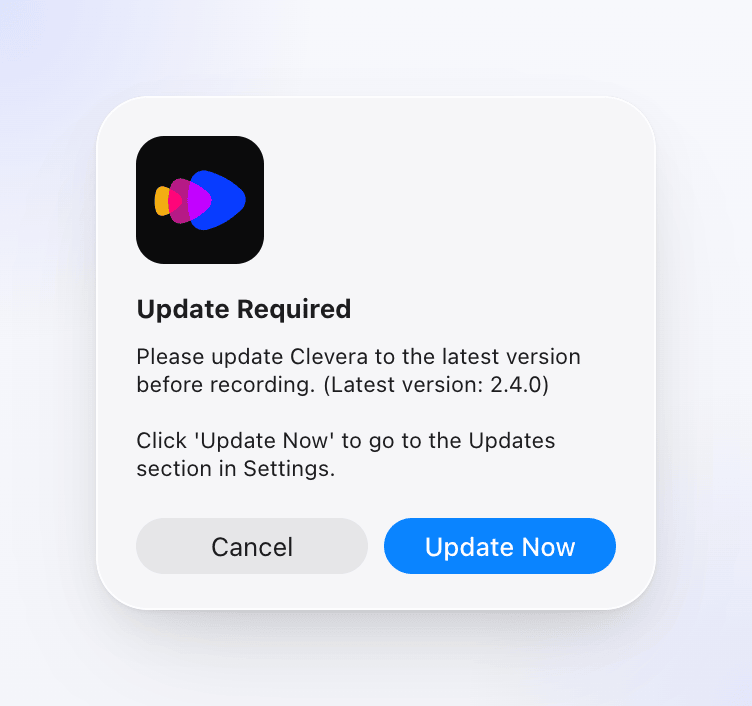
| Update Required — "Please update Clevera to the latest version before recording." (Mac) | Click Update Now and install the update. Any newer version blocks recording until you update. |
| "Please update to the latest version of the app to start recording." | Sent by our servers. Update the app. |
| "Authentication error: Please log in again" | Sign in again. See Sign in to the desktop app. |
| "Team ID is missing" | The app doesn't know which workspace to record into. Sign out and in again, and make sure a workspace is selected on the web. |
| "Please select a valid workspace to start a screencast recording." or "The selected workspace could not be found." | Open Clevera on the web, switch to the workspace you want and try again. |
| "You don't have access to this workspace." | You were removed from the workspace. Switch to another one on the web, or ask to be invited again. |
| "Your role in "Acme Inc." is Editor, which doesn't include recording permissions. Please ask your workspace owner to upgrade your role (for example, to Content Creator or Administrator) so you can record videos." | Ask the owner or an Administrator to change your role. See Understand workspaces, roles and creator seats. |
| "We couldn't process your latest payment. Open Billing to update your billing details and restore access." | The workspace has an unpaid invoice. The owner can fix the failed payment. |
| "Your subscription has ended. Please subscribe again to continue using Clevera." | The owner can subscribe again in Billing. |
| "Please wait a moment before trying to start another screencast recording." | You started several recordings quickly. Wait a few seconds. |
Running out of credits doesn't stop you from recording. Credits are used later, when you make a video from the recording.
Network and the recording itself (Mac)
| Message | Fix |
|---|---|
| "Network error: …" or "Recording service error: …" | Check your connection, VPN and firewall, then try again. |
| "A recording is already in progress" | Stop or finish the current recording first. Look for the recording controls on screen, or press ⌘ ⌥ ⇧ C to show them. |
| "Microphone could not be started or captured: …" | Check the microphone is connected and not in use by another app, then record again. Or turn the microphone off. |
| "File operation failed: …" | Free up disk space and try again. |
| "The screen recording engine encountered an unexpected technical issue (…)" | Usually temporary. Start the recording again. If it keeps happening, restart your computer, then contact support. |
| "Screen recorder is not properly initialized" or "Failed to initialize recording: …" | Restart Clevera and check the required permissions are on. |
| "Screen capture error: …" | Make sure the screen or window you picked is visible and try again. |
On Windows, if the microphone or camera can't start, the recording carries on without that track. Check the device and record again if you need it.
The window, display or area you picked
| Message | Fix |
|---|---|
| Recording Preparation Failed — "Unable to find the specified window" (Mac) | The window was closed. Pick it again. |
| "Failed to focus on the selected window" or "Failed to activate the application" (Mac) | Pick the window again, or restart Clevera. |
| "The window is in an invalid state" (Mac) | Close and reopen the window, then pick it again. |
| "Invalid recording dimensions: …" (Mac) | The window may be minimized or hidden. Make it visible and a reasonable size, then try again. |
| "Display ID is missing", "Unable to determine recordable area" or "Unable to determine viewport dimensions" (Mac) | Pick the window or display again. |
| "Unable to find a display to record. Please reconnect your display and try again." (Mac) | Reconnect the external display, or pick another one. |
| Couldn't Resize Window — "The window couldn't be resized. Recording will continue at the current size." | Not an error: the recording carries on at the window's current size. A full-screen window can't be resized; exit full screen first if you want another size. |
A window only appears in the list if it's at least 300 × 300 (on a Mac it also needs a title). An area must be at least 320 × 220. See Record a window or a custom area.
Signing in to the app fails
Sign-in happens in your browser and hands back to the app. If the browser page shows "We couldn't open the Clevera app. Try again." or "The app didn't finish signing in. Open it again to retry.", click Open Clevera again and choose Open when your browser asks. If nothing happens, check the app is installed and open it once by hand. See Sign in to the desktop app.
When to contact support
Contact support from the chat in the app if:
- you've checked the permissions, restarted your computer and Clevera still can't record,
- the same error comes back on every recording,
- you see "The screen recording engine encountered an unexpected technical issue" more than once.
Include the exact message, your app version, your macOS or Windows version and the copied error details. Sending your logs (More → Submit logs) helps too: see Send your desktop app logs to support.