

Follow your video while it generates
After you press Generate, a page shows your video being made: five stages, short notes from the AI, heads-up warnings, a live preview of social clip scenes and alerts when it needs you. You can close the tab at any time.
When you press Generate, Clevera opens a page that shows your video being made. It takes a few minutes, and you don't have to watch: close the tab whenever you like, and the video keeps going.
What the page shows
At the top is the video's name (the AI replaces your working title with its own once it has written one) and a line that says where things stand:
| Line | Meaning |
|---|---|
| "We're making your video — you can close this tab." | It's running. |
| "We need one quick answer from you." | The AI has a question for you. See Answer the AI's questions during generation. |
| "Your video is ready." | Done. Click Open your video. |
| "We couldn't finish this one" | It failed. See Stop, retry or clear a generation. |
| "We stopped. Start again when you like." | You stopped it. |
For articles, the page says "article" instead of "video". Back to home at the top takes you to Home without affecting the run.
The five stages
Every video goes through the same five stages, in order. Articles have their own five.
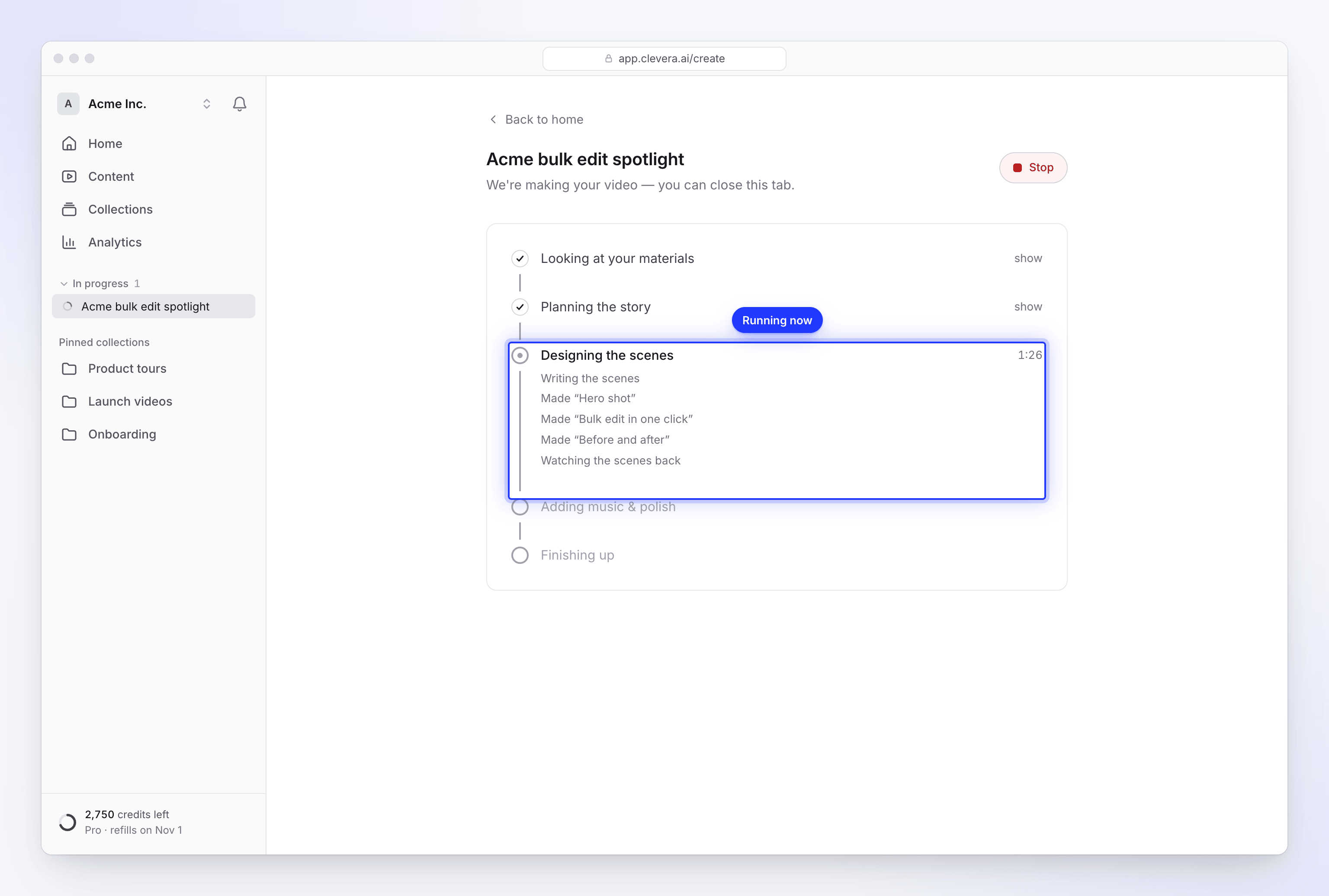
| Videos | Articles | |
|---|---|---|
| 1 | Looking at your materials | Looking at your materials |
| 2 | Planning the story | Writing the article |
| 3 | Designing the scenes | Laying out the article |
| 4 | Adding music & polish | Adding the screenshots |
| 5 | Finishing up | Finishing up |
- The stage that's running shows a clock with how long it has been going. There's no countdown, because each video takes a different amount of work.
- Finished stages fold up with a tick. Click show to read what was said in them, and hide to fold them again.
- A stage that wasn't needed for your video is struck through.
- If nothing new has happened for 90 seconds, the running stage adds "Still working — this part can take a few minutes." That's normal for long recordings and Extra effort clips.
Notes from the AI
Under the running stage, the AI writes short notes about what it's doing, such as "Reading your materials", "Writing the voice-over", "Made “Hero shot”" or "Watching the scenes back". On a video from a recording you'll see lines like "Watching your video", "Writing the narration" and "Recording the voice-over". Your own answers to questions appear in darker text.
Heads-up warnings
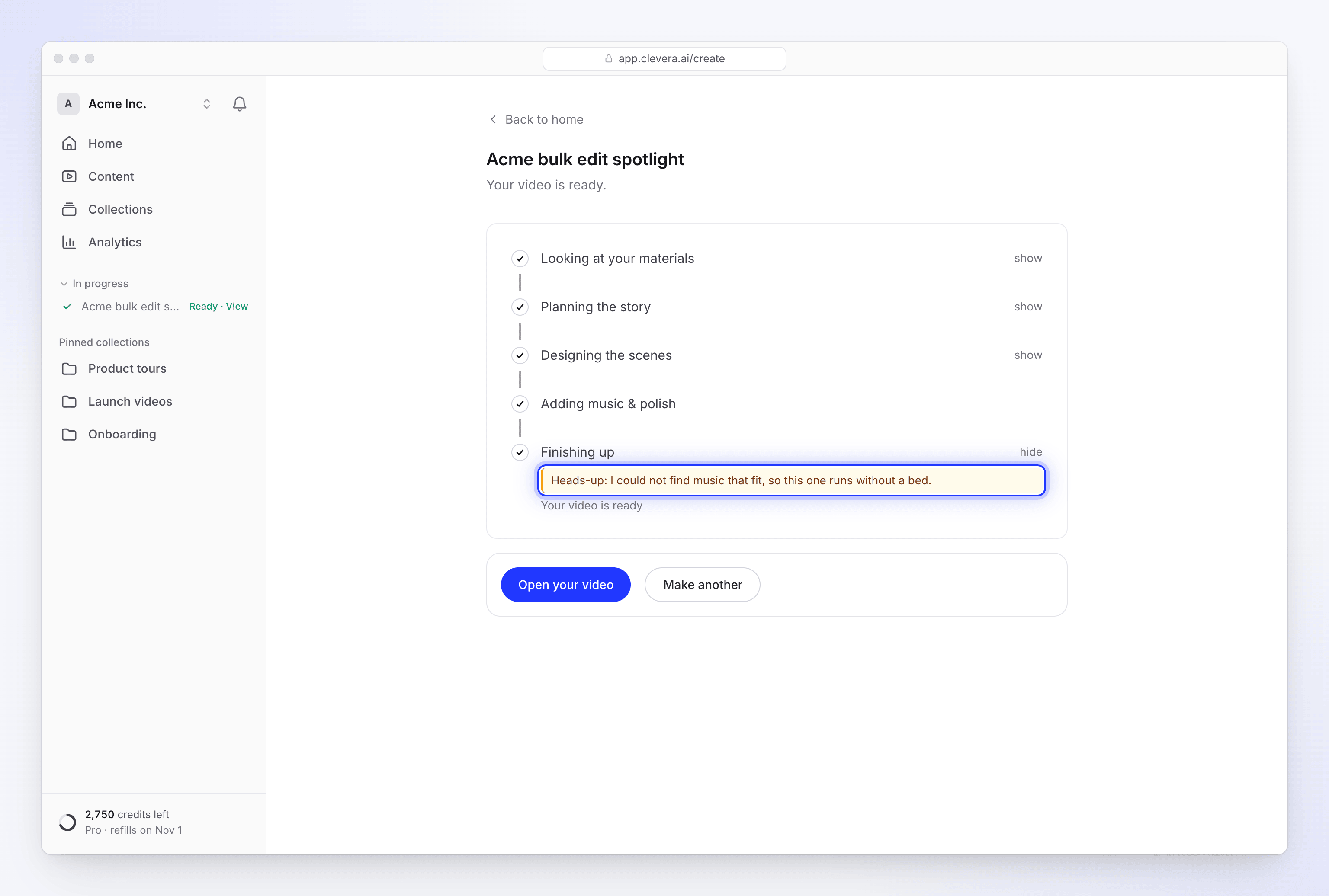
Some notes appear in an amber box starting with Heads-up. The video still finishes, but something didn't go as planned and you may want to check it before you share it:
| Heads-up | What to check |
|---|---|
| "…the voice did not come out at all, so this one is silent." | Change the voice in the editor. |
| "…I left the avatar out of this one." | The avatar couldn't be added, for example because the workspace didn't have enough credits. |
| "…the avatar's voice did not work, so this one is narrated by a built-in voice, without the avatar." | Check the voice-over. |
| "…there was not much on that page, so the video leans on what you wrote." | Check the facts in the video. |
| "…I could not watch your recording closely, so the video uses it as one long take." | Check zooms and cuts in the editor. |
| "…I could not watch the video you attached, so this one was made without seeing it or hearing what is said in it." | Check how the footage is used. |
| "…I could not find music that fit, so this one runs without a bed." | Add music in the editor. |
| "…I couldn't read example.com, so I worked from what you wrote." | Check the facts, or research the site again. |
See My video came out silent, without music or without the avatar.
Live preview (social clips)
For social clips, a preview card above the stages fills up as the AI director finishes each scene: "Scenes appear here as each one passes its check. They may still change before the video is ready." It shows "Scenes ready: 3 of 9" and is titled "The director is reviewing the cut" until the end, when it becomes "The finished cut".
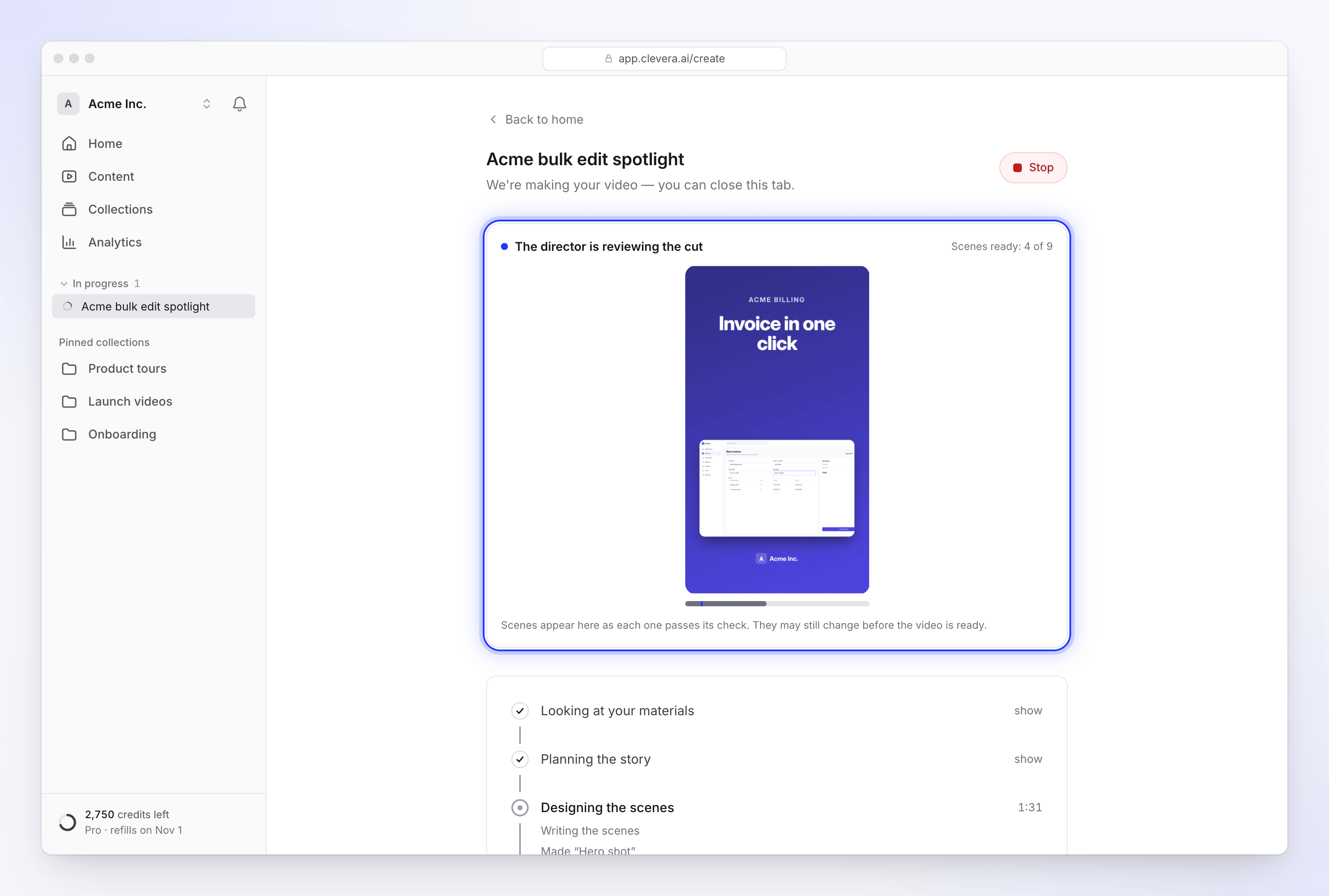
Videos from a recording and articles have no live preview.
Leave and come back
You don't need to keep the page open. Everything happens on our side.
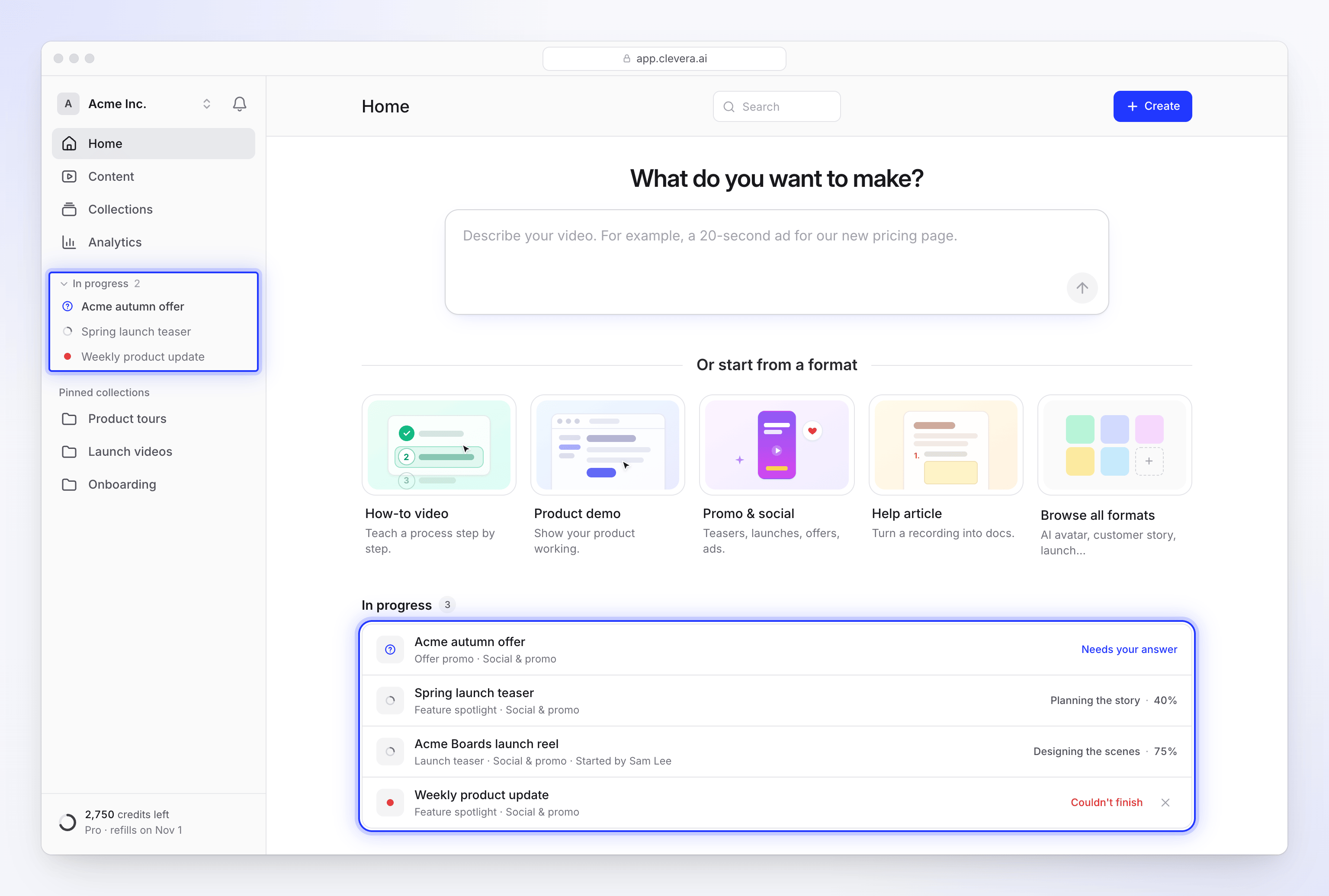
- In progress in the sidebar lists the videos you're making, by name. Click one to reopen its page.
- In progress on Home lists every running video in your workspace with its stage and percent, for example "Planning the story · 40%". Teammates' videos show "Started by Alex Rivera".
- Other statuses on Home's list: Queued, Needs your answer, Couldn't finish and Ready. "Not responding since…" means a run hasn't moved for 30 minutes.
How Clevera gets your attention
When a question opens or the video is ready:
| Signal | When |
|---|---|
| A short chime | Once when a question opens, once when it's ready |
| A dot on the tab's icon | Amber when it needs you, green when it's ready |
| The tab title changes | "● Needs you — Clevera" or "✓ Your video is ready", while the tab is in the background |
| A browser notification | Only if you've already allowed notifications for Clevera in your browser |
| An inbox notification | Always: ":title is ready", ":title couldn't be made" or ":title needs your answer" |
| An email | If the ready or failed notification is still unread after 10 minutes |
On phones, the screen stays awake while the page is open. There's no setting to mute the chime on this page. You can choose which notifications you get in your notification settings (Video ready, Video couldn't be made); Questions for you are always shown, at least quietly.
How long it takes
Most videos take a few minutes. Social clips at Extra effort, long lengths and long recordings take longer. A run with no progress at all for 2 hours is stopped and marked as failed.
When it's done
Click Open your video (or Open your article) to go to the editor, or Make another to start a new one. If the ready notification lists things to check, look at those first.