

Send your desktop app logs to support
Support may ask for your Clevera desktop app logs when a recording fails or the app misbehaves. Open Submit logs on Mac or Windows, see exactly what the logs contain, send them in two clicks, or zip the files yourself if the app won't open.
When something goes wrong in the Clevera desktop app, its logs show our team what happened on your computer. Sending them takes two clicks from the app's menu. This article covers when to send them, exactly what they contain, every way to open Submit logs, and what to do if the app won't open at all.
When to send your logs
Send them when:
- support asks you to,
- a recording failed to start, stopped with an error or didn't upload,
- the app behaves oddly: a window doesn't open, a menu does nothing, the app freezes or quits.
Send them soon after the problem, before you close the app or restart your computer if you can. The app keeps a limited amount of history (see If the app won't open), so the lines about an old problem are eventually replaced by newer ones.
What the logs contain
Logs are a plain-text record of what the app did: recordings starting, pausing and finishing, uploads, requests to Clevera's servers, permission checks, warnings and errors, each with a date and time.
| Included | Not included |
|---|---|
| What the app did and when, with errors and warnings | Your screen, video, audio or camera, or any part of a recording |
| Your app version, your macOS or Windows version and processor type (for example Apple silicon or x64). On a Mac, also the model family, such as "MacBook Pro" | What you type, or which keys you press |
| Your Clevera account email, and IDs of your workspace and recordings | Your password. Sign-in tokens are removed (replaced with [REDACTED]) before the logs leave your computer |
| The name of the app you recorded (Mac) or the title of the window you picked (Windows) | Your serial number or Apple ID |
| File paths on your computer, which can include your user name | Anything from other apps beyond their name or window title |
Open Submit logs
You can open Submit logs in two places:
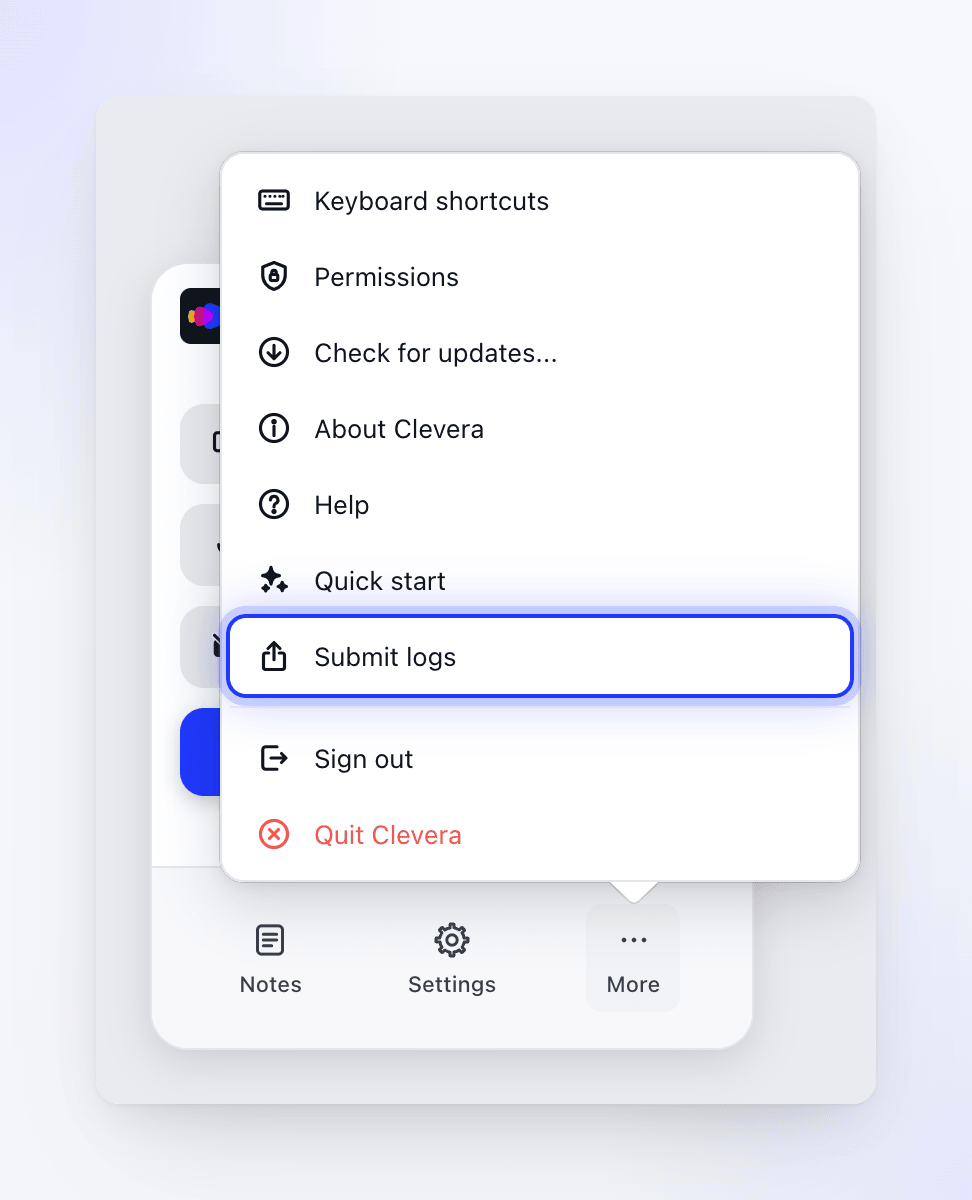
From the recording window
Click More at the bottom of the recording window, then Submit logs.
Or from the Clevera menu
When Clevera is the active app, click Clevera in the menu bar at the top of the screen and choose Submit logs. This works even when you're signed out.
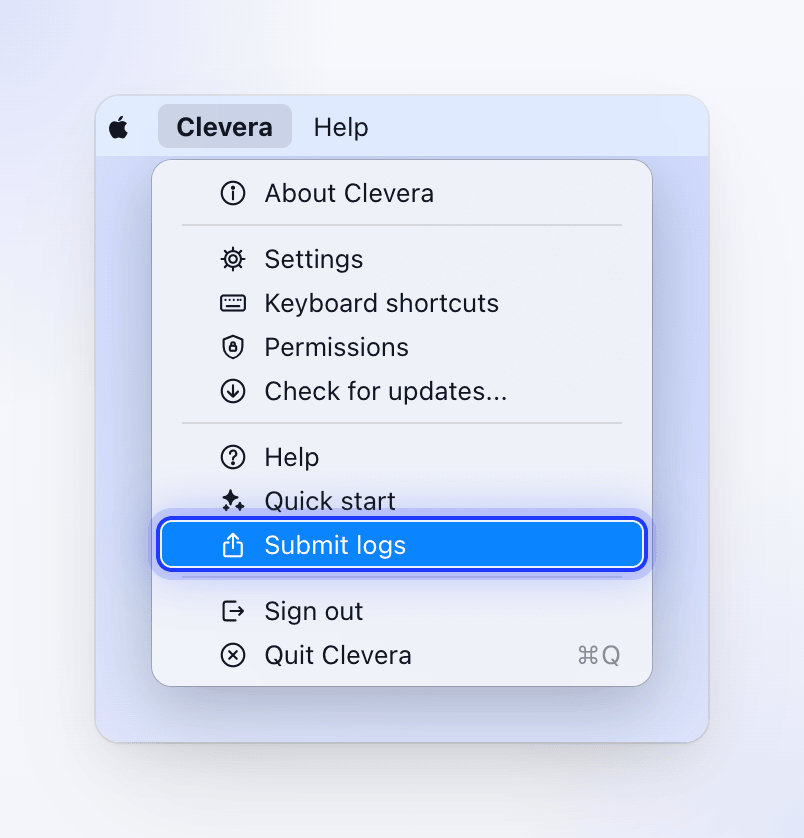
Click the Clevera icon in the Dock first if another app is in front.
The menu that opens from the Clevera icon on the right of the menu bar doesn't have Submit logs, and error alerts don't open it either: use one of the two places above.
You can open Submit logs in two places:
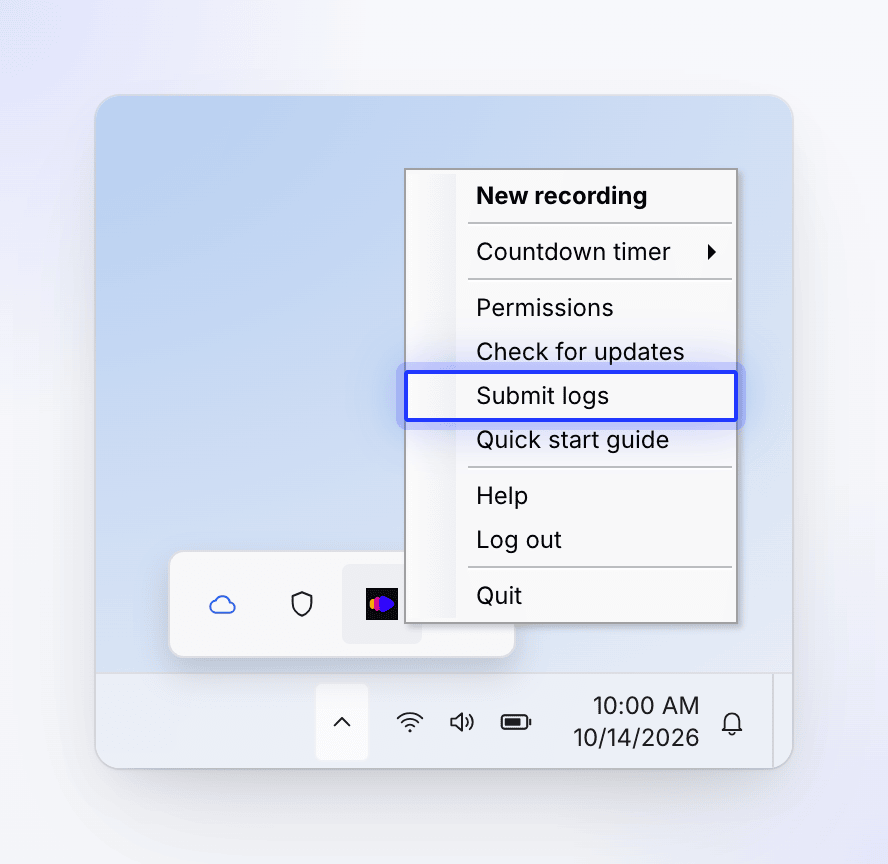
From the tray icon
Right-click the Clevera icon in the notification area (click ^ to see hidden icons) and choose Submit logs. This works while you're signed out too.
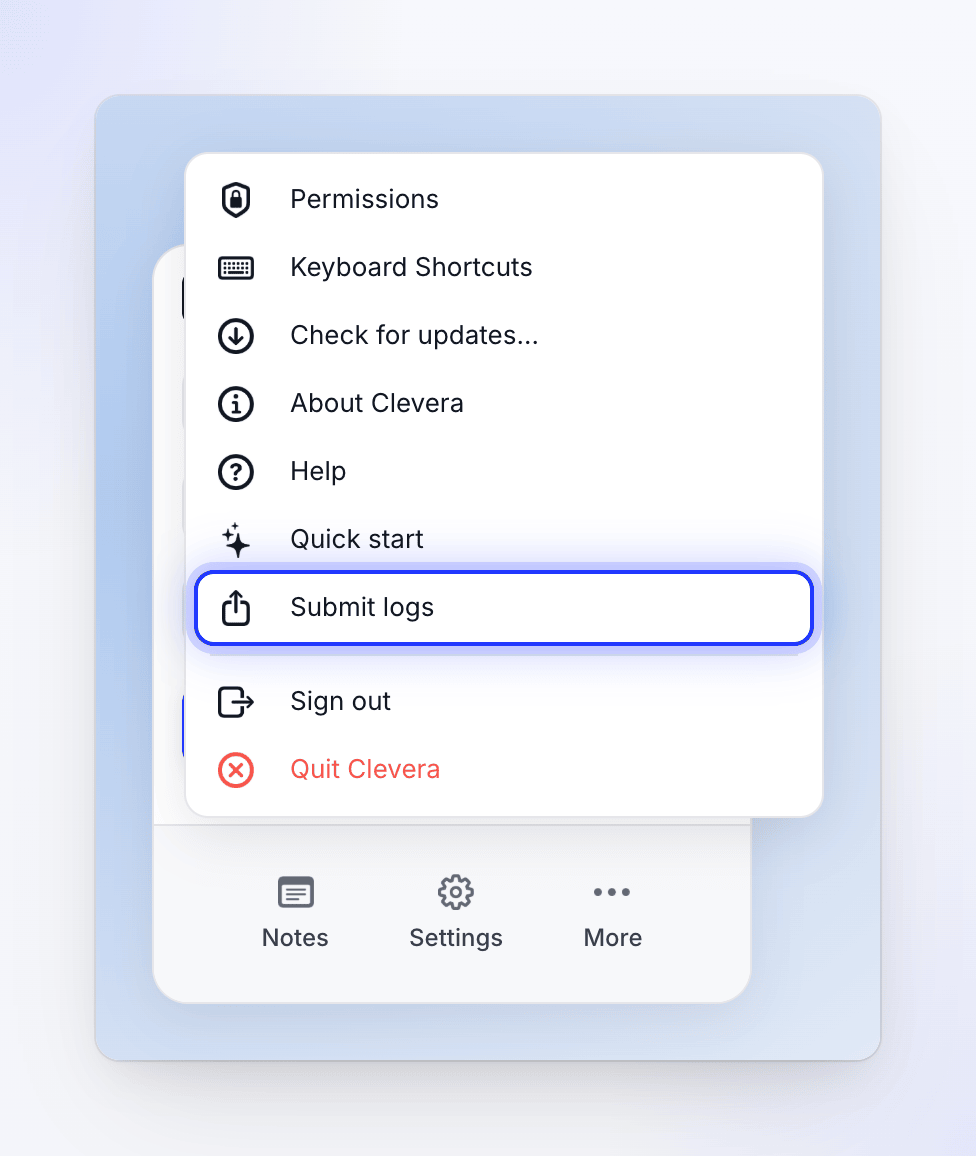
Or from the recording window
Click More at the bottom of the recording window, then Submit logs.
When an upload fails, the Upload Failed window ends with "No diagnostic logs were sent automatically. If you want to share logs with Clevera Support, open Settings > Submit Logs and then send them." There's no Submit Logs in Settings: use the tray icon or More → Submit logs, and keep the upload window open while you do.
Send your logs
Read what's sent
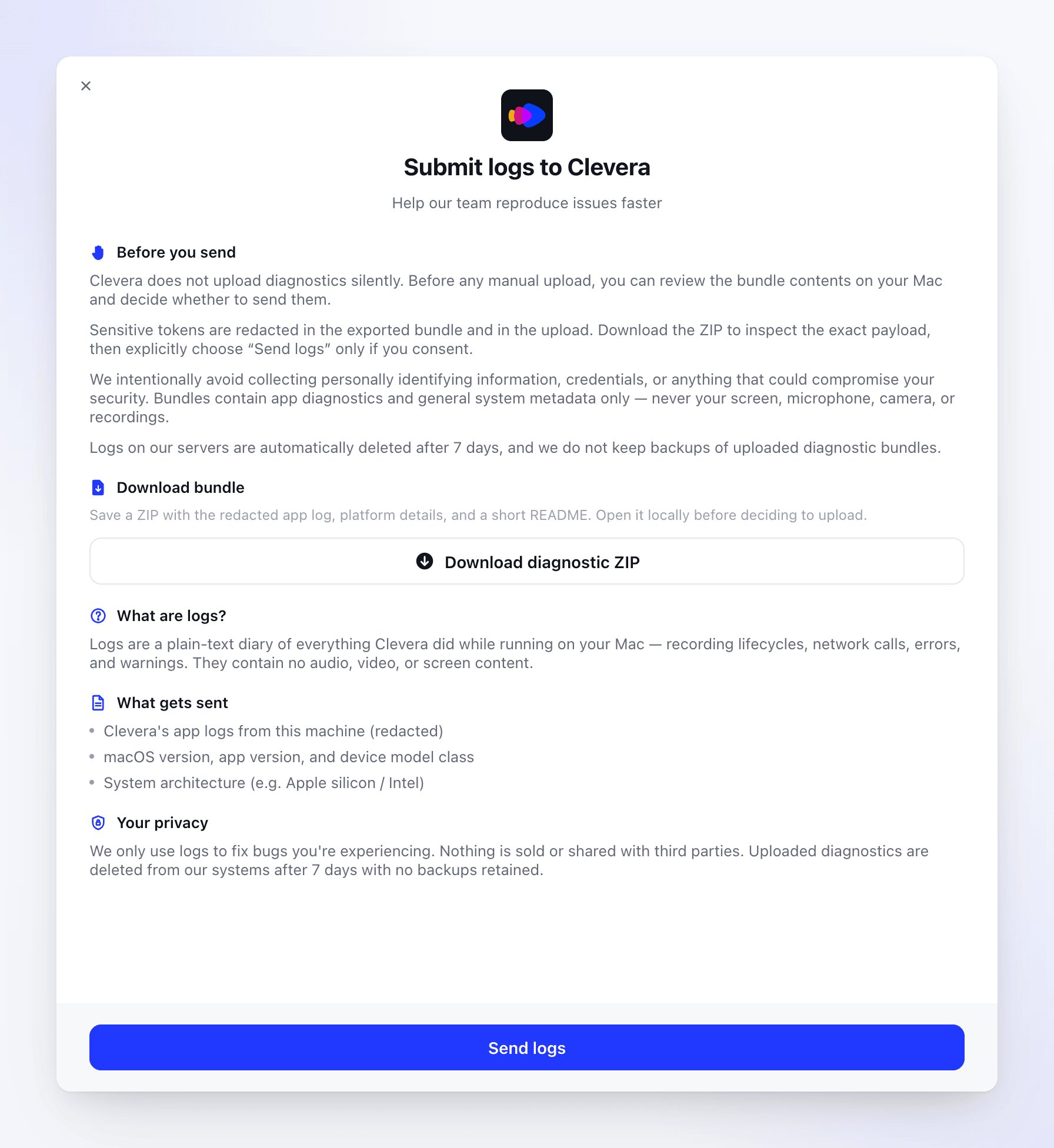
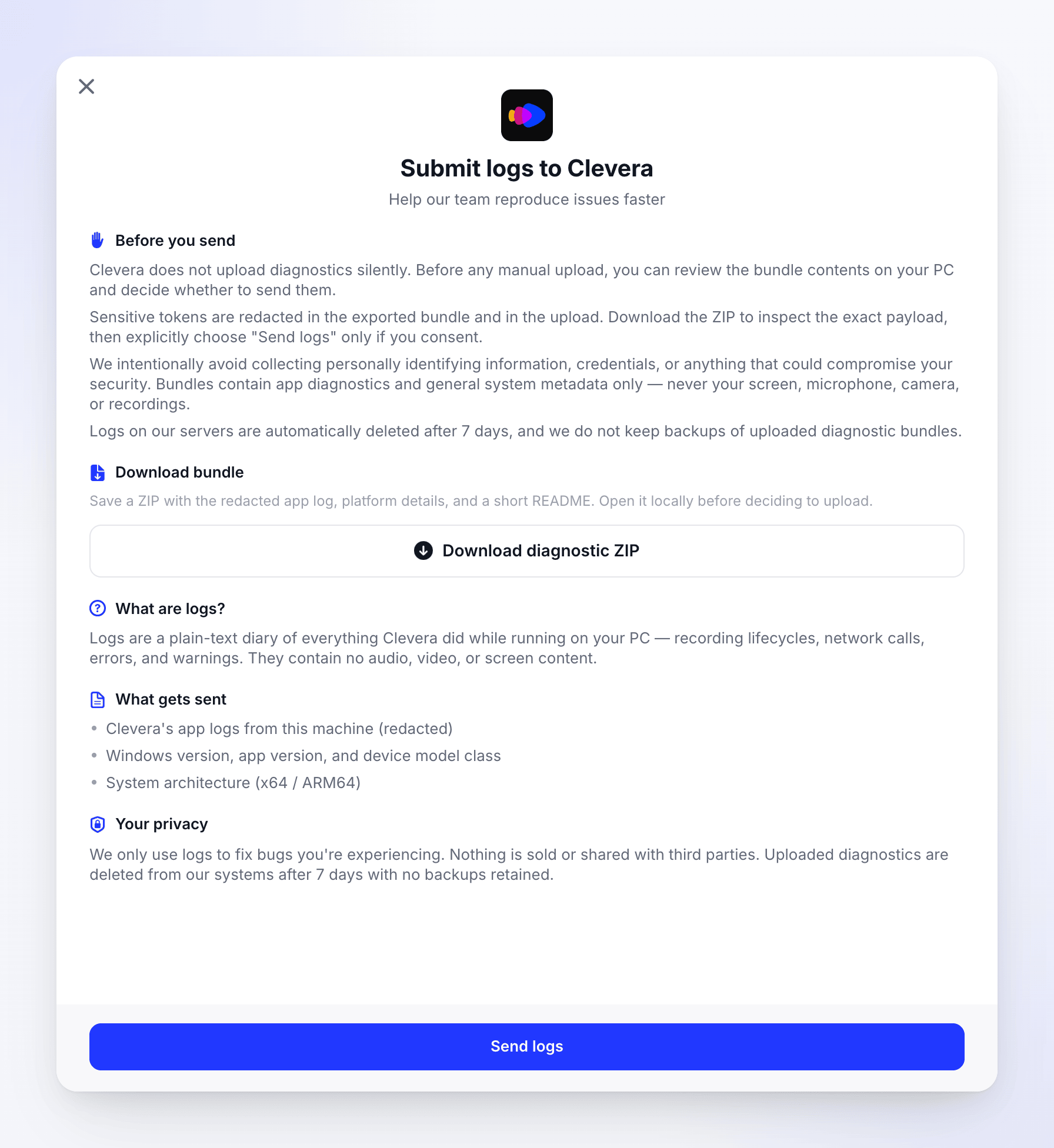
The window Submit logs to Clevera ("Help our team reproduce issues faster") explains what's in the bundle under Before you send, What are logs?, What gets sent and Your privacy. There's nothing to fill in.
Optional: download the ZIP
Click Download diagnostic ZIP and choose where to save it. Open it to see exactly what would be sent. See What's in the ZIP.
Click Send logs
The button reads Sending… while it works. When it's done you see "Logs sent. Our team will take it from here." and the button changes to Send again.
Tell support
Write to support in the chat and say you've sent your logs, with the details in What to tell support. The logs reach us linked to your account, so you don't need to send a file name or ID.
You need to be signed in to send logs. If you aren't, you see "Please sign in before sending logs." You can still download the ZIP while signed out.
Nothing is sent from this window until you click Send logs.
What's in the ZIP
| macOS | Windows | |
|---|---|---|
| File name | Clevera-diagnostics-2026-10-14-1030.zip (date and time) |
clevera-logs-20261014-083000.zip (date and time in UTC) |
| Logs | app.log: the app's log |
clevera-20261014.log and the other daily files, up to the last 7 days |
| System details | platform_details.json: app version and build, macOS version, processor type, Mac model family |
system-info.json: app version and build, Windows version, processor type |
| Also | README.txt, which explains the files |
— |
Sign-in tokens are removed from the logs in both the ZIP and what Send logs sends. On Windows, after saving, the window shows "Saved to …" and File Explorer opens with the ZIP selected.
Where your logs go
Send logs uploads the bundle to Clevera's servers, linked to your account and to the workspace you're currently in. It's kept privately: only Clevera's support and engineering team can open it. Other members of your workspace can't see it, and it doesn't appear in your recordings or anywhere else in the app.
We use logs only to find and fix the problem you're having. Uploaded logs, and the short failure logs described below, are deleted automatically after 7 days.
If sending fails
| Message | What to do |
|---|---|
| "Please sign in before sending logs." | Sign in to the app and click Send logs again. Or download the ZIP and send it by email (below). |
| "Team information is missing. Sign in again and retry." (Windows) | Sign out, sign in again and retry. |
| "No log file was found yet. Use Clevera for a moment, then try again." (Mac) or "No log files were found on this device." (Windows) | The app hasn't written any logs yet, for example right after installing. Use the app for a moment, then try again. |
| "Please wait before uploading another log file." | You sent logs many times in a few minutes (the limit is 10 in 5 minutes). Wait a few minutes. |
| A network error | Check your connection and try again, or email the ZIP. |
If Send logs keeps failing, click Download diagnostic ZIP and email the file to [email protected]. The support chat only accepts images, so a ZIP can't be attached there. Mention in the chat that you've emailed it.
If the app won't open
If Clevera won't start, or quits before you can open Submit logs, send the log files yourself.
The log is a single file:
~/Library/Application Support/com.clevera.ai.recorder/dev/app.log
It keeps the most recent activity: when it grows past 5 MB, the oldest lines are removed.
Open the folder
In Finder, choose Go → Go to Folder… (⌘ ⇧ G), paste
~/Library/Application Support/com.clevera.ai.recorder/devand press Return.Compress it
Right-click
app.logand choose Compress "app.log". Finder createsapp.log.zipnext to it.Email it
Email
app.log.zipto [email protected] with the details below.
The logs are one file per day, named like clevera-20261014.log. Clevera keeps the last 7 and deletes older ones.
%LOCALAPPDATA%\Clevera\logs
Open the folder
Press Windows key + R, paste
%LOCALAPPDATA%\Clevera\logsand press Enter.Compress the files
Select all the
.logfiles (Ctrl A), right-click and choose Compress to ZIP file (on Windows 10: Send to → Compressed (zipped) folder).Email it
Email the ZIP to [email protected] with the details below.
What to tell support
Logs are long, so a few details help us find the right lines quickly:
- When it happened: the date and roughly the time, with your time zone.
- What you were doing: recording a full screen, a window or an area, which app or website, how long the recording was, and whether the microphone or camera was on.
- The exact message you saw, word for word, or a screenshot. On a Mac, click Copy Details in the alert if it has one and paste the text.
- Mac or Windows, and whether it happens every time.
See Contact support for where to find the chat.