

Publish articles to GitBook
Connect GitBook with a personal access key and publish Clevera articles as pages in your GitBook spaces. Where to create the key, picking sites, how hints and embeds convert, how Replace overwrites the page, and every error.
Publish a Clevera article as a page in a GitBook space. GitBook connects with a personal access key instead of a sign-in, and the page appears at the top level of the space you pick.
Before you start
- In Clevera: the workspace is on the Pro or Custom plan, and you are an owner or admin to connect GitBook. Anyone in the workspace can publish once it's connected. See Publish articles to your other tools.
- In GitBook: any plan. The key acts as the GitBook user who created it, so that person needs edit access to the spaces you publish to.
- An article: generate it first. Publishing sends the article; a video is only carried as an embed inside it.
Create a GitBook access key
- In GitBook, open your account settings and go to Developer (
app.gitbook.com/account/developer). - Create a new personal access token, give it a name such as "Clevera", and copy it. GitBook shows it only once.
Connect GitBook
Open the connect window
In Clevera, click your workspace name in the sidebar, choose Integrations, find GitBook and click Connect. The Connect GitBook window says "Paste a key. We check it before saving anything." and has an Open GitBook link to the Developer page.
Paste and check the key
Paste the key into Access key and click Check key. When GitBook accepts it you see "Key accepted."
Choose the sites
Under Sites to publish to, Clevera lists your docs sites (or spaces) and selects all of them. Open the list to untick any you don't want, for example "2 of 3 selected", then click Connect. You see "GitBook connected.".
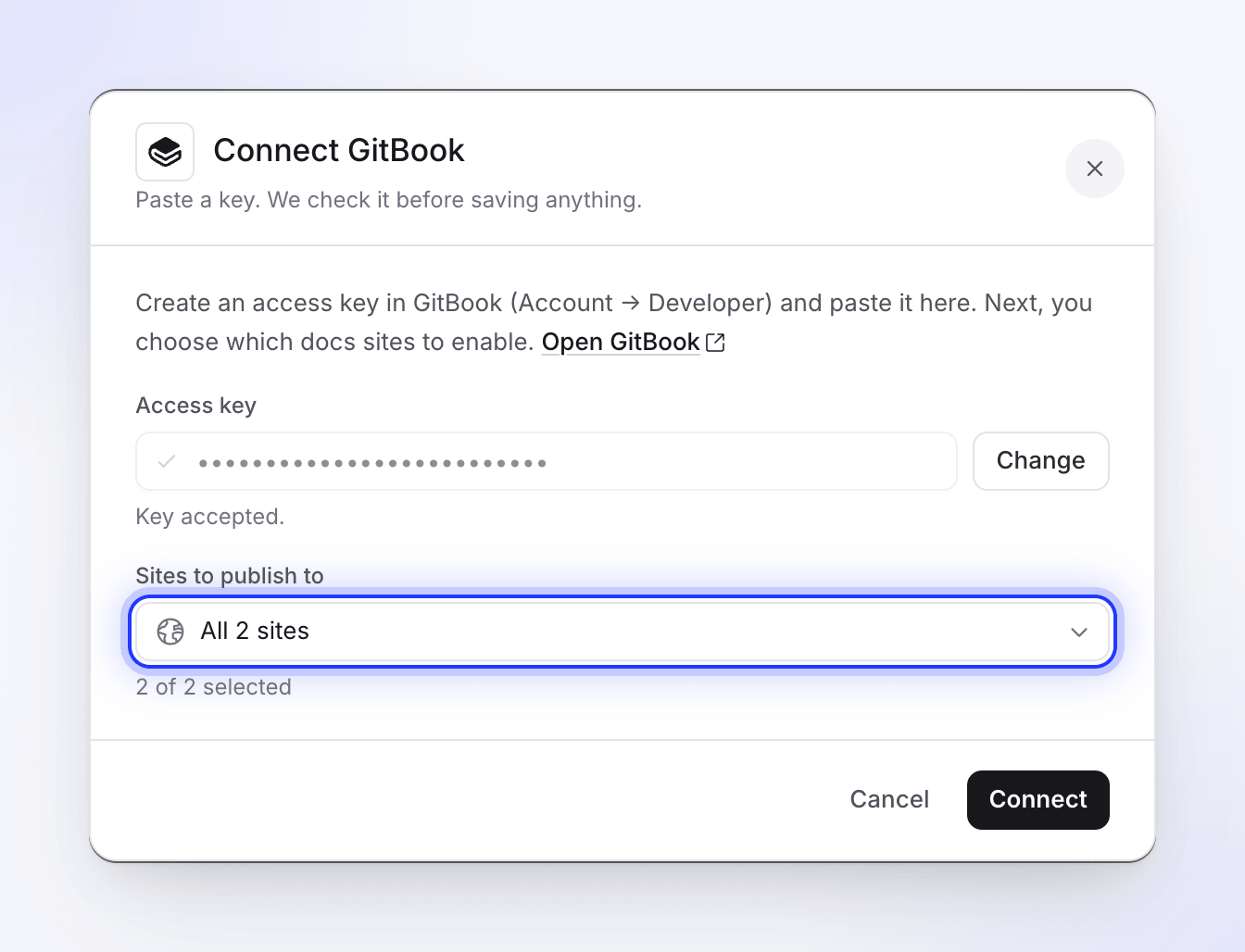
Clevera checks the key before it saves anything.
If your GitBook account has no spaces at all, Clevera creates one named "Clevera" in your first organization so you can publish straight away.
The key doesn't expire on Clevera's side. To change the key or the sites, open the ⋯ menu on the GitBook connection, choose Reconnect and go through the same window; the new key and choice replace the old ones.
Publish an article to GitBook
Open the Publish tab
In the editor, click Share → Publish and click Publish next to GitBook.
Choose a space
The list shows the spaces behind the sites you chose, with their icons.
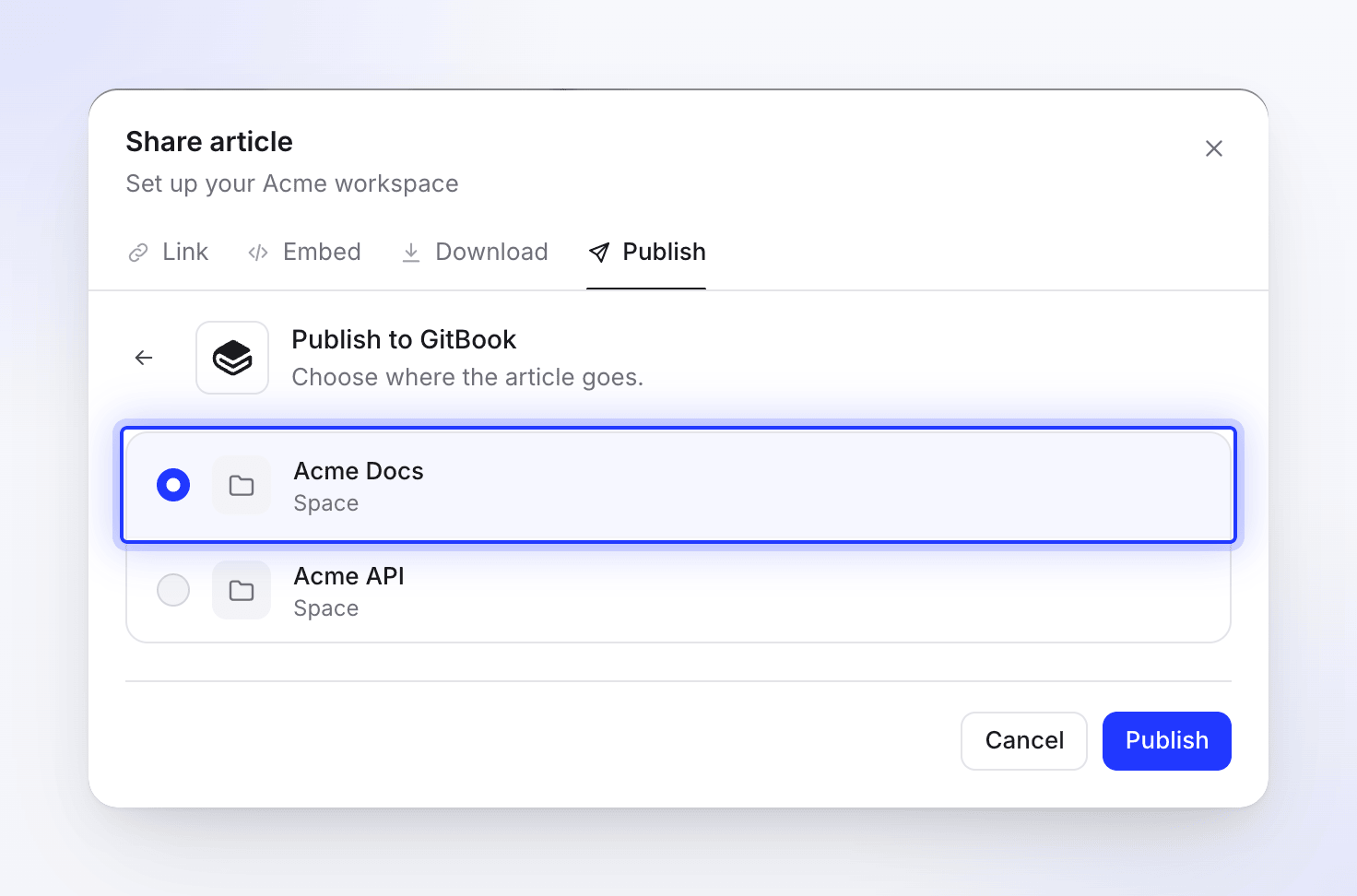
Publish
Click Publish. If a page with the same title already exists in the space, choose what to do (see Update a page you published). The page opens in a new tab and you see "Published to GitBook."
The page is added at the top level of the space, and its address comes from the title: "Set up billing" becomes /set-up-billing. Letters outside a–z are dropped from the address, so a title written entirely in another script gets the address /untitled. Move or rename the page in GitBook afterwards if you like.
What the page looks like in GitBook
The page title is the article's title. If the video's link is shared (Share → Link → General access set to Anyone with the link), the page starts with an embed block that plays it.
| In Clevera | In GitBook |
|---|---|
| Headings, paragraphs | Headings and text |
| Bold, italic, strikethrough, inline code, links | Kept |
| Bulleted and numbered lists, checklists | Lists and task lists |
| Quotes | Quotes |
| Code blocks | Code blocks with the language set |
| Dividers | Dividers |
| Tables | Tables with the text of each cell |
| Callouts | Hint blocks: info → Info, note → Info, tip → Success, success → Success, warning → Warning, danger → Danger |
| Numbered steps | A paragraph that starts with bold "Step 1:" |
| Collapsible sections | Expandable blocks |
| Screenshots | Images, linked from a copy Clevera hosts |
| A YouTube or Clevera video inside the article | An embed block |
Screenshot links stay valid for about a year. Publish again to renew them, or replace them with uploaded images in GitBook.
Update a page you published
Publishing only goes one way. The GitBook page doesn't update when you edit the article in Clevera, and edits made in GitBook never come back to Clevera. After you edit the article, publish it again to the same space. Clevera looks for a page with the same title (capitalization doesn't matter) or the same address and asks "An article with this title already exists in GitBook."
- Replace the existing article overwrites that page's content and title. The address stays the same. Changes made in GitBook since are overwritten; GitBook's history lets you get them back.
- Publish as a new article adds a second page under the title you enter (Clevera suggests one such as "Set up billing (2)"), with its own address.
Disconnect and revoke access
- In Clevera, open Integrations, click GitBook, then Disconnect and confirm. Pages you already published stay in GitBook.
- In GitBook, delete the access key on the Developer page so it can't be used again.
Troubleshooting
| You see | What to do |
|---|---|
| "Paste a key first." | The key field is empty. |
| "Invalid GitBook access key. Please check and try again." | The key is wrong or was deleted. Create a new one and paste it. |
| "Failed to validate GitBook access key." or "We could not check that key. Try again." | GitBook didn't answer. Try again in a moment. |
| "Pick at least one site." | Tick at least one site before Connect. |
| "No GitBook spaces or docs sites found, and we could not create one automatically. Please create a space in GitBook and try again." | Create a space in GitBook, then connect again. |
| "Failed to connect to GitBook. Please check your access key." | Check the key and connect again. |
| "Please select a space to publish to." | Pick a space first. |
| A space is missing from the list | It isn't part of the sites you chose, or the key's user can't see it. Reconnect and pick the site. |
| "Failed to create page in GitBook." | The key's user can't edit that space, or the space only accepts changes through review. Check access in GitBook. |
| "Access key not found. Please reconnect GitBook." | Reconnect GitBook with a key. |
| "Article content is empty or invalid." | The article has no content yet. Open it, check it, then publish. |
| "Failed to update page in GitBook." | The page you tried to replace was moved or deleted. Publish as a new article. |
| "Failed to publish to GitBook. Please try again." | Try again. If it keeps failing, reconnect with a fresh key. |