

Delete and restore videos and articles
Deleted videos, clips and articles stay in the trash for 7 days. Learn where to delete from, what happens to share links and embeds, how to restore an item, delete it forever or empty the trash, and who can do each.
Deleting a video, clip or article moves it to the trash, where it stays for 7 days before it's deleted for good. Until then you can restore it with its share links, collection and folder intact.
Move an item to the trash
You can delete from several places. Each one moves the item to the trash; none deletes it for good.
| Where | How | Asks first? |
|---|---|---|
| Content page, one item | ⋯ → Move to trash, or focus it and press Delete | No. Click Undo in the bar at the bottom to take it back. |
| Content page, a selection | Delete in the bulk bar | Yes: "Move 3 items to trash?" → Move to trash |
| Home, recent list | ⋯ → Delete | Yes: "Delete content" → Delete |
| Editor | ⋯ in the top bar → Move to trash | Yes: "Move to trash" → Move to trash. You land on Home afterwards. |
See Move, share or delete several items at once for selecting many items.
What happens right away
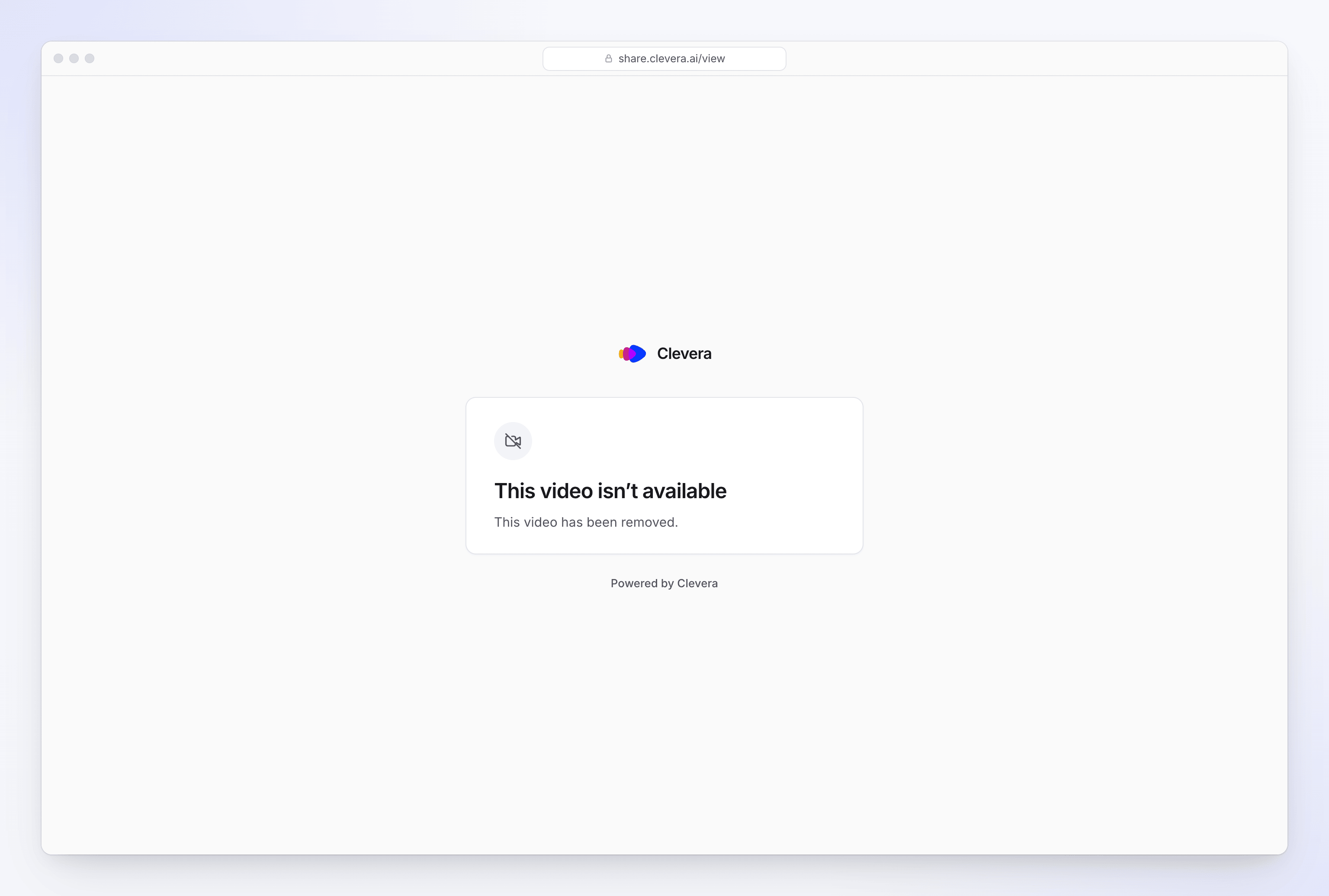
- Share links and embeds stop working. Anyone who opens the link or an embed sees "This video isn’t available" and "This video has been removed." (or the same for an article).
- A social clip that's still being made stops first. The AI doesn't keep working on something in the trash. See Stop, retry or clear a generation.
- The item leaves your lists and search and shows only in the Trash tab.
- Credits already used aren't returned. Deleting an item doesn't refund what it cost to make.
Find it in the trash
On the Content page, click the Trash tab. The line above the list reads "Items in the trash are deleted forever after 7 days."
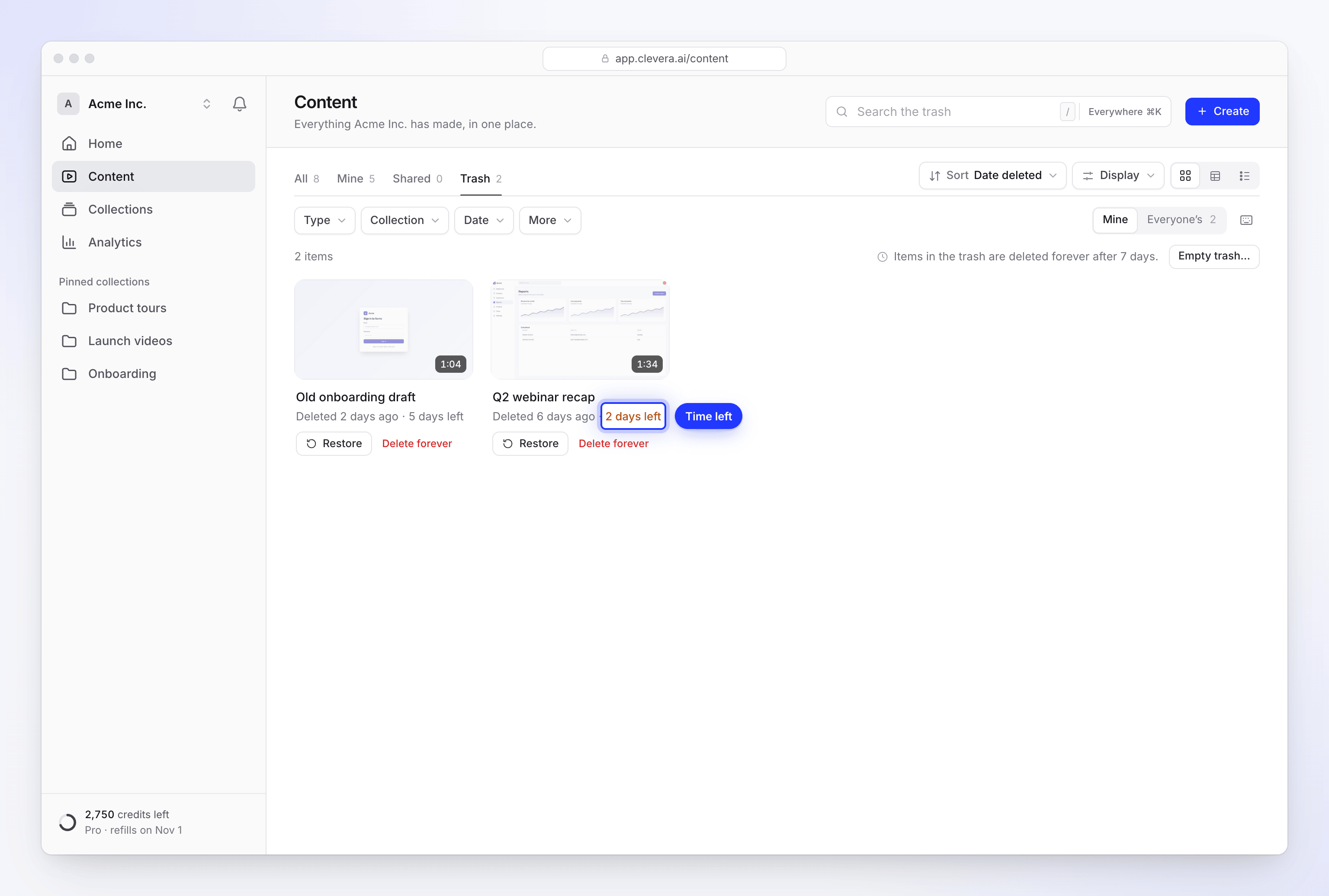
Each card shows:
| On the card | Meaning |
|---|---|
| "Deleted 2 days ago" | When it went to the trash. Hover for the exact time. |
| "5 days left" | Time before it's deleted for good. Under a day it counts hours ("18 h left"). Hover for the exact date. |
| "Deleting soon" | Its 7 days are up. It's removed at the next cleanup, within a few hours. |
The countdown turns amber when fewer than 2 days are left. Trashed items can't be opened; restore one first to look at it.
You can search the trash, filter it, and sort by Date deleted (the default), as in Find, filter and sort your content.
Whose trash
Everyone sees the items they made in their own trash. If a teammate deletes something you made, it goes to your trash, not theirs.
Workspace owners and Administrators get a Mine / Everyone’s switch in the Trash tab. Everyone’s shows every deleted item in the workspace, with its count.
Restore an item
Open the Trash tab
Go to Content → Trash.
Restore it
Click Restore on the card, or ⋯ → Restore. To restore several, select them and click Restore in the bulk bar.
A restored item goes back where it was, in the same collection and folder. Its share link and embeds work again with the same address and settings, so you don't need to share it again.
Delete forever
Click Delete forever on a card, in its ⋯ menu, or in the bulk bar after selecting several. Clevera asks first: "Delete forever?" with "This item will be deleted for good. This can’t be undone." Click Delete forever.
Deleting forever removes the item and its files. Its share link and embeds then show "Check the link, or ask the person who shared it for a new one."
Empty the trash
Click Empty trash… above the list. It deletes what the list is showing right now:
| The list is… | You're asked | Then |
|---|---|---|
| Not searched or filtered | "Empty the trash?" with "12 items are deleted for good. This can’t be undone." | Click Empty trash |
| Narrowed by a search or filters | "Delete 3 matching items forever?" with "The 3 items in the trash that match your search and filters are deleted for good. Everything else stays in the trash. This can’t be undone." | Click Delete forever |
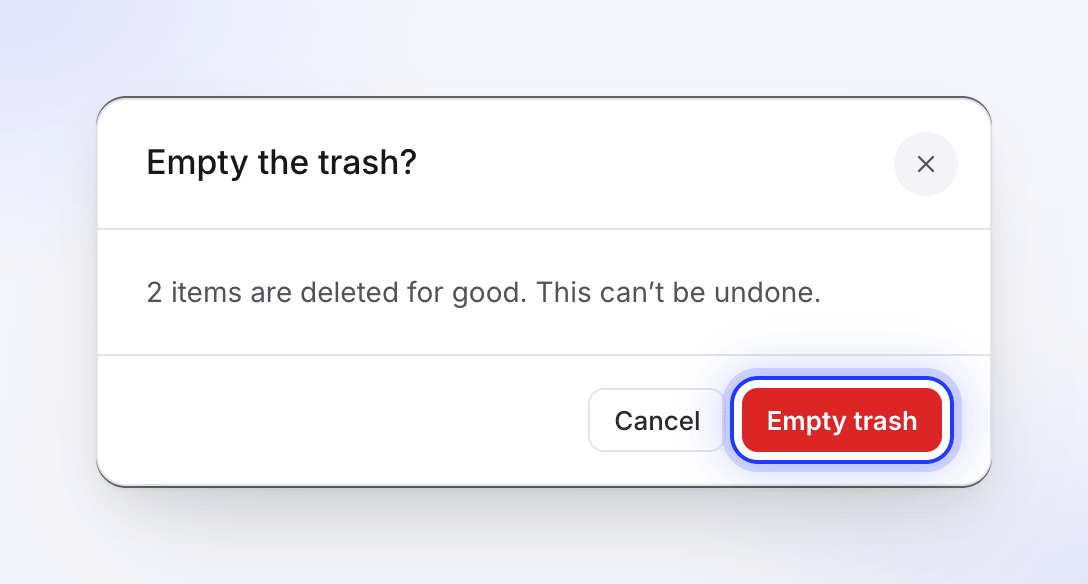
- It works on the view you're on (Mine, or Everyone’s for owners and Administrators). To empty everything, clear the search and filters first.
- Items you aren't allowed to delete are skipped.
- One go deletes at most 500 items. With more, click Empty trash… again.
Who can delete and restore
| Role | Can restore and delete forever |
|---|---|
| Workspace owner | Any item in the workspace |
| Administrator | Items they made, and items in any collection |
| Content Creator | Items they made (their own trash) |
| Editor | Nothing: Editors can't delete |
Moving to the trash follows the same rights, plus items in a collection where you have full access. See Who can do what.
Recordings
Recordings don't go to the trash, and you can't delete one yourself. Deleting a video, clip or article never deletes its recording straight away. Once no video outside the trash uses a recording, Clevera deletes it automatically 15 days after its last use, for example 15 days after the last video that used it went to the trash. That's longer than the trash keeps the video, so a video you restore still has its recording. See Find and reuse your recordings.
Troubleshooting
| Problem | What to do |
|---|---|
| An item is missing from the trash | It was deleted more than 7 days ago, or deleted forever. Owners and Administrators can check Everyone’s. |
| A teammate deleted my video and I can't find it | Look in your own Trash tab: items go to their creator's trash. |
| "2 not allowed" after Restore or Delete forever | Your role or the collection's access doesn't let you change those items. Ask an owner or Administrator. |
| Empty trash… left some items behind | A search or filter was on, so only the matching items were deleted. Clear them and click Empty trash… again. |
| A viewer says the link shows "This video has been removed." | The video is in the trash. Restore it and the same link works again. |