

Pick a video type in the Create gallery
Use the Create gallery to choose exactly what kind of video to make: browse the five families, preview each type, start from scratch with your own brief, and see why a card is locked.
The Create gallery is where you choose what kind of video to make. Every card is one exact type (a Product walkthrough, a Hook reel, an SOP), so one click decides the type and opens the page where you write the brief.
Open the gallery
There are three ways in:
- Click Create in the header of Home or any other page.
- On Home, click Browse all formats under the prompt box, or one of the four format cards there (How-to video, Product demo, Promo & social, Help article).
- Open a recording in your library and choose to make something from it. The gallery then reads What do you want to make from this recording? and pins the recording at the top.
Pick a type
Choose a family
The families sit in a row of tabs above the cards. When the page is wide enough, they move into a Video types list on the left instead. Each tab shows how many types it holds.
- All types shows every family, one section after another.
- Suggested appears first when you came from the Home box and it found a few types that could fit. Its section is called Suggested for you.
You can also move between tabs with the arrow keys.
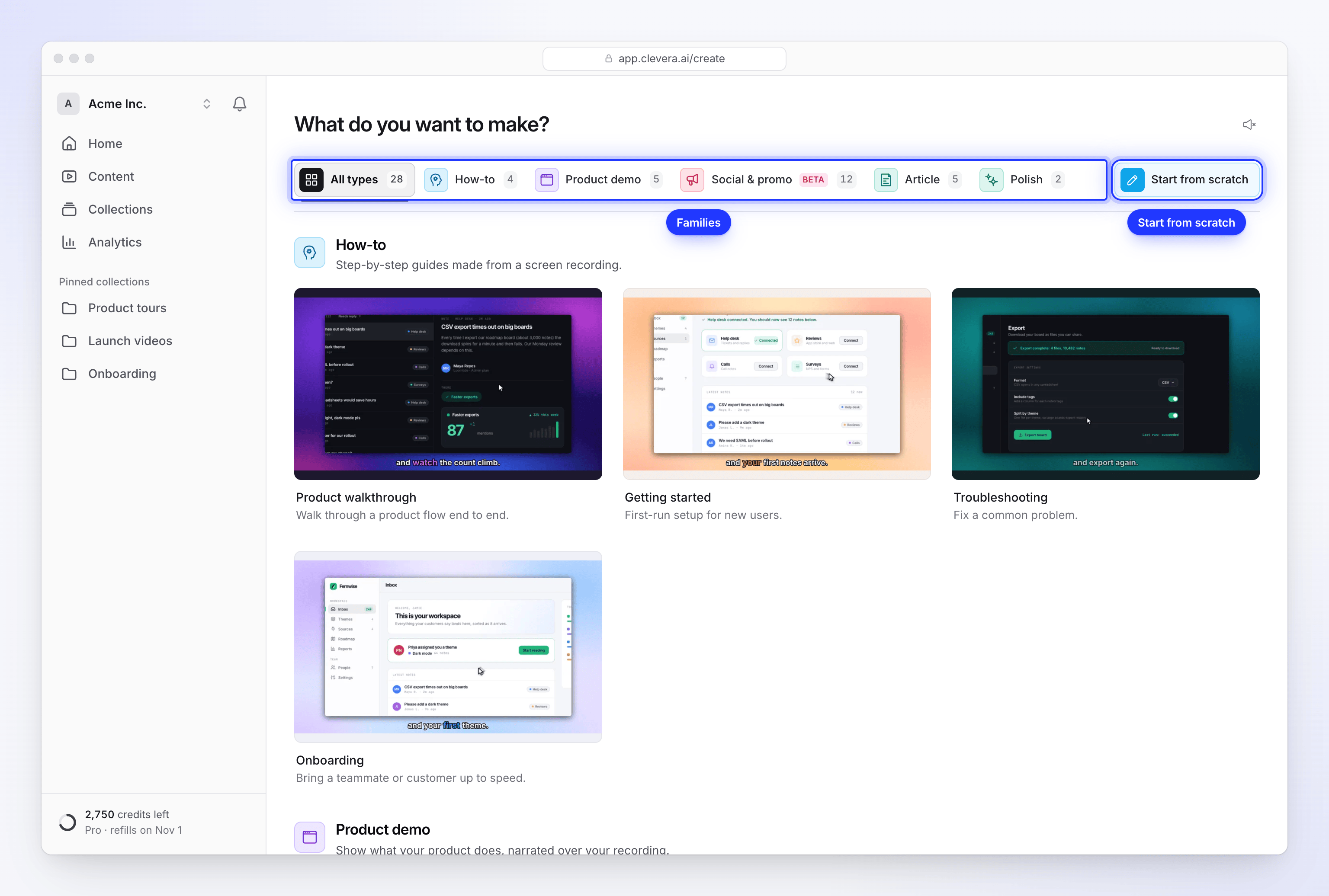
Pick a family, or start from scratch with your own brief. Preview the cards
Hover over a card (or move to it with the keyboard) to play a short, muted sample of that type. To hear the samples, click the speaker button in the top-right corner of the page (Preview sound off / Preview sound on). Clevera remembers the choice.
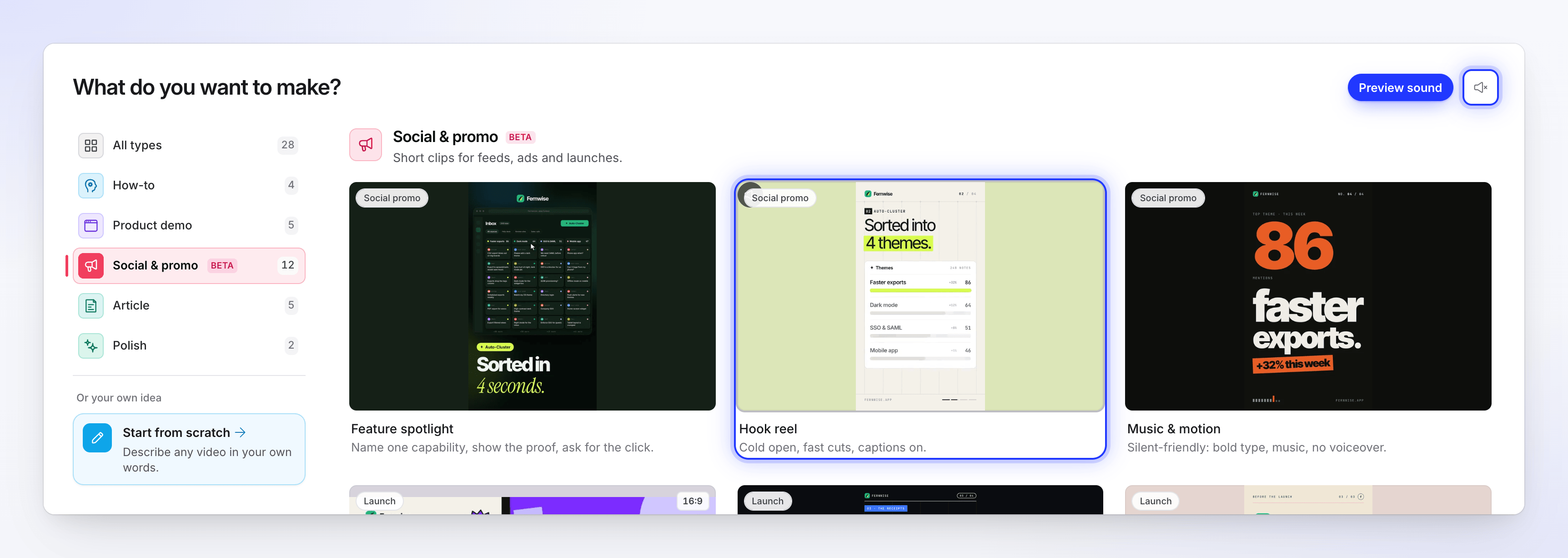
Hover a card to play its sample. The speaker button turns preview sound on. Click a card
The card opens the Compose page for that type, where you write the brief, add materials and set the options. If you typed something on Home first, it comes with you: the gallery shows "Pick a format — your brief comes with you." above the cards.
The families and their types
| Family | What it's for | Types (cards) |
|---|---|---|
| How-to | Step-by-step guides made from a screen recording. | Product walkthrough, Getting started, Troubleshooting, Onboarding |
| Product demo | Show what your product does, narrated over your recording. | Product overview, New feature, Product launch, New version, Sales pitch |
| Social & promo (Beta) | Short clips for feeds, ads and launches. | Feature spotlight, Hook reel, Music & motion, Feature announcement, Launch teaser, Mystery teaser, Product tour, AI avatar, Customer story, Offer promo, Event promo, Brand film |
| Article | Written guides and posts made from a recording. | How-to article, Troubleshooting, SOP, Blog post, Product update |
| Polish | Tidy up a recording without changing what it says. | Clean-up, Styled for sharing |
In the Social & promo family, a small label above each card's name says which group it belongs to (for example Launch or Testimonial). A card whose shape differs from its family's usual one shows a badge, such as 16:9 on Feature announcement or 1:1 on Event promo.
For what each type makes, its default format and what it needs from you, see Choose the right video type.
Start from scratch
If none of the types fit, click Start from scratch ("Describe any video in your own words."). It sits at the right end of the tab row, or under Or your own idea at the bottom of the side list. It opens a free-form brief that the AI turns into a social clip, vertical (9:16) and about a minute long by default. You can change both before you generate.
Because there is no type behind it, the brief carries the whole idea: it needs at least 40 characters, and at least 100 if you attach nothing. See Write a brief that gets a good video.
Make something from a recording
When you open the gallery from a recording, the recording sits in a strip at the top with its length and a Watch button.
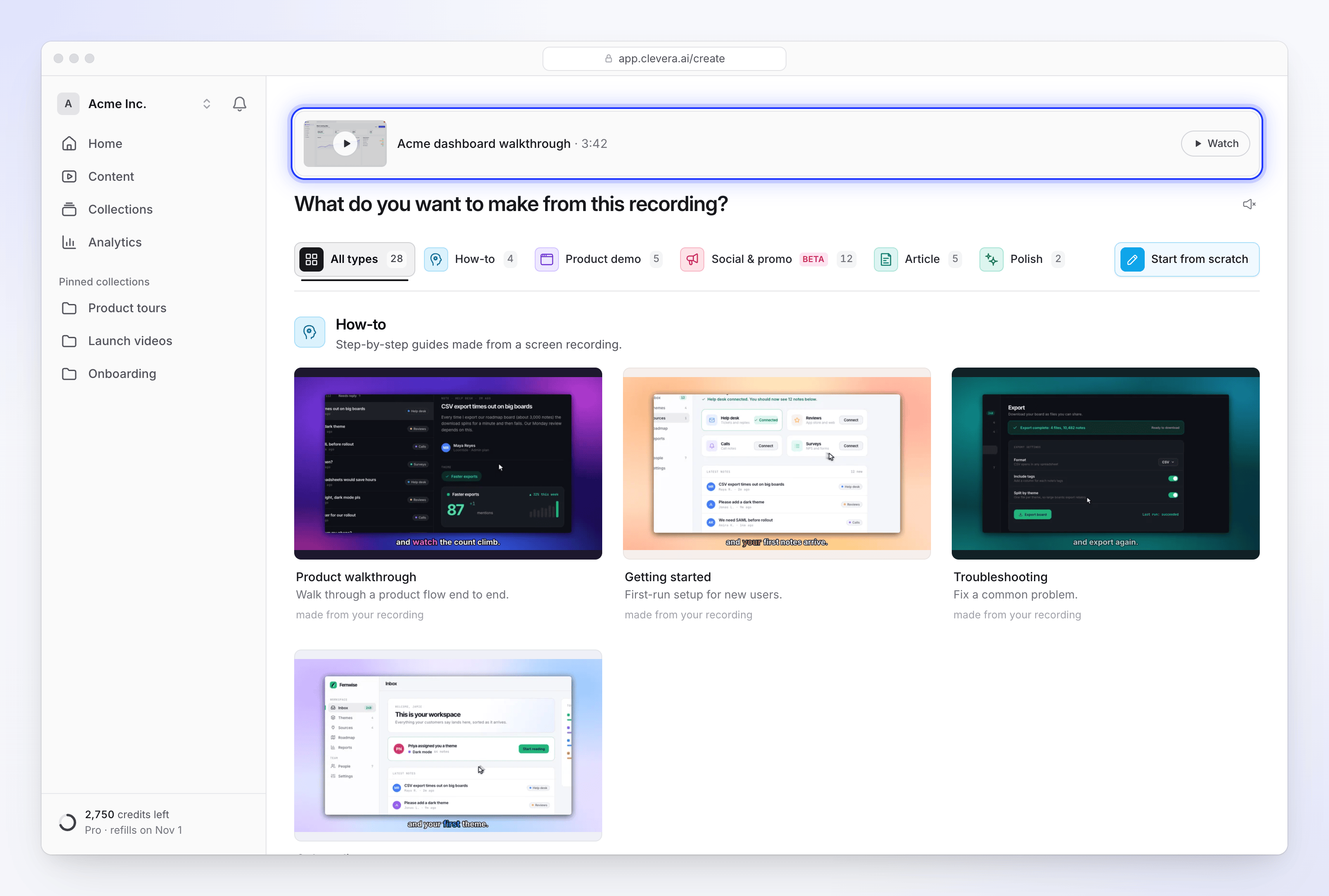
- Cards in the How-to, Product demo, Article and Polish families read made from your recording.
- Cards in Social & promo read uses your recording as footage: the AI director cuts parts of it into a designed clip.
- If the recording is still processing, the strip says "Processing your recording. Pick what to make now; it will be ready by the time you need it."
The recording is attached when Compose opens, so you can go straight to the brief.
Locked cards
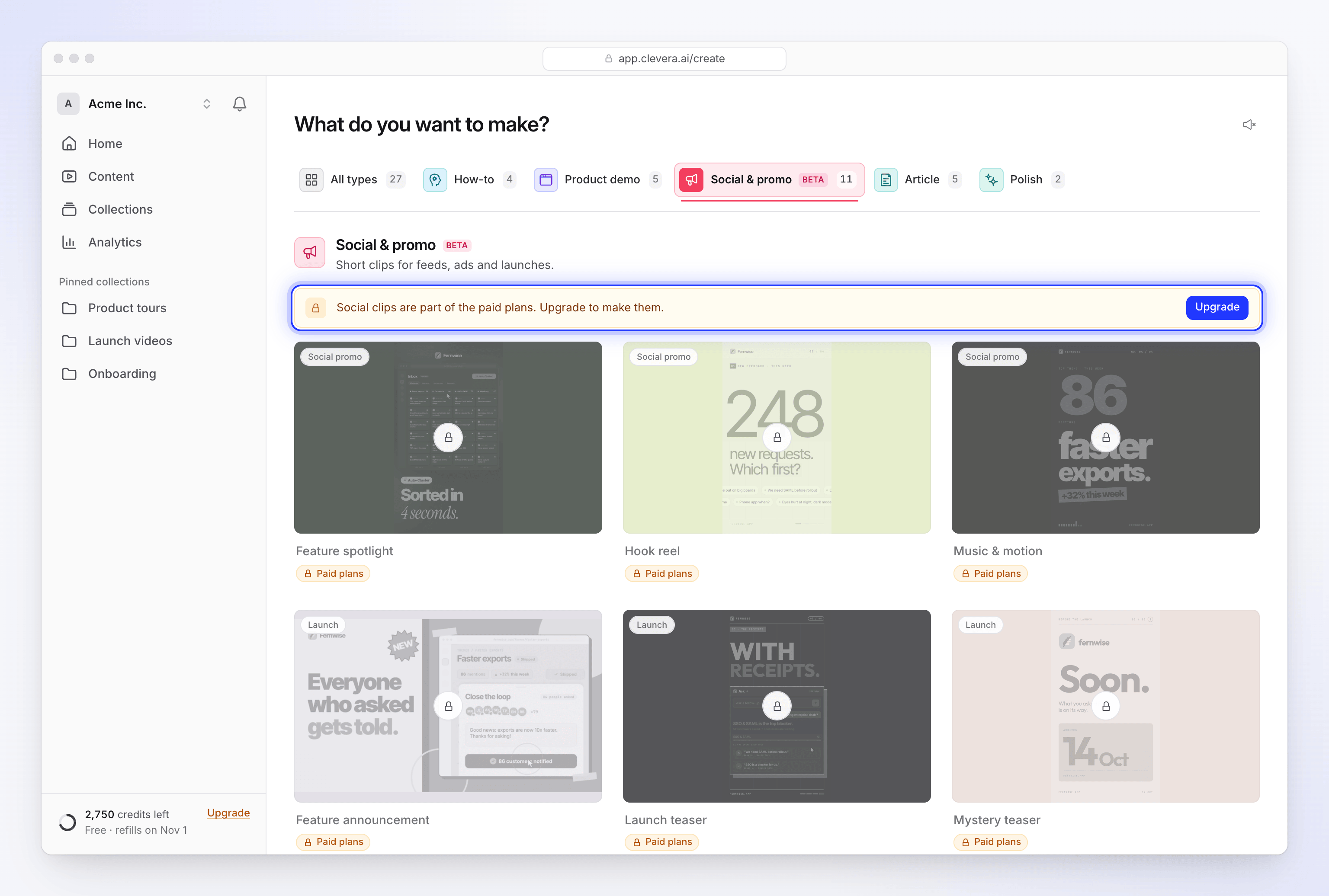
| What you see | Why | What to do |
|---|---|---|
| Paid plans tag on every Social & promo card, and the banner "Social clips are part of the paid plans. Upgrade to make them." | Social clips and the AI avatar aren't included in the Free plan. Start from scratch is a social clip, so it's hidden on Free too. | Click Upgrade, or make a how-to, demo, article or polish video, which are all on Free. |
| Temporarily unavailable with a reason, such as "We're seeing more errors than usual" or "Scheduled maintenance" | We've paused that type for a short while to protect quality. | Try again later, or pick a similar type. |
See Know what the Free plan includes for every Free plan limit.
Change the type later
On the Compose page, click Change type at the top. You return to the gallery on the same family, and your brief and attached files come with you to whichever card you pick next.