

Translate new videos into your languages
Each time a new video finishes, Autopilot plans a translation into every language you picked (up to 4). You review each plan and click Run; nothing is translated or charged before that.
Translate new videos into my languages watches your library and, each time a new video finishes, plans a translation of it into every language you picked. You review each plan and click Run; nothing is translated or charged before that.
Before you start
- Autopilot must be on for your workspace, and your role must be able to record videos. See Get access to Autopilot.
- The task translates only the videos you can edit. Articles and social clips are never picked up.
- To translate videos you already have, use Translate in the video editor instead: this task only reacts to videos that finish after it is set up.
Set it up
Open the recipe
On Autopilot, click the Translate new videos into my languages recipe card, or ask in the What should Autopilot do? box ("translate every new video into German and French"). The agent panel opens with the setup card. Its fields fit on the card, so there is no separate dialog.
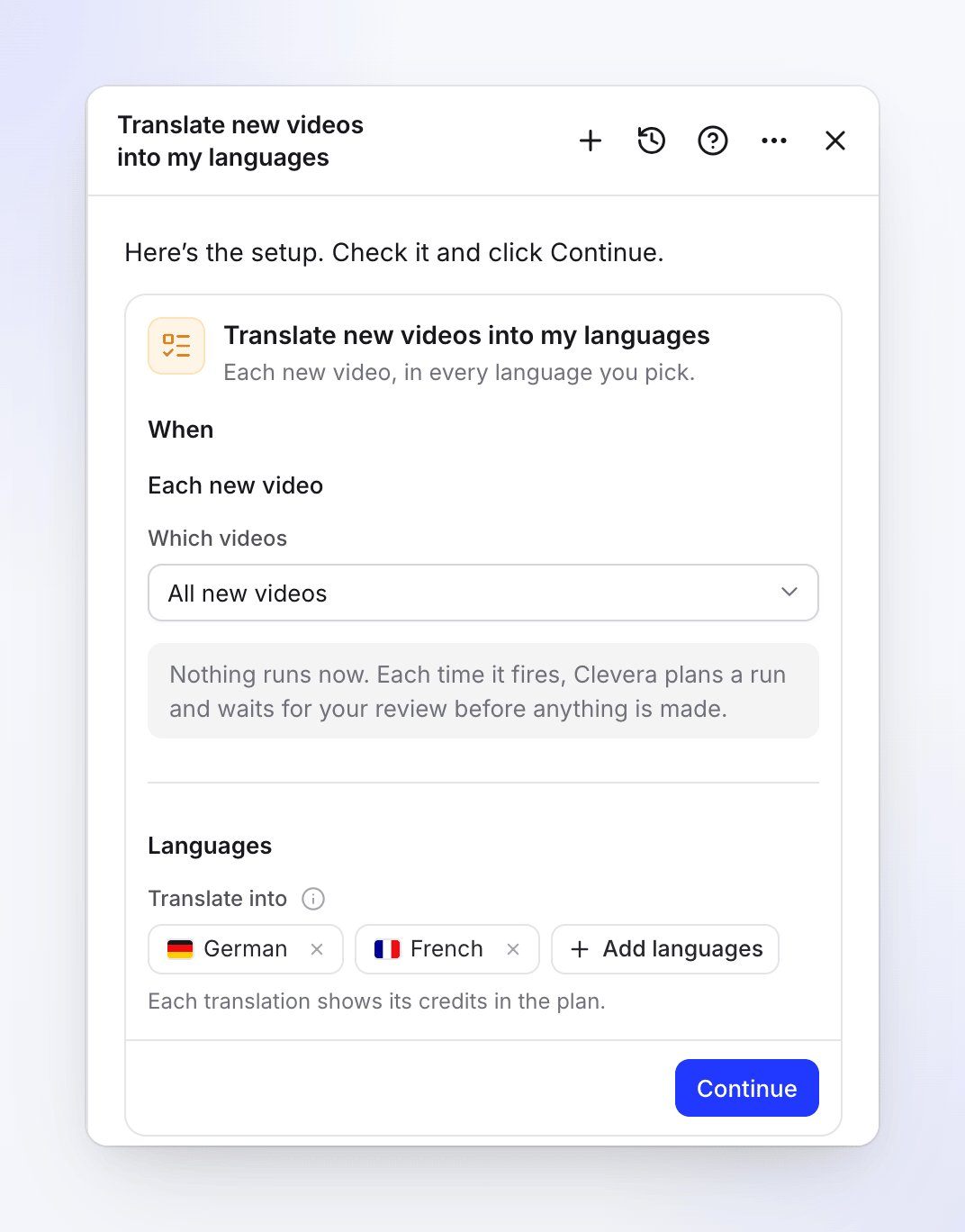
Choose which videos
Under When the trigger is Each new video, the only one this recipe has. In Which videos, keep All new videos or pick one collection.
Pick the languages
Under Translate into, click Add languages and pick up to 4. "Each new video gets one translation per language. A video already in that language is skipped."
Continue and create the task
Click Continue. The review shows When ("When a new video finishes", or "When a new video finishes in Onboarding" for a collection), Approval "Each run waits for your review" and Language, with "Nothing runs now: Clevera plans a run each time it fires, and you review the plan on the task before anything is made." Click Create task.
Nothing runs when you create it. On Autopilot home the task sits under Always on with a Watching badge, and its page shows "No runs yet" ("Nothing has happened since it was set up. The first run is planned when it does.").
Setup fields
| Field | Options and limits | Default |
|---|---|---|
| When | Each new video | Each new video |
| Which videos | All new videos, or one collection | All new videos |
| Translate into | 1–4 languages from the list | None: pick at least one |
What happens when a video finishes
- Clevera checks for finished videos about every 15 minutes, so a run is planned roughly 15–25 minutes after a video is done. Several videos finishing close together go into one run.
- The run's plan has one line per video and language, for example "Translate “Send your first invoice” into German", each with its credit estimate. A language the video already has, or is recorded in, is skipped.
- You get the plan in your inbox ("The plan for … is ready") and in the setup chat. Open the task, untick anything you don't want, and click Run.
- Each translation is added to the same video as a new language, exactly as Translate in the editor does it.
While a run's plan is waiting for you, new videos don't start a second run. The next run covers them, and the reminder says so ("One more new video came in since.").
Approval
Every run waits for your review: there is no setting to let it translate on its own. A plan you don't act on gets a reminder after 5 days and is canceled after 7.
When a run finds nothing to do ("The new videos are already in these languages.", or no new video it may translate), it ends quietly as done, without a notice.
Limits
- Up to 4 languages per task (5 languages in total with the video's own).
- Up to 20 videos per run. With more, the plan says "Translating the first 20 of 26 new videos; translate the rest from the library."
- Videos made by this task's own runs, social clips and teasers never start a run.
Cost
| Part | Credits |
|---|---|
| Watching and planning | On us |
| Each translation | Shown on its plan line: about 3–10 credits per language for a video of up to about five minutes, more for longer videos |
You are charged for what each translation really uses. The setup card shows no Typical run for this recipe, because the cost depends on how many videos arrive and how long they are.
Pause, change or stop it
On the task page, the Keep it up to date card has Pause / Resume, Edit and Delete. To change the languages, click Change on the task and tell the agent; it shows a card with the change and an Apply button. What starts a task can't be changed: set up a new task instead. See Change an Autopilot task.
Troubleshooting
| What you see | What it means |
|---|---|
| "Choose at least one language." | Add a language under Translate into. |
| "Choose languages from the list." | A language the agent was given isn't supported. Pick from the list on the card. |
| No run after a new video | Wait up to about 25 minutes. Check the video is in the chosen collection, is a video (not an article or social clip) and that the task isn't Paused. |
| A video wasn't translated into one language | It was already in that language. |
| "Your role can’t start or change this kind of task in this workspace. Ask a workspace owner or admin." | Your role can't set this up. |