

Explore your app with Autopilot
Explore my app, Document one area and Getting-started videos send the AI into your app to plan how-to videos and articles. Set them up from the agent's setup card, review the plan, then run it. Exploring is on us; each item shows its credits.
Three Autopilot recipes send the AI into your app to learn it screen by screen, then plan how-to videos (and articles if you want them) from what it found: Explore my app and document what’s missing, Document one area of my app and Make getting-started videos for new users. You review the plan, untick what you don’t want, and only then is anything recorded.
Before you start
- Autopilot must be on for your workspace, and your role must be able to record videos. See Get access to Autopilot.
- Your app needs a public
https://address the AI can open. - If your app needs a sign-in, save one first under Autopilot → App sign-ins, or add it from the form. Use a demo or staging account: anything that account can see can end up in a video. Saving a sign-in takes the workspace owner or an admin. See Save an app sign-in.
- If the sign-in uses 2-step verification, the sign-in needs an authenticator key. Codes sent by text or email don't work.
The three recipes
All three use the same setup form. The recipe only picks the starting Goal, which you can change in the form.
| Recipe | Starts on the goal | What it plans |
|---|---|---|
| Explore my app and document what’s missing | Fill help center gaps | Only what no video or article in your library covers yet |
| Document one area of my app | Document one area | One part of your app, in depth. You name the area. |
| Make getting-started videos for new users | Getting-started path | Lessons in order for new customers |
A fourth goal, What changed, is only in the form: it compares your app with the last explore and plans items for what changed since. On the first explore of an app there is nothing to compare with, so the plan fills the gaps instead and says so.
All three run once, now. They can't repeat or run on each release. To record new features as they ship, use Record a video for every new feature.
Set up an explore
Pick the recipe
On Autopilot, click the recipe card under Or start from a recipe. You can also type what you want in the What should Autopilot do? box, or click New task and pick it there. The agent panel opens with the setup card and the line "Here’s the setup. Check it and click Continue."
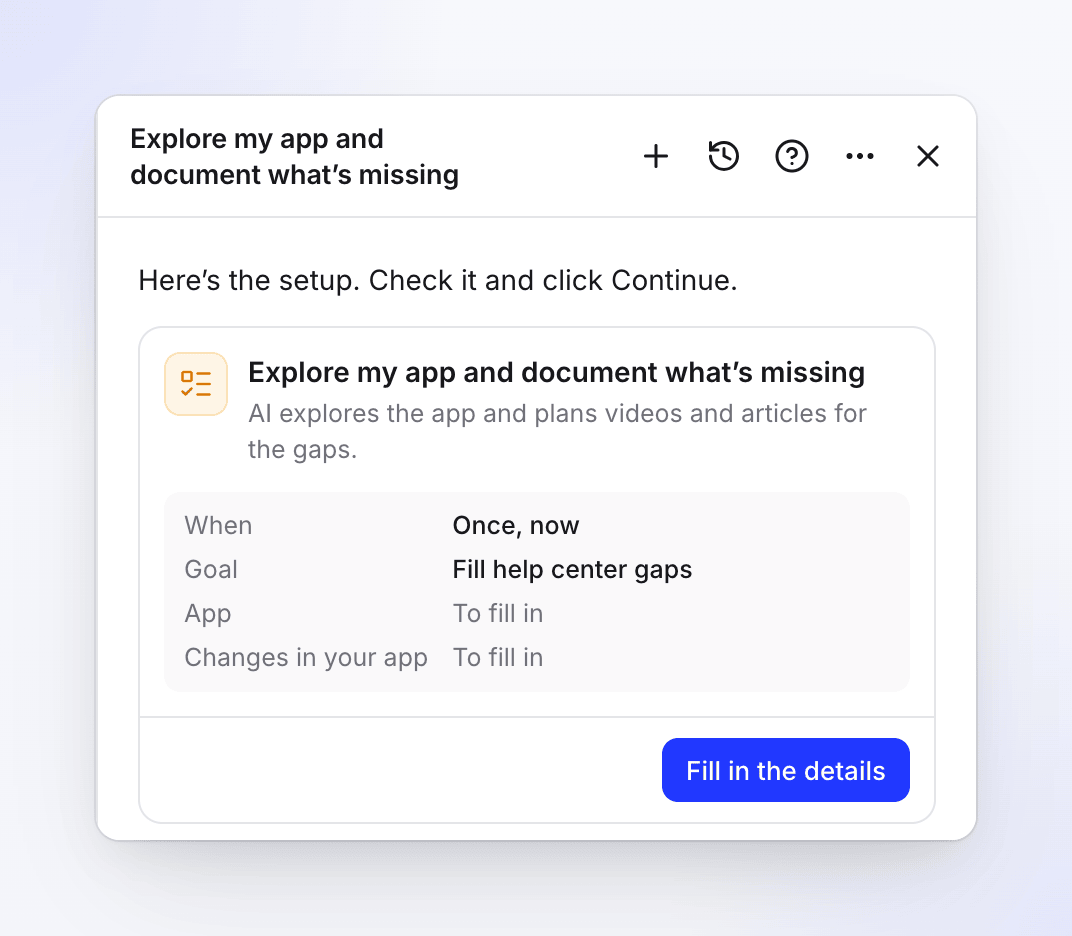
The card summarizes the setup. Rows still empty read “To fill in”. Fill in the details
Click Fill in the details (it reads Edit details once everything required is filled). A dialog opens with every field, described below.
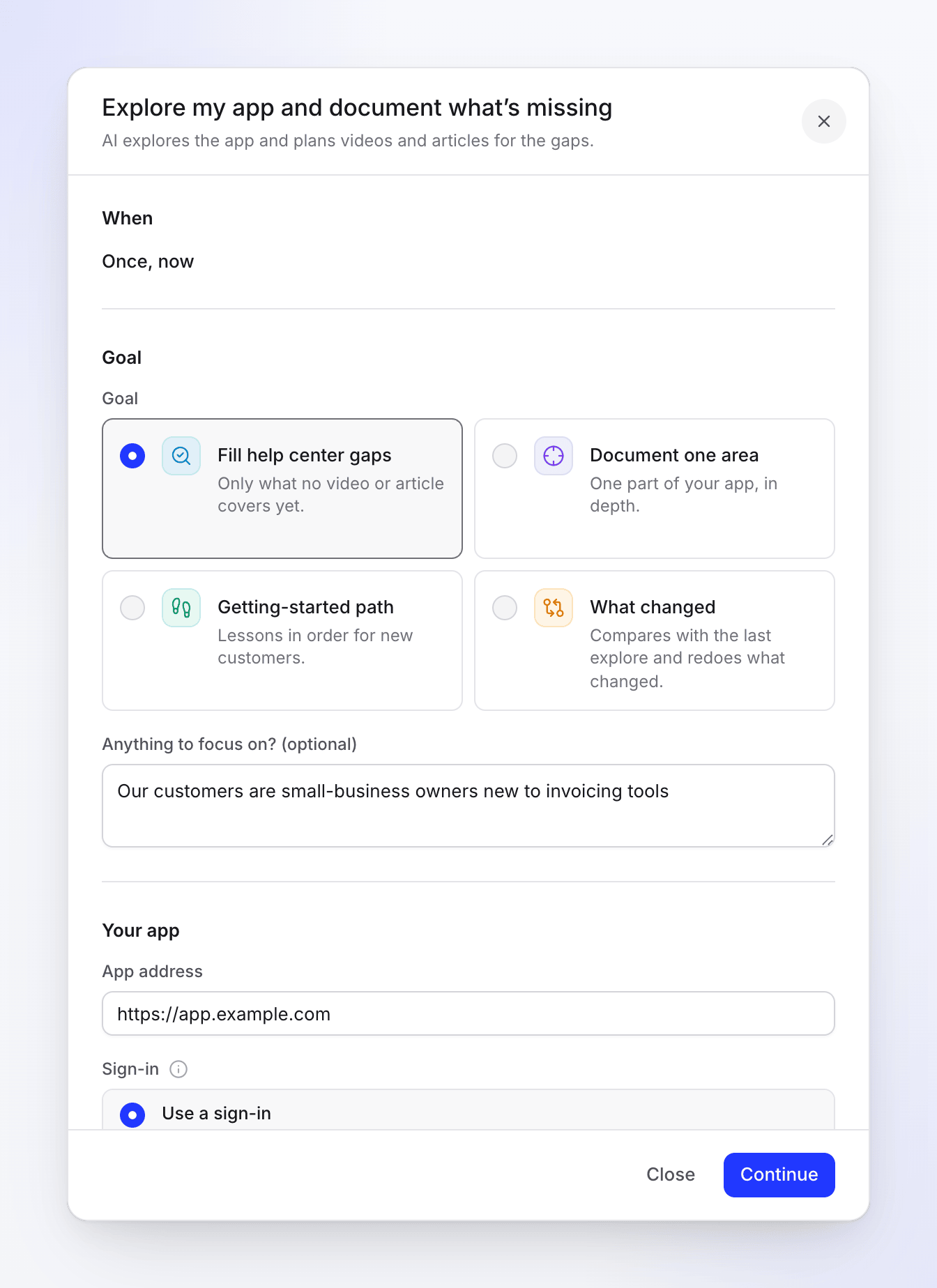
Your edits are kept on the card as you type, so closing the dialog or reloading the page loses nothing.
Continue and create the task
Click Continue. Clevera checks the setup (no AI involved) and shows any problem next to its field. When it's fine, the card shows the review: When "Runs once, now", Changes in your app (only when you allowed it), Typical run "100–260 credits" and Language, with the line "Clevera plans it now (free, a few minutes) and posts here when the plan is ready for your review." Click Back to change something, or Create task.
Wait for the plan
The card switches to Task created with Open the task. Clevera now explores your app. On a large app this can take an hour or more. You can close the panel and leave the page: when the plan is ready, the agent posts in the same chat and the task appears under Needs you.
Review the plan and run it
Open the task. Tick or untick items, then click Run (for example Run 5 items · 104–224 credits). See Review the plan.
Setup form fields
When
Shows Once, now. These recipes have no other choice.
Goal
| Field | Options and limits | Default |
|---|---|---|
| Goal | Fill help center gaps · Document one area · Getting-started path · What changed | Set by the recipe |
| Anything to focus on? (optional) | Free text, up to 1,000 characters. For example "Our customers are new to reporting tools". | Empty |
Your app
| Field | Options | Default |
|---|---|---|
| App address | The https:// address the AI opens |
Your default brand's website, if you have one |
| Sign-in | Use a sign-in ("Clevera signs in and sees your product as your customers do.") or My product doesn’t need a sign-in ("Clevera will only see your public pages.") | Not answered: you must pick one |
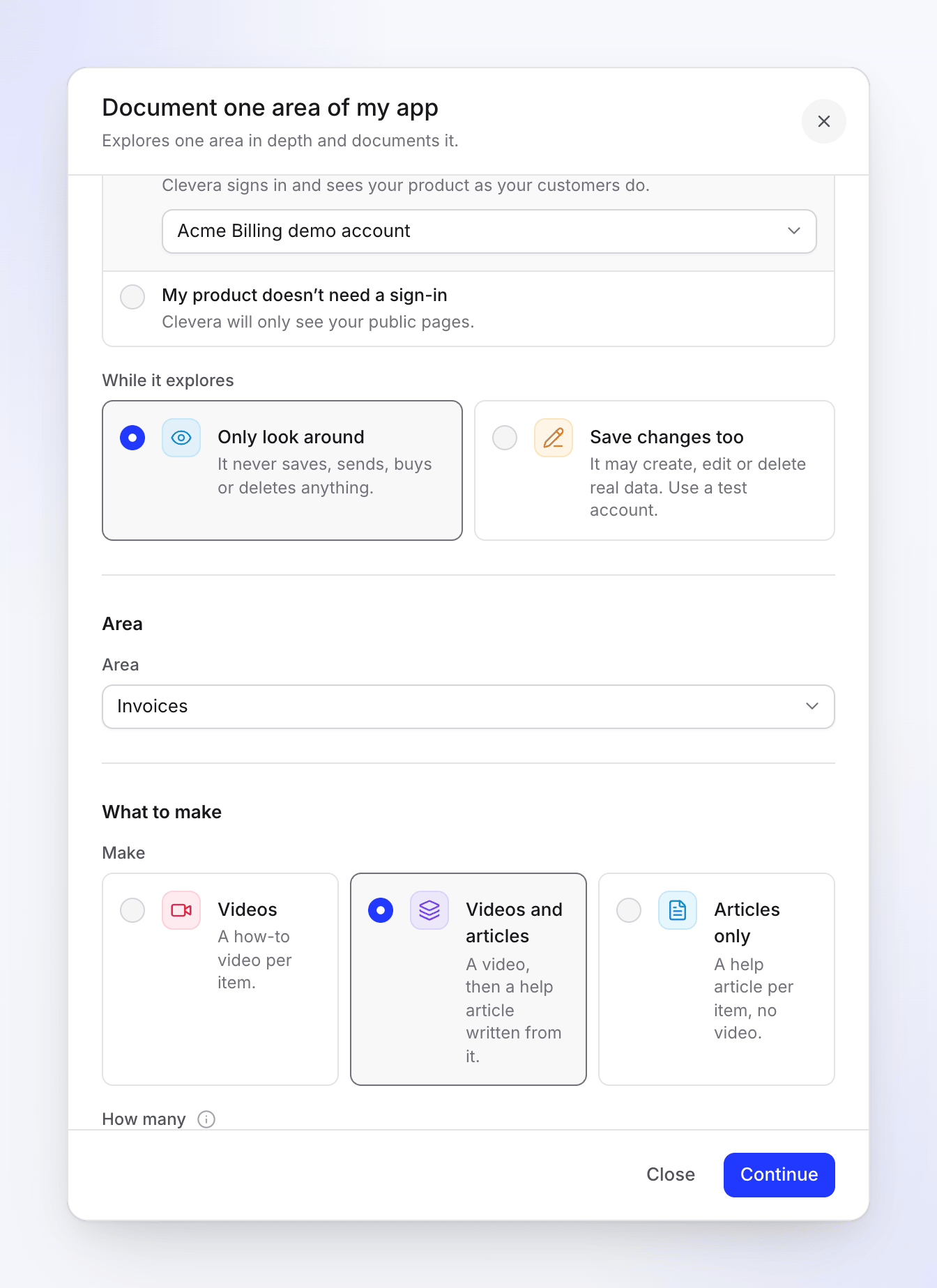
| While it explores | Only look around: "It never saves, sends, buys or deletes anything." Save changes too: "It may create, edit or delete real data. Use a test account." | Only look around |
With Use a sign-in, pick a saved sign-in from the list, or the last item Add a sign-in…, which opens the Add an app sign-in dialog. The list shows the sign-ins for the app's address ("Showing the sign-ins for app.example.com."); if you pick one saved for another site, the form tells you ("This sign-in is for …, not …"). The agent never answers the sign-in question for you: you always pick it on the card.
Area (Document one area only)
Area is the part of your app to document, named as your app's menu names it. If Clevera already learned your app at that address, you pick from the areas it found (cards for up to six, a list for more). Otherwise you type the name, for example "Reports".
What to make
| Field | Options and limits | Default |
|---|---|---|
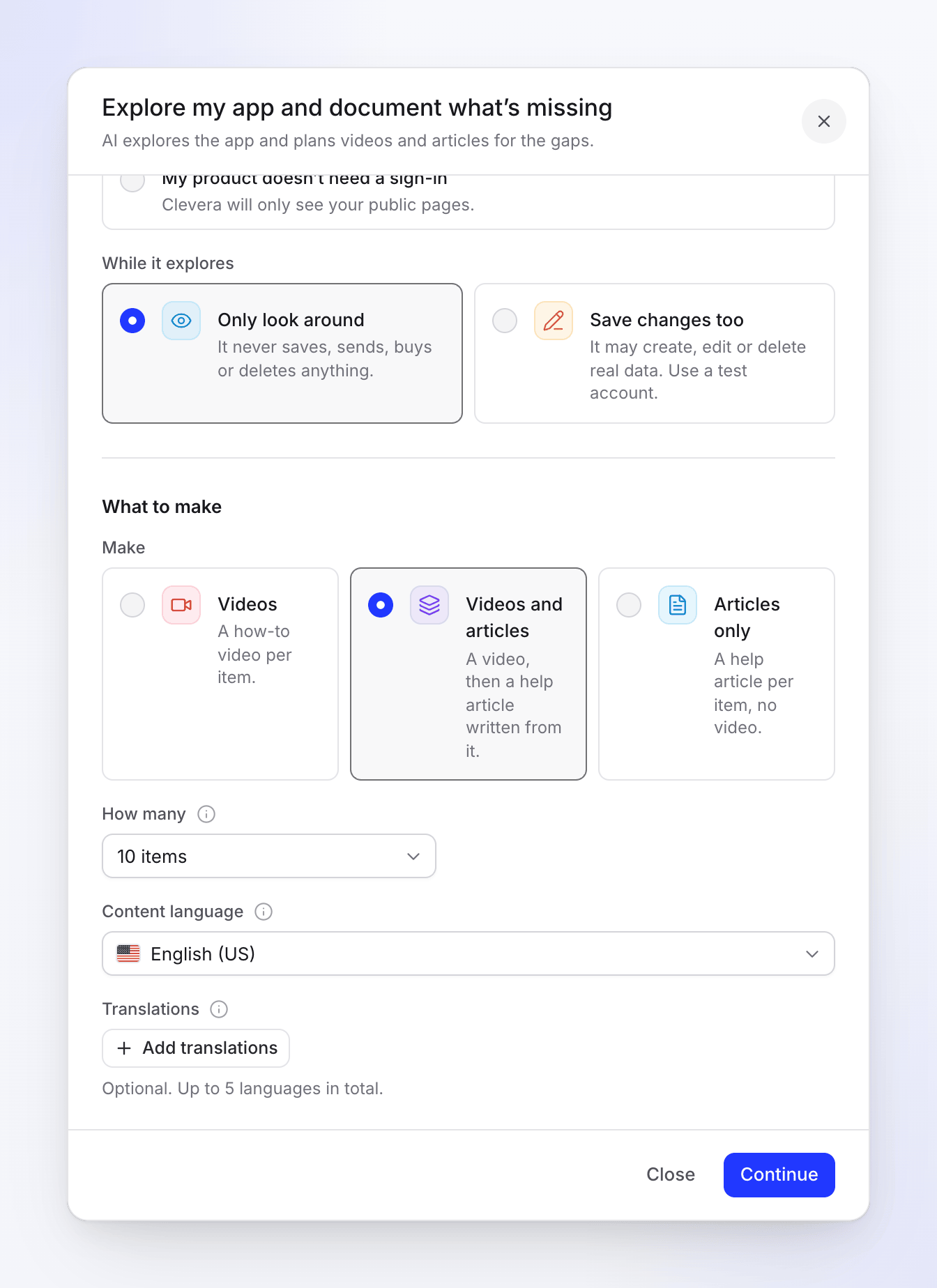
| Make | Videos ("A how-to video per item.") · Videos and articles ("A video, then a help article written from it.") · Articles only ("A help article per item, no video.") | Videos and articles if your workspace has a help center, else Videos |
| How many | 1–30 items; 5–8 for Getting-started path | 10 (gaps, what changed), 8 (one area), 6 (getting started) |
| Content language | The language of the voice-over, on-screen text and articles | Your workspace's language |
| Translations | Other languages, translated after the content is made | None. Up to 5 languages in total, the content language included. |
Articles only still records your app for each item: the article is written from that recording, but no video is made.
What the AI does while it explores
- It maps your app first. It opens menus, links and tabs, area by area, and writes down the workflows it can complete.
- It reuses what it learned. If Clevera learned the same app in the last 7 days, the plan starts from that instead of exploring again. Document one area reuses an area learned in depth in the last 7 days, else explores just that area; a workspace gets 3 such area explores a day, after which the plan uses the last explore ("Clevera already looked at parts of apps 3 times today, so this plan uses what it learned on …"). What changed explores again at most once a day per workspace.
- It stays out of risky places. It never opens account, billing, plan, team or workspace settings, members, API keys or sign-out, and never pays, buys, upgrades, publishes, sends or invites. These areas are listed in the plan as "Skipped (never touched)".
- It compares with your library. It checks your existing videos and articles so the plan doesn't repeat what you have. A line that something already covers says "Already covered by “…”."
Exploring and planning are on us: you don't pay credits for them.
Review the plan
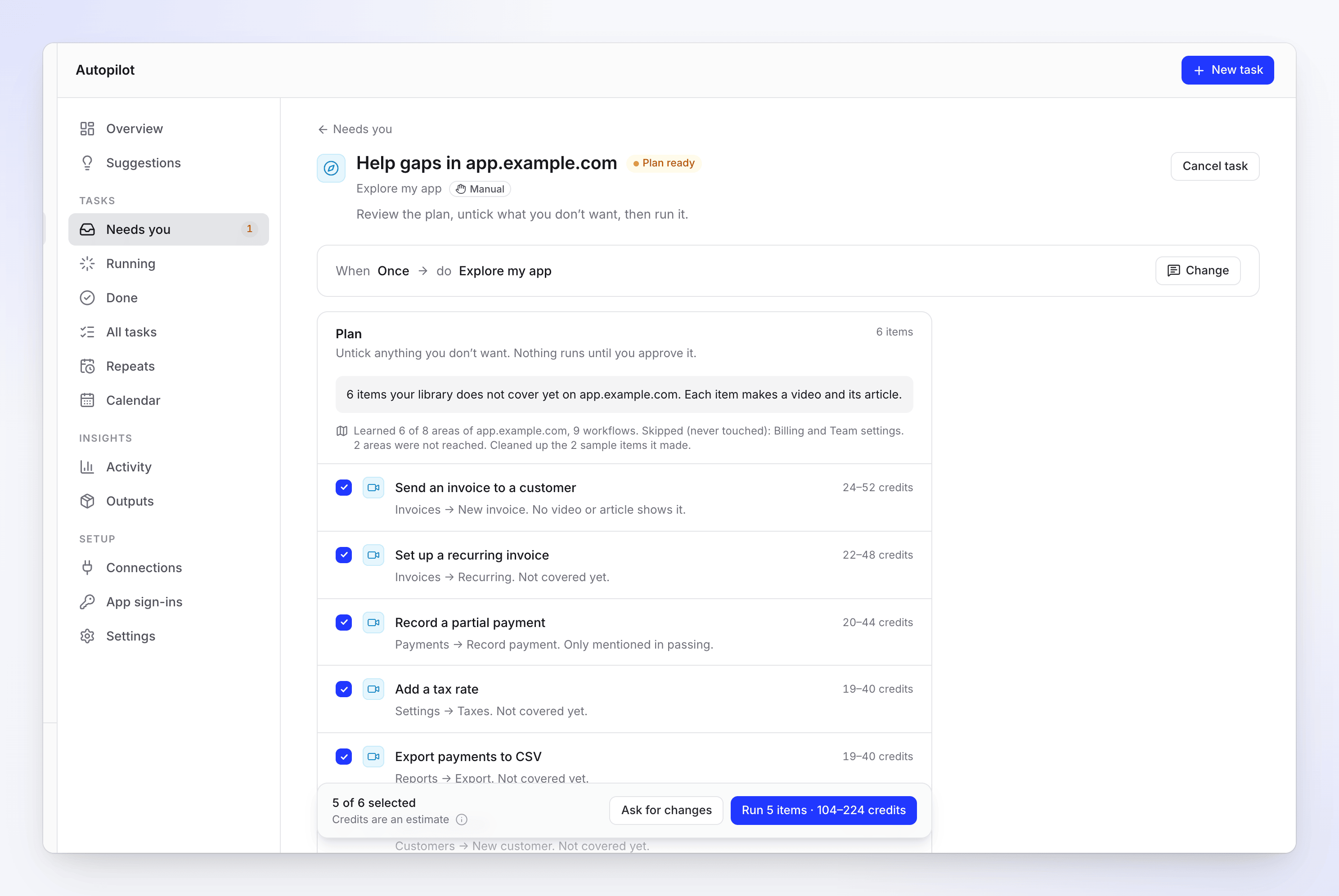
The plan card starts with a summary, for example "6 items your library does not cover yet on app.example.com. Each item makes a video and its article.", and a line about what Clevera learned, for example "Learned 6 of 8 areas of app.example.com, 9 workflows. Skipped (never touched): Billing and Team settings. 2 areas were not reached."
- The recommended items come ticked. Each line shows its credit estimate, where in your app it is, and why it's there. Lines carry Written by AI from your app: read the steps before you run.
- Untick what you don't want. The footer shows how many are ticked (for example "5 of 6 selected") and the run button with the estimate, for example Run 5 items · 104–224 credits.
- Ask for changes takes a note ("What should change?") and makes a new plan. Nothing has run yet.
- Cancel task in the header stops the task.
- A plan waits 7 days. After 5 days you get a reminder ("This plan expires in 2 days. Review it and press Run."); after 7 it is canceled ("This plan waited 7 days and expired. Press Try again to plan it afresh.").
Sample items
With Save changes too, the AI may create sample items in your app to see what a feature does, and it deletes them again when it's done. It only deletes what it made. The plan says how many it removed ("Cleaned up the 2 sample items it made.").
If it couldn't remove one, the plan shows "Needs you: learning your app left 1 sample item in it. Delete it in your app or keep it, then run the plan." Each item is listed with where it is and Open it. Delete it in your app and click I deleted it, or click Keep it. The plan can't run until every item is answered. Recording can leave sample items the same way ("Needs you: recording your app left …").
When the explore meets a sign-in page
If you chose My product doesn’t need a sign-in and the AI finds a sign-in page (a password field, or a sign-in address such as /login), it stops before planning, because it has only seen your public pages. The task shows Waiting for a sign-in and is listed under Needs you.
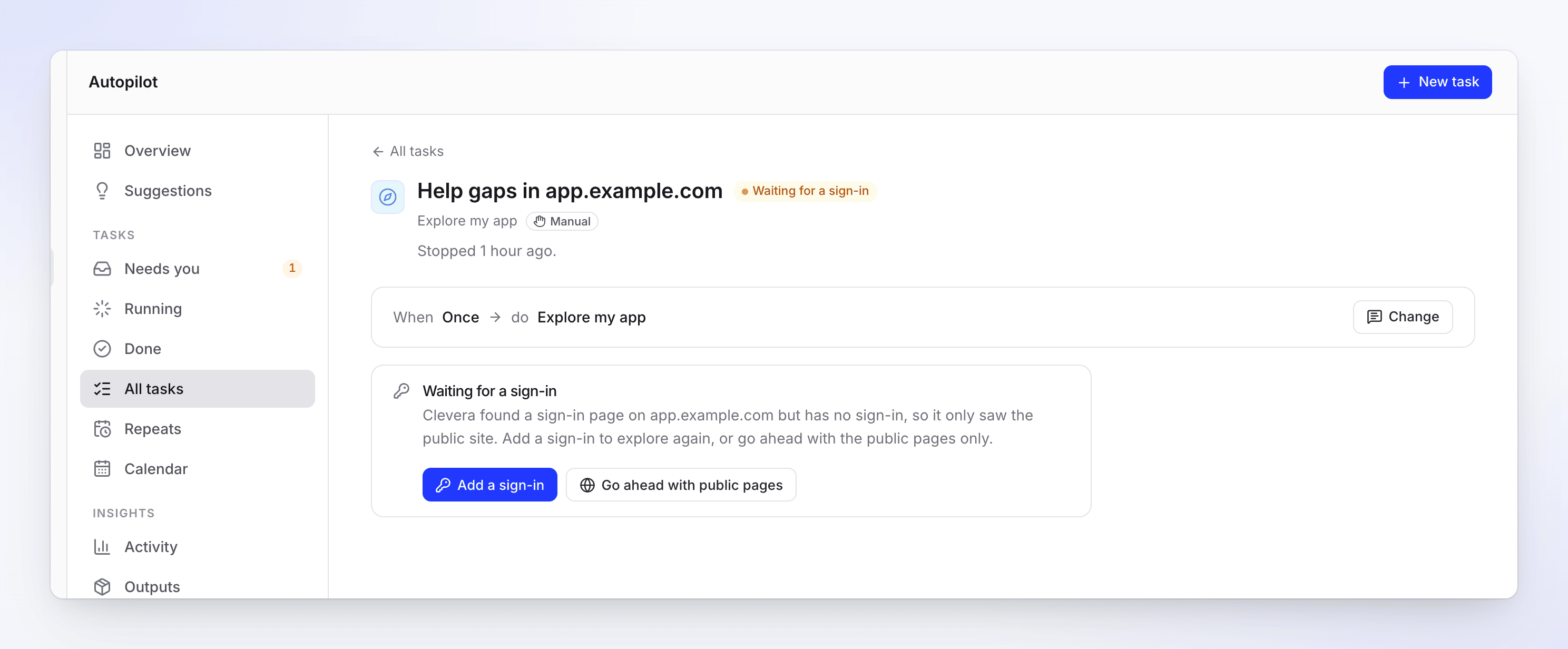
You also get an inbox notice and an email titled with the task, for example "Help gaps in app.example.com is waiting for a sign-in" ("Clevera found a sign-in page but has no sign-in. Add one, or go ahead with the public pages."), and the agent posts in your setup chat. Pick one:
| Button | What happens |
|---|---|
| Add a sign-in | Opens the Add an app sign-in dialog. Once you save it, the explore runs again, signed in. Only the workspace owner or an admin sees this button. |
| Go ahead with public pages | Plans from the public pages it already saw ("Going ahead with the public pages of …, as you asked."). Nothing is explored again. |
If you aren't the workspace owner or an admin, you see Go ahead with public pages and the line "Only the workspace owner or an admin can add a sign-in. Ask one of them to add it, or go ahead with the public pages." instead of Add a sign-in.
You can also answer in the agent chat: say "go ahead with the public pages", or name a sign-in that is already saved.
Cost and time
| Part | Credits |
|---|---|
| Exploring and planning | On us |
| Each item | Shown on its plan line before you run. A recording's estimate grows with the number of steps it shows; an article written from it adds about 5–15. |
| A typical run | 100–260 credits, shown as Typical run on the setup card |
You are charged for what each item really uses, not the estimate. A typical run takes 20–45 minutes after you click Run, mostly recording. Items still open 24 hours after Run are stopped.
What you get
- Videos go to your library, in the Default collection set in Autopilot → Settings.
- Articles are written from each item's recording and saved in your library. Explore doesn't put them on a help center: add them to your help center from the library when you're happy with them.
- Nothing is published for you. Each item links to what it made, and the task gets a Receipt when it finishes. See Read a task receipt.
Troubleshooting
Messages in the setup form
| What you see | What to do |
|---|---|
| "Add the address to go on." / "Add the address of your app." | Fill in App address. |
| "This doesn’t look like a web address." / "Use a public https:// address the AI can open." | Use a full public address that starts with https://. |
| "Choose a sign-in, or say your product doesn’t need one." | Answer Sign-in. |
| "Pick a sign-in, or add one." | You chose Use a sign-in but no sign-in. Pick one, or Add a sign-in…. |
| "This app sign-in is for example.com. Use an address on that site." | The sign-in belongs to another site. Pick the matching one or change the address. |
| "Name the area to document." | With Document one area, pick or type the area. |
| "Choose from 1 to 30 items." | Pick a count in range. |
| "You can’t record videos in this workspace." | Your role can't record. Ask the owner or an admin. |
| Add a sign-in… is greyed out | Only the workspace owner or an admin can save sign-ins. |
When there's no plan
These show on the task as No plan this time, with Try again and Edit and try again:
| Message | What to do |
|---|---|
| "Clevera couldn’t find … in …. Its areas are: …. Ask for changes naming one of them." | Use one of the listed area names. |
| "Your library already covers what Clevera learned of …. Choose another goal, or ask for changes to try again." | Nothing is missing. Try Document one area or What changed. |
| "We found nothing worth a how-to video on …. Add a focus or ask for changes to try again." | Add Anything to focus on?, or check that the sign-in reaches the real app. |
| "Nothing changed in … since the explore of …." | What changed found no change. |
| "Clevera learned … on … and found no workflow worth a how-to video. Ask for changes after 6 hours to look again." | The last explore found nothing to record. Check the address and sign-in, then try again after 6 hours. |
| "The explore couldn’t sign in to … with the chosen sign-in. Check it in Autopilot’s App sign-ins, then ask for changes to try again." | Open Autopilot → App sign-ins and check the sign-in (login, password, authenticator key), then click Ask for changes or Try again. |
| "The app sign-in for … was removed." | Pick another sign-in with Edit and try again. |
| "Learning … took too long." / "No browser was free to learn … in time." / "We couldn’t learn … this time. Try again in a moment." | Try again later. |
| An area "was not reached" | The AI ran out of time there. Run Document one area for it. |