

Contact support
Chat with Clevera support from inside the app, in your own language. Attach screenshots, get an email when we reply, and see what to include and what we can see about your account.
Clevera support is a chat inside the app. Write to us in any language, attach screenshots, and you get an email if we reply after you've left. This article shows where to find the chat, when we're there, what we can see when you write, and what to include so we can help quickly.
Support hours
Our team works from Istanbul (Türkiye) and London (UK), Monday to Friday, 09:00–18:00 local time in those offices. You can write at any time: messages sent in the evening, at weekends or on holidays reach us, and we reply when we're back.
Open the support chat
Click the round chat button in the bottom-right corner of the page (hover over it and it says "Chat with us"). You can also click your workspace name at the top of the sidebar and choose Help → Contact support.
Some pages open the chat for you with a message already written, for example Contact us on a custom plan or a request for a new integration. Read it, change it if you like, and send.
The chat window shows Clevera support with a status line:
| Status | Meaning |
|---|---|
| "We are here now." (green dot) | Someone from our team replied in the last 30 minutes. |
| "We usually reply quickly." (green dot) | We're within our working hours. |
| "We are away right now. Send your message and we will follow up here as soon as we can." (amber dot) | Outside our working hours. Your message still reaches us. |
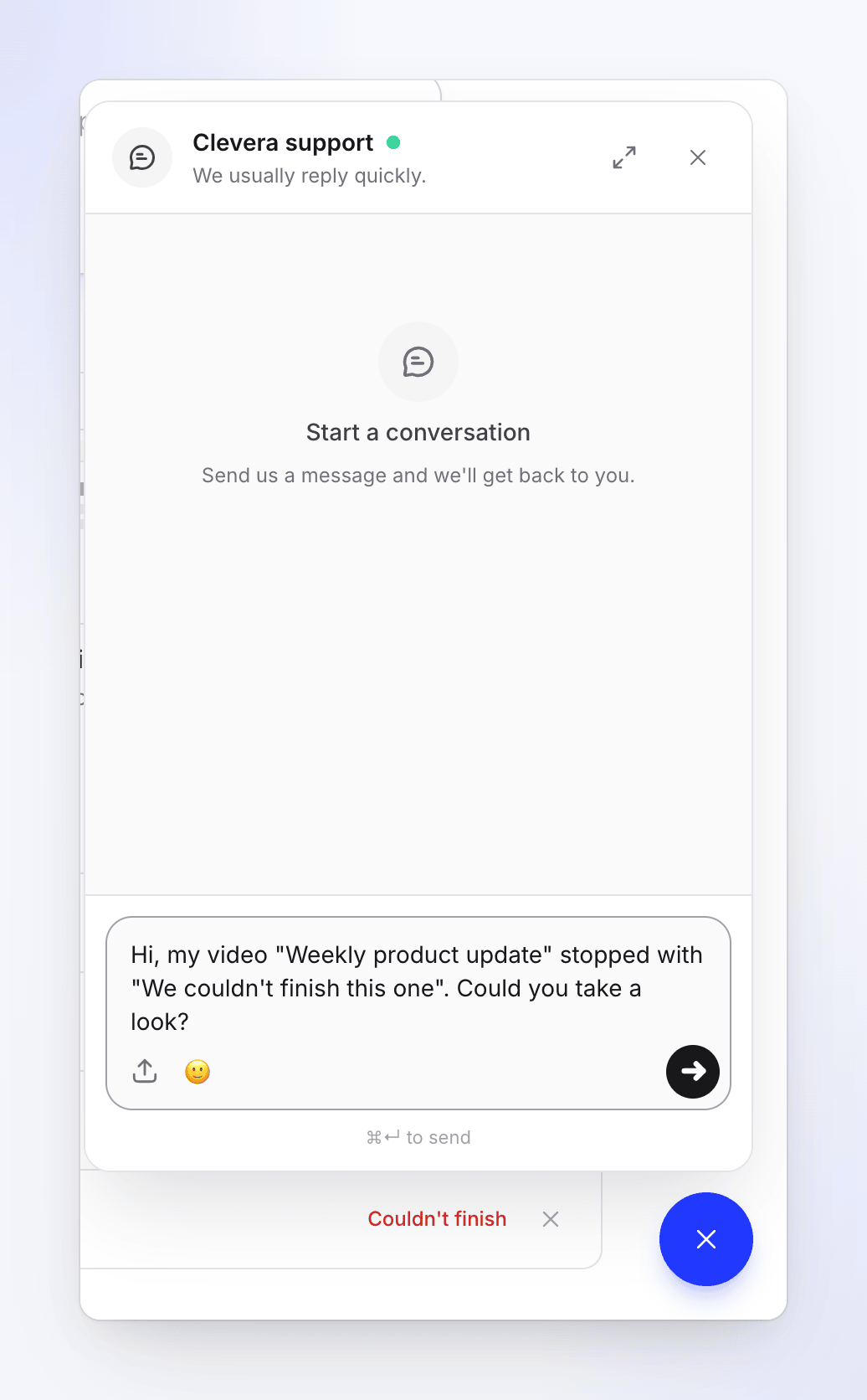
If you write while we're away, the chat adds a short automatic note saying so, once per conversation.
Where the chat button is hidden
The button doesn't show on a few pages so it doesn't cover the controls you need there:
- the page that shows a video while it generates (see Follow your video while it generates),
- the live page of a Record with AI session or website research, and any page where the Record with AI chat bubble is showing,
- the video and article editors.
Go back to Home or your videos to open it.
Write your message
Type in your own language
The box says "Write in your preferred language...". Write in whatever language you're most comfortable with. Our replies reach you translated into the language you wrote in, and your own messages stay exactly as you typed them.
Attach screenshots
Click the attach button and choose Attach file. You can attach up to 5 images per message, each up to 10 MB, as JPEG, PNG, WebP or GIF. Other file types aren't accepted.
Send
Click the arrow, or press ⌘ Enter on a Mac or Ctrl Enter on Windows. Enter on its own starts a new line.
While someone on our team is typing, you see "Clevera is typing". New replies play a short sound, and the chat button shows a red dot if the chat is closed. Click the expand icon in the chat header for a bigger window.
What to include in your message
The more specific you are, the fewer questions we need to ask:
- A link to the video, or its exact title, for example "Onboarding walkthrough". Copy the address from your browser while the video is open.
- What you did and what you expected to happen.
- What happened instead, with the exact message on screen, word for word, or a screenshot of it.
- When it happened, roughly, and whether it happens every time.
- For the desktop app: whether you're on Mac or Windows, and the app version. Send your app logs too, from More → Submit logs: see Send your desktop app logs to support.
What we see when you write
So you don't have to repeat yourself, the conversation shows our team some details from your account:
- your name and email address,
- the workspace you're in, its members and creator seats,
- your plan, its status and your credit balance,
- your five most recent videos with their titles and status (for example, whether one failed),
- the version of the desktop app you last used,
- your earlier support conversations.
We don't see what's on your screen, your passwords or your payment card details.
Replies and conversations
- The chat keeps one open conversation per workspace. When you come back, your earlier messages are there.
- If we reply and you haven't read it within 10 minutes, we send an email, "New reply from Clevera support", with the start of the reply and a link that opens the conversation.
- Once we close a conversation, your next message starts a new one.
- If our team writes to you first, the chat opens on its own with their message. If you close it, later messages in that conversation only show the red dot.
Troubleshooting
| What you see | What to do |
|---|---|
| "Your message was not sent." | Check your connection and send again. |
| "photo.heic: unsupported file type" | Save the image as JPEG or PNG and attach it again. |
| "photo.png: too large (max 10 MB)" | Crop or compress the screenshot. |
| "You can attach up to 5 files per message." | Send the rest in a second message. |
| "Support chat could not be loaded." | Refresh the page and try again. |