

Get access to Autopilot
Autopilot comes with the Pro, Business and Custom plans and opens by invitation. Ask for access from the Autopilot page; the Clevera team reviews the request and you get an email and an inbox notice when it is approved or declined.
Autopilot comes with the Pro, Business and Custom plans and opens by invitation. A workspace on one of those plans asks for access from the Autopilot page, and the Clevera team switches it on. This article explains what you see before that, how to ask, and what happens after.
Who can get Autopilot
| Your workspace | What the Autopilot page shows |
|---|---|
| On Free, Starter or a trial | A Pro plan badge and "Autopilot comes with the Pro plan and above, by invitation." Someone who can change the plan also sees Upgrade to Pro; everyone else reads "Ask a workspace owner to upgrade." The sidebar shows a Pro badge next to Autopilot. |
| On Pro, Business or Custom, not switched on yet | A By invitation badge and Get an invitation |
| A request is waiting | We have your request, and "Sent on" the date, "We will email you when we have looked at it." |
| Switched on | Autopilot home: What should Autopilot do?, the recipes and the Autopilot menu |
Below that, the page explains how a task works and lists what you will be able to hand over.
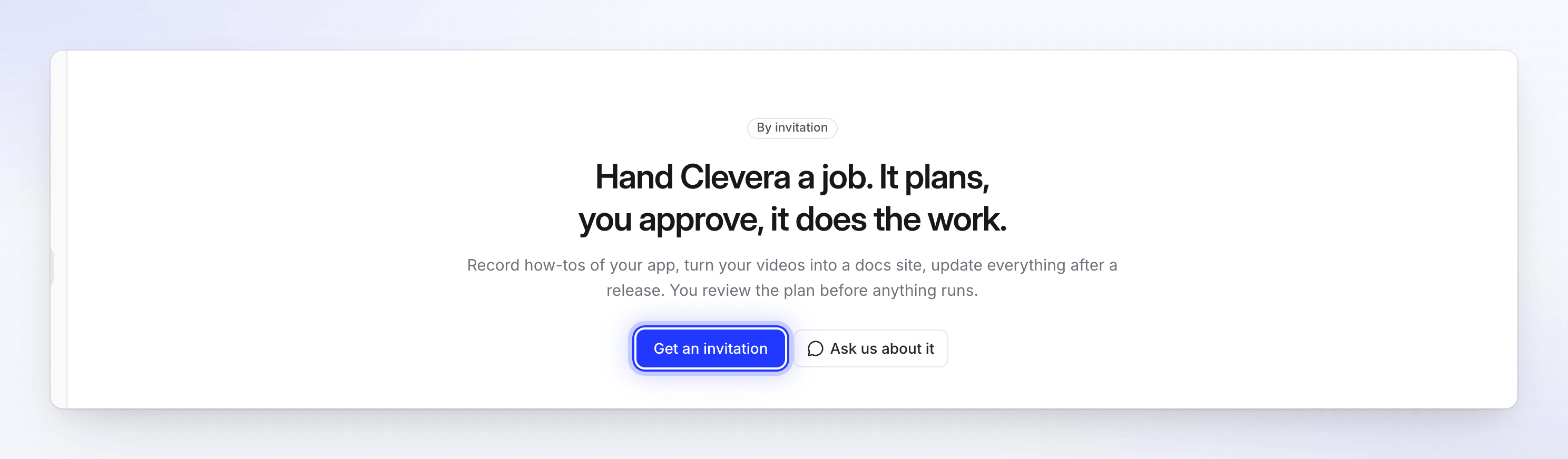
Ask for an invitation
Anyone in a Pro, Business or Custom workspace can ask. One request per workspace waits at a time.
Open Autopilot
Click Autopilot in the sidebar, then Get an invitation.
Tell us what you would hand over
Fill in the three fields.
Field What to write Your use case Who you are and the job you would hand Clevera, for example "We ship every two weeks and our help videos fall behind." What you want to make How-to videos, a help center, updates after a release: whatever you would like done Your app’s address The web app Autopilot would work in, for example https://app.example.com. A sign-in page is fine.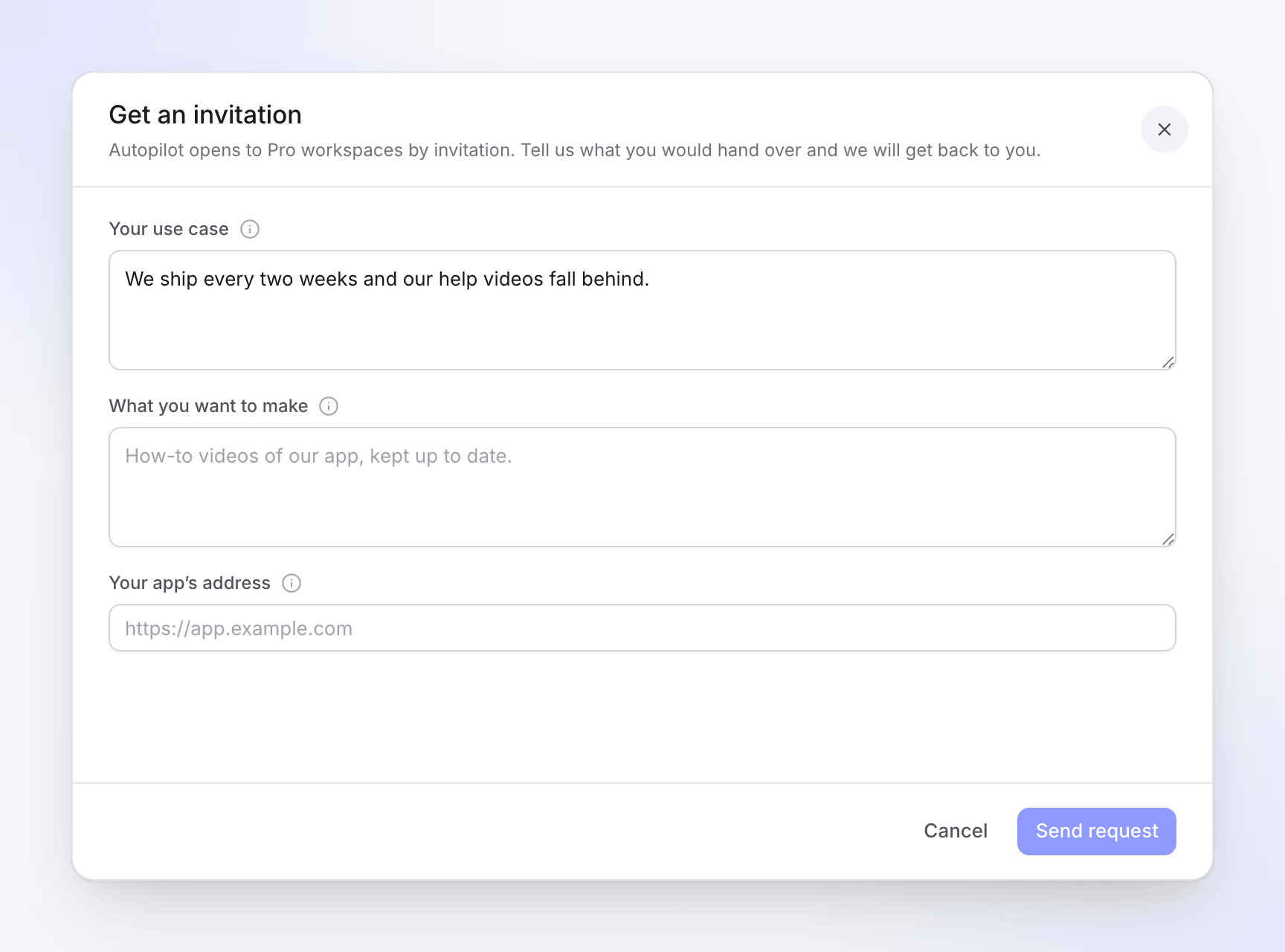
Send it
Click Send request. The page then shows We have your request with the date you sent it.
If someone in your workspace already asked, you see "Your workspace already has a request waiting. We’ll let you know." To ask a question first, click Ask us about it: it opens the support chat.
What happens next
The Clevera team reviews each request. You hear back by email and in your Clevera inbox. Both the person who asked and the workspace owner are told.
| Answer | What you get | What to do |
|---|---|---|
| Approved | "Autopilot is ready for" your workspace, "Your invitation request was accepted. Hand Clevera your first job.", with Open Autopilot | Open Autopilot, type a job in What should Autopilot do? or click a recipe. See Set up an Autopilot task. |
| Declined | "Your Autopilot request for" your workspace "wasn’t accepted this time", sometimes with a note from us | Send a new request from the Autopilot page. It says "Your last request wasn’t accepted. You can send a new one." |
These notices are listed as Autopilot access approved and Autopilot request declined in your notification settings.
Once you're in: who can do what
Everyone in the workspace can open Autopilot. Owners, Administrators and Content Creators can set tasks up; Editors can see every task and what it made but can't start or change one. Only owners and admins change Autopilot's settings, connections and app sign-ins. See who can do what.