

Make your first video from the Home prompt
Type one sentence on Home, answer a few questions in the setup chat, check the settings on Compose and press Generate. This walks through your first video from start to finish, with what each step costs.
The quickest way to make your first video is to describe it in the box on Home. A short setup chat picks the right type and gathers what it needs, then Compose opens with everything filled in, and you press Generate. This article walks through the whole path, from the first sentence to a finished video you can edit and share.
Before you start
- Verify your email. On the Free plan, Clevera asks you to confirm your email address before your first generation. Look for the verification link in your inbox.
- Have your material ready, if you have some. A screen recording, a website address, a few screenshots or a PDF all help. You don't need any of them to start: the setup chat offers ways to make a recording, and social clips can be made from a description alone.
- Know your plan. Social clips and the AI avatar are part of the paid plans. On Free you can make how-to videos, product demos, polished recordings and articles, with videos up to 3 minutes. See Know what the Free plan includes.
Make your first video
Describe what you want on Home
Open Home. Under the heading What do you want to make?, type one or two sentences in the box that says Describe your video., then press Enter or click the round Start button.
Say what the video is for and who will watch it. For example: "A how-to for new customers on creating their first invoice in Acme Billing" or "A 30-second Reel announcing our new dark mode".
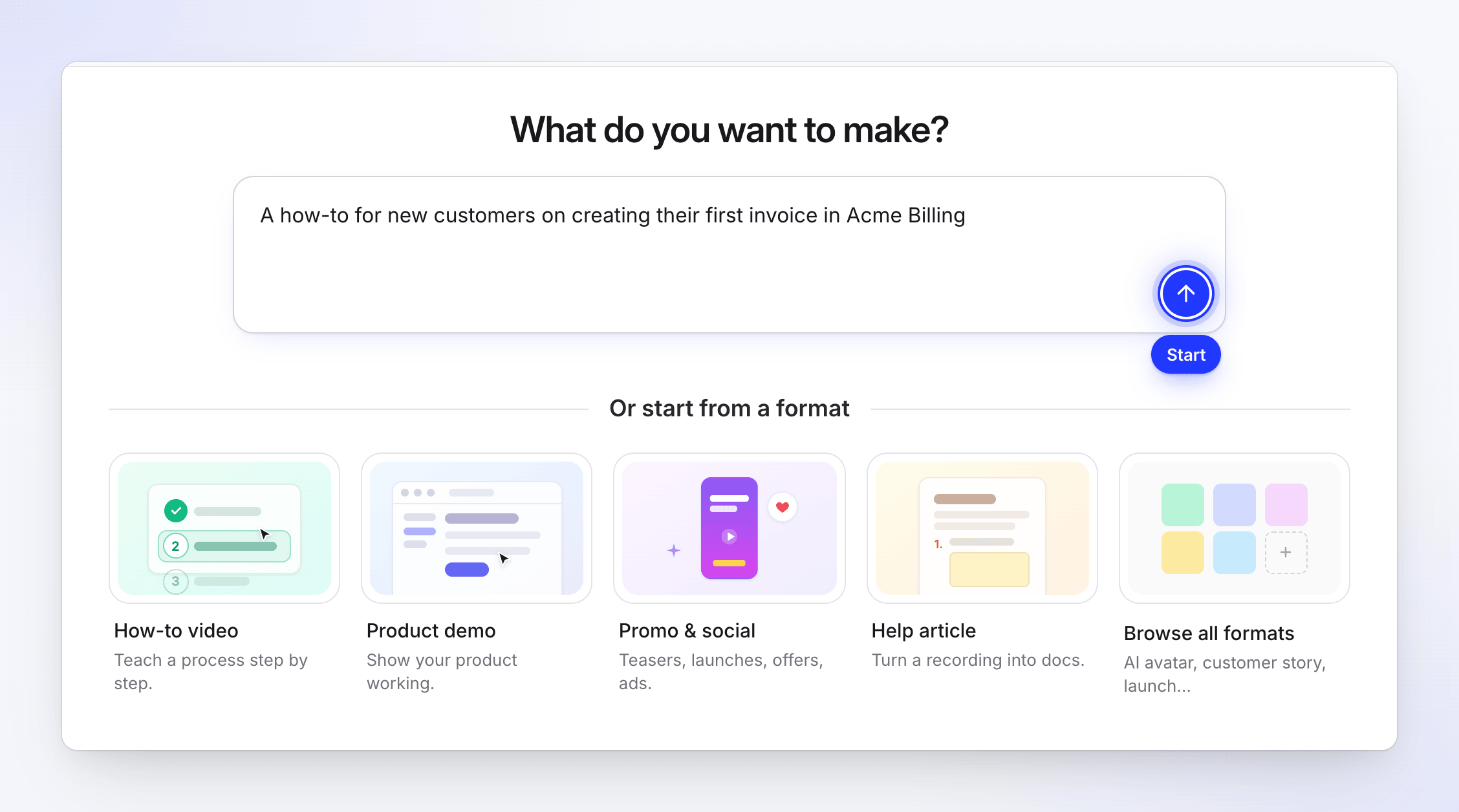
Describe the video in a sentence or two, then press Enter. Answer the setup chat
Opening your chat… appears, then the setup chat opens on a page titled New video. It asks one question at a time, usually no more than four: the type, what to make it from, what the video is about, and any fact the type can't do without (an offer's terms, say).
Click an answer, or type your own in the box that says Reply in any language…. You can write in any language; the video's language is a separate setting. See Plan a video with the setup chat.
Add your material
When the chat asks what to make the video from, pick what you have. The choices depend on the type:
- How-to video and Product demo: a recording already in Clevera, a video file to upload, Record with AI, pictures or a PDF.
- Article: a recording, an upload or Record with AI.
- Polish my footage: a recording or an upload only.
- Social clips: a website, pictures, a PDF, an upload, a recording, or just a description.
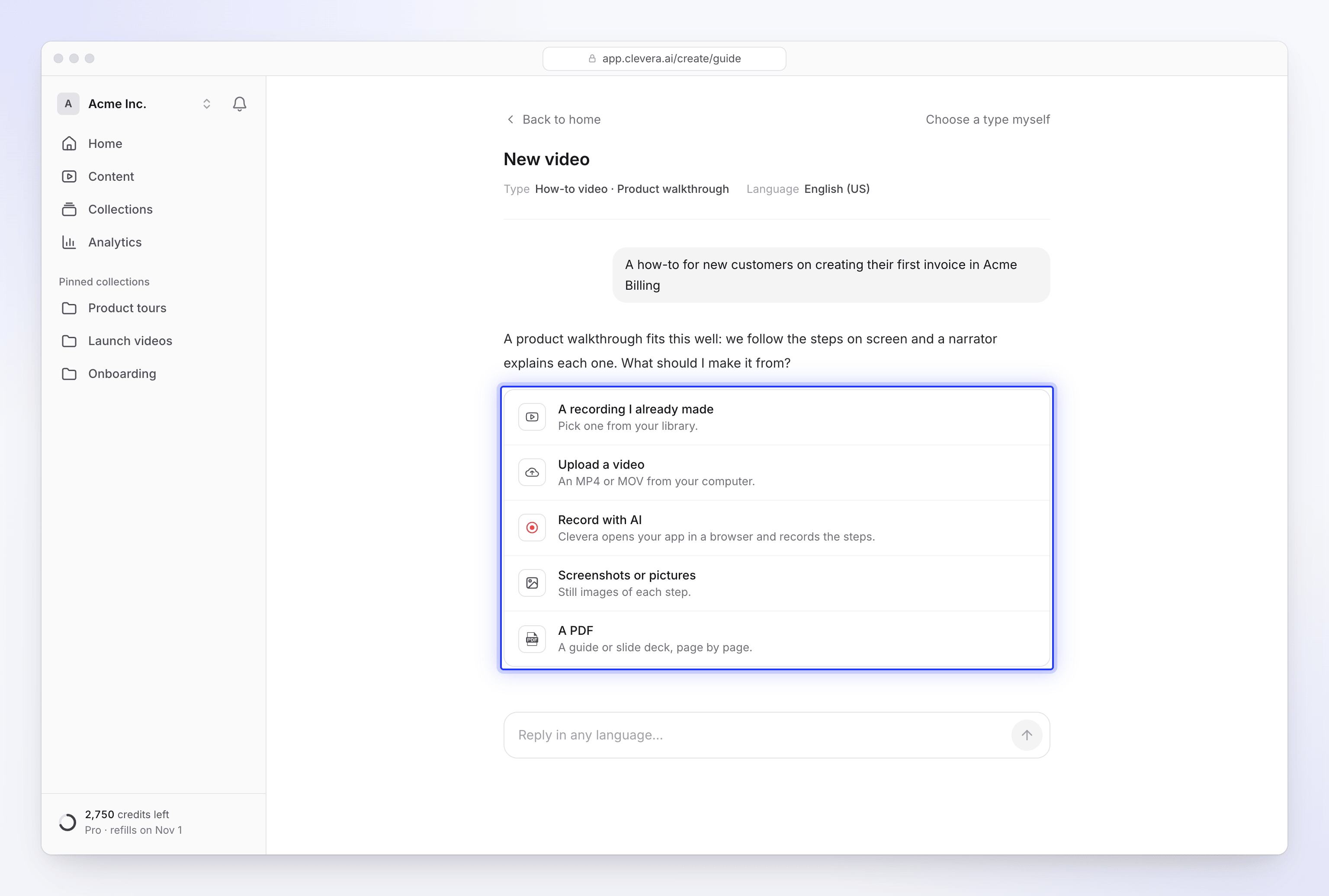
One question at a time. Click an answer or type your own. Record with AI records your product in a cloud browser while you watch. Uploads go straight into your setup.
Pick the settings
Once the essentials are in, settings appear under the chat one at a time: the video language, voice, captions, and for social clips also format, length, tone, look, music and quality. Each one starts on a Recommended choice. Pick a different option, or click Skip — use recommended for the rest.
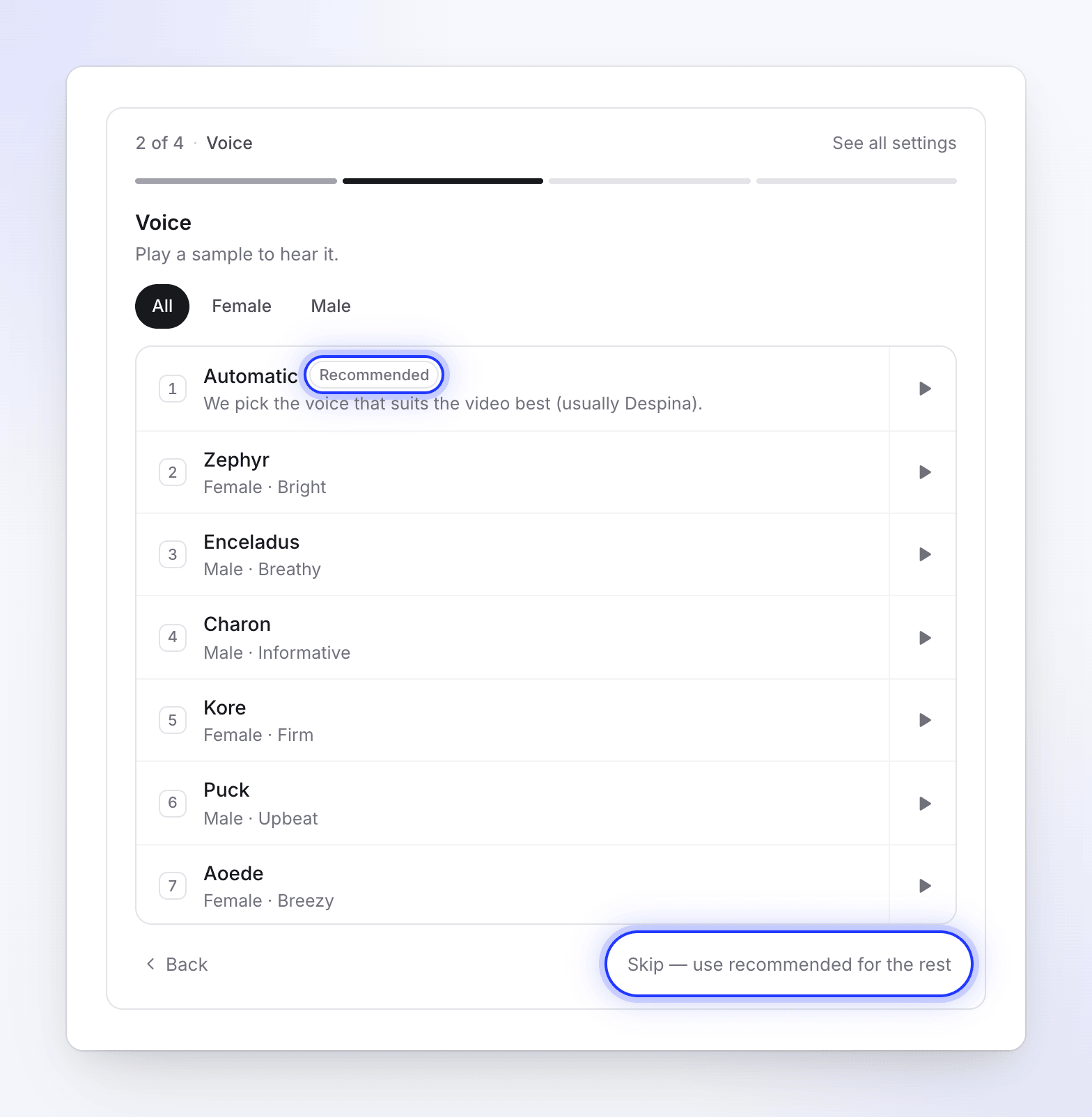
Each setting starts on the recommended choice. The last panel, Ready to create, shows the whole setup, the brief the chat wrote for you (you can edit it) and the credit estimate.
Continue to Compose
Click Continue to create. Compose opens with everything filled in and a line at the top that reads Set up from your chat · Back to chat. Nothing has been generated yet, and nothing has used credits.
Check the brief, the attached material and the settings pills under the box. Change anything you like here. See Set the video's options with the pills.
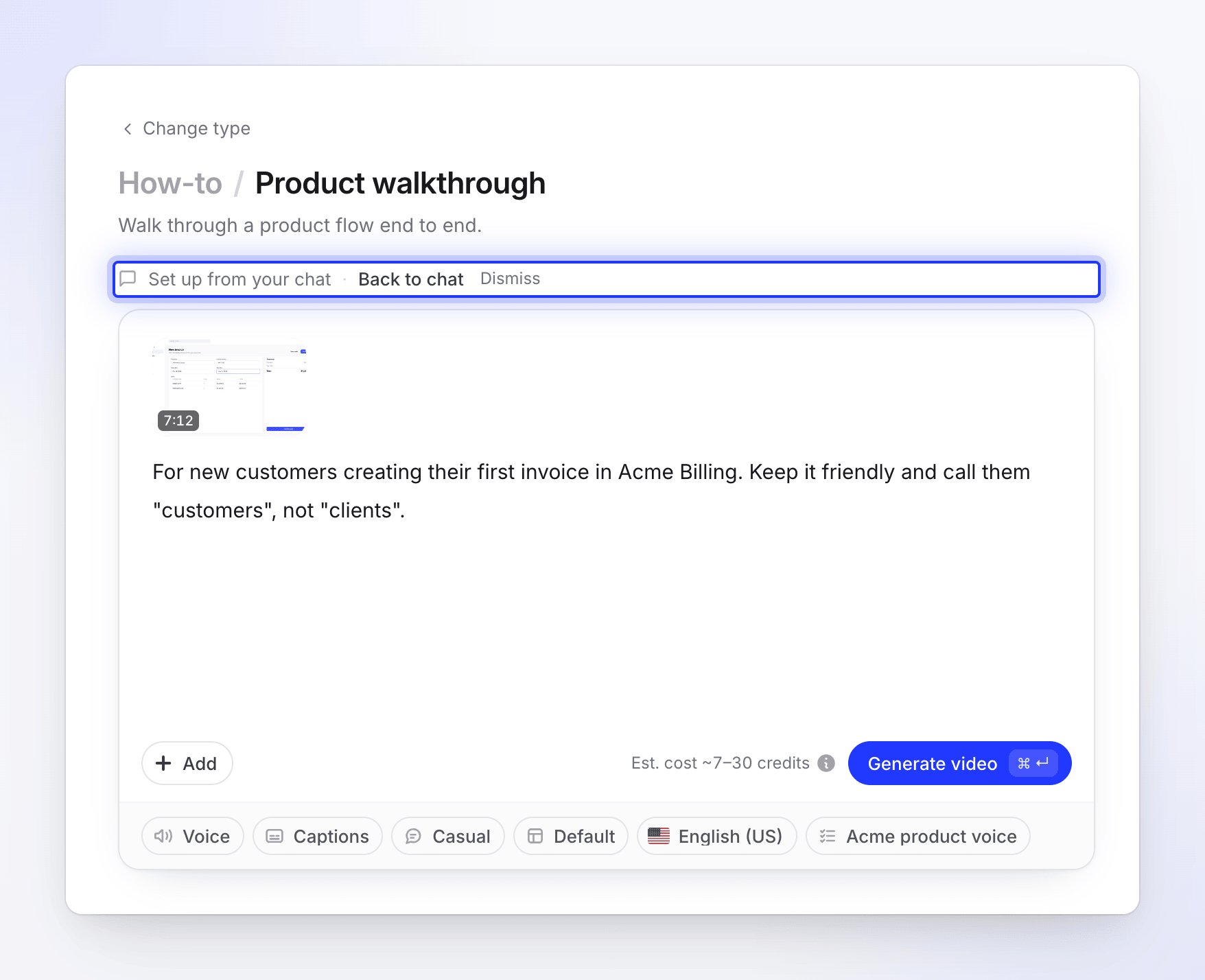
Everything from the chat is filled in. Change anything before you generate. Check the estimate and press Generate
Beside the button you see Est. cost ~X–Y credits. It's an estimate, not a limit: you're charged what the job actually uses.
Click Generate video (or Generate article), or press ⌘↵ on a Mac or Ctrl↵ on Windows. If something is missing, a short message points at it instead. See Fix what's missing when you press Generate.
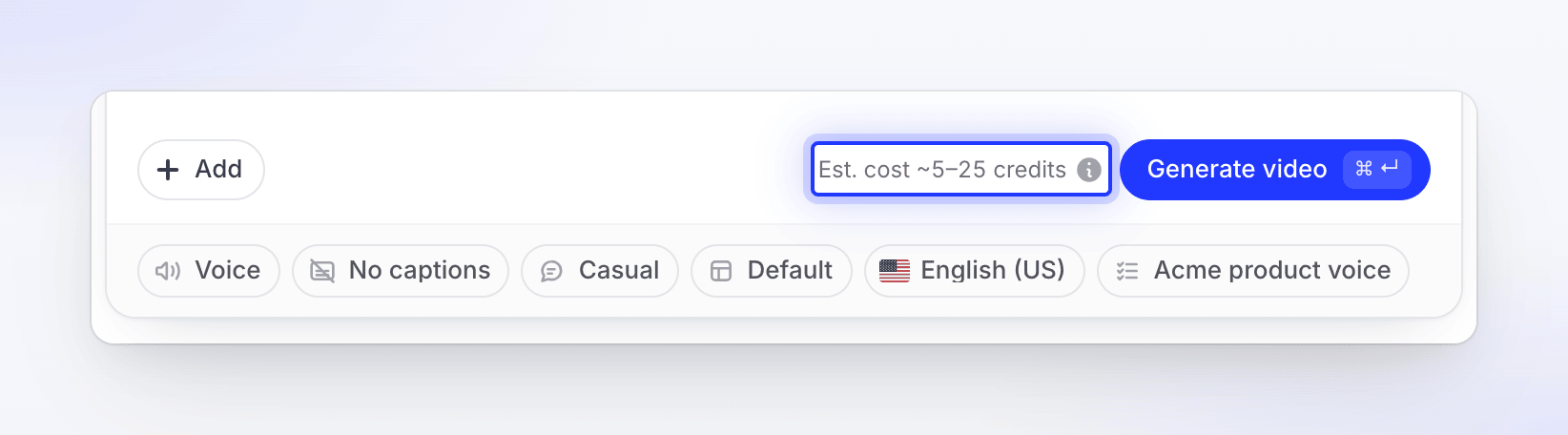
The estimate is a typical range, not a limit. Follow it while it's made
The page We're making your video shows five stages, from Looking at your materials to Finishing up, with a running feed of what the AI is doing. You can close the tab: the video keeps going, and it's listed on Home while it runs.
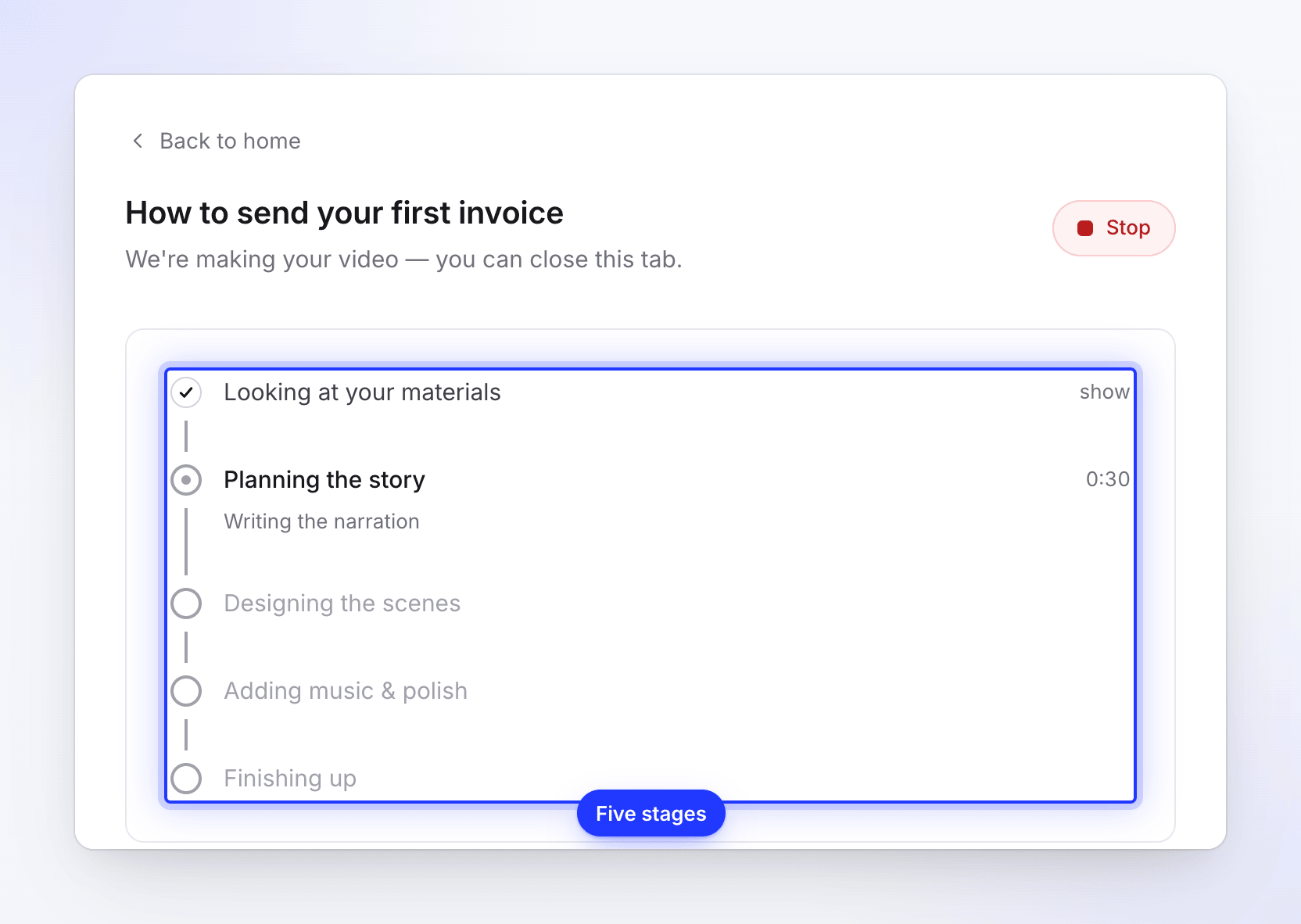
You can close the tab; the video keeps going. If the AI needs an answer from you, a question card appears and a chime plays. See Follow your video while it generates.
Open your video
When it's ready, the page says Your video is ready. Click Open your video to open it in the editor, where you can change the script, voice, music and more, then export an MP4 or share a link.
Other ways to start
The Home box is one of several doors into the same flow.
| Where | What it does |
|---|---|
| Or start from a format cards on Home | How-to video, Product demo, Promo & social and Help article open the Create gallery on that family. Browse all formats shows every type. |
| Create button | Opens the Create gallery, where you pick a type yourself. See Pick a video type in the Create gallery. |
| Choose a type myself in the setup chat | Leaves the chat for the gallery and carries your text with you. |
| From a recording | Open a recording and choose what to make from it. The gallery pins that recording at the top. |
| Continue your last setup under the Home box | Reopens a setup chat you didn't finish. |
What it costs
Planning in the setup chat is free. Credits are used only after you press Generate, and only for the work the job actually does.
| First video | Typical credits |
|---|---|
| How-to or product demo (recording up to 5 minutes) | 5–25 |
| Article | 5–15 |
| Social clip at the default High effort | 50–120 |
Exporting the finished video is always free. The Free plan includes 100 credits a month. See Read the credit estimate before you generate.
Tips for a good first result
- Say who it's for. "For new admins" or "for prospects on a sales call" changes the narration more than any setting.
- Name the one thing to show. A how-to that covers one task is clearer than a tour of everything.
- For a how-to or demo, record cleanly. Move at a steady pace and pause briefly after each click. The AI writes the narration to match what happens on screen. The Clevera desktop app captures clicks and cursor moves, which gives the best zooms.
- For a social clip, give it facts. Attach your website or a few screenshots, or write a couple of sentences about the product and the audience. Without material, the brief needs at least 100 characters.
More in Write a brief that gets a good video.
Troubleshooting
| Message | What to do |
|---|---|
| "Tell us a little more about what you want to make." | Your text is too short. Add a few words. |
| "Add a few words about what you want to make." | The box has no letters or numbers in it, only symbols. Describe the video in words. |
| "Keep it under 1,000 characters — you can add more detail on the next step." | Shorten the first message; the chat and Compose take the rest. |
| "Too many tries — wait a moment and try again, or browse the formats." | Wait a minute, or click Browse formats to pick a type yourself. |
| "That took too long. Try again, or browse the formats." | Press Start again, or browse the formats. Your text is kept. |
| "We could not pick a format just now. Try again, or browse the formats." | Try again, or pick a type in the gallery. |
| "Please verify your email address before your first generation. Check your inbox for the verification link." | Click the link in the verification email, then press Generate again. |
If the setup chat can't start at all, Clevera falls back to picking a format for you from your text and opens Compose or the gallery directly.