

Review and confirm an assistant plan
Big assistant changes start with a plan card: what will change, an estimate in credits, your balance before and after, and Confirm or Cancel. Small edits are free each day up to an allowance.
When you ask an assistant for a big change, it shows you a plan with a credit estimate first and changes nothing until you confirm. Small edits apply at once, and they're free up to a daily allowance.
This works the same in the video assistant (how-to videos and product demos), the social clip assistant and the article assistant.
When you get a plan
The assistant decides by the size of the change, not by the words you use.
| Assistant | Shown as a plan first | Applied at once (with Undo) |
|---|---|---|
| Videos from your recording | A voice change for the whole video, an aspect ratio change, a change to more than 5 things (each voice-over line, the title, each heading, each zoom or overlay counts once), or a "make it better" request across many or all scenes | Smaller edits: one or a few lines, a zoom, a card, the music |
| Social clips | A redesign ("make it look more premium", a new style for every scene), or a change to more than 5 things | Edits to one scene or a few things |
| Articles | A broad edit: more than 12 blocks, or "make this better" across the whole article | Edits to one block or a few blocks |
The plan opens with a short line, for example "This changes a large part of the video, so here is the plan first:" or, for a clip, "This needs a redesign. Here is the plan:".
Read the plan card
Check what will change
The Plan card lists each change in plain words, for example "Shorten every line in the intro chapter" or "Switch the music to a calmer track".
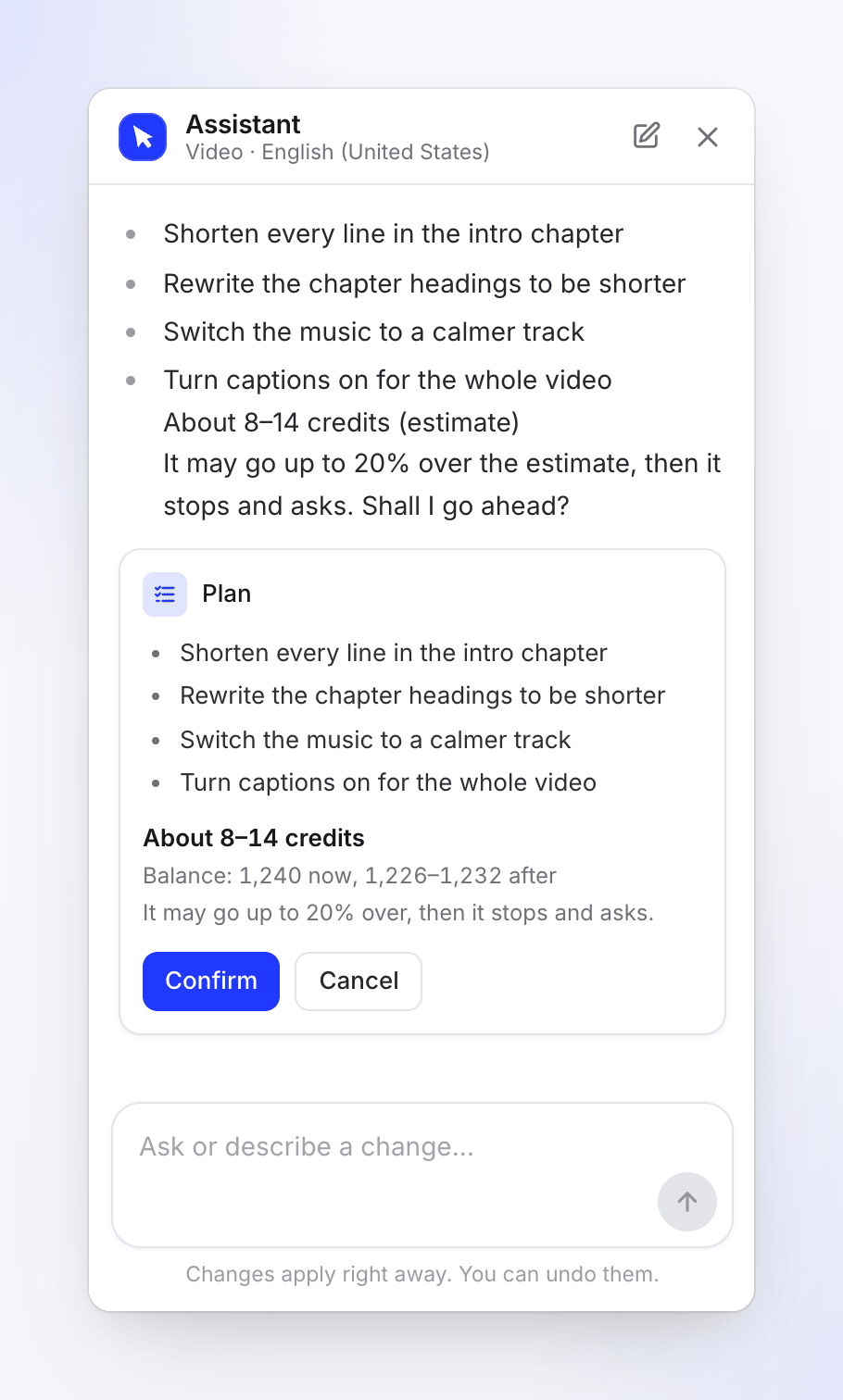
Each change is listed before anything happens. Check the estimate
Under the list you see:
- About X–Y credits: what the work is expected to cost. A closed range shows one number ("About 40 credits").
- Balance: N now, A–B after: your workspace's credits now, and what's left after the low and the high end of the estimate.
- "It may go up to 20% over, then it stops and asks.": the work never runs past the high end plus 20% without asking you.
Pick the effort (social clip redesigns)
A clip redesign also shows Effort with 1x, 2x and 3x: "More effort designs each scene with more care, and costs more." 1x is picked first. The estimate and the balance line follow your pick, and hovering an option shows its estimate.
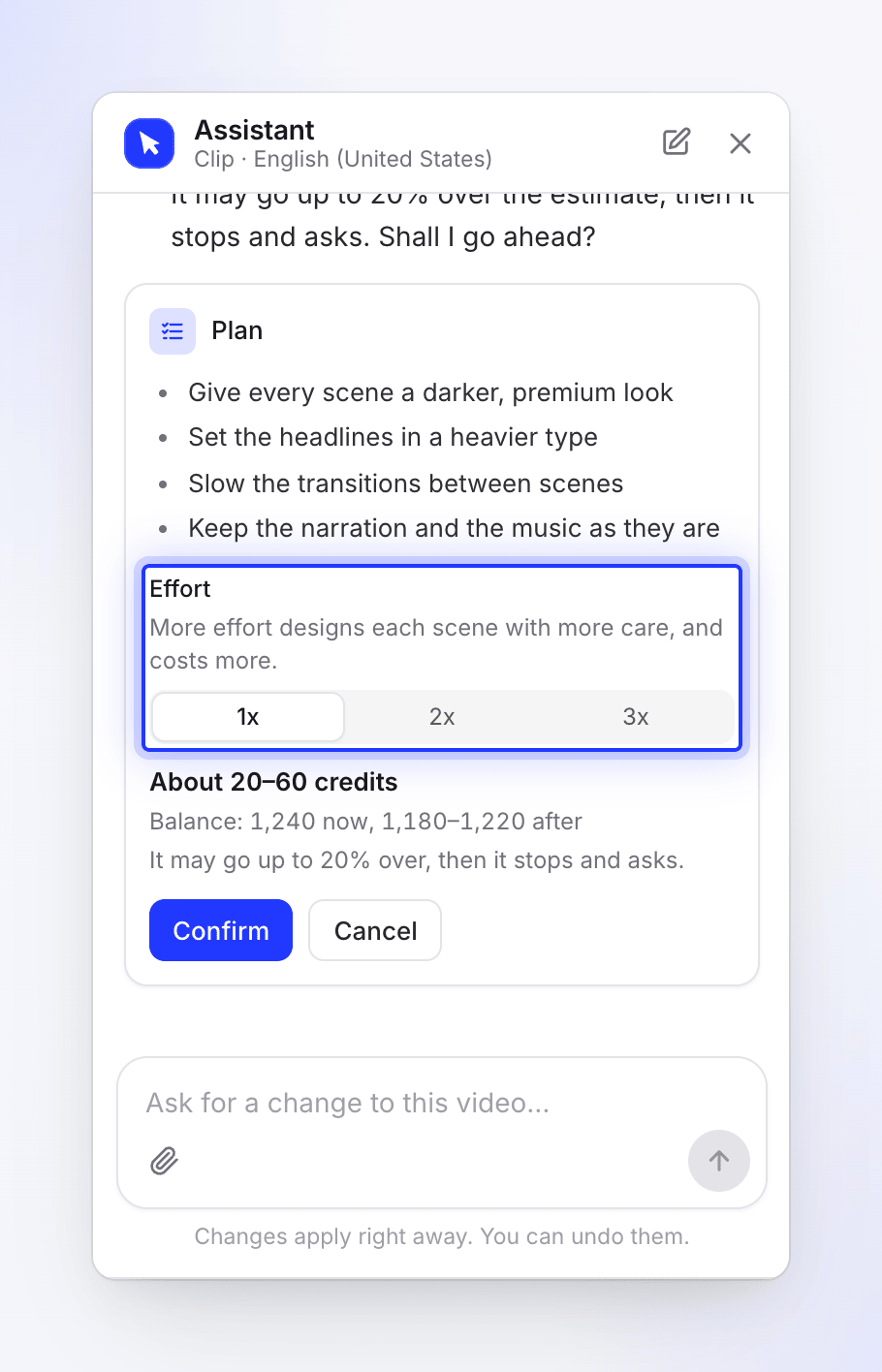
The estimate follows the effort you pick. Confirm or cancel
Click Confirm to start, or Cancel to drop the plan. You can also answer in the chat: a typed "yes, go ahead" or "no thanks", in any language, works like the buttons.
After you confirm, the assistant works through the plan. Social clip redesigns are planned scene by scene, and the panel shows what it's working on, with "Still working…" when it has been quiet for a minute.
What you pay
- Making the plan counts as a small edit, so it's covered by the daily free allowance below.
- Cancel costs nothing more. Nothing in your video or article changes.
- A confirmed plan always uses credits for the work it does, usually within the estimate. If it reaches the high end plus 20%, it stops and asks before it goes on.
- On a social clip, the estimate for 2x is about twice the 1x estimate, and 3x about three times.
Assistant work shows as AI assistant edit on the Usage page. See Check where your credits went.
Free small edits each day
Small assistant work is free every day, up to an allowance per workspace: answers to questions, simple edits, a change to one scene, and the planning run before a plan card. The allowance is larger on paid plans and grows with extra seats. It resets at midnight UTC.
When today's allowance is used up, the assistant keeps working. Each reply then carries a quiet line, "Free assistant edits used for today; further edits use credits (~1 each).", and small edits use credits until the next day.
What can't be undone
Most confirmed changes can be undone like any other assistant change: with Undo on the change, Undo in the top bar, or an earlier version in the history.
One exception: a voice change for the whole video. Its plan says "This voice change can't be undone with Undo; to go back, ask for the old voice in a new request."
When a plan expires
A plan stays open for 24 hours. After that its buttons turn off and the card says "This plan expired. Ask again for a new one." Send your request again to get a fresh plan with a fresh estimate.
Troubleshooting
| Message | What to do |
|---|---|
| "This plan expired. Ask again for a new one." | Send the request again. |
| "It changed since this was planned. Plan it again." | Something in the video or article changed after the plan was made. Ask again for a new plan. |
| "Free assistant edits used for today; further edits use credits (~1 each)." | Today's free allowance is used. Small edits now use credits until midnight UTC. |