

Review and edit a brand
A brand's page shows everything Clevera found: logos, colors, fonts, voice, business and competitors, each with its source. Fix any value, lock it so exploring again keeps it, add files, and set the default brand.
Each brand has its own page with everything Clevera found about it, sorted into tabs. Check it once after the first exploration: anything you correct or lock stays when the brand is explored again, and every template, clip and task made for the brand uses it.
Before you start
Owners, admins and Content Creators can edit brands. Editors see the same page with Edit, Explore again and the ⋯ menu turned off: "Your role can view brands but can't add or change them."
Open a brand
Click Brands in the sidebar, then a brand's card. The header shows its logo, name, tagline, website (or From your files) and when it was last explored. A star and Default mark the workspace's default brand.
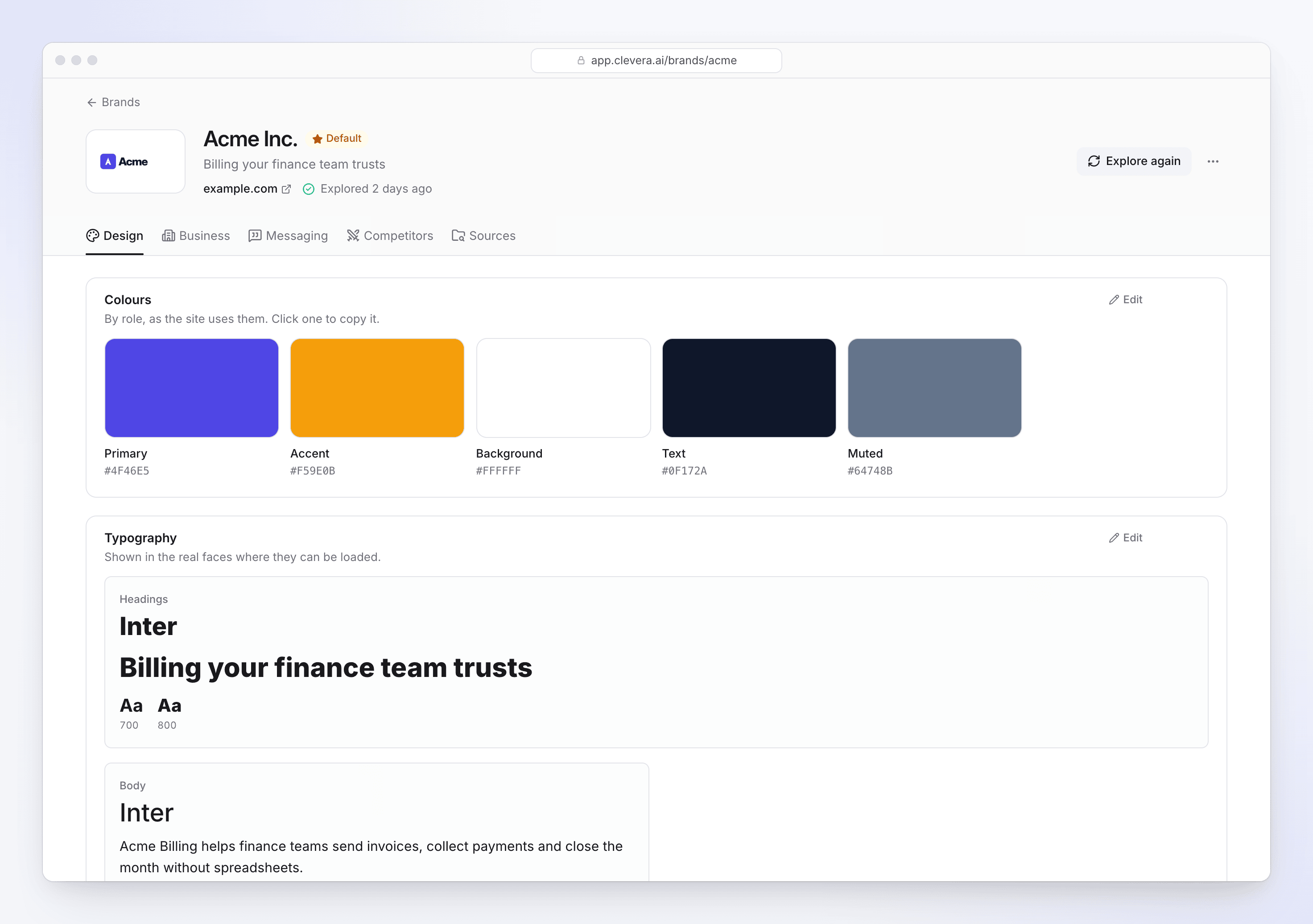
What each tab holds
| Tab | What's in it |
|---|---|
| Design | Logos ("Put each logo with the background it is made for."), Colours by role (click one to copy it), Typography, Buttons and corners, Key images, Imagery, and the site's design taste: Style and For videos, with what to keep (Do) and what to stay away from (Avoid). |
| Business (or Organisation) | What they do in their words, short pitches (10-second pitch, 30-second pitch), products and features, who they sell to and the problems they solve. |
| Messaging | Positioning, proof (customers, numbers, testimonials) and Voice: how they sound, We say / We avoid, formality and how they ask for the click. |
| Competitors (or Comparable organisations) | Who they compete with, how they differ and how to win against each, with the research behind it (Show research). |
| Sources | The pages read, Your files, web searches used and Past explorations, each with what it added, changed or kept. |
An empty field says "Not found on the site.", "Not found in your files." or "Not found on the site or in your files."
Fix a value
Turn on editing
Click Edit at the top right of a section. While the brand is still being explored, sections can't be edited.
Change it
Type the new value, pick another font ("Pick a Google font for each role."), click a color swatch to change it, or add and remove list items (Add an item, then press Enter). Click Save on a field, then Done on the section. A changed field is marked Edited.
Lock what must not change
Lock a field ("Lock: exploring again keeps it") to keep it exactly as it is the next time the brand is explored. Edited fields are kept too. Click Unlock to let exploring update it again.
To see where a value came from, open Where this came from on the field: "Measured from the site's CSS", "Read from the page", "Read by AI from the pages", "From a web search", "Seen in the site's images" and so on, with the source links. A value with "Low confidence" is worth a check.
Add files or explore again
- Add files on the Sources tab, in Your files ("Logos, pictures, a PDF or a video. Explore again to read new files."). Remove a file there too.
- Explore again in the header reads the website and your files again: "Values you edited or locked stay as they are." You can add links and a note first. It counts toward the 20 explorations a workspace can run a day and uses no credits.
Rename, set the default or delete
Open the ⋯ menu in the header:
| Item | What it does |
|---|---|
| Rename | Changes the brand's name everywhere it's offered. |
| Set as default | Makes it the workspace's default brand: templates, social clips and Autopilot tasks start with it. |
| Delete brand | "The brand and its explorations leave this workspace. Nothing that was already made changes." It no longer counts toward your plan's limit. |