

Save videos to OneDrive
Connect a personal or work OneDrive and save a finished Clevera video as an MP4 into a Clevera folder, named after the video, with a subfolder for its collection. Nothing is posted or shared.
Save a finished Clevera video into your OneDrive as an MP4 file. It works with personal Microsoft accounts and with work or school accounts. Clevera names the file after the video and puts it in a subfolder named after the video's collection. Nothing is posted or shared.
For how publishing works across every platform, see Publish videos to your platforms.
What lands where
| Where it goes | Clevera / <collection name> / <video title>.mp4 in your own OneDrive by default. You can pick another folder. |
| Sharing | None. The file is private to you unless the folder is shared. |
| What Clevera fills | File name (the video title) and Subfolder (the collection). No AI writing. |
| What it costs | No per-send fee. |
| After you send | The status goes straight to Saved to OneDrive. Open in OneDrive opens the file. |
Before you start
- Plan. Publishing is part of the Pro plan and above.
- Role. Only workspace owners and admins can connect or disconnect an account. Anyone who can edit a video can save to an account that's already connected.
- Account. A personal Microsoft account, or a work or school account with OneDrive. Clevera saves to your own OneDrive; SharePoint sites and shared libraries aren't supported.
- Work accounts. Some organizations don't let people approve apps themselves. If Microsoft says Need admin approval, ask your IT admin to approve Clevera for your organization, then connect again.
Connect OneDrive
Open Integrations
Open Integrations from the sidebar. OneDrive is under Storage, and its row says Sign in with Microsoft.

Sign in with Microsoft
Click Connect. Microsoft asks you to pick an account, so you can choose between a personal and a work account. Then it shows what Clevera is asking for:
- Have full access to your files, limited to your own OneDrive. Clevera needs it to create the Clevera folder, list your folders in the picker and upload the video.
- Sign you in and read your profile, to show the account in Clevera.
- Maintain access to data you have given it access to, so you don't have to sign in again every hour.
Clevera doesn't ask for access to other people's files or to SharePoint.
Accept
Click Accept. You land back on Integrations with the account on the OneDrive card.
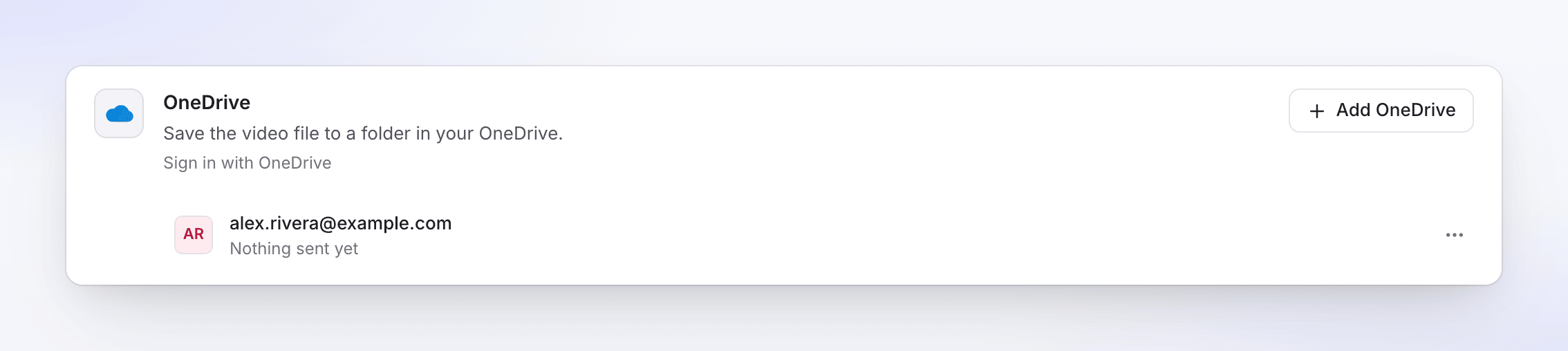
If the account has never used OneDrive, connecting fails with "This Microsoft account has no OneDrive. Open OneDrive once to set it up, then connect again."
Save a video to OneDrive
Open the Publish tab
Open the video, click Share, then Publish. Click Publish… (or Publish again).
Tick the OneDrive account
Under Send to → Storage, tick the OneDrive account.
Check the file name and folder
The details are filled in already. Change them if you like; changes save as you type. The preview shows the full path.
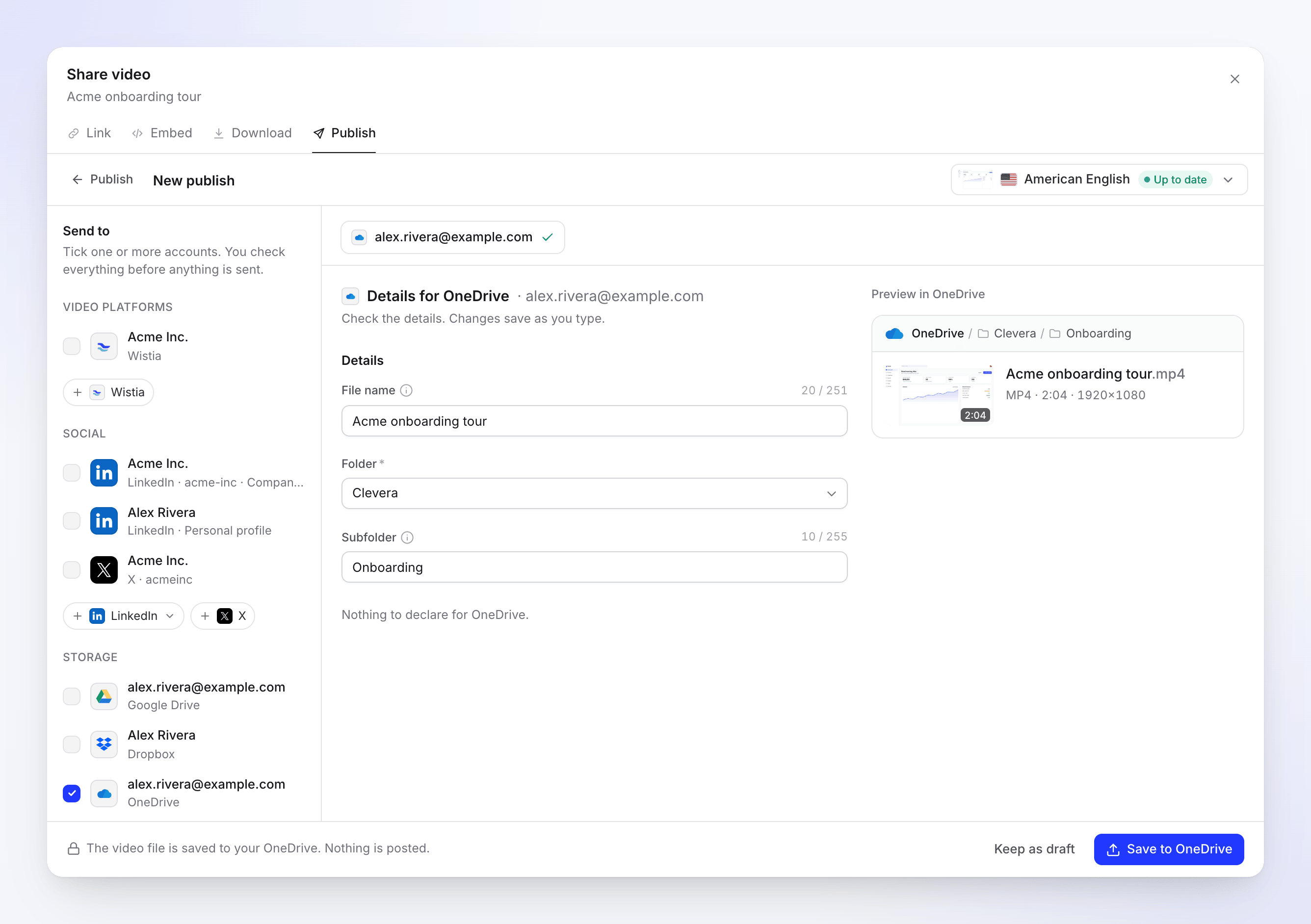
The preview shows the path: OneDrive / Clevera / Onboarding / Acme onboarding tour.mp4. Save it
Click Save to OneDrive. The note says "The video file is saved to your OneDrive. Nothing is posted." To finish later, click Keep as draft.
File name and folders
File name starts as the video's title, in the language of the selected render. Leave it empty to use the title. Clevera always adds .mp4.
Folder decides where the file goes:
| Choice | Where the file goes |
|---|---|
| Clevera (default) | A folder named Clevera at the top of your OneDrive. Clevera uses it if it exists and creates it if not. |
| OneDrive | The top of your OneDrive. |
| Any other folder | Your top-level folders and the folders inside Clevera, sorted by name. |
Subfolder starts as the name of the video's collection and is created inside the chosen folder if it doesn't exist. Clear it to save straight into the folder. A video that isn't in a collection has no subfolder.
The folder list is refreshed about once an hour, so a folder you just created may take that long to appear.
Fields and limits
| Field | Limit | Notes |
|---|---|---|
| File name | 251 characters (255 with .mp4) |
Optional. The counter shows characters, for example "20 / 251". An emoji counts as 2, so near the limit a note says "An emoji counts as 2." |
| Folder | One of the listed folders, required | Remembered per account for next time. |
| Subfolder | 255 characters | Optional. Created if missing. Counted the same way. |
A name that's too long is marked "Too long: the limit is 251 characters (an emoji counts as 2)." (255 for the subfolder).
OneDrive doesn't allow " * : < > ? / \ | in names. Clevera replaces them when it saves: " becomes ' and the others become -. It also handles OneDrive's reserved names: a name such as CON or desktop.ini gets an underscore added, and a leading ~$ is dropped.
OneDrive also limits the whole path (folders plus file name) to 400 characters. Keep folder names short if you nest deeply.
Same name twice? Clevera never overwrites a file. If the name is taken, OneDrive keeps both and adds a number to the new one.
Video requirements
| Limit | |
|---|---|
| File size | Up to 250 GB |
| Format | MP4 |
Statuses you'll see
| Status | What it means |
|---|---|
| Waiting for render | Saves as soon as the render finishes. It sits under Sends after the render, above Sent. |
| Queued / Uploading N% | The file is on its way to OneDrive. |
| Saving to OneDrive | The file just arrived and is being filed. It may show for a moment; there's no separate processing step. |
| Saved to OneDrive | "Saved to your OneDrive." Open in OneDrive opens the file. |
| Failed | Nothing was saved, or the save didn't finish. The message says why. |
| Removed | The file was deleted in OneDrive. |
In OneDrive afterwards
The file is a normal MP4 in your OneDrive. Share it, move it or rename it there. Clevera doesn't create a share link and doesn't change the file after saving it.
Troubleshooting
| Message | What to do |
|---|---|
| Need admin approval (on Microsoft's page) | Your organization requires an admin to approve apps. Ask your IT admin to approve Clevera, then connect again. Contact support if your admin needs a direct approval link. |
| "This Microsoft account has no OneDrive. Open OneDrive once to set it up, then connect again." | Open onedrive.com with that account once, then connect again. |
| "Too long: the limit is 251 characters (an emoji counts as 2)." | Shorten the file name (or the subfolder, limit 255). |
| "There isn't enough free space in your OneDrive. Free some up, then retry." | Make room or add storage, then click Retry. |
| "OneDrive didn't accept some of the details. Check them and send again." | The folder was deleted or you lost access to it, a file already uses the subfolder's name, or the path is too long. Pick another folder or shorten the names, then save again. |
| "Reconnect your OneDrive account to send this." | The connection ended, for example after you removed Clevera from your Microsoft account. Click Reconnect, then Retry. |
| "OneDrive rejected the video: the file is larger than allowed." | Render at a lower resolution. |
| "The upload was interrupted. Retry to carry on from where it stopped." | Click Retry. |
| "Something went wrong while sending this to OneDrive. Please try again. Reference: …" | Click Retry. If it keeps failing, contact support with the reference. |
Disconnect OneDrive
- Open Integrations, find the account on the OneDrive card and click ⋯ → Disconnect.
- Confirm. Saves still in progress stop, and files already saved stay in your OneDrive.
- Remove Clevera on Microsoft's side too. Microsoft has no way for an app to give up its own access, so Clevera only forgets its sign-in. The confirmation reminds you: "Also remove Clevera from the connected apps in your OneDrive settings."
- Personal account: go to
account.live.com/consent/Manageand remove Clevera. - Work or school account: go to
myapps.microsoft.com, find Clevera and choose to remove it, or ask your IT admin.
- Personal account: go to
FAQ
Can I save to a SharePoint site or a shared library? No. Clevera saves to your own OneDrive only.
Can I connect a work account and a personal account? Yes. Click Add account and pick the other account on Microsoft's page. Each shows as its own row.
Does Clevera share the file? No. Share it from OneDrive.
Does saving use credits? No. There's no per-send fee for storage.
Why is my file in a subfolder? The subfolder is the video's collection. Clear Subfolder before saving to put it straight in the folder.